Self-host Apache Superset
Dashboards and SQL on your own data, signed in with your exe.dev login.
Shelley handles the setup. About 15 minutes.
Prefer a terminal?
curl -fsSL https://exe.dev/deploy/superset/prompt.txt | ssh exe.dev new --prompt=/dev/stdinApache Superset is the open-source answer to Tableau and Looker: connect a database, explore it in SQL Lab, and turn the queries into charts and dashboards your team can open. It's an Apache project with about 75,000 stars on GitHub, and it's especially good at fast databases like ClickHouse and PostgreSQL.
On exe.dev, Superset sits behind exe.dev login with HTTPS from the first minute, and people sign in with that login: no Superset passwords to hand out. It comes with 30 million real house sales to play with, and Shelley, on the same VM, builds dashboards for you through Superset's own MCP server.
What you get#
- Superset 6.1 behind exe.dev login, with no Superset passwords; you're its admin.
- People you share the VM with get an account on their first visit, and no data until you grant it.
- ClickHouse's public playground connected, with 30 million UK house sales to chart.
- Superset's MCP server, registered with Shelley, so you can ask for dashboards in plain English.
- Dashboards and charts by email on a schedule, and SQL alerts, through exe.dev's email gateway.
- PostgreSQL for Superset's own data, nightly backups, and a restart after every reboot.
What's running, and where
https://my-superset.exe.xyz/
Superset, signed in with exe.dev login, for you and anyone you share the VM with
Deploy with Shelley#
Click Deploy and Shelley will set up Apache Superset on a new VM, then check that it works. No config-file wrangling required.
Prefer a terminal?
curl -fsSL \
  https://exe.dev/deploy/superset/prompt.txt \
  | ssh exe.dev new --prompt=/dev/stdin
What Shelley is told
Set up Apache Superset on this VM by following the exe.dev recipe at https://exe.dev/deploy/superset.md?via=deploy from top to bottom.

The recipe's example VM name is my-superset. This VM's name is the output of `hostname`: use it wherever the recipe writes my-superset. Skip the step that creates the VM; you are on it.

You are done when all of these are true. Check each one yourself:
- Superset 6.1 behind exe.dev login, with no Superset passwords; you're its admin.
- People you share the VM with get an account on their first visit, and no data until you grant it.
- ClickHouse's public playground connected, with 30 million UK house sales to chart.
- Superset's MCP server, registered with Shelley, so you can ask for dashboards in plain English.
- Dashboards and charts by email on a schedule, and SQL alerts, through exe.dev's email gateway.
- PostgreSQL for Superset's own data, nightly backups, and a restart after every reboot.

Read the whole recipe, including closed details, and follow "Install by
hand" first. The opening walkthrough is for the owner afterwards. Don't
share the VM, connect other databases, or run the later Restore or
Update instructions.
Don't create email reports or alerts.
Work as exedev in ~/superset. Verify docker.service is enabled, every
container but superset-init is up (and healthy, where it has a check),
curl -fs localhost:8000/health prints OK, the backup timer is enabled, and the first archive lists
superset.dump.
Then build the dashboard from "Ask Shelley for a dashboard" yourself,
with `shelley mcp` and the superset server only, as a check that the MCP
server works. Finish with https://<vm>.exe.xyz/ and the dashboard's link.

Finish with the URLs I should open.
Also at /deploy/superset/prompt.txt. The recipe it follows is /deploy/superset.md.
Open Superset#
Open the URL Shelley gives you, like https://my-superset.exe.xyz/, and
sign in to exe.dev. There's no Superset login: you land on its home page as
an admin, under your own email address.
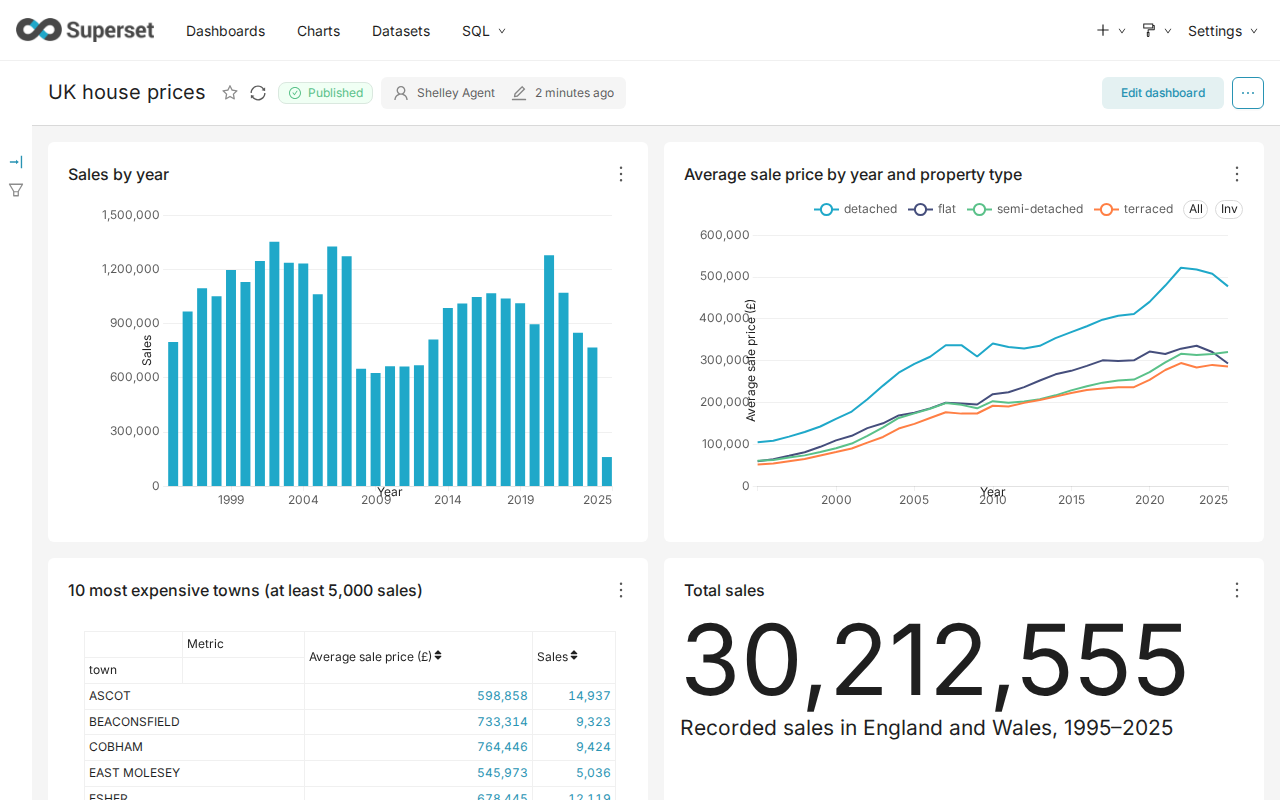
Shelley has already connected ClickHouse playground, ClickHouse's public demo server, and built a dashboard on it. Open Dashboards → UK house prices.
Query 30 million house sales#
The playground's uk_price_paid table holds every home sold in England
and Wales from 1995 to 2025. Open SQL → SQL Lab, press Add a new
tab if there isn't one, pick ClickHouse playground as the database,
and run:
SELECT town, count() AS sales, round(median(price)) AS median_price
FROM uk_price_paid
WHERE toYear(date) = 2024
GROUP BY town
HAVING sales > 1000
ORDER BY median_price DESC
LIMIT 10
St Albans and London top it, at well over half a million pounds, in a fraction of a second. To chart it, press Create chart (the chart icon above the results); to reuse the query in many charts, save it with Save dataset in the toolbar.
Ask Shelley for a dashboard#
Shelley, the agent on your VM, can work Superset through its
MCP server:
list datasets, write SQL, make charts, and lay out dashboards. Open
Shelley at https://my-superset.shelley.exe.xyz/ and ask, in plain
English. This is the
request behind the dashboard above:
Superset runs on this VM (see ~/superset), and its MCP server is registered
with you as superset (use `shelley mcp`). Build me a dashboard called
"UK house prices" from the table default.uk_price_paid in "ClickHouse
playground": average price by year split by property type (leave out
"other"), the 10 most expensive towns with at least 5,000 sales, the number
of sales per year, and a big number with the total number of sales.
Use the MCP tools, not the REST API or the database directly.
It takes Shelley a few minutes, and you can ask for changes afterwards
("show prices in whole pounds"). The MCP tools can't delete anything, so if
Shelley leaves a half-made draft behind, delete it under Dashboards. The MCP server acts as a Superset user
called shelley, in the Alpha role: it can read every database
Superset is connected to and make charts and dashboards, but it can't
change people or permissions. Superset's built-in charts get their data
from your databases, so give it read-only database logins, as below.
Claude Code on the VM can use the same server:
claude mcp add --transport http superset http://localhost:15008/mcp
Connect your database#
Go to Settings → Database Connections → + Database, pick your
database, and fill in the form. Superset can read PostgreSQL and
ClickHouse as set up here; for others, add the driver to ~/superset/Dockerfile
(the list
says which) and rebuild as in Update.
exe.dev VMs don't share a private network or expose database ports, so:
-
ClickHouse on another VM, from the ClickHouse page: connect its HTTP API through a VM-to-VM integration, which keeps the exe.dev token off this VM. On your computer:
ssh exe.dev integrations add http-proxy --name clickhouse \
  --target https://my-clickhouse.exe.xyz:8123/ --peer --attach vm:my-superset
In Superset, choose ClickHouse and use host
clickhouse.int.exe.xyz, port443, databaseapp, SSL on, and a ClickHouse user that can only read. exe.dev adds the token on the way; Superset only needs the ClickHouse password. -
PostgreSQL on another VM, from the PostgreSQL page: put both VMs on your tailnet as in Connect from another VM. Superset runs in Docker, which doesn't use Tailscale's DNS, so for Host use the address from
tailscale ip -4 my-postgres.
Give Superset a login that can only read. Superset saves database
passwords encrypted with SUPERSET_SECRET_KEY from ~/superset/.env.
Bring in your team#
On your computer, share the VM with a person or your whole team:
ssh exe.dev share add my-superset alice@example.com
ssh exe.dev share add my-superset team
The first time Alice opens the URL, she gets a Superset account named
alice@example.com in the Gamma role, which sees no dashboards or
data until you grant some. Either:
- open a dashboard, Edit dashboard → ⋯ → Edit properties → Access & ownership, and add Gamma (or a role of your own) under Roles: everyone in it sees that dashboard and its charts, and nothing else; or
- under Settings → List Users, give her Alpha (every database, can make charts) or sql_lab too (SQL Lab on databases she can see).
To make someone an admin from the start, add their address to
SUPERSET_ADMIN_EMAILS in ~/superset/.env (comma-separated) and run
docker compose up -d in ~/superset.
Tip
Removing someone? On your computer, run
ssh exe.dev share remove my-superset alice@example.com; exe.dev stops letting them in at once. To also lock their Superset account, untick Is Active for them under Settings → List Users.
Get dashboards by email#
On a dashboard, open ⋯ → Set up an email report, name it, pick a schedule, and Add: a picture of the dashboard arrives in your inbox on that schedule. Open a chart and its ⋯ menu does the same, and can send the chart's data as CSV or a text table instead. To send a report to other people, or to make an alert, a SQL query that emails you when its answer crosses a line, use Settings → Alerts & Reports.
Superset's worker loads the dashboard in a headless Chromium on the VM,
takes the picture, and hands the email to smtp-relay, a small program
that sends it through exe.dev's email gateway. There's
no SMTP server or mail account to set up.
exe.dev delivers only to you, your team, and people you've shared the VM with who have signed in, and limits how much and how often. Emails arrive as plain text with a link back to Superset and the picture or file attached; ten attachments and 1 MB at most.
Use the API from a script#
Superset's REST API is behind exe.dev login too. A script on another machine uses a VM token and acts as you. On your computer:
ssh exe.dev ssh-key generate-api-key --vm=my-superset --label=superset-api
Then, with the token it printed:
curl -s -H "X-Exedev-Authorization: Bearer $TOKEN" \
  https://my-superset.exe.xyz/api/v1/dashboard/ | jq '.result[].dashboard_title'
Requests that change things also need Superset's CSRF token: fetch it
from /api/v1/security/csrf_token/, keep the cookie, and send it back as
X-CSRFToken with a Referer header.
Keep your data#
Dashboards, charts, datasets, people, and saved connections live in
Superset's PostgreSQL database in ~/superset/postgres, and nightly
backups go to ~/superset/backups. Your business data stays in your own
database. Keep a copy off the VM. On your computer:
scp -r my-superset.exe.xyz:superset/backups .
Backups hold the key that unlocks the database passwords Superset saved, so keep them private. For updates or trouble, ask Shelley, or open the instructions below.
The nuts and bolts#
Happy clicking Deploy? You can stop here. These are Shelley's setup steps and your maintenance reference.
Install by hand
Create a VM#
On your computer (pick another name if my-superset is taken):
ssh exe.dev new --name=my-superset
ssh my-superset.exe.xyz
The default VM (8 GB of memory) suits a team. All remaining installation
commands run on the VM, as exedev. Make Docker start at boot, so
Superset comes back after a restart:
sudo systemctl enable --now docker.service
Write the secrets#
Superset signs sessions and encrypts the database passwords it saves with
SUPERSET_SECRET_KEY. This writes it, PostgreSQL's password, and your
exe.dev address (from the VM's reflection
service) to a file only you can read, once:
mkdir -p ~/superset && cd ~/superset
if [ ! -e .env ]; then
  owner=$(curl -fsS https://reflection.int.exe.xyz/email | jq -r .email)
  touch .env && chmod 600 .env
  cat >> .env <<EOF
# Superset's secrets. Back this file up: SUPERSET_SECRET_KEY encrypts the
# database passwords Superset saves, and they can't be read without it.
SUPERSET_SECRET_KEY=$(openssl rand -base64 42 | tr -d '\n')
POSTGRES_PASSWORD=$(openssl rand -hex 24)
# exe.dev users who become Superset admins (comma-separated).
SUPERSET_ADMIN_EMAILS=$owner
SUPERSET_URL=https://$(hostname).exe.xyz
EOF
fi
grep ADMIN .env; ls -l .env
It should show your email address and -rw-------.
Write Superset's files#
The official apache/superset image is "lean": it has no driver for
PostgreSQL or ClickHouse, no MCP server library, and no browser for
emailed pictures. This adds them, at versions Superset 6.1 accepts:
cd ~/superset
cat > Dockerfile <<'EOF'
# Apache Superset 6.1.0 with the drivers it needs here, its MCP server, and
# a headless Chromium for emailed dashboard and chart images.
FROM apache/superset:6.1.0
USER root
ENV PLAYWRIGHT_BROWSERS_PATH=/usr/local/share/playwright-browsers
RUN apt-get update && apt-get install -y --no-install-recommends libatomic1 \
    && . /app/.venv/bin/activate && uv pip install --no-cache \
      psycopg2-binary==2.9.9 \
      clickhouse-connect==0.15.1 \
      fastmcp==3.4.11 \
      playwright==1.65.2 \
    && playwright install-deps chromium \
    && playwright install chromium \
    && rm -rf /var/lib/apt/lists/*
USER superset
EOF
Superset's settings: PostgreSQL for its data, Redis for its cache and
task queue, email reports through smtp-relay, trust in the proxy's
X-Forwarded-* headers, and exe.dev login:
cat > superset_config.py <<'EOF'
# Superset's settings for an exe.dev VM. Secrets come from ~/superset/.env;
# this file is mounted into every Superset container.
import os

from celery.schedules import crontab

SECRET_KEY = os.environ["SUPERSET_SECRET_KEY"]
SQLALCHEMY_DATABASE_URI = (
    "postgresql+psycopg2://superset:" + os.environ["POSTGRES_PASSWORD"] + "@db:5432/superset"
)

# Redis keeps Superset's caches and the queue for scheduled reports; nothing
# in it needs to survive a restart.
REDIS_URL = "redis://redis:6379/0"
CACHE_CONFIG = {
    "CACHE_TYPE": "RedisCache",
    "CACHE_DEFAULT_TIMEOUT": 300,
    "CACHE_KEY_PREFIX": "superset_",
    "CACHE_REDIS_URL": REDIS_URL,
}
DATA_CACHE_CONFIG = {**CACHE_CONFIG, "CACHE_KEY_PREFIX": "superset_data_", "CACHE_DEFAULT_TIMEOUT": 3600}


# Celery runs reports and alerts: beat checks the schedules every minute,
# the worker does the work.
class CeleryConfig:
    broker_url = "redis://redis:6379/1"
    result_backend = "redis://redis:6379/1"
    imports = ("superset.sql_lab", "superset.tasks.scheduler")
    worker_prefetch_multiplier = 1
    task_acks_late = False
    beat_schedule = {
        "reports.scheduler": {"task": "reports.scheduler", "schedule": crontab(minute="*", hour="*")},
        "reports.prune_log": {"task": "reports.prune_log", "schedule": crontab(minute=10, hour=0)},
    }


CELERY_CONFIG = CeleryConfig

# Reports email through smtp-relay, which hands them to exe.dev's email
# gateway. Headless Chromium loads Superset directly, inside Docker's
# network, for chart and dashboard images.
SMTP_HOST = "smtp-relay"
SMTP_PORT = 2525
SMTP_STARTTLS = False
SMTP_SSL = False
SMTP_USER = None
SMTP_PASSWORD = None
SMTP_MAIL_FROM = "superset@" + os.environ["SUPERSET_URL"].split("//")[-1]
WEBDRIVER_BASEURL = "http://superset:8088/"
WEBDRIVER_BASEURL_USER_FRIENDLY = os.environ["SUPERSET_URL"] + "/"
EMAIL_REPORTS_SUBJECT_PREFIX = "[Superset]"

# exe.dev's proxy terminates HTTPS and sends X-Forwarded-Proto and -Host.
ENABLE_PROXY_FIX = True
PROXY_FIX_CONFIG = {"x_for": 1, "x_proto": 1, "x_host": 1, "x_port": 0, "x_prefix": 0}

# Sign people in with their exe.dev login: see exedev_login.py.
from exedev_login import init_app as FLASK_APP_MUTATOR  # noqa: E402

# Superset's address, for the links the MCP server hands out.
MCP_SERVICE_URL = os.environ["SUPERSET_URL"]
# The MCP server, on the VM's localhost only, acts as this Superset user.
MCP_DEV_USERNAME = "shelley"

FEATURE_FLAGS = {
    # Let dashboards be shared with roles, not only through dataset access.
    "DASHBOARD_RBAC": True,
    # Scheduled reports and alerts by email, with images from Playwright.
    "ALERT_REPORTS": True,
    "PLAYWRIGHT_REPORTS_AND_THUMBNAILS": True,
}
EOF
exedev_login.py signs
people in with exe.dev login, in about 60 lines of Python. On every
request that comes through the proxy, it reads the X-ExeDev-Email
header, creates the person's Superset account the first time (Admin if
they're in SUPERSET_ADMIN_EMAILS, Gamma otherwise), and signs them in.
The proxy removes any X-ExeDev-Email a browser sends, and the module
ignores the header on requests from other containers. Fetch it:
curl -fsSLo exedev_login.py https://exe.dev/deploy/superset/exedev_login.py
Anything that can reach port 8000 on the VM could send that header too,
which is why Superset's ports listen on the VM's localhost only. A shell
on the VM is admin access to Superset anyway: the keys are in .env.
smtp-relay.py, from the Metabase page, is a short Python program, standard library only, that accepts Superset's email and sends it through exe.dev's email gateway. It listens only inside Docker's network. Fetch it:
curl -fsSLo smtp-relay.py https://exe.dev/deploy/metabase/smtp-relay.py
Start Superset#
The Compose file runs the web app on port 8000, where the
HTTPS proxy sends https://my-superset.exe.xyz/, the MCP
server on port 15008 (localhost only, out of the proxy's 3000-9999 range),
a Celery worker and scheduler for reports, smtp-relay, PostgreSQL, and
Redis. superset-init updates Superset's database, then stops:
cat > compose.yaml <<'EOF'
# Apache Superset behind exe.dev's HTTPS proxy: the web app, its MCP server
# for agents on the VM, Celery for emailed reports, PostgreSQL for Superset's
# own data, Redis as its cache and queue, and smtp-relay for email.
# Secrets come from .env in this directory.
name: superset

x-superset: &superset
  # Built from the Dockerfile here by the superset service below.
  image: superset-exe:6.1.0
  pull_policy: never
  env_file: .env
  restart: unless-stopped
  volumes:
    - ./superset_config.py:/app/pythonpath/superset_config.py:ro
    - ./exedev_login.py:/app/pythonpath/exedev_login.py:ro
    - ./superset_home:/app/superset_home
  depends_on:
    db:
      condition: service_healthy
    redis:
      condition: service_healthy

services:
  superset:
    <<: *superset
    build: .
    pull_policy: build
    # The proxy serves https://<vm>.exe.xyz/ from port 8000.
    ports:
      - "127.0.0.1:8000:8088"
    depends_on:
      superset-init:
        condition: service_completed_successfully

  # Brings Superset's database up to date, then stops.
  superset-init:
    <<: *superset
    restart: "no"
    command: ["sh", "-c", "superset db upgrade && superset init"]
    healthcheck:
      disable: true

  # Superset's MCP server, for agents on this VM (Shelley, Claude Code).
  # Port 15008 is on the VM's localhost only, out of the proxy's reach.
  superset-mcp:
    <<: *superset
    command: ["superset", "mcp", "run", "--host", "0.0.0.0", "--port", "5008"]
    ports:
      - "127.0.0.1:15008:5008"
    # The image's check is for the web server; this one just says the
    # process is running, so "docker compose up --wait" can finish.
    healthcheck:
      test: ["CMD-SHELL", "kill -0 1"]
      interval: 30s
    depends_on:
      superset-init:
        condition: service_completed_successfully

  # Runs reports and alerts, taking pictures with headless Chromium.
  superset-worker:
    <<: *superset
    command: ["celery", "--app=superset.tasks.celery_app:app", "worker", "-O", "fair", "-l", "INFO", "--concurrency=2"]
    healthcheck:
      test: ["CMD-SHELL", "kill -0 1"]
      interval: 30s
    depends_on:
      superset-init:
        condition: service_completed_successfully

  # Checks report and alert schedules every minute.
  superset-beat:
    <<: *superset
    command: ["celery", "--app=superset.tasks.celery_app:app", "beat", "--pidfile=", "-l", "INFO", "-s", "/app/superset_home/celerybeat-schedule"]
    healthcheck:
      test: ["CMD-SHELL", "kill -0 1"]
      interval: 30s
    depends_on:
      superset-init:
        condition: service_completed_successfully

  # Takes Superset's email and sends it through exe.dev's email gateway.
  # Only reachable inside Docker's network.
  smtp-relay:
    image: python:3.13-alpine
    restart: unless-stopped
    command: ["python3", "-u", "/smtp-relay.py"]
    environment:
      SMTP_RELAY_LISTEN: 0.0.0.0
    volumes:
      - ./smtp-relay.py:/smtp-relay.py:ro

  db:
    image: postgres:17
    restart: unless-stopped
    environment:
      POSTGRES_DB: superset
      POSTGRES_USER: superset
      POSTGRES_PASSWORD: ${POSTGRES_PASSWORD:?set in .env}
    volumes:
      - ./postgres:/var/lib/postgresql/data
    healthcheck:
      test: ["CMD", "pg_isready", "-U", "superset", "-d", "superset"]
      interval: 10s
      timeout: 5s
      retries: 5

  redis:
    image: redis:7
    restart: unless-stopped
    # A cache and a queue: nothing in it needs to survive a restart.
    command: ["redis-server", "--save", "", "--appendonly", "no"]
    healthcheck:
      test: ["CMD", "redis-cli", "ping"]
      interval: 10s
      timeout: 5s
      retries: 5
EOF
mkdir -p superset_home
docker compose build -q && docker compose up -d --wait --wait-timeout 300
docker compose ps --format '{{.Service}}: {{.Status}}'
curl -fs localhost:8000/health; echo
The first start takes a few minutes, mostly downloading and building
images (about 3.5 GB). ps should list superset, superset-mcp,
superset-worker, superset-beat, db, and redis as healthy and
smtp-relay as up, and curl should print OK.
Connect the playground and Shelley#
This connects ClickHouse's public playground (read-only, no password),
creates the shelley user the MCP server acts as, and registers the MCP
server with Shelley on this VM:
cd ~/superset
docker compose exec -T superset superset set-database-uri \
  -d "ClickHouse playground" \
  -u "clickhousedb://play@play.clickhouse.com:443/default?secure=true"
docker compose exec -T superset superset fab create-user --role Alpha \
  --username shelley --firstname Shelley --lastname Agent \
  --email shelley@localhost --password "$(openssl rand -hex 24)"
shelley mcp add superset -d "Apache Superset on this VM: databases, datasets, charts, dashboards, SQL" \
  http://localhost:15008/mcp
shelley mcp call superset.get_instance_info | jq '.current_user.username, .instance_summary.total_databases'
The last line should print "shelley" and 1.
Set up nightly backups#
This dumps Superset's database while it runs, checks the dump, saves it
with .env and the files above, and keeps two weeks of backups:
cd ~/superset
cat > backup.sh <<'EOF'
#!/bin/sh
# Back up Superset: its database (dashboards, charts, users, saved
# connections) and the files that run it, including .env with its keys.
set -eu
umask 077
cd "$(dirname "$0")"
mkdir -p -m 700 backups
out="backups/superset-$(date +%Y%m%d-%H%M%S).tar.gz"
work=$(mktemp -d)
trap 'rm -rf "$work"' EXIT
docker compose exec -T db pg_dump -U superset -d superset -Fc > "$work/superset.dump"
docker compose exec -T db pg_restore --list < "$work/superset.dump" > /dev/null
cp .env Dockerfile compose.yaml superset_config.py exedev_login.py smtp-relay.py "$work/"
tar -C "$work" -czf "$out.tmp" .
mv "$out.tmp" "$out"
find backups -name 'superset-*.tar.gz' -mtime +14 -delete
EOF
chmod +x backup.sh

sudo tee /etc/systemd/system/superset-backup.service >/dev/null <<'EOF'
[Unit]
Description=Back up Superset
After=docker.service

[Service]
Type=oneshot
User=exedev
ExecStart=/home/exedev/superset/backup.sh
EOF
sudo tee /etc/systemd/system/superset-backup.timer >/dev/null <<'EOF'
[Unit]
Description=Back up Superset nightly

[Timer]
OnCalendar=daily
Persistent=true

[Install]
WantedBy=timers.target
EOF
sudo systemctl daemon-reload
sudo systemctl enable --now superset-backup.timer
sudo systemctl start superset-backup.service
systemctl list-timers superset-backup.timer
tar -tzf backups/superset-*.tar.gz
printf 'Superset: https://%s.exe.xyz/\n' "$(hostname)"
The timer should list its next run, and the archive should hold
superset.dump, .env, and the other files. Open the URL it prints:
you're in.
Back up and restore
To take an extra backup, on the VM:
cd ~/superset
./backup.sh
Restore#
Pick an archive in backups/ and substitute its filename below. On a new
VM, run Install by hand first and copy your archive into that folder.
These commands run on the VM. They take Superset's key from the
backup, keep this VM's PostgreSQL password, and set the current database
aside rather than delete it:
cd ~/superset
backup=backups/superset-YYYYMMDD-HHMMSS.tar.gz
work=$(mktemp -d)
tar -C "$work" -xzf "$backup" &&
docker compose exec -T db pg_restore --list < "$work/superset.dump" >/dev/null &&
sudo systemctl stop superset-backup.timer superset-backup.service &&
docker compose stop superset superset-mcp &&
cp -p .env ".env.before-restore-$(date +%s)" &&
line=$(grep '^SUPERSET_SECRET_KEY=' "$work/.env") &&
sed -i "s|^SUPERSET_SECRET_KEY=.*|$line|" .env &&
docker compose exec -T db psql -U superset -d postgres \
  -c "ALTER DATABASE superset RENAME TO superset_before_restore_$(date +%s)" \
  -c "CREATE DATABASE superset" &&
docker compose exec -T db pg_restore -U superset -d superset --no-owner --exit-on-error < "$work/superset.dump" &&
docker compose up -d --wait --wait-timeout 300 &&
sudo systemctl start superset-backup.timer &&
rm -rf "$work"
Open your dashboards and check that Settings → Database Connections
still connect. Once you're happy, drop the set-aside database; list it with
docker compose exec db psql -U superset -d postgres -c '\l', then
docker compose exec db dropdb -U superset superset_before_restore_....
Update
Superset's image tags are exact versions. On the VM, back up first, change
the version on the FROM line of Dockerfile and the image: line of
compose.yaml (here to a hypothetical 6.1.1), then rebuild;
superset-init updates Superset's database on start:
cd ~/superset
./backup.sh
sed -i 's/6\.1\.0/6.1.1/' Dockerfile compose.yaml
docker compose build --pull -q && docker compose up -d --wait --wait-timeout 300
Before a major version (7.0, say), read
UPDATING.md:
it lists breaking changes and settings that moved, and the driver versions
in Dockerfile may need to follow pyproject.toml of that release.
Superset can't go back to an older version on an upgraded database: to
undo an update, put the old version back and
restore the backup you took first.
Something's not happy?
Start with the logs. On the VM:
cd ~/superset
docker compose ps -a
docker compose logs --tail=50 superset superset-init
- 502 right after a start? Superset needs about 30 seconds to boot,
after
superset-initfinishes. - Down after a reboot? Run
sudo systemctl enable --now docker.service. - Superset's login page instead of your dashboards? The request didn't
come through exe.dev's proxy, or
exedev_login.pyisn't loaded: look forexe.dev loginandexedev_loginin thesupersetlogs. - Someone sees no data? New people are Gamma. Add their role to the dashboard, or give them more under Settings → List Users.
- "Could not load database driver"? The driver isn't in the image:
add it to
Dockerfileand rundocker compose build -q && docker compose up -d --wait. - No email? Look at Settings → Alerts & Reports → the report's
log, then
docker compose logs superset-worker smtp-relay. A recipient outside your team must accept the VM share and sign in first. - Shelley can't reach Superset? Check
docker compose logs superset-mcpandshelley mcp list superset; the MCP server needs theshelleyuser to exist. - Can't reach a database? Try it from the container:
docker compose exec superset python -c "import socket; socket.create_connection(('100.x.y.z', 5432), 5)".
Frequently asked questions#
Is Apache Superset free?
Yes. Superset is an Apache Software Foundation project under the Apache 2.0 license, with no paid edition. You pay for your VM plan; Shelley's work on dashboards uses your exe.dev LLM allocation.
How does signing in with exe.dev work?
exe.dev's HTTPS proxy lets in only you and the people you share the VM with, and tells Superset who each one is in a header. A small module, exedev_login.py, signs them in as that person, creating their Superset account the first time. Superset's login page never shows up.
Superset or Metabase?
Superset if your team writes SQL and wants lots of chart types, SQL Lab, and fast databases like ClickHouse; it's fully open source, with no paid tier. Metabase if people would rather click questions together. On exe.dev, Superset also signs people in with their exe.dev login; Metabase's open-source edition can't.
How big a VM do I need?
The default VM (8 GB of memory, 25 GB of disk) is plenty. The whole stack uses about 1.3 GB of memory idle, and Superset's image, with Chromium for emailed pictures, takes about 3 GB of disk. Superset holds query results in memory while it draws a chart, so give it more with ssh exe.dev resize if you chart huge results.
Does my data leave the VM?
Queries go from the VM to your database and back. When you ask Shelley for a chart, the table names, columns, and query results it looks at go to the model provider through exe.dev's LLM gateway. Nothing else leaves the VM.
Who can Superset email?
You, your team, and people you've shared the VM with who have signed in: Superset's email goes out through exe.dev's email gateway, which delivers to no one else and limits how much and how often. There's no mail service to sign up for.
Why Superset 6.1 and not 7.0?
6.1.0 is the latest release. 7.0 was still a release candidate when this page was tested, in November 2026. See Update for moving up when it's out.
Published Nov 25, 2026 · Updated Nov 22, 2026 · tested end to end Nov 22, 2026 · Markdown · manifest.json · Something wrong? Tell us