
Self-host Garage S3 storage
Small, S3-compatible object storage on a disk you own, private by default.
Shelley handles the setup. About 15 minutes.
Prefer a terminal?
curl -fsSL https://exe.dev/deploy/garage/prompt.txt | ssh exe.dev new --prompt=/dev/stdinGarage is an S3-compatible object store in one small binary: buckets, keys, multipart uploads, presigned URLs, and static websites, with metadata in SQLite and files on plain disk. Here it gets a VM whose disk stays put, one URL that serves both S3 clients and bucket websites, and nothing of it is on the internet until you say so: exe.dev keeps the VM behind your login, lets in the people you share it with, and lets scripts in with a token. Apps on the same VM talk to it over localhost.
One VM is one Garage node, with one copy of your data. That is fine for app uploads, backups from your other machines, build artifacts, or a site's images, as long as you back it up. For copies on more than one machine, run three VMs.
What you get#
- Garage 2.5 started at boot, keeping its metadata in SQLite with every write flushed to disk and a snapshot every 6 hours.
- A bucket called
app-dataand a key that can use it, with the settings in~/garage/app.env. - One URL,
https://my-garage.exe.xyz/, for S3 clients and bucket websites, private until you share it. - The admin API on localhost only, for the
garagecommand and a web UI on another VM. garage-backup, which copies a metadata snapshot and the data to a second place.
What's running, and where
https://my-garage.exe.xyz/
the S3 API and bucket websites; public only if you choose
Deploy with Shelley#
Click Deploy and Shelley will set up Garage on a new VM, then check that it works. No config-file wrangling required.
Prefer a terminal?
curl -fsSL \
  https://exe.dev/deploy/garage/prompt.txt \
  | ssh exe.dev new --prompt=/dev/stdin
When it's done, run this on your computer (only you can):
ssh my-garage.exe.xyz cat garage/app.env
ssh exe.dev ssh-key generate-api-key --vm=my-garage --label=s3 --exp=90d
What Shelley is told
Set up Garage on this VM by following the exe.dev recipe at https://exe.dev/deploy/garage.md?via=deploy from top to bottom.

The recipe's example VM name is my-garage. This VM's name is the output of `hostname`: use it wherever the recipe writes my-garage. Skip the step that creates the VM; you are on it.

You are done when all of these are true. Check each one yourself:
- Garage 2.5 started at boot, keeping its metadata in SQLite with every write flushed to disk and a snapshot every 6 hours.
- A bucket called `app-data` and a key that can use it, with the settings in `~/garage/app.env`.
- One URL, `https://my-garage.exe.xyz/`, for S3 clients and bucket websites, private until you share it.
- The admin API on localhost only, for the `garage` command and a web UI on another VM.
- `garage-backup`, which copies a metadata snapshot and the data to a second place.

Read the whole recipe, including the closed details. For initial setup,
follow "Install by hand" from top to bottom: Garage, its config, the
service, the layout, the app-data bucket and key, the placeholder
website, nginx on port 8000, and garage-backup.
Don't make the VM public, set up Tailscale or other nodes, or schedule
backups (they need a destination only the owner can choose). Never
overwrite an existing /etc/garage.toml or ~/garage/app.env. Check that
`aws s3 ls s3://app-data` works with ~/garage/app.env, that
http://localhost:8000/ shows the placeholder page. Don't paste keys or tokens into the
chat; say they are in ~/garage/app.env and /etc/garage.toml.

Finish with the URLs I should open and these commands, which only I can run, from my own computer (with this VM's name in them):
  ssh my-garage.exe.xyz cat garage/app.env
  ssh exe.dev ssh-key generate-api-key --vm=my-garage --label=s3 --exp=90d
Also at /deploy/garage/prompt.txt. The recipe it follows is /deploy/garage.md.
Use it from this VM#
Apps on the VM reach Garage at http://127.0.0.1:3900. The key for the
app-data bucket is in ~/garage/app.env, readable only by you, in the
variable names AWS SDKs and the AWS CLI read on their own:
AWS_ACCESS_KEY_ID=GK...
AWS_SECRET_ACCESS_KEY=...
AWS_REGION=garage
AWS_DEFAULT_REGION=garage
AWS_ENDPOINT_URL=http://127.0.0.1:3900
S3_BUCKET=app-data
Try it with the AWS CLI:
set -a; . ~/garage/app.env; set +a
echo hello > hello.txt
aws s3 cp hello.txt s3://app-data/hello.txt
aws s3 ls s3://app-data/
aws s3 presign s3://app-data/hello.txt --expires-in 600
The region must be garage, the s3_region in /etc/garage.toml.
Another region gets AuthorizationHeaderMalformed; the AWS CLI quietly
retries with the right one, but rclone and most SDKs don't. Use
path-style URLs (http://127.0.0.1:3900/app-data/key), which every S3
client falls back to when you give it an endpoint.
In Python, boto3 needs nothing beyond the environment:
import os, boto3

s3 = boto3.client("s3")  # reads AWS_* from the environment
s3.put_object(Bucket=os.environ["S3_BUCKET"], Key="notes/today.txt", Body=b"hi")
print(s3.list_objects_v2(Bucket=os.environ["S3_BUCKET"])["KeyCount"])
From a Docker container on the VM, pass the file with
--env-file ~/garage/app.env --add-host=host.docker.internal:host-gateway
and use http://host.docker.internal:3900 as the endpoint. Garage listens
on all of the VM's addresses, but only exe.dev's proxy reaches the VM from
outside, so this exposes nothing.
Pages that need S3, such as Supabase, Langfuse, or a container registry, can point at this Garage; see using it from other pages.
Connect from your computer#
The simplest way is an SSH tunnel. On your computer:
ssh -N -L 3900:localhost:3900 my-garage.exe.xyz
Then any S3 client works against http://localhost:3900 with region
garage and the keys from ~/garage/app.env.
For scripts and machines that can't hold an SSH session, use the VM's URL with an exe.dev token, which the proxy checks and strips before Garage sees the request. The S3 signature still has to be right, so this is two locks, not one. On your computer:
ssh exe.dev ssh-key generate-api-key --vm=my-garage --label=s3 --exp=90d
The token goes in an X-Exedev-Authorization: Bearer header, added after
the request is signed. rclone has a flag for it:
rclone lsf :s3:app-data \
  --s3-provider Other --s3-endpoint https://my-garage.exe.xyz --s3-region garage \
  --s3-access-key-id "$AWS_ACCESS_KEY_ID" --s3-secret-access-key "$AWS_SECRET_ACCESS_KEY" \
  --header "X-Exedev-Authorization: Bearer $EXEDEV_TOKEN"
The AWS CLI needs a small plugin,
exedev_token.py, which
reads the token from ~/.config/exedev/vm-token and adds it only for
*.exe.xyz hosts. Put it in ~/.aws/plugins/ and add to ~/.aws/config:
[default]
region = garage
s3 =
  preferred_transfer_client = classic

[plugins]
cli_legacy_plugin_path = /home/you/.aws/plugins
exedev_token = exedev_token
preferred_transfer_client = classic matters: the AWS CLI's faster
transfer client for s3 cp and s3 sync skips plugins, and those
commands then get a 401 from exe.dev. With it, we copied a 300 MB file up
and down and synced folders through the proxy. In boto3, register the same
function on the client's before-send.s3 event.
Where clients connect from
weighs these against a public URL and Tailscale.
Buckets and keys#
Garage has no users or policies. A key is an access key ID and secret, and
each key gets read, write, or owner rights on each bucket. Manage both with
the garage command on the VM:
garage bucket create backups
garage key create laptop-backups
garage bucket allow --read --write backups --key laptop-backups
garage key info laptop-backups --show-secret
--owner also lets the key change the bucket's website, CORS, and
lifecycle settings, and delete the bucket. To take rights away, use
garage bucket deny; to drop a key, garage key delete. Keys can also
create buckets over S3 if you give them garage key allow --create-bucket,
but those buckets are only visible to that key until you give them a
global name with garage bucket alias.
Cap a bucket's size or object count with quotas:
garage bucket set-quotas backups --max-size 50GiB --max-objects none
garage bucket info backups
Bucket names need at least three characters. Hand each app its own key and bucket, so you can revoke one without touching the others.
Host a static website#
Garage serves a bucket as a website when the request's host name matches
the bucket's name. Install by hand creates a bucket called
my-garage.exe.xyz with a placeholder page, and nginx sends unsigned
requests for https://my-garage.exe.xyz/ to it. Replace the page with
your site from the VM:
set -a; . ~/garage/app.env; set +a
aws s3 sync ./public "s3://$(hostname).exe.xyz/" --delete
The app key has write access to that bucket. index.html answers for
every folder, 404.html for missing paths, and there are no directory
listings. Garage serves files only: no server-side code, rewrites, or
redirects beyond S3 routing rules. While the VM is private, the site is
for you and the people you share the VM with, who sign in to exe.dev
first. Make it public to publish it.
To serve the site on your own domain, add a CNAME and run
ssh exe.dev domain add my-garage www.example.com
(custom domains), then create a bucket with that name and
turn on its website:
garage bucket create www.example.com
garage bucket allow --read --write --owner www.example.com --key app-key
garage bucket website --allow --index-document index.html --error-document 404.html www.example.com
We didn't test the custom domain step.
Make it public#
Presigned URLs opened in a browser, public websites, and S3 clients that can't send an exe.dev token all need a URL with no exe.dev login in front. exe.dev makes one port per VM public, and this page puts nginx on that port (8000) so the S3 API and the websites can share it. On your computer:
ssh exe.dev share set-public my-garage
Now https://my-garage.exe.xyz/ answers anyone. Requests signed with an
S3 key (an Authorization: AWS4-HMAC-SHA256 header, or X-Amz-Signature
in a presigned URL) go to the S3 API, and Garage checks the signature.
Everything else goes to the website side, which serves only buckets whose
website you turned on. We tested a 300 MB upload, presigned downloads and
uploads, and rclone this way. Port 3903, the admin API, stays behind
exe.dev login.
What changes: the S3 keys become the only lock, so a leaked key is usable
from anywhere. Use one key per app with rights on only its buckets. Two
things don't pass through the router: anonymous S3 reads (Garage has no
public-read buckets anyway; use a website bucket) and browser uploads with
S3 POST policies, which carry their signature in the form body. Use
presigned PUT URLs for browser uploads instead.
Presigned URLs and public files
explains more. To close it again: ssh exe.dev share set-private my-garage.
One catch: bucket host names like photos.my-garage.exe.xyz don't exist,
so clients must use path-style URLs. That's every common client's default
with a custom endpoint; set force_path_style if yours asks.
The web UI#
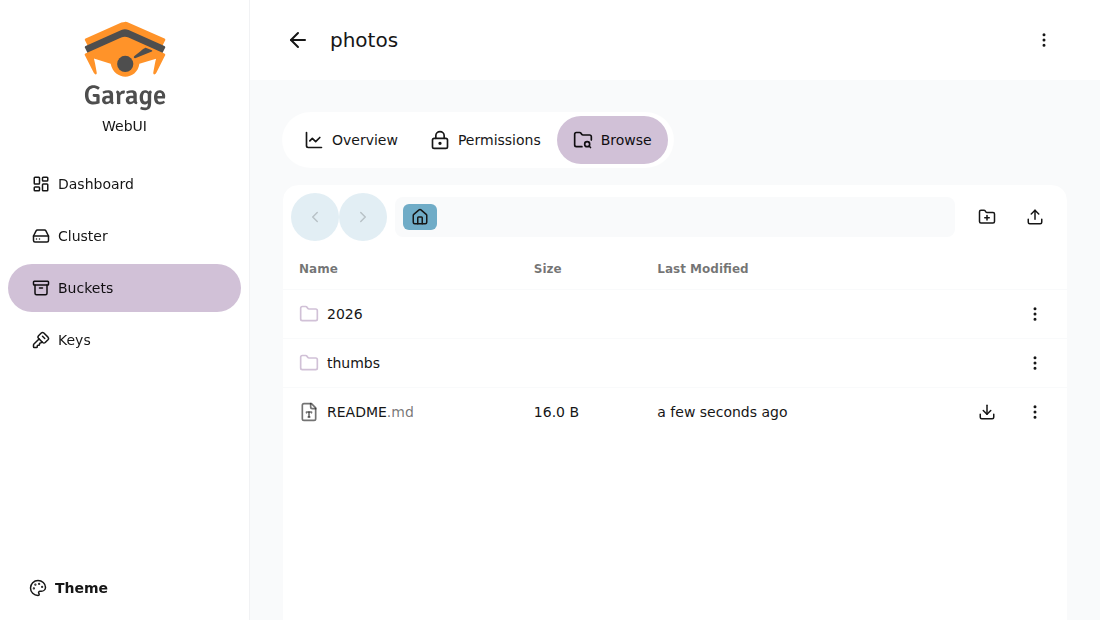
Garage has no web UI of its own; the garage command does everything.
For buckets, keys, and files in a browser, the community
garage-webui works well with
Garage 2.5. Run it on a VM of its own with the
Garage Web UI page: it reaches this VM through
two exe.dev integrations that hold a narrow admin token, so the UI's VM
keeps no secrets and you can share it without sharing this one. Don't run it here: it reads
/etc/garage.toml and sends the whole file, RPC secret and admin token
included, to every browser that opens it.
The admin API on port 3903 listens on localhost, but exe.dev's proxy
connects over localhost too, so people you share the VM with can reach
https://my-garage.exe.xyz:3903/. The admin token in /etc/garage.toml
is what protects it. For scripts, make a narrower token that expires:
garage admin-token create --scope GetClusterHealth,GetClusterStatus --expires-in 30d monitoring
What Garage's S3 leaves out#
Garage speaks the S3 API most apps use: SigV4 signing, path- and virtual-host-style URLs, multipart uploads (including copying parts), presigned URLs, CORS, SSE-C (keys sent by the client), POST-policy uploads, and website configuration. It leaves out, according to its compatibility table:
| Feature | In Garage 2.5 |
|---|---|
| Versioning | No; overwrites and deletes are final |
| Object lock, retention, legal hold | No |
| Bucket policies and ACLs | No; per-key rights on each bucket instead |
| Public-read buckets | No; use a website bucket |
| Lifecycle rules | Only expiration and aborting old multipart uploads |
| Replication, event notifications | No |
| Object and bucket tagging | No |
| Server-side encryption with managed keys | No; SSE-C only |
| SigV2 signing | No; SigV4 only |
Calls it doesn't implement return 501 Not Implemented. If your app or
backup tool needs versioning or object lock (immutable backups, for
example), Garage is the wrong choice; see
the comparison.
One VM is one node#
replication_factor = 1 in /etc/garage.toml means every object is
stored once, on this VM's disk. Garage's docs call that setting fit for
testing, because losing the node loses the data. On exe.dev the disk
survives restarts, but it is still one disk: make
backups to a second place.
One VM is one node says more.
Three VMs make a cluster#
Garage was built for this: three or more machines, each holding a full copy, and the cluster carrying on when one is down. exe.dev VMs don't share a private network, and Garage's own connections between nodes aren't HTTPS, so join the VMs with Tailscale.
Warning
We ran a three-node cluster as three Garage processes on one VM (writes landed on all three, reads and writes carried on with one stopped, and the stopped node caught up), but not across three VMs on Tailscale. The steps below follow Garage's deployment guide.
replication_factor can't be changed once a cluster has data, so start a
new cluster with 3. On three VMs (garage-1, garage-2, garage-3),
follow Install by hand up to "Start Garage", but:
- Join Tailscale on each (
sudo tailscale up --hostname=$(hostname)). - Use the same
rpc_secreton all three: generate it once and paste it. - Set
replication_factor = 3,rpc_bind_addr = "[::]:3901", andrpc_public_addr = "<this VM's Tailscale IP>:3901"(fromtailscale ip -4). - Start all three, then put every node in
bootstrap_peersof every config, and restart. Get each entry withgarage node id -q. Without it, nodes don't find each other again after a restart (we saw this).
bootstrap_peers = [
  "<id of garage-1>@100.x.y.1:3901",
  "<id of garage-2>@100.x.y.2:3901",
  "<id of garage-3>@100.x.y.3:3901",
]
Then, on any one of them, give each node a zone and a capacity and apply:
garage status
garage layout assign -z zone1 -c 50G <id of garage-1>
garage layout assign -z zone2 -c 50G <id of garage-2>
garage layout assign -z zone3 -c 50G <id of garage-3>
garage layout apply --version 1
Any node then answers S3 requests; point apps at one of them, or put the nginx router on each. Buckets, keys, and websites are cluster-wide. Run nightly backups on one node anyway: replication covers a dead machine, not a deleted bucket.
Disk and backups#
Garage keeps everything under /var/lib/garage: meta/ (the SQLite
database of buckets, keys, and object lists, plus this node's key and the
layout), data/ (your objects, cut into 1 MiB blocks, compressed, and
named by their hash), and snapshots/ (consistent copies of the database,
the latest two kept, taken every 6 hours). Check space with df -h /, and
grow the disk from your computer:
ssh exe.dev resize my-garage --disk=200GB
then on the VM run sudo resize2fs "$(findmnt -no SOURCE /)" and raise
the node's capacity to match (garage layout assign -z dc1 -c 180G <node id>,
then garage layout apply with the version garage layout show asks for).
A backup has to live somewhere else. exe.dev's
VM backups copy the whole disk to your own AWS S3
bucket, which works if you have one; backing Garage up into Garage
doesn't. garage-backup
takes a fresh metadata snapshot, then copies it, the data blocks, and the
config with rclone. Data blocks never change once written, so after the
first run it copies only what's new. Set up an rclone remote on the VM
(rclone config: Backblaze B2, Cloudflare R2, an SFTP box, another
provider), then:
garage-backup offsite:garage-backup
To run it nightly, add a systemd timer:
sudo tee /etc/systemd/system/garage-backup.service >/dev/null <<'EOF'
[Unit]
Description=Copy Garage to a second place
After=garage.service

[Service]
Type=oneshot
User=exedev
ExecStart=/usr/local/bin/garage-backup offsite:garage-backup
EOF
sudo tee /etc/systemd/system/garage-backup.timer >/dev/null <<'EOF'
[Unit]
Description=Nightly Garage backup

[Timer]
OnCalendar=*-*-* 03:30
Persistent=true

[Install]
WantedBy=timers.target
EOF
sudo systemctl daemon-reload
sudo systemctl enable --now garage-backup.timer
This copy has no history: a file deleted from Garage disappears from the
backup at the next run. If that matters, turn on versioning or object
lock on the destination, or use rclone sync --backup-dir.
Restore is below.
Something odd? On the VM, journalctl -u garage -n 50 and
garage status usually say what.
The nuts and bolts#
Install by hand
Create a VM#
On your computer (pick another name if my-garage is taken, and a disk
big enough for what you'll store):
ssh exe.dev new --name=my-garage --disk=100GB
ssh my-garage.exe.xyz
All remaining commands run on the VM, as exedev. Check the disk
with df -h /; if it's smaller than you asked for, grow it as in
Disk and backups.
Install Garage#
Garage ships one static binary per release. Pin the version, so updates happen when you choose:
GARAGE_VERSION=v2.5.0
sudo curl -fsSL -o /usr/local/bin/garage \
  "https://garagehq.deuxfleurs.fr/_releases/$GARAGE_VERSION/$(uname -m)-unknown-linux-musl/garage"
sudo chmod 755 /usr/local/bin/garage
garage --version
Configure it#
Garage runs as exedev, keeps its data in /var/lib/garage, and reads
/etc/garage.toml, as does the garage command. Create the folders and
the config, with secrets generated on the spot:
sudo install -d -o exedev -g exedev -m 700 /var/lib/garage \
  /var/lib/garage/meta /var/lib/garage/data /var/lib/garage/snapshots
test -e /etc/garage.toml && echo "/etc/garage.toml exists, stop here"
sudo install -o exedev -g exedev -m 600 /dev/null /etc/garage.toml
cat > /etc/garage.toml <<EOF
metadata_dir = "/var/lib/garage/meta"
data_dir = "/var/lib/garage/data"
metadata_snapshots_dir = "/var/lib/garage/snapshots"

db_engine = "sqlite"
metadata_fsync = true
data_fsync = true
metadata_auto_snapshot_interval = "6h"

replication_factor = 1

rpc_bind_addr = "127.0.0.1:3901"
rpc_public_addr = "127.0.0.1:3901"
rpc_secret = "$(openssl rand -hex 32)"

[s3_api]
s3_region = "garage"
api_bind_addr = "[::]:3900"
public_endpoint = "https://$(hostname).exe.xyz"

[s3_web]
bind_addr = "[::]:3902"
index = "index.html"

[admin]
api_bind_addr = "127.0.0.1:3903"
admin_token = "$(openssl rand -base64 32)"
metrics_token = "$(openssl rand -base64 32)"
EOF
What the choices mean:
db_engine = "sqlite": Garage's default, LMDB, is faster but can be corrupted by an unclean shutdown. SQLite is the safer choice for one node, and the twofsynclines make Garage wait for the disk before it answers a write.metadata_auto_snapshot_interval: a consistent copy of the database every 6 hours, for restores and forgarage-backup.replication_factor = 1: one copy of everything; see One VM is one node.- The RPC port (3901), which nodes use to talk to each other, stays on localhost until you add nodes.
public_endpointis the URLgarage key export-envhands out.
Start Garage#
sudo tee /etc/systemd/system/garage.service >/dev/null <<'EOF'
[Unit]
Description=Garage object storage
After=network-online.target
Wants=network-online.target

[Service]
User=exedev
Group=exedev
Environment=RUST_LOG=garage=info
ExecStart=/usr/local/bin/garage server
Restart=on-failure
LimitNOFILE=42000

[Install]
WantedBy=multi-user.target
EOF
sudo systemctl daemon-reload
sudo systemctl enable --now garage
until garage status >/dev/null 2>&1; do sleep 1; done
garage status
Garage needs a few seconds to start the first time. garage status then
lists the node with NO ROLE ASSIGNED.
Give the node its storage#
A node stores nothing until the cluster layout gives it a zone and a capacity. Garage uses the capacity to share data between nodes; it doesn't stop writes there, a full disk does. Use a bit less than the disk:
garage layout assign -z dc1 -c 90G "$(garage node id -q | cut -d@ -f1)"
garage layout apply --version 1
garage status
Create a bucket and a key for your app#
garage bucket create app-data
garage key create app-key
garage bucket allow --read --write --owner app-data --key app-key
mkdir -p ~/garage
test -e ~/garage/app.env || (umask 077; cat > ~/garage/app.env <<EOF
AWS_ACCESS_KEY_ID=$(garage key info app-key --key-id)
AWS_SECRET_ACCESS_KEY=$(garage key info app-key --secret-key)
AWS_REGION=garage
AWS_DEFAULT_REGION=garage
AWS_ENDPOINT_URL=http://127.0.0.1:3900
S3_BUCKET=app-data
EOF
)
The values have no quotes, so the file works with set -a; . file,
Docker's --env-file, and systemd's EnvironmentFile=.
Install the AWS CLI and rclone#
Any S3 client works; these two are handy on the VM:
sudo apt-get update && sudo apt-get install -y unzip rclone
curl -fsSL -o /tmp/awscli.zip "https://awscli.amazonaws.com/awscli-exe-linux-$(uname -m).zip"
(cd /tmp && unzip -q -o awscli.zip && sudo ./aws/install --update)
set -a; . ~/garage/app.env; set +a
aws s3 ls s3://app-data
Add a placeholder website#
The bucket named after the VM's host name is what
https://my-garage.exe.xyz/ shows:
SITE=$(hostname).exe.xyz
garage bucket create "$SITE"
garage bucket allow --read --write --owner "$SITE" --key app-key
garage bucket website --allow --index-document index.html --error-document 404.html "$SITE"
mkdir -p ~/garage/site
echo "<!doctype html><title>$SITE</title><h1>Garage is running</h1><p>Replace this page with <code>aws s3 sync</code>.</p>" > ~/garage/site/index.html
echo '<!doctype html><title>Not found</title><h1>Not found</h1>' > ~/garage/site/404.html
aws s3 sync ~/garage/site "s3://$SITE/"
curl -s -H "Host: $SITE" http://localhost:3902/
Route port 8000 with nginx#
exe.dev serves https://my-garage.exe.xyz/ from port 8000. nginx there
sends signed S3 requests to the API on 3900 and the rest to the websites
on 3902, keeping the host name, streaming uploads without a size limit.
exe.dev's VM image ships a placeholder nginx site on port 8000; remove it
first:
sudo rm -f /etc/nginx/sites-enabled/default
sudo tee /etc/nginx/conf.d/garage.conf >/dev/null <<'EOF'
map "$http_authorization|$args" $garage_upstream {
    "~^AWS4-HMAC-SHA256 "        http://127.0.0.1:3900;
    "~(^|&)X-Amz-Signature="     http://127.0.0.1:3900;
    default                      http://127.0.0.1:3902;
}

server {
    listen 8000;
    listen [::]:8000;
    client_max_body_size 0;
    proxy_request_buffering off;
    proxy_buffering off;
    proxy_read_timeout 600s;
    proxy_send_timeout 600s;

    location / {
        proxy_pass $garage_upstream;
        proxy_set_header Host $http_host;
        proxy_http_version 1.1;
    }
}
EOF
sudo nginx -t && sudo systemctl enable --now nginx && sudo systemctl reload nginx
curl -s http://localhost:8000/ -H "Host: $(hostname).exe.xyz"
aws --endpoint-url http://localhost:8000 s3 ls
Port 8000 is already exe.dev's default for the VM's URL; if you changed
it, run ssh exe.dev share port my-garage 8000 on your computer.
Install garage-backup#
sudo curl -fsSL -o /usr/local/bin/garage-backup https://exe.dev/deploy/garage/garage-backup
sudo chmod 755 /usr/local/bin/garage-backup
Point it at a second place as in Disk and backups.
Back up and restore
garage-backup DEST writes DEST/meta/ (the database snapshot, the
node key, and the layout), DEST/data/, and DEST/garage.toml. DEST is
an rclone remote path or a local folder; garage-backup /tmp/try shows
what it copies.
Undo a bad metadata change#
The two latest snapshots are in /var/lib/garage/snapshots/. To roll the
database back to one, losing every bucket, key, and object change made
since:
sudo systemctl stop garage
ls /var/lib/garage/snapshots/
mv /var/lib/garage/meta/db.sqlite /var/lib/garage/meta/db.sqlite.bak
cp /var/lib/garage/snapshots/<time>/db.sqlite /var/lib/garage/meta/db.sqlite
sudo systemctl start garage
garage repair -a --yes tables
Restore everything on a new VM#
Make a VM and follow Install by hand through "Install Garage". In
"Configure it", create the folders and the empty /etc/garage.toml, but
don't write a new config. Install rclone, set up the same remote, and
copy everything back:
rclone copyto offsite:garage-backup/garage.toml /etc/garage.toml
rclone copy offsite:garage-backup/meta /var/lib/garage/meta
rclone copy offsite:garage-backup/data /var/lib/garage/data
Then follow "Start Garage", skip "Give the node its storage" (the layout came back with the node key), and check:
garage repair -a --yes tables
garage repair -a --yes blocks
garage bucket list
The rest of Install by hand (nginx) works as before; skip the
bucket and key steps, which already came back. Recreate ~/garage/app.env
with garage key info app-key --show-secret.
If the new VM has another name, change public_endpoint in
/etc/garage.toml and rename the website bucket with
garage bucket alias and garage bucket unalias. We tested this by
moving /var/lib/garage away and restoring from a garage-backup copy:
buckets, keys, a 200 MB object (checksum matched), and the website came
back.
Update Garage
Garage's changelog says what each release needs. Within one major version (2.x), replace the binary and restart. Back up first: once a node runs a newer version, Garage doesn't support going back.
garage meta snapshot
garage repair -a --yes tables
GARAGE_VERSION=v2.5.0   # the new version
curl -fsSL -o /tmp/garage \
  "https://garagehq.deuxfleurs.fr/_releases/$GARAGE_VERSION/$(uname -m)-unknown-linux-musl/garage"
sudo install -m 755 /tmp/garage /usr/local/bin/garage
sudo systemctl restart garage
garage status
On a cluster, do one node at a time and wait for garage status to show
it healthy before the next; we moved a three-node cluster from 2.4.1 to
2.5.0 this way. A new major version (3.x) can change the database and
needs Garage's migration guide, a stop of every node, and
garage migrate; go one major version at a time.
Something not working?
On the VM, journalctl -u garage -n 50 and garage status usually say
what's wrong.
AuthorizationHeaderMalformed ... expected .../garage/s3/aws4_request: the client uses another region. Set it togarage.401fromhttps://my-garage.exe.xyz: that's exe.dev's login, not Garage. Send the token header, use an SSH tunnel, or make the URL public.403 ForbiddenorAccessDeniedfrom Garage: the key has no rights on that bucket.garage bucket info <bucket>lists which keys do.- Clients try
bucket.my-garage.exe.xyz: those names don't resolve. Turn on path-style (force_path_style,addressing_style = path). NO ROLE ASSIGNEDor writes fail with quorum errors: the layout isn't applied. See "Give the node its storage".- The website shows Garage's 404 for every page: the bucket's name
must equal the host name and its website must be on
(
garage bucket infoshows "Website access: true"). aws s3 cpgets 401 through the token plugin: addpreferred_transfer_client = classicto~/.aws/config.501 Not Implemented: the app needs an S3 feature Garage doesn't have.- Nodes listed as failed after a restart: add
bootstrap_peersto every node's config, or rungarage node connect <id>@<addr>.
Frequently asked questions#
Is Garage free and open source?
Yes. Garage is AGPL-3.0, made by Deuxfleurs, a French non-profit that runs it for its own services. Running it unmodified for your apps asks nothing of you; the AGPL matters if you change Garage itself and offer it over a network. You pay only for the VM; see exe.dev plans.
Garage, MinIO, RustFS, or SeaweedFS?
Garage is the smallest of them and was built to run a cluster across a few modest machines, but it leaves out versioning, object lock, and bucket policies. The S3 storage page compares all four.
Does one VM give me redundancy?
No. On one VM Garage keeps one copy of each object (replication_factor = 1). The VM's disk is persistent, but nothing else holds your data until you back it up or run three nodes.
Which region and URL style do I use?
Region garage, endpoint https://my-garage.exe.xyz (or http://127.0.0.1:3900 on the VM), and path-style URLs. Most S3 clients pick path-style on their own once you give them an endpoint.
Does Garage support versioning, object lock, or presigned URLs?
Presigned URLs yes, versioning and object lock no, and there are no bucket policies or ACLs: access is granted per key and per bucket. See what's missing.
Can Garage host a static website?
Yes. Name a bucket after the hostname, turn on its website mode, and upload with any S3 client. This page sets that up at https://my-garage.exe.xyz/ next to the S3 API.
Can apps outside exe.dev use it?
Yes, if they can add a header with an exe.dev token, or once you make the URL public, when the S3 keys are the only lock. Apps on your Tailscale network can reach it directly.
Published Nov 19, 2026 · Updated Nov 19, 2026 · tested end to end Nov 19, 2026 · Markdown · manifest.json · Something wrong? Tell us