
Run JetBrains ThinkRail on a remote server, in your browser
JetBrains' Pi-based agentic IDE on an always-on VM, in any browser.
Shelley handles the setup. About 10 minutes.
Prefer a terminal?
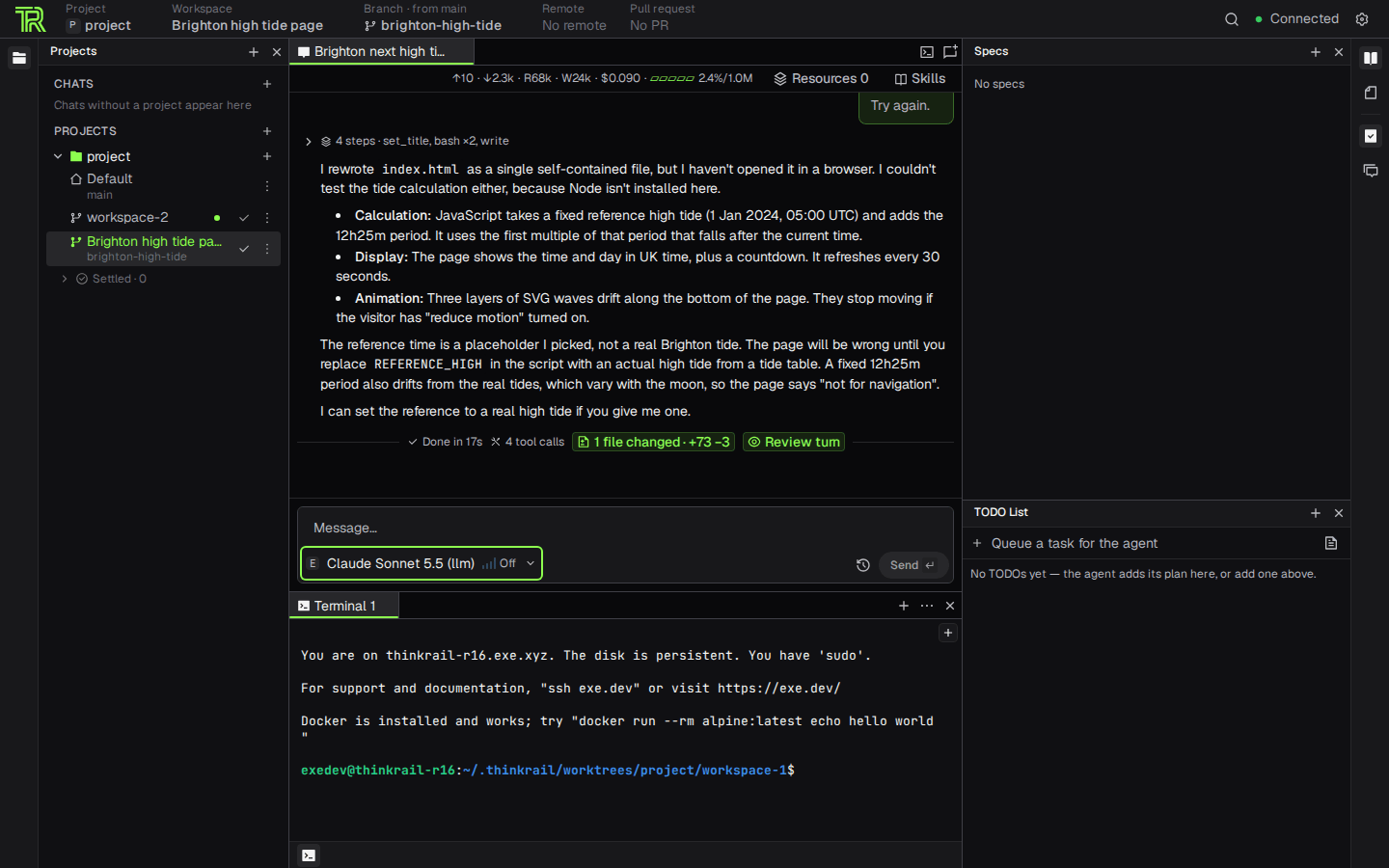
curl -fsSL https://exe.dev/deploy/thinkrail/prompt.txt | ssh exe.dev new --prompt=/dev/stdinThinkRail is JetBrains' open-source agentic IDE
built around the Pi coding agent: a web app where each task
gets its own Git worktree, a chat with the agent, a diff to review, and
terminals. It is a single thinkrail binary that serves the app to a
browser, so it can just as well run on a server.
exe.dev gives you always-on Linux VMs with a persistent disk and HTTPS behind exe.dev's login, so ThinkRail keeps working when your laptop sleeps and you open it from any browser without port forwarding. Models come from exe.dev's LLM integration, and GitHub and MCP integrations keep tokens off the VM.
What you get#
- ThinkRail 0.4.0 (stable) running as a service on port 8000, back after a reboot
- Claude and GPT models in ThinkRail through exe.dev's LLM integration, with no API key to paste
- A Git project at
~/project, ready to open in ThinkRail - ThinkRail's web app at
https://my-thinkrail.exe.xyz/, behind exe.dev login
What's running, and where
https://my-thinkrail.exe.xyz/
ThinkRail in your browser, behind exe.dev login
https://my-thinkrail.exe.xyz:3000/
whatever dev server you start in a ThinkRail terminal (ports 3000-9999)
ssh my-thinkrail.exe.xyz
your terminal, for setup and upkeep
Deploy with Shelley#
Click Deploy and Shelley will set up ThinkRail on a new VM, then check that it works. No config-file wrangling required.
Prefer a terminal?
curl -fsSL \
  https://exe.dev/deploy/thinkrail/prompt.txt \
  | ssh exe.dev new --prompt=/dev/stdin
What Shelley is told
Set up ThinkRail on this VM by following the exe.dev recipe at https://exe.dev/deploy/thinkrail.md?via=deploy from top to bottom.

The recipe's example VM name is my-thinkrail. This VM's name is the output of `hostname`: use it wherever the recipe writes my-thinkrail. Skip the step that creates the VM; you are on it.

You are done when all of these are true. Check each one yourself:
- ThinkRail 0.4.0 (stable) running as a service on port 8000, back after a reboot
- Claude and GPT models in ThinkRail through exe.dev's LLM integration, with no API key to paste
- A Git project at `~/project`, ready to open in ThinkRail
- ThinkRail's web app at `https://my-thinkrail.exe.xyz/`, behind exe.dev login

Run the VM-side commands in "Set up ThinkRail" only, in order, including
the exe-dev-llm-integration.json and models.json steps: without the first
one ThinkRail hangs at "Starting chat…". Verify that
`curl -s localhost:8000/health` prints `ok`, that `ss -ltn` shows
`0.0.0.0:8000`, and that the `pi -p` check prints `OK`. Skip the
walkthrough, backup, update and troubleshooting sections, and the FAQ.
Finish by giving the owner `https://<vm>.exe.xyz/` and telling them to
follow "Open ThinkRail and run a first task".

Finish with the URLs I should open.
Also at /deploy/thinkrail/prompt.txt. The recipe it follows is /deploy/thinkrail.md.
Set up ThinkRail#
On your computer, create a VM and connect. Pick any free name; if you've already clicked Deploy or have a VM, skip the first command and use its name:
ssh exe.dev new --name=my-thinkrail
ssh my-thinkrail.exe.xyz
On the VM, install the stable release with ThinkRail's official installer,
pinned to 0.4.0. It checks the download's SHA-256 and puts the thinkrail
binary in ~/.local/bin:
curl -fsSL https://raw.githubusercontent.com/JetBrains/thinkrail/v0.4.0/install.sh \
  | bash -s -- --channel stable --version 0.4.0
~/.local/bin/thinkrail --version
ThinkRail runs Pi inside itself and reads Pi's settings from ~/.pi/agent.
exe.dev's Pi comes with an extension that asks, the first time Pi starts,
whether to use the LLM integration. ThinkRail can't show that question and
waits for it forever ("Starting chat…"), so answer it ahead of time, then
give Pi the integration's models in models.json: GPT through the
OpenAI Responses API and Claude through the Anthropic Messages API, with no
real key (the integration supplies it outside the VM):
mkdir -p ~/.pi/agent
printf '{"version": 1, "useExeIntegration": false}\n' > ~/.pi/agent/exe-dev-llm-integration.json
python3 - <<'EOF'
import json, os
path = os.path.expanduser("~/.pi/agent/models.json")
cfg = json.load(open(path)) if os.path.exists(path) else {}
effort = {"off": None, "minimal": None, "low": "low", "medium": "medium",
          "high": "high", "xhigh": "xhigh", "max": "max"}
def gpt(id, name):
    return {"id": id, "name": name, "reasoning": True, "thinkingLevelMap": effort,
            "input": ["text", "image"], "contextWindow": 1050000, "maxTokens": 128000}
def claude(id, name):
    return {"id": id, "name": name, "reasoning": False,
            "input": ["text", "image"], "contextWindow": 1000000, "maxTokens": 64000}
cfg.setdefault("providers", {}).update({
    "exe-llm-openai": {"baseUrl": "https://llm.int.exe.xyz/v1", "api": "openai-responses",
        "apiKey": "exe-llm-gateway",
        "models": [gpt("gpt-6.2-sol", "GPT-6.2 Sol"), gpt("gpt-6.1-sol", "GPT-6.1 Sol")]},
    "exe-llm-anthropic": {"baseUrl": "https://llm.int.exe.xyz", "api": "anthropic-messages",
        "apiKey": "exe-llm-gateway",
        "models": [claude("claude-sonnet-5-5", "Claude Sonnet 5.5"),
                   claude("claude-opus-5-5", "Claude Opus 5.5")]},
})
json.dump(cfg, open(path, "w"), indent=2)
EOF
cd ~ && pi -p --model exe-llm-anthropic/claude-sonnet-5-5 "Reply with exactly: OK"
The last line should print OK. The pi command on the VM uses the same
models.
Still on the VM, run ThinkRail as a service on port 8000, the port
exe.dev's HTTPS proxy serves at the VM's address.
--no-open stops it trying to open a browser on the VM, and
--no-analytics turns off its optional usage analytics (basic events and
error reports are still sent to JetBrains):
sudo tee /etc/systemd/system/thinkrail.service >/dev/null <<'EOF'
[Unit]
Description=ThinkRail
After=network-online.target
Wants=network-online.target

[Service]
User=exedev
WorkingDirectory=/home/exedev
Environment=PATH=/home/exedev/.local/bin:/usr/local/bin:/usr/bin:/bin
ExecStart=/home/exedev/.local/bin/thinkrail --host 0.0.0.0 --port 8000 --no-open --no-analytics
Restart=on-failure

[Install]
WantedBy=multi-user.target
EOF
sudo systemctl daemon-reload
sudo systemctl enable --now thinkrail
Give it a project. ThinkRail works on Git repositories, so you can review and undo everything the agent changes:
mkdir -p ~/project && cd ~/project
git init -b main
echo '<!doctype html><title>Hello</title><h1>Hello from exe.dev</h1>' > index.html
git add index.html && git commit -m "First page"
Check it: the health check prints ok, and ThinkRail listens on
0.0.0.0:8000:
curl -s --retry 5 --retry-connrefused localhost:8000/health; echo
ss -ltn | grep 8000
If something else already has port 8000, ThinkRail quietly takes the next
free port instead; journalctl -u thinkrail shows which.
Open ThinkRail and run a first task#
Open https://my-thinkrail.exe.xyz/ and sign in to exe.dev if asked.
ThinkRail first asks whether to share additional usage data; the service's
--no-analytics already keeps that off, so choose Done. If it offers
to connect a model, choose Skip setup: the LLM integration's models
are already there.
- Next to Projects, choose + → Enter host path… and enter
/home/exedev/project. - Choose Start building. ThinkRail makes an isolated workspace: a new
branch and Git worktree under
~/.thinkrail/worktrees, so your~/projectcheckout stays as it was. - Pick a model under the prompt (exe-llm-anthropic → Claude Sonnet 5.5, say), describe the change, and choose Create. For example: Make index.html show the next high tide for Brighton, computed in JavaScript from a fixed reference high tide and the 12h25m tidal period, and add a little wave animation. Keep it one file.
- When the agent is done, choose Review turn. Each changed file has a side-by-side diff, and HTML files a rendered before/after preview.
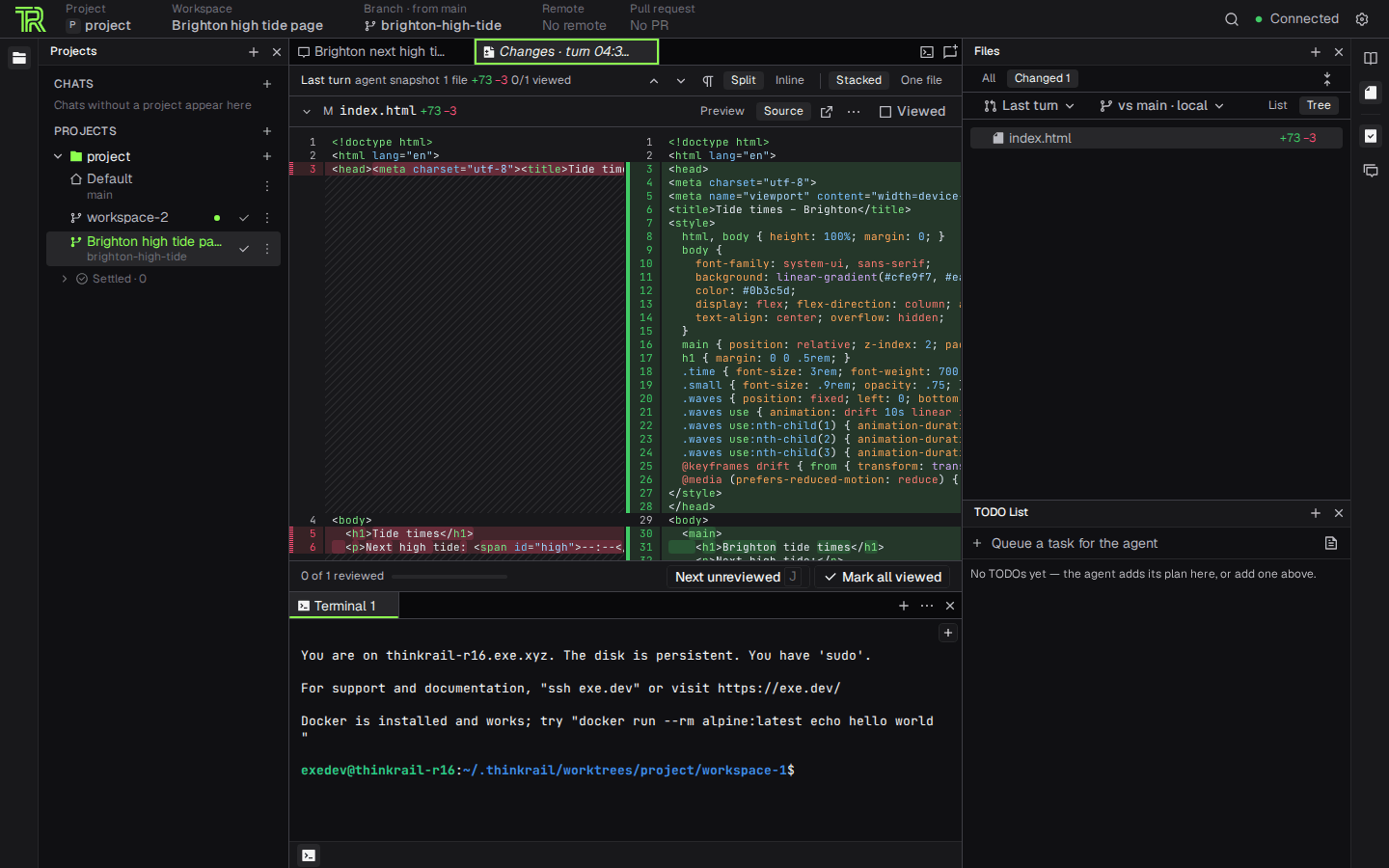
The workspace's branch is an ordinary Git branch in ~/project. Merge it
with ThinkRail's Merge into main locally, or from a terminal. Close the tab whenever
you like: the chat keeps running on the VM.
Work in project folder skips the worktree and lets the agent change
~/project directly; Set up project has the agent write specs for the
project before building.
Work on your GitHub repositories#
Connect GitHub once on exe.dev's Integrations page, then, on your computer, give this VM a repository (see the GitHub integration docs for options such as read-only):
ssh exe.dev integrations add github --name myrepo --repository you/myrepo --attach vm:my-thinkrail
On the VM, clone through the integration. Git needs no token, and none is stored on the VM:
git clone https://github.int.exe.xyz/you/myrepo.git ~/myrepo
Then add /home/exedev/myrepo with Enter host path… as above, or paste
the same URL into + → Clone repository…. ThinkRail's agent can
commit and push from its workspaces.
Add MCP servers#
ThinkRail uses Pi's MCP configuration, ~/.pi/agent/mcp.json, and lists
the servers under Settings → MCP servers. For a server that needs a
sign-in or token, add it as an exe.dev
Remote MCP integration attached to this VM,
so the credential stays with exe.dev, then on the VM point Pi at the
integration's address (here one named notion):
pi mcp add notion --url https://notion.int.exe.xyz/mcp
Public servers can be added directly, for example
pi mcp add deepwiki --url https://mcp.deepwiki.com/mcp. Start a new chat
to pick up a new server. ThinkRail asks before the agent calls a tool that
might change data:
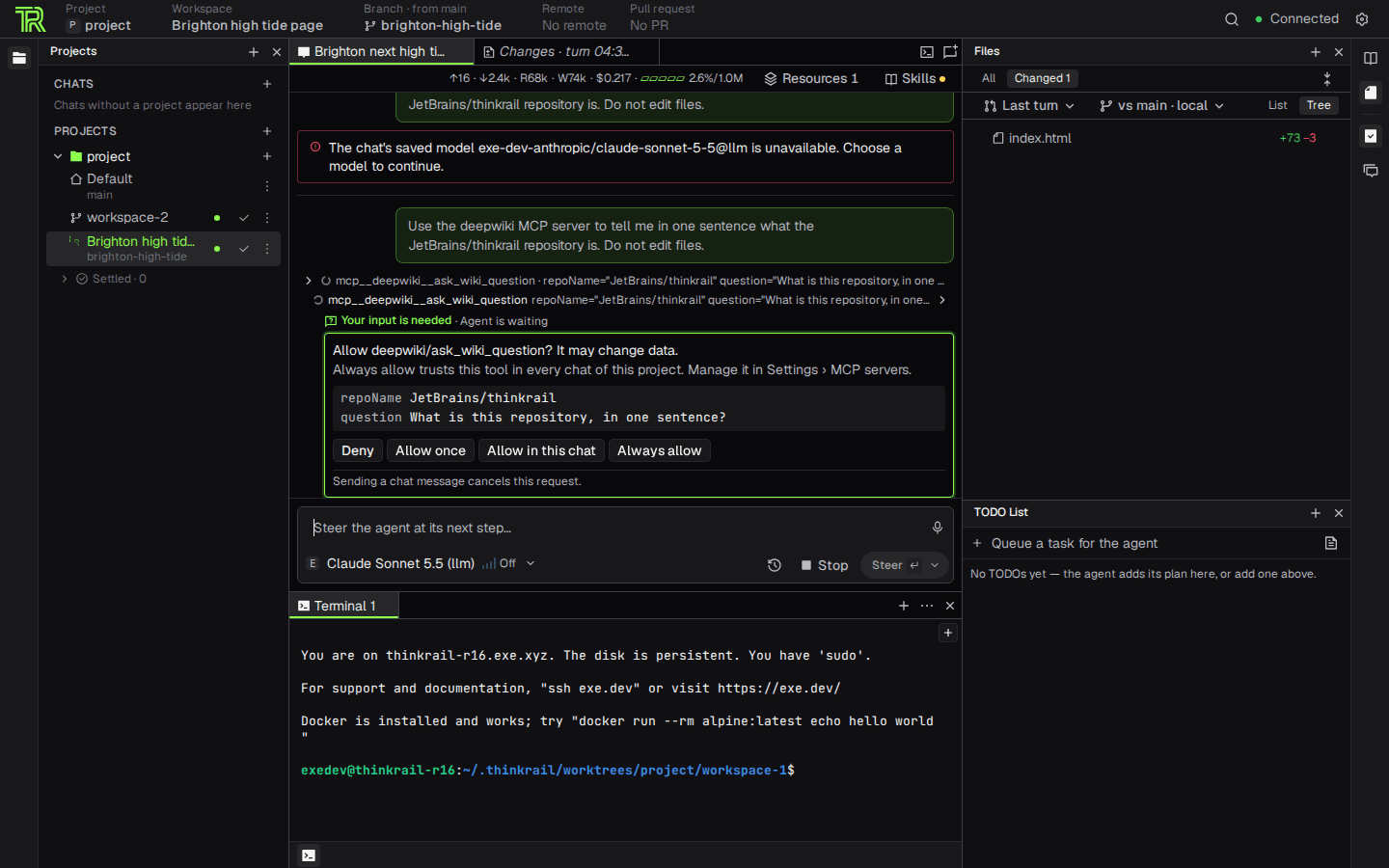
To let Pi drive exe.dev itself (create VMs, share them), see exe.dev's MCP server.
Preview what you build#
ThinkRail's terminals are shells on the VM. Start a dev server in one on
any port from 3000 to 9999 and open https://my-thinkrail.exe.xyz:<port>/
in your browser; it is private like ThinkRail itself. For example, in the
workspace's terminal:
python3 -m http.server 3000
then open https://my-thinkrail.exe.xyz:3000/. To show it to someone
without giving them ThinkRail, see sharing and
the proxy.
Scripts, monitors and other non-browser clients get 401 from private
addresses. Give them a VM token and send it
as X-Exedev-Authorization: Bearer <token>, or as the password in Basic
auth. On your computer:
TOKEN=$(ssh exe.dev ssh-key generate-api-key --vm=my-thinkrail --label=monitor)
curl -H "X-Exedev-Authorization: Bearer $TOKEN" https://my-thinkrail.exe.xyz/health
Try things on a copy#
To try a nightly build, a risky refactor or a second agent without touching your main VM, copy it. On your computer:
ssh exe.dev cp my-thinkrail my-thinkrail-try
The copy has the same projects, chats and settings at
https://my-thinkrail-try.exe.xyz/. Delete it with
ssh exe.dev rm my-thinkrail-try when you're done.
Back up and restore
Push your code; that's the copy that matters most. ssh exe.dev cp
(above) copies the whole VM. To keep ThinkRail's chats and settings on
their own, archive them on the VM. ~/.pi/agent can hold API keys if you
added any, so keep the archive private:
mkdir -p ~/backups
sudo systemctl stop thinkrail
tar -C ~ -czf ~/backups/thinkrail-$(date +%F).tar.gz .thinkrail .pi/agent
chmod 600 ~/backups/thinkrail-*.tar.gz
sudo systemctl start thinkrail
To restore one, with ThinkRail installed as above (replace the date):
sudo systemctl stop thinkrail
tar -C ~ -xzf ~/backups/thinkrail-2026-11-26.tar.gz
sudo systemctl start thinkrail
Workspaces live in Git worktrees inside ~/.thinkrail/worktrees, so the
archive includes uncommitted work in them.
Update
On the VM, install a newer stable release and restart; running chats are interrupted, so pick a quiet moment. Check the releases first: ThinkRail is young and changes quickly.
thinkrail update --channel stable --version latest
sudo systemctl restart thinkrail
thinkrail update --channel nightly installs the newest nightly instead;
try it on a copy first. thinkrail uninstall removes the binary and keeps
~/.thinkrail unless you add --remove-data. ThinkRail brings its own
copy of Pi, so updating the pi command doesn't change it.
Limits#
- No login of its own. ThinkRail trusts whoever reaches it. Keep the VM private (the default) and share it only with people you'd give a shell. Don't make port 8000 public.
- Young software. ThinkRail is a JetBrains incubator project: 0.4.0 is the first stable release, nightlies land daily, and remote use isn't an official feature yet (issue #1078).
- Browser only. The exe.dev proxy carries HTTPS and WebSockets, which is all ThinkRail's web app needs; JetBrains' desktop IDEs don't connect to it.
- CPU only. exe.dev VMs have no GPU, so models run through the LLM integration or your own providers, not locally.
- Model list is yours to keep. The
models.jsonabove names four models. Add others fromcurl https://llm.int.exe.xyz/models.json(on the VM) in the same shape, then restart ThinkRail.
Troubleshooting#
- "Starting chat…" or "Checking out files…" never finishes. Pi's
exe.dev extension is waiting for an answer ThinkRail can't show. Write
~/.pi/agent/exe-dev-llm-integration.jsonas in the setup and runsudo systemctl restart thinkrail(the stop can take 90 seconds while it's stuck); the stuck workspaces then open normally. - "The chat's saved model … is unavailable." The chat's model is gone
from
models.json, or came from Pi's exe.dev extension (exe-dev-…providers), which ThinkRail only sees after a chat has started. Pick a model under the prompt and send again. 'max_tokens' is not supportedorFunction tools with reasoning_effort are not supported. That model was added as a Custom server in ThinkRail's settings, which speaks the older Chat Completions API with settings newer GPT models refuse. Use theexe-llm-openaimodels from the setup.- The page doesn't load. On the VM,
systemctl status thinkrailandss -ltn | grep 8000. Logs are injournalctl -u thinkrailand~/.thinkrail/logs; add--verbosetoExecStartfor more. thinkrail: command not found. Use~/.local/bin/thinkrail, or open a new shell.
Frequently asked questions#
Does ThinkRail have its own login?
No. ThinkRail's server has no accounts or passwords by design and expects something in front of it to decide who gets in. Here that is exe.dev's proxy: the page is private to you and anyone you share the VM with. Anyone who can open the page also gets ThinkRail's terminals, which are a shell on the VM, so share it only with people you'd give SSH access.
Can I use my own Claude, ChatGPT or Copilot subscription?
Yes. ThinkRail's Settings → Providers can sign in to Anthropic, OpenAI, GitHub Copilot and others, or take an API key; those keys are then stored on the VM in ~/.pi/agent/auth.json. Models through exe.dev's LLM integration need no key on the VM at all.
Why does ThinkRail show $0 for my turns?
The models configured here have no prices in models.json, so ThinkRail can't add them up. Usage through the LLM integration is billed to your exe.dev account; exe.dev keeps a list of models and prices.
Stable or nightly?
This page pins the stable release, 0.4.0 (12 November 2026). ThinkRail also publishes nightly builds almost every day, with newer features and more breakage. Try one on a copy of the VM with thinkrail update --channel nightly.
Do agents keep working when I close the tab?
Yes. Chats run in the ThinkRail service on the VM, not in your browser. Open the page later, from any computer, to read the result or send the next message.
How much does it cost?
ThinkRail is free and Apache-2.0 licensed. You pay for the VM as part of your exe.dev plan, and model usage through the LLM integration is billed to your exe.dev account.
Published Nov 26, 2026 · Updated Nov 26, 2026 · tested end to end Nov 26, 2026 · Markdown · manifest.json · Something wrong? Tell us