Run oh-my-pi (omp) on a remote server
The Pi fork with the IDE wired in, on a computer that stays on.
Shelley handles the setup. About 5 minutes.
Prefer a terminal?
curl -fsSL https://exe.dev/deploy/oh-my-pi/prompt.txt | ssh exe.dev new --prompt=/dev/stdinoh-my-pi (omp) is a fork of the Pi coding agent by
Can Bölük and Stencil Labs, with "the IDE wired in": language servers
check every edit, a debugger and subagents are built-in tools, and you
can hand a running session to someone in their browser. Like Pi, it
doesn't stop to ask before it runs a command.
That makes an exe.dev VM a good home for it. The VM is always on, so omp keeps working with your laptop shut; it's a whole computer of its own, so there's nothing on it you'd mind omp touching; and models come from exe.dev's LLM integration, so there's no API key on the VM. If omp is killed or the VM restarts mid-task, it picks the interrupted turn back up.
exe.dev gives you persistent Linux VMs with HTTPS, sign-in and a coding agent built in; this page installs omp on one.
Note
Pi itself is already installed on every exe.dev VM, with nothing to set up: see Pi. This page is for its fork, and the two live happily side by side.
What you get#
- oh-my-pi 19.0.1 answering through exe.dev's LLM integration, with no API key or sign-in
- Claude, GPT and (optionally) open models from one models file
- A Git repository at
~/projecton persistent disk - An
omptmux session that survives disconnects - Optionally, a boot service that reopens the session and finishes a turn a reboot cut off
What's running, and where
ssh my-oh-my-pi.exe.xyz
your terminal, and omp in tmux
https://my-oh-my-pi.exe.xyz:3847/
the optional omp stats dashboard, behind your exe.dev login
Deploy with Shelley#
Click Deploy and Shelley will set up oh-my-pi on a new VM, then check that it works. No config-file wrangling required.
Prefer a terminal?
curl -fsSL \
  https://exe.dev/deploy/oh-my-pi/prompt.txt \
  | ssh exe.dev new --prompt=/dev/stdin
What Shelley is told
Set up oh-my-pi on this VM by following the exe.dev recipe at https://exe.dev/deploy/oh-my-pi.md?via=deploy from top to bottom.

The recipe's example VM name is my-oh-my-pi. This VM's name is the output of `hostname`: use it wherever the recipe writes my-oh-my-pi. Skip the step that creates the VM; you are on it.

You are done when all of these are true. Check each one yourself:
- oh-my-pi 19.0.1 answering through exe.dev's LLM integration, with no API key or sign-in
- Claude, GPT and (optionally) open models from one models file
- A Git repository at `~/project` on persistent disk
- An `omp` tmux session that survives disconnects
- Optionally, a boot service that reopens the session and finishes a turn a reboot cut off

Run the commands in "Set up the VM" (inside "Install oh-my-pi by hand")
only; skip creating the VM. If `~/.omp/agent/models.yml` or
`config.yml` already exists, add the providers and model roles to it
instead of replacing it. Don't add the tmux setting twice. Create the
tmux session detached (`tmux new -d -s omp -c ~/project`) and reuse it
if it exists. Do not launch interactive `omp`; leave its setup wizard to
the owner. Do not install the boot service, the stats dashboard or the
open-model provider unless the owner asks. Verify from ~/project that
`omp --version` prints 19.0.1 and that
`omp -p --model anthropic/claude-haiku-5-5 "Reply with exactly: OK" </dev/null`
prints OK. Finish with the SSH command from "Close the laptop", using
this VM's name, and tell the owner to run `omp` inside it.

Finish with the URLs I should open.
Also at /deploy/oh-my-pi/prompt.txt. The recipe it follows is /deploy/oh-my-pi.md.
Install oh-my-pi#
Install oh-my-pi by hand
On your computer, create a VM and connect. Pick any free name; if you've already clicked Deploy or have a VM, skip the first command and use its name:
ssh exe.dev new --name=my-oh-my-pi
ssh my-oh-my-pi.exe.xyz
Set up the VM#
On the VM, install omp with its official installer, pinned to a release.
--binary fetches the prebuilt binary (about 300 MB), checks its
checksum and puts it in ~/.local/bin:
curl -fsSL https://omp.sh/install | sh -s -- --binary --ref v19.0.1
Point omp's Anthropic and OpenAI providers at the LLM integration. The
integration adds the credentials on the way out, so apiKey is only a
placeholder. Then choose the models omp uses for normal work (default),
quick jobs such as titles (smol) and hard thinking (slow):
mkdir -p ~/.omp/agent
cat > ~/.omp/agent/models.yml <<'EOF'
providers:
  anthropic:
    baseUrl: https://llm.int.exe.xyz/anthropic
    apiKey: exe-llm-integration
  openai:
    baseUrl: https://llm.int.exe.xyz/openai/v1
    apiKey: exe-llm-integration
EOF
cat > ~/.omp/agent/config.yml <<'EOF'
modelRoles:
  default: anthropic/claude-sonnet-5-5
  smol: anthropic/claude-haiku-5-5
  slow: openai/gpt-6.1-sol
EOF
Make a project, a Git repository so you can review and undo what omp changes, and let tmux tell Shift+Enter (a new line) from Enter (send):
git init ~/project
echo 'set -g extended-keys on' >> ~/.tmux.conf
Check it. The version prints, and a one-off prompt answers OK:
cd ~/project
omp --version
omp -p --model anthropic/claude-haiku-5-5 "Reply with exactly: OK" </dev/null
Start coding#
On the VM, open a tmux session in your project and start omp:
tmux new -A -s omp -c ~/project
omp
The first run is a short setup wizard. Anthropic already shows as logged in (config) and Sonnet 5.5 is the default model, so press Enter or Esc through the steps; the others are looks and update notices. Then give it a task:
Build a tiny website for a lighthouse keeper who reviews fog, and serve it on port 8000.
When omp says it's running, open https://my-oh-my-pi.exe.xyz/ in your
browser. Only you can see it: exe.dev asks for your login first.
More about previews.
Type /model to switch models, or Ctrl+P to cycle through the roles.
Close the laptop#
Press Ctrl-b, then d to detach. omp keeps working. On your computer, this hops back in, from anywhere:
ssh -t my-oh-my-pi.exe.xyz 'tmux new -A -s omp -c ~/project'
omp writes the session to disk as it goes, in
~/.omp/agent/sessions. If omp dies or the VM restarts in the middle of
a task, run omp --restore in the project folder and pick the session
marked interrupted. omp reruns the cut-off command and finishes the
turn. omp --continue reopens your last session without resuming
anything; omp --resume lets you choose one.
Start omp at boot, and finish what a reboot interrupted
On the VM, a small script reopens the newest session of ~/project with
--restore, and a systemd service runs it in the omp tmux session
whenever the VM starts:
cat > ~/.local/bin/omp-tmux <<'EOF'
#!/bin/bash
cd ~/project
last=$(ls -t ~/.omp/agent/sessions/-project/*.jsonl 2>/dev/null | head -1)
if [ -n "$last" ]; then exec ~/.local/bin/omp --restore "$last"; fi
exec ~/.local/bin/omp
EOF
chmod +x ~/.local/bin/omp-tmux

sudo tee /etc/systemd/system/omp-tmux.service >/dev/null <<'EOF'
[Unit]
Description=oh-my-pi in a tmux session
After=network-online.target
Wants=network-online.target

[Service]
Type=forking
User=exedev
Environment=HOME=/home/exedev
WorkingDirectory=/home/exedev/project
ExecStart=/usr/bin/tmux new -d -s omp '/home/exedev/.local/bin/omp-tmux; exec bash -l'
RemainAfterExit=yes

[Install]
WantedBy=multi-user.target
EOF
sudo systemctl daemon-reload
sudo systemctl enable omp-tmux
It takes over at the next boot; leave the session you have open until then. After a restart, omp says Restored: going on with the interrupted turn and carries on, or nothing was left unfinished. Things omp started in the background, such as a dev server, don't come back by themselves: ask omp to make a systemd service for anything that should.
Hand someone the session#
Type /collab view in omp and it prints two links: one for another
terminal (omp join …) and one for any browser at my.omp.sh, a
third-party relay run by the oh-my-pi project. Whoever opens it watches
the session live, as a chat, but can't type. /collab
without view makes a link that can also prompt the agent, which means
running commands on your VM: share that one only with people you'd give
a shell. /collab stop ends it.
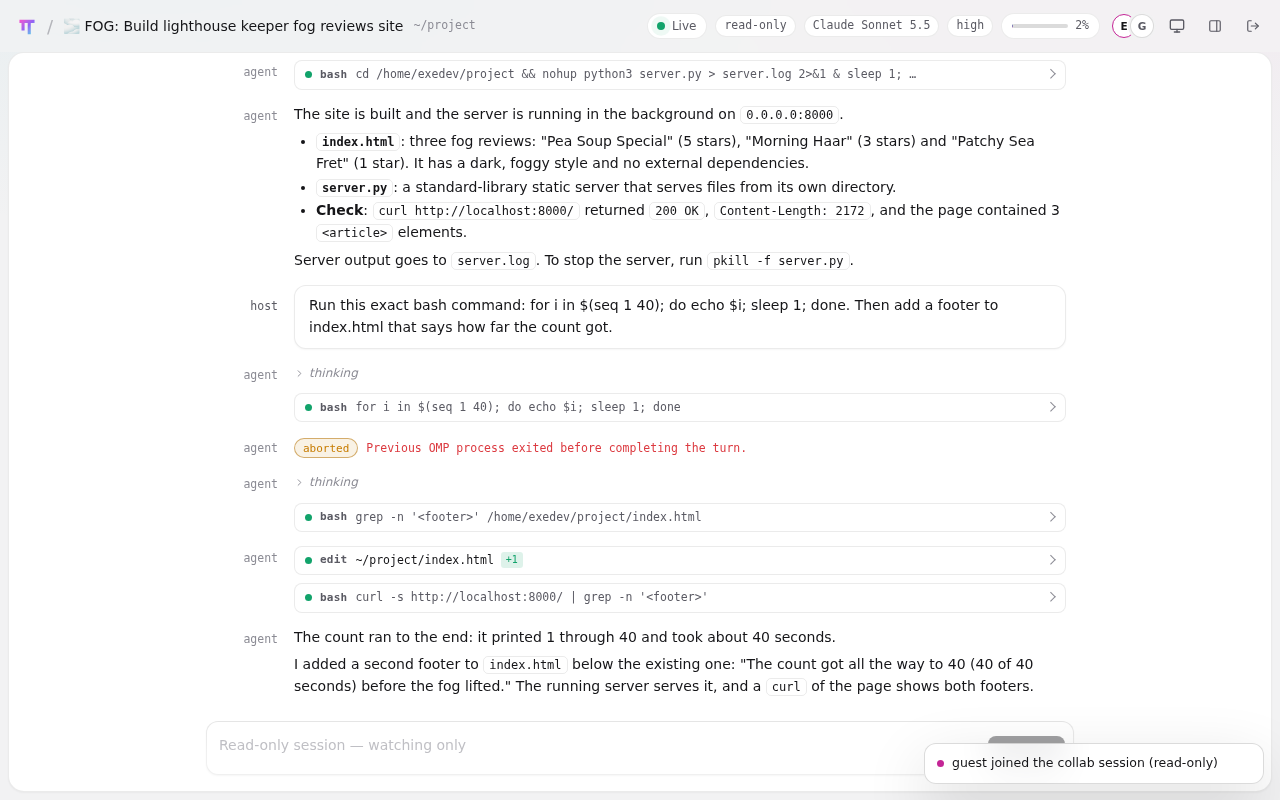
/collab view link in a browser, showing a turn omp finished after it was killed.The relay passes the session along encrypted, with the key in the part
of the link after #, which browsers don't send. To keep it all on exe.dev, a teammate you'd
trust with the whole VM can watch over SSH instead: give them
Root access and they run
ssh -t my-oh-my-pi.exe.xyz tmux attach -r -t omp.
See what it spends#
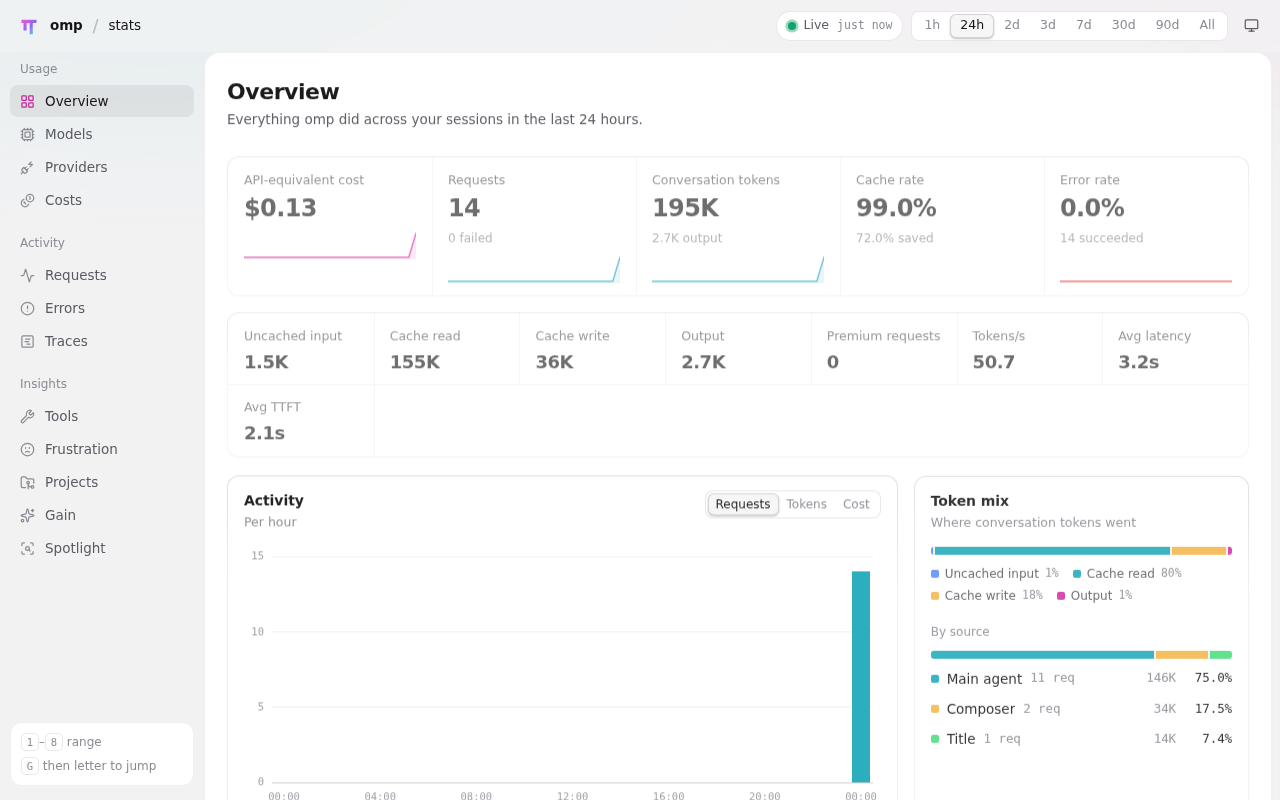
omp keeps its own account of every request. omp stats --summary prints
it; omp stats serves a dashboard. To open it in your browser, run it on
all interfaces and tell it the VM's name, which it otherwise refuses:
OMP_STATS_ALLOWED_HOSTS=$(hostname).exe.xyz omp stats --host 0.0.0.0 --port 3847
Then open https://my-oh-my-pi.exe.xyz:3847/, behind your exe.dev login.
Its dollar figures are estimates from omp's price list; what you pay is
on your exe.dev bill.
Know what it can reach#
omp's default approval mode is yolo: it reads, writes and runs whatever
the exedev user can, which on this VM includes sudo. That's why it's
here and not on your laptop. To have it ask first, start it with
omp --approval-mode write (edits freely, asks before running anything)
or --approval-mode always-ask (asks before edits too), or make it
permanent with omp config set tools.approvalMode write.
It can also reach the internet and the integrations attached to the VM, and it loads a repository's own hooks, extensions and MCP servers when you open it. Keep secrets you wouldn't hand to omp off this VM, and attach only the integrations it needs.
Tip
Before a big unattended job, take a copy of the VM with
ssh exe.dev cp my-oh-my-pi my-oh-my-pi-backupon your computer. If the job goes sideways, carry on from the copy.
Make yourself at home#
-
Open models: to use the LLM integration's open models too, such as GLM and Kimi, add a third provider to
~/.omp/agent/models.yml, then pick one with/model(for exampleexe-fireworks/fireworks/glm-5p3). Don't name itfireworks: omp rewrites that provider's model names.exe-fireworks: baseUrl: https://llm.int.exe.xyz/fireworks/inference/v1 apiKey: exe-llm-integration api: openai-completions discovery: type: openai-models-list injectV1: false -
Bring your code: connect a GitHub repo, clone it onto the VM, and run
ompfrom its folder. omp reads theAGENTS.md,CLAUDE.mdand rules files already in it. -
Bring old sessions:
omp --from-claudeandomp --from-codeximport a Claude Code or Codex session; both agents are on the VM too. -
Give it more VMs: omp speaks MCP, so it can use exe.dev's MCP server to make VMs of its own. It doesn't ask before tool calls by default, so use a token limited to one tag, as that page shows.
-
Update:
omp update --checksays whether there's a newer release. To move on, run the installer again with the new tag, for example--ref v19.0.2, read the changelog, and reopen your session withomp --continue.
Frequently asked questions#
How is oh-my-pi different from Pi?
oh-my-pi started as a fork of Pi and keeps its feel: a terminal agent that doesn't ask before it acts. It then adds what Pi leaves to extensions: language servers checking every edit, a debugger, subagents in their own worktrees, web search, code review, memory, live session sharing and a usage dashboard. Pi comes preinstalled on exe.dev and finds its models by itself; omp is one install and one models file away.
Can I keep Pi on the same VM?
Yes. They don't share settings or sessions: Pi keeps its own in ~/.pi/agent and omp in ~/.omp/agent. Run pi and omp side by side, even on the same project. Pi Pocket and Pi Durable are built on Pi, not omp, and keep working with the Pi beside it.
Do I need Docker?
No. omp is a single binary, and the VM is already the sandbox: a whole Linux machine that isn't your laptop. Docker is on the VM anyway, for the projects omp works on.
Can I use my own subscription or API key?
Yes. Type /login in omp, choose a provider and follow its prompts, then pick its model with /model. Or keep the key off the VM: add it to exe.dev's LLM integration as your own key, and the models file on this page keeps working unchanged.
How much does it cost?
oh-my-pi is free and open source (MIT). You pay for the VM as part of your exe.dev plan, and model usage through the LLM integration is billed to your exe.dev account. exe.dev keeps a list of models and prices. omp's own cost figures are estimates from its price list. Composer predictions, the grey text that suggests your next prompt, are model calls too; omp config set composer.predictions false turns them off.
How do I back up my work?
Commit and push your code. For a copy of the whole VM, run ssh exe.dev cp my-oh-my-pi my-oh-my-pi-backup on your computer. The copy has your files, settings and omp's sessions, which live in ~/.omp/agent/sessions.
Published Nov 21, 2026 · Updated Nov 21, 2026 · tested end to end Nov 20, 2026 · Markdown · manifest.json · Something wrong? Tell us