
Self-host OpenMausBot, the open-source Grok Bot alternative
A team of AI bots, each with a computer that isn't your laptop.
Shelley handles the setup. About 20 minutes.
Prefer a terminal?
curl -fsSL https://exe.dev/deploy/openmausbot/prompt.txt | ssh exe.dev new --prompt=/dev/stdinOpenMausBot is a chat app where every chat is an AI agent. Bots browse, use a Linux desktop, run routines on a schedule, and pass work to each other, with a Chief of Staff keeping track. On exe.dev, they get a computer of their own instead of yours: the server runs on a VM behind your exe.dev login, Claude comes through the LLM integration, and the disk keeps their memory.
OpenMausBot is new and ships almost daily. These steps pin version 0.1.138, which we ran end to end on 2 November 2026.
What you get#
- The OpenMausBot web app at
https://<vm>.exe.xyz/, behind your exe.dev login, with this browser paired as the owner. - Claude bots through exe.dev's LLM integration, with no API key to paste.
- A server that stays on when you disconnect and starts again after a reboot, so routines keep running.
- The bots' built-in browser, installed and checked.
- Docker ready for the bots' private Linux desktop.
What's running, and where
https://my-openmausbot.exe.xyz/
The OpenMausBot web app, behind your exe.dev login and a per-device pairing
Deploy with Shelley#
Click Deploy and Shelley will set up OpenMausBot on a new VM, then check that it works. No config-file wrangling required.
Prefer a terminal?
curl -fsSL \
  https://exe.dev/deploy/openmausbot/prompt.txt \
  | ssh exe.dev new --prompt=/dev/stdin
What Shelley is told
Set up OpenMausBot on this VM by following the exe.dev recipe at https://exe.dev/deploy/openmausbot.md from top to bottom.

The recipe's example VM name is my-openmausbot. This VM's name is the output of `hostname`: use it wherever the recipe writes my-openmausbot. Skip the step that creates the VM; you are on it.

You are done when all of these are true. Check each one yourself:
- The OpenMausBot web app at `https://<vm>.exe.xyz/`, behind your exe.dev login, with this browser paired as the owner.
- Claude bots through exe.dev's LLM integration, with no API key to paste.
- A server that stays on when you disconnect and starts again after a reboot, so routines keep running.
- The bots' built-in browser, installed and checked.
- Docker ready for the bots' private Linux desktop.

Read the whole recipe, including the closed details. For initial setup,
follow "Install by hand" first, skipping VM creation and SSH. The
opening walkthrough is for the owner. Install exactly the pinned
version. Do not run the restore or update instructions, and don't set
up a second VM unless the owner asks.
Keep the VM private. Never run share set-public, change the server's
loopback address, or set OMB_LOOPBACK_TRUST. On an existing VM, ask
before replacing configuration or a service on port 8000.
Verify `openmausbot doctor` says ready with the browser installed, a
`pong` from `openmausbot run`, the service enabled and active, and the
health check through nginx. Do not reboot.
Generate the pairing link last, after the owner has signed in to
https://<vm>.exe.xyz/. Give only the https://<vm>.exe.xyz/pair link and
explain that it works once and expires in five minutes; reissue on
request. The private desktop is prepared in the web app's settings:
point the owner to "Give it a desktop".

Finish with the URLs I should open.
Also at /deploy/openmausbot/prompt.txt. The recipe it follows is /deploy/openmausbot.md.
Say hello#
When Shelley finishes, open https://my-openmausbot.exe.xyz/ and sign in
to exe.dev. Then ask Shelley for a pairing link and open it in the same
browser. It works once and expires in five minutes, so ask again if it does.
Click Connect, meet MausBot, and create your Chief of Staff. Then try:
Use your browser to open https://exe.dev/docs and tell me in one line what it's about.
A second device, say your phone's browser, needs its own pairing link.
Warning
Keep this VM private. Bots run commands on the VM as
exedev, who can use sudo. Don't make the web app public or put unrelated secrets on this VM, and keep pairing links to yourself.
Give it a desktop#
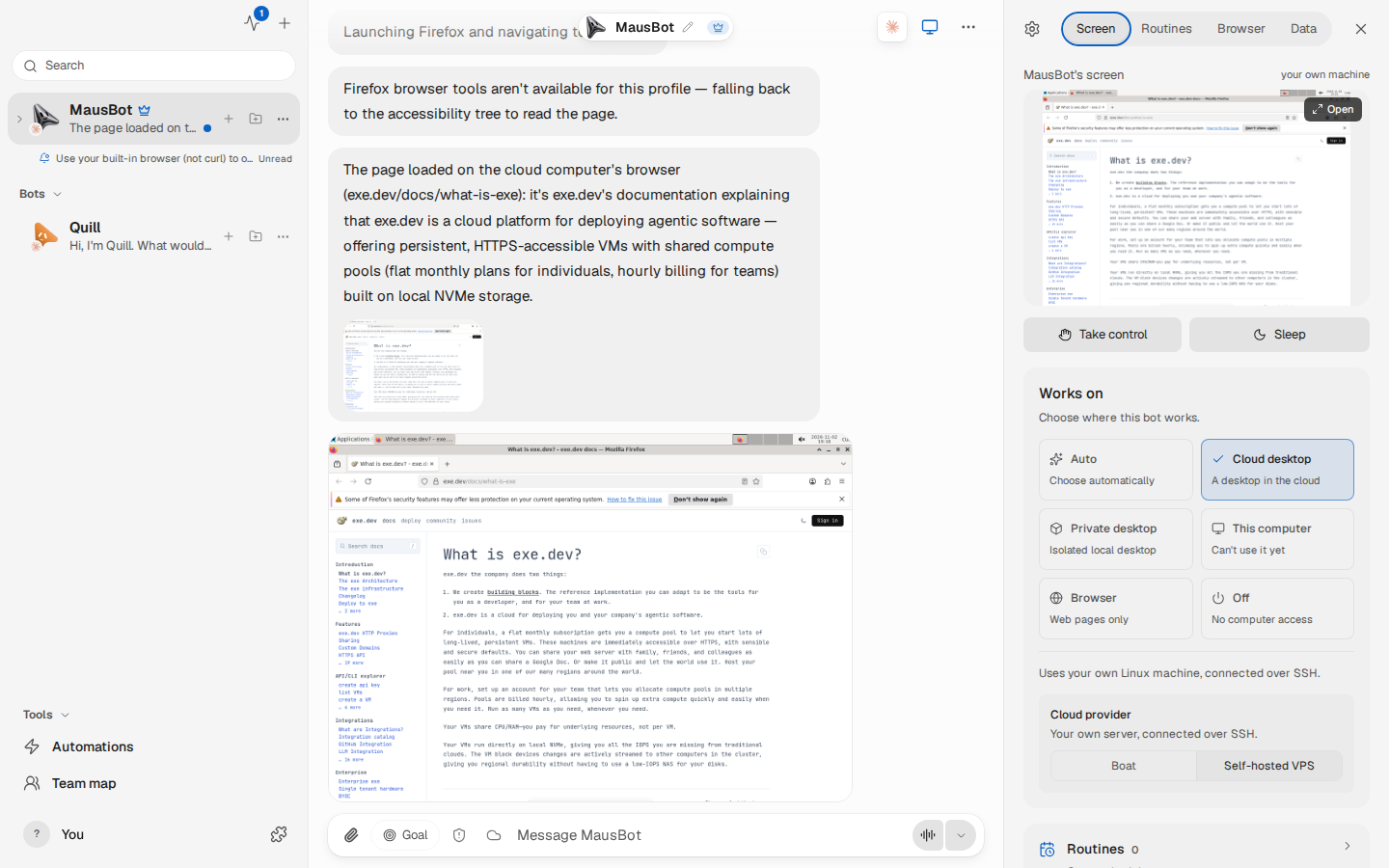
The browser covers most web tasks. For apps that need a screen, bots get a private Linux desktop in Docker on the same VM:
- Click your avatar, then Settings → Computer.
- Under Private desktops, click Prepare Cua desktop, then Start the private desktop. The first run builds a 2 GB image.
- In a bot's chat, open the screen panel (the monitor icon) and choose Private desktop.
Ask the bot to open a terminal on its desktop. Take control in the screen panel lets you drive it yourself until you hand it back.
Give a bot its own VM#
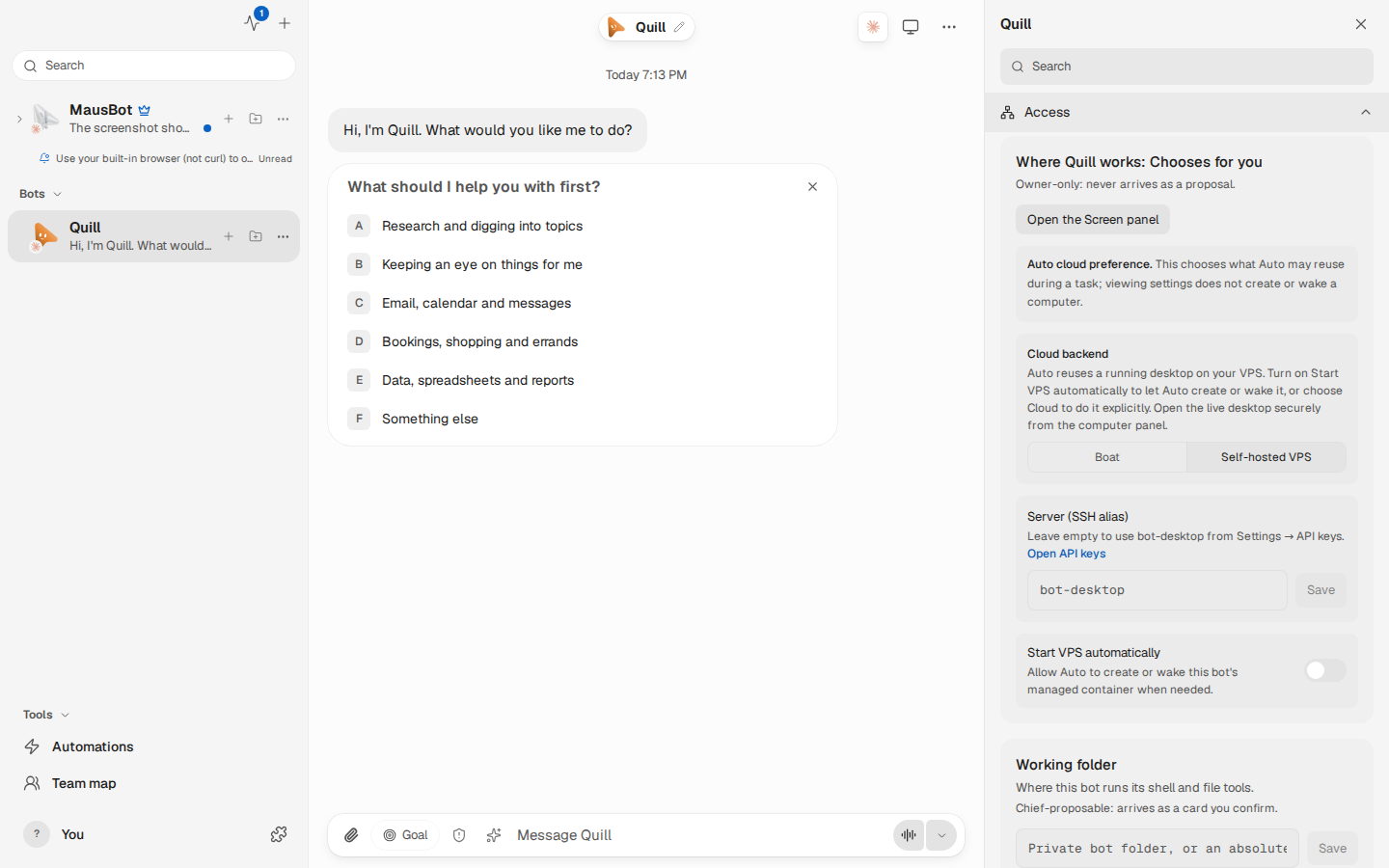
One desktop per VM is tidier when bots shouldn't share. OpenMausBot's
Self-hosted VPS option runs a bot's desktop on any Linux server it can
reach over SSH, and another exe.dev VM fits: its own disk, its own CPU, and
nothing on it but the bot's container. The server stays on
my-openmausbot; only the desktop moves.
The steps are in Give a bot its own VM by hand. You run one command on your computer to give the server a key for that VM alone.
Keep the memories#
Bots, chats, memory and settings live in ~/.openmausbot, on the VM's
persistent disk. Ask Shelley for a backup before an update; see
Back up and restore. Copy backups off the VM,
too. On your computer:
rsync -av my-openmausbot.exe.xyz:backups/openmausbot/ ./openmausbot-backups/
They hold your conversations, so keep them private.
Setup and upkeep#
No need to read on unless you're curious—or doing it yourself.
Install by hand
On your computer (pick another name if my-openmausbot is taken):
ssh exe.dev new --name=my-openmausbot
ssh my-openmausbot.exe.xyz
All remaining installation commands run on the VM, as exedev.
Install Node.js 24 and OpenMausBot#
OpenMausBot needs Node.js 24 or newer. Install it from NodeSource, then the
pinned release into ~/.local:
curl -fsSL https://deb.nodesource.com/setup_24.x | sudo -E bash -
sudo apt-get install -y nodejs
npm install --global --prefix "$HOME/.local" openmausbot@0.1.138
export PATH="$HOME/.local/bin:$PATH"
node --version
claude --version
Expect Node 24 and a Claude Code version. Claude Code comes with the VM's image; OpenMausBot drives it.
Run the server#
openmausbot service install writes a systemd unit for the server on
127.0.0.1:8799. The drop-in sends every Claude bot through exe.dev's LLM
integration; the key is a placeholder, since exe.dev adds the real
credentials outside the VM. OMB_PUBLIC_URL makes pairing links use the
VM's address.
openmausbot service install --port 8799
sudo install -m 644 ~/.openmausbot/openmausbot.service /etc/systemd/system/openmausbot.service
sudo mkdir -p /etc/systemd/system/openmausbot.service.d
sudo tee /etc/systemd/system/openmausbot.service.d/exe-dev.conf >/dev/null <<EOF
[Service]
Environment=OMB_PUBLIC_URL=https://$(hostname).exe.xyz
Environment=OMB_ANTHROPIC_API_KEY=exe-llm-integration
Environment=OMB_ANTHROPIC_API_URL=https://llm.int.exe.xyz
EOF
sudo systemctl daemon-reload
sudo systemctl enable --now openmausbot
sleep 15
openmausbot doctor
Expect ready and claude among the engines. Then try a bot:
openmausbot run MausBot "Reply with exactly: pong"
Install the bots' browser#
The first command installs Chrome's libraries as root, the second the
browser itself for exedev:
sudo -H env PATH="$PATH" openmausbot browser install --with-deps
openmausbot browser install
sudo systemctl restart openmausbot
sleep 15
openmausbot doctor
Expect Bots' browser: installed.
Turn on Docker#
For the private desktop. The VM's image has Docker but leaves it off:
sudo systemctl enable --now docker.service
docker info --format '{{.ServerVersion}}'
Set up the web app proxy#
The exe.dev proxy handles HTTPS and login. nginx passes requests and the live desktop's WebSockets to the loopback-only server, and hands it the visitor's address, which the exe.dev proxy appends last. Every request from outside still needs a paired device. This replaces the image's default site:
sudo tee /etc/nginx/sites-available/openmausbot >/dev/null <<'EOF'
map $http_upgrade $omb_connection {
    default upgrade;
    ""      close;
}
# The exe.dev proxy appends the client's address last.
map $http_x_forwarded_for $omb_client {
    "~(?<last>[^,\s]+)\s*$" $last;
    default                 $remote_addr;
}
server {
    listen 8000 default_server;
    listen [::]:8000 default_server;
    server_name _;
    location / {
        proxy_pass http://127.0.0.1:8799;
        proxy_http_version 1.1;
        proxy_set_header Upgrade $http_upgrade;
        proxy_set_header Connection $omb_connection;
        proxy_set_header Host $host;
        proxy_set_header X-Forwarded-For $omb_client;
        proxy_set_header X-Forwarded-Proto https;
        proxy_set_header X-Forwarded-Host $host;
        proxy_buffering off;
        proxy_read_timeout 1d;
        proxy_send_timeout 1d;
        client_max_body_size 100m;
    }
}
EOF
sudo rm -f /etc/nginx/sites-enabled/default
sudo ln -sf /etc/nginx/sites-available/openmausbot /etc/nginx/sites-enabled/openmausbot
sudo nginx -t && sudo systemctl enable --now nginx && sudo systemctl reload nginx
curl -fsS http://127.0.0.1:8000/api/health
Expect "app":"openmausbot" through nginx.
Pair your browser#
Open https://my-openmausbot.exe.xyz/ and sign in to exe.dev first. Then,
on the VM:
openmausbot pair --label Browser
Open the printed https://…/pair#code=… link in that browser within five
minutes and click Connect. List or sign out devices with
openmausbot sessions.
Give a bot its own VM by hand
On your computer, create the desktop VM and turn on its Docker
(my-mausbot-desk is an example name):
ssh exe.dev new --name=my-mausbot-desk
ssh my-mausbot-desk.exe.xyz sudo systemctl enable --now docker.service
On my-openmausbot, make a key for it:
ssh-keygen -q -t ed25519 -N "" -C "openmausbot@$(hostname)" -f ~/.ssh/mausbot_desk
On your computer, let that key into the new VM, and only that one, as a VM-scoped SSH key:
ssh my-openmausbot.exe.xyz cat .ssh/mausbot_desk.pub | ssh exe.dev ssh-key add --vm=my-mausbot-desk
Back on my-openmausbot, give it an SSH alias and check that Docker answers
through it:
cat >> ~/.ssh/config <<'EOF'
Host mausbot-desk
  HostName my-mausbot-desk.exe.xyz
  User exedev
  IdentityFile ~/.ssh/mausbot_desk
  IdentitiesOnly yes
  ControlMaster auto
  ControlPath ~/.ssh/cm-%r@%h-%p
  ControlPersist 60m
  ServerAliveInterval 15
  ServerAliveCountMax 3
  ConnectTimeout 10
EOF
chmod 600 ~/.ssh/config
ssh -o StrictHostKeyChecking=accept-new mausbot-desk true
docker -H ssh://mausbot-desk info --format '{{.ServerVersion}}'
In the web app:
- Settings → AI → API keys → Computers and browser: enter
mausbot-deskunder Self-hosted VPS and save. - Settings → General: turn on Advanced mode.
- In the bot's screen panel, choose Cloud desktop, then Self-hosted VPS under Cloud provider.
The bot's desktop starts on my-mausbot-desk; the first start builds its
image there. For more bots, repeat with a new VM, key and alias, and set
the alias in the panel's gear → Access → Server (SSH alias). More in
OpenMausBot's Bring Your Own VPS guide.
The key lets OpenMausBot run anything on that VM, which is the point: keep only the bot's work there.
Back up and restore
On the VM, stop the server for a consistent copy:
mkdir -p ~/backups/openmausbot && chmod 700 ~/backups ~/backups/openmausbot
sudo systemctl stop openmausbot &&
(umask 077; tar czf ~/backups/openmausbot/openmausbot-$(date +%F).tar.gz -C "$HOME" .openmausbot)
sudo systemctl start openmausbot
To restore, replace BACKUP.tar.gz with the archive's filename:
test ! -e ~/.openmausbot.before-restore &&
tar tzf ~/backups/openmausbot/BACKUP.tar.gz >/dev/null &&
sudo systemctl stop openmausbot &&
mv ~/.openmausbot ~/.openmausbot.before-restore &&
tar xzf ~/backups/openmausbot/BACKUP.tar.gz -C "$HOME" &&
sudo systemctl start openmausbot &&
sleep 15 && openmausbot bots
Try a chat before removing ~/.openmausbot.before-restore. Paired devices
come back with the backup. OpenMausBot also has an encrypted in-app backup
under Settings → Backups (in Advanced mode).
Update
Read the releases first; it changes quickly. Take a backup, then on the VM, with the version you chose:
sudo systemctl stop openmausbot
npm install --global --prefix "$HOME/.local" openmausbot@0.1.138
sudo systemctl start openmausbot
sleep 15
openmausbot status
Something stuck?
Ask Shelley, or check on the VM:
openmausbot doctor
systemctl status openmausbot --no-pager
journalctl -u openmausbot -n 50 --no-pager
If the app asks you to pair this device, the browser isn't paired yet or
its session was revoked. Run openmausbot pair for a fresh link.
Frequently asked questions#
What is OpenMausBot?
An open-source app for a team of AI bots, formerly OpenGrokBot. Each chat is an agent (Claude Code, Codex, OpenCode, pi and others) that can use a browser and a desktop, run routines on a schedule, and hand work to other bots. It pitches itself as an open alternative to Grok Bot.
What does it cost?
Your VM plan plus model usage through the LLM integration. Each turn carries the bot's instructions and tools: in our test, a one-word reply used about 58,000 input tokens ($0.16 by OpenMausBot's own ledger). Routines and the Chief of Staff use tokens too.
Can I use Codex or another model?
OpenMausBot runs other engines from Settings → AI, each with its own sign-in: on a VM, use codex login --device-auth for Codex. We only tested Claude through exe.dev; the setting below sends every Claude bot through it.
Can I use it from my phone?
Yes, in the phone's browser: sign in to exe.dev, then open a pairing link made for that phone. OpenMausBot's iOS and Android apps talk to the server directly, and the exe.dev login stands in front of it, so we didn't set them up.
Can the bots talk in Slack or Telegram?
Not in the self-hosted version we tested. Its chats live in its own app; Slack, Gmail and other apps are tools the bots can use through Composio, with your own Composio key.
Is it stable?
It's young and moves fast, with a release most days. This page pins and was tested with 0.1.138 (2 November 2026). Back up before you update, and update on purpose.
Updated Nov 2, 2026 · tested end to end Nov 2, 2026 · Markdown · manifest.json · Something wrong? Tell us