Run Codync on a remote server
Your coding agents as bots you message, on a VM that never sleeps.
Shelley handles the setup. About 10 minutes.
Prefer a terminal?
curl -fsSL https://exe.dev/deploy/codync/prompt.txt | ssh exe.dev new --prompt=/dev/stdinCodync turns the coding agents on a computer, Claude Code, Codex, Pi and about 40 more, into named bots you message like colleagues: from its iPhone app, its desktop app, or a terminal UI. Each bot has its own agent, folder, approvals and one ongoing chat, and your phone gets a notification when one is done or needs you. It's an open-source take on Grok Bot that brings your own agents.
The bots run in codync-host, a small Rust service, on the computer
where the agents are. Put it on an exe.dev VM and they keep working while
your laptop sleeps: the VM is always on, its disk keeps every chat, and
your phone reaches it through Codync's encrypted relay with no port to
open. Claude Code, Codex and Pi come preinstalled and use exe.dev's
LLM integration: no API keys on the VM, and
model usage billed to your exe.dev account.
Note
Codync ships several releases a day. This page was checked with codync-host 2.34.2, the release its installer picked on November 2, 2026; the host updates itself.
What you get#
- codync-host running as a systemd user service on the VM, back after a reboot
- Claude Code, Codex and Pi using exe.dev's LLM integration, with no API key to paste
- Codync's lead bot on Claude Code, answering
OKtocodync-host send - The host connected to Codync's relay, ready to pair with a phone
- A Git project at
~/projectfor bots to work in
What's running, and where
ssh my-codync.exe.xyz
the terminal UI, pairing, and the desktop app's SSH tunnel
Codync's iPhone app
through Codync's end-to-end encrypted relay, after you pair it and sign in to Codync
Deploy with Shelley#
Click Deploy and Shelley will set up Codync on a new VM, then check that it works. No config-file wrangling required.
Prefer a terminal?
curl -fsSL \
  https://exe.dev/deploy/codync/prompt.txt \
  | ssh exe.dev new --prompt=/dev/stdin
What Shelley is told
Set up Codync on this VM by following the exe.dev recipe at https://exe.dev/deploy/codync.md from top to bottom.

The recipe's example VM name is my-codync. This VM's name is the output of `hostname`: use it wherever the recipe writes my-codync. Skip the step that creates the VM; you are on it.

You are done when all of these are true. Check each one yourself:
- codync-host running as a systemd user service on the VM, back after a reboot
- Claude Code, Codex and Pi using exe.dev's LLM integration, with no API key to paste
- Codync's lead bot on Claude Code, answering `OK` to `codync-host send`
- The host connected to Codync's relay, ready to pair with a phone
- A Git project at `~/project` for bots to work in

Run the VM-side commands in "Set up the VM" only; skip creating the VM.
If `exeuntu configure` reports an existing user config, leave it alone,
and leave an existing `~/.pi/agent/exe-dev-llm-integration.json` alone.
If `~/.codync` already holds bots, ask the owner before reinstalling.
Don't run `codync-host pair`, don't approve access requests, and don't
sign in to any Codync account: pairing is the owner's, from their phone.
Verify with the checks at the end of that section: `codync-host status`
says installed and running, `codync-host cloud` says `connected: true`,
and the lead bot answers `OK`. Skip the later sections and the FAQ.
Finish by telling the owner to run `ssh -t <this VM's name>.exe.xyz
codync-host tui` to meet their bots, and `ssh -t <this VM's
name>.exe.xyz codync-host pair` to pair their iPhone ("Pair your
iPhone").

Finish with the URLs I should open.
Also at /deploy/codync/prompt.txt. The recipe it follows is /deploy/codync.md.
Set up the VM#
On your computer, create a VM and connect. Pick any free name; if you've already clicked Deploy or have a VM, skip the first command and use its name:
ssh exe.dev new --name=my-codync
ssh my-codync.exe.xyz
On the VM, connect the agents to the LLM integration. Claude Code and Codex get a setting each; for Pi, the file holds the answer to the question it asks the first time it starts, Use exe.dev LLM integration:
exeuntu configure claude
exeuntu configure codex
mkdir -p ~/.pi/agent
[ -e ~/.pi/agent/exe-dev-llm-integration.json ] || echo '{"version": 1, "useExeIntegration": true}' > ~/.pi/agent/exe-dev-llm-integration.json
Still on the VM, install the host with Codync's
installer,
which downloads the release binary into ~/.local/bin and checks its
SHA-256. The link puts it on the PATH of one-off SSH commands too.
Codync then adds its own Node.js, which the Claude Code, Codex and Pi
adapters run on, and saves a copy of the
ACP agent registry: without
one, the first bot Codync makes, your lead bot, can't pick Claude Code and
starts on another agent. Last, the service:
curl -fsSL https://raw.githubusercontent.com/leepokai/Codync/main/packaging/install.sh | sh -s -- --host-only
sudo ln -sf ~/.local/bin/codync-host /usr/local/bin/codync-host
codync-host node
curl -fsSL https://cdn.agentclientprotocol.com/registry/v1/latest/registry.json -o ~/.codync/registry.json
codync-host install
sudo loginctl enable-linger "$USER"
git init ~/project
Check it. The host takes a few seconds to start; then it's installed and
running, it's connected to Codync's relay (connected: true, in no
account yet), and your lead bot, Codync, answers OK through Claude
Code:
sleep 10
codync-host status
codync-host cloud | grep -E '^(connected|account)'
codync-host send --bot Codync --wait "Reply with exactly: OK"
Meet your bots in the terminal#
The terminal UI needs no account and works from any SSH client, your phone's included. On your computer:
ssh -t my-codync.exe.xyz codync-host tui
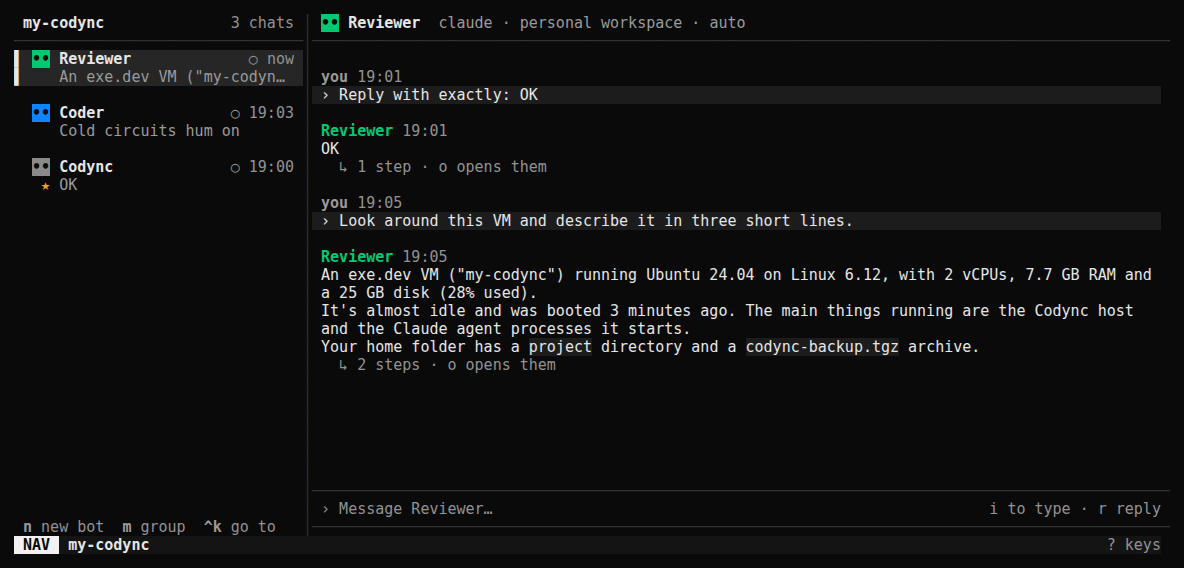
Press n to make a bot and give it a name. It starts on Claude Code in a
folder of its own; press e for its settings, where Agent switches it
to Codex or Pi and Workspace → Choose project folder… points it at
~/project. Press i, type a task, and Enter:
Write index.html in this folder: a one-page site for a very opinionated cat.
If the agent wants approval, a card appears: y allows it once, a
always, n rejects it. q quits the UI; the bots keep going. ? lists
every key.
Scripts and other agents can message bots too, and wait for the answer:
ssh my-codync.exe.xyz codync-host send --bot Codync --wait "What's in ~/project?"
Pair your iPhone#
Install Codync from the App Store (iOS 26 or later) and sign in with Apple, Google or GitHub. On your computer, show a pairing code; it lasts 10 minutes:
ssh -t my-codync.exe.xyz codync-host pair
On the phone, scan the QR code, or type the short code printed under it.
The VM isn't in an account yet, so the terminal asks whether to let the
phone in, and both show a 6-digit code: if they match, answer y within
90 seconds. The VM joins your Codync account and its bots appear on the
phone, listed under my-codync.
The phone reaches the VM through Codync's relay, which passes only encrypted traffic; nothing on the VM is opened to the internet. Lock the phone mid-task, and a notification says when the bot is done or wants approval. To add a second phone later, sign in with the same account, tap Ask for access under Manage computers, and approve it on the VM:
ssh my-codync.exe.xyz codync-host access
ssh my-codync.exe.xyz codync-host access approve 123456
Use the 6-digit code the phone shows; codync-host devices lists the
devices that can use the VM, and codync-host devices revoke <key>
removes one.
Add it to the desktop app#
Codync's desktop app for macOS, Windows and Linux runs the VM's bots next
to your computer's, over SSH with your exe.dev key. It also asks you to
sign in to Codync. Run ssh my-codync.exe.xyz once in a terminal first,
so the VM's host key is saved, then open Settings → Computers, choose
Add SSH computer under Over SSH, enter my-codync.exe.xyz, and
Trust and connect. The host is already installed, so there's nothing
to install. Add to account on its card puts the VM in your Codync
account if you haven't paired a phone yet.
What keeps running#
- Laptop closed, phone locked, app quit: the bots keep working on the VM. Messages you send from the iPhone while the VM can't be reached wait, encrypted, at the relay for up to a day.
- The VM restarts: systemd starts the host again and it reconnects to the relay. Chats and bots are on disk; each bot resumes its agent's session on its next message.
- Updates: the host checks for a new release once a day and installs it while no bot is working. Releases wait until the iPhone app that goes with them is in the App Store.
Make yourself at home#
- Bring your code: connect a GitHub repo
and clone it with
git clone https://github.int.exe.xyz/<owner>/<repo>.git, then make it a bot's workspace. The VM pushes and pulls without a token or SSH key on it. - Preview what it builds: ask a bot to serve the app on
0.0.0.0:8000, then openhttps://my-codync.exe.xyz/. It's private until you share it. - A direct connection: put the VM on your Tailscale network with
Tailscale identity federation, then
pair again: the code lists the Tailscale address first, and a phone on
your tailnet connects directly instead of through the relay. With
Tailscale,
codync-host cloud --disabletakes the VM off the relay entirely; phones that asked for access through your account then can't connect, but those paired with a QR code can. - Shelley is there too: exe.dev's own agent, at
https://my-codync.shelley.exe.xyz/, can hand work to your bots withcodync-host send.
Back up and restore#
Your bots, chats, memory and the VM's Codync identity are in ~/.codync.
For a copy of the whole VM, run this on your computer (choose a free
backup name):
ssh exe.dev cp my-codync my-codync-backup
Back up just Codync's data
On the VM, stop the host for a consistent copy of its database, archive
~/.codync without the downloads it can fetch again, and start it:
codync-host stop
tar -czf ~/codync-$(date +%F).tgz -C ~ --exclude=.codync/node --exclude=.codync/agents .codync
systemctl --user start codync-host
To restore on a VM set up as above, stop the host, unpack the archive in
the home folder, and start it again. identity.json in it is the
computer's identity: with it, paired phones see the same computer. Run
codync-host node afterwards if ~/.codync/node is missing.
codync-host stop
tar -xzf ~/codync-2026-11-02.tgz -C ~
systemctl --user start codync-host
Update#
The host updates itself. To check now, or to turn that off:
codync-host update --check
codync-host update --auto off
Rerunning the installer updates it too. Update the agents on the VM with
sudo exeuntu update claude, sudo exeuntu update codex and
exeuntu update pi; the iPhone and desktop apps update from their
stores.
Troubleshooting#
codync-host: command not foundover SSH. The link in "Set up the VM" is missing; rerun thesudo ln -sfline.- The lead bot uses OpenCode, or another agent. The host started
before it had the agent registry. Press
eon the bot in the terminal UI and set Agent to Claude Code. - A bot says the agent couldn't start. On the VM,
claude -p "Reply with exactly: OK",codex exec "Reply with exactly: OK"andpi -p "Reply with exactly: OK"show whether the agents work on their own; rerunexeuntu configure claudeorexeuntu configure codexif not. Pi failing with Cannot call write after a stream was destroyed is waiting for its first-run question: create the file from "Set up the VM". - An agent Codync can't find. Agents installed after
codync-host installmay be missing from the service'sPATH; runcodync-host installagain. - The phone can't pair. The code expires after 10 minutes and works
once: run
codync-host pairagain. A phone turned away with someone else's masked email is signed in to a different Codync account than the one the VM joined (Apple's Hide My Email and Google count as two).codync-host cloudshows the VM's account and whether the relay is connected. - Logs:
journalctl --user -u codync-host -f.
For everything else, see Codync's Linux server guide and remote access docs.
Frequently asked questions#
Do I need a Codync account?
Not for the VM or the terminal UI: the host runs, and bots answer, without one. Codync's iPhone and desktop apps ask you to sign in, free, with Apple, Google or GitHub. Pairing then puts the VM in that account. The account alone never unlocks the VM: a new device needs a pairing code or your approval on the VM.
Do I have to open a port?
No. The host connects out to Codync's relay, and the phone reaches it through that, end-to-end encrypted. The terminal UI and the desktop app use SSH. The host listens on port 19222, which exe.dev doesn't expose, and its API answers only callers on the VM itself. exe.dev's HTTPS proxy isn't involved: the iPhone app can't sign in to exe.dev, so don't point it there.
Can I use my own Claude or ChatGPT subscription?
Yes; Codync runs whatever the agents on the VM are signed in to. For ChatGPT, the simplest way is to connect it as the OpenAI source of your LLM integration: Codex keeps working as set up here. For Claude, run claude auth login on the VM after removing apiKeyHelper and env.ANTHROPIC_BASE_URL from ~/.claude/settings.json (keep the statusLine Codync added), then start a New session in each Claude bot.
How much does it cost?
Codync is free and Apache-2.0 licensed, and Codync's relay is free for your own computers and devices. You pay for the VM as part of your exe.dev plan, and model usage through the LLM integration is billed to your exe.dev account (models and prices). Your lead bot has a Check in routine that wakes it at 09:00 and 18:00 UTC, which uses models too; pause it in the bot's details (R in the terminal UI, then space).
Which agents can a bot use?
Any of the ~40 in the ACP registry that run on Linux. This page sets up Claude Code, Codex and Pi. Others need their own sign-in or key on the VM; OpenCode's free models run out quickly, so point it at the LLM integration first.
Is Android supported?
Not publicly yet: Codync's Android app is in closed testing on Google Play. Until then, use the terminal UI from any SSH app on the phone, or the desktop app on macOS, Windows or Linux.
What doesn't work on a server?
Remote screen and the bots' computer tool need a desktop session, so they stay off. Connectors and saved API keys need an unlocked keyring (Secret Service), which a headless VM doesn't have, so bots start without connectors. Chat, approvals, group chats, routines, memory and notifications all work.
Updated Nov 2, 2026 · tested end to end Nov 2, 2026 · Markdown · manifest.json · Something wrong? Tell us