Self-host Odoo Community
Open-source ERP and CRM for a small business, on a VM you own.
Shelley handles the setup. About 20 minutes.
Prefer a terminal?
curl -fsSL https://exe.dev/deploy/odoo/prompt.txt | ssh exe.dev new --prompt=/dev/stdinOdoo is a suite of business apps that share one database: CRM, Sales, Invoicing, Inventory, Purchase, Project, Website and dozens more. Odoo Community is the open-source edition: no per-user fees, no user limit, and the data stays in a PostgreSQL database you can dump whenever you like.
On an exe.dev VM it gets a persistent disk, HTTPS, and a login in front of it with no setup: only you and the people you share the VM with can even reach Odoo's sign-in page. When you want customers to accept quotes online, you open the VM up, and the setup is ready for it. Shelley installs it, and can take the backups and updates off your hands later.
Note
This is Odoo Community. Apps marked Upgrade in the Apps menu, such as Accounting, Studio and the AI features, are Enterprise and need a paid subscription from Odoo S.A. Moving to a new major version of Odoo later is real work; see Next major version before you put years of books in it.
What you get#
- Odoo 20.0 Community on PostgreSQL 17, behind exe.dev login, that starts again after a reboot.
- An administrator login for your email, with a random password kept in a file on the VM.
- The database manager switched off and refused, under a hashed master password.
- Live updates (chat, notifications) working through exe.dev's HTTPS proxy.
- Styled PDF quotes and invoices, even while the VM is private.
- Nightly backups of the database and files, with one restored into a scratch database.
What's running, and where
https://my-odoo.exe.xyz/
Odoo, for you and the people you share the VM with, each with their own Odoo login
https://my-odoo.exe.xyz/my
Only if you open the VM up, for the customer portal and quotation links
Deploy with Shelley#
Click Deploy and Shelley will set up Odoo on a new VM, then check that it works. No config-file wrangling required.
Have these ready; Shelley asks for them:
ODOO_COUNTRY: Your company's two-letter country code (US, GB, DE, ...); it sets the currency, and the taxes and chart of accounts Invoicing installs
Prefer a terminal?
curl -fsSL \
  https://exe.dev/deploy/odoo/prompt.txt \
  | ssh exe.dev new --prompt=/dev/stdin
When it's done, run this on your computer (only you can):
ssh my-odoo.exe.xyz cat odoo/admin-passwordWhat Shelley is told
ODOO_COUNTRY=<fill-this-in>

Set up Odoo on this VM by following the exe.dev recipe at https://exe.dev/deploy/odoo.md?via=deploy from top to bottom.

The values at the top of this message are mine:
- ODOO_COUNTRY: Your company's two-letter country code (US, GB, DE, ...); it sets the currency, and the taxes and chart of accounts Invoicing installs
Ask me for any that still say <fill-this-in> before you need them.

The recipe's example VM name is my-odoo. This VM's name is the output of `hostname`: use it wherever the recipe writes my-odoo. Skip the step that creates the VM; you are on it.

You are done when all of these are true. Check each one yourself:
- Odoo 20.0 Community on PostgreSQL 17, behind exe.dev login, that starts again after a reboot.
- An administrator login for your email, with a random password kept in a file on the VM.
- The database manager switched off and refused, under a hashed master password.
- Live updates (chat, notifications) working through exe.dev's HTTPS proxy.
- Styled PDF quotes and invoices, even while the VM is private.
- Nightly backups of the database and files, with one restored into a scratch database.

Read the whole recipe, including the closed details. For initial setup,
follow "Install by hand" from top to bottom, skipping VM creation: Docker,
the passwords, the settings and Compose files, the database, nginx, the
backup timer, and the backup test. The walkthrough at the top is for the
owner afterwards.
Work as exedev in ~/odoo. Never overwrite an existing .env,
admin-password or master-password, and don't run `odoo db init` if the
odoo database already exists. The administrator login is the owner's
email from the reflection integration; if that's empty, ask the owner.
Ask for the country code if you weren't given one.
Don't activate apps, create users, set up email, or make the VM public;
don't run Restore or Update. Verify docker.service is enabled, /web/health
answers `pass` on localhost:8000, /web/database/manager is a 404 there,
/web/signup is a 404, the backup timer is enabled and the backup test
passes. Do not reboot.
Never paste a password into the chat; say it's in ~/odoo/admin-password.
Finish by pointing the owner to "Sign in" and "Activate your apps".

Finish with the URLs I should open and these commands, which only I can run, from my own computer (with this VM's name in them):
  ssh my-odoo.exe.xyz cat odoo/admin-password
Also at /deploy/odoo/prompt.txt. The recipe it follows is /deploy/odoo.md.
Choose who can reach it#
- Private (this guide's default). Odoo is at
https://my-odoo.exe.xyz/, but exe.dev asks for a login first, and lets in only you and the people you share the VM with. Then each person signs in to Odoo with their own Odoo user. Pick this for an internal CRM, sales and invoicing tool. - Public. Anyone can reach Odoo's pages, which is what customers need to open a quotation link, sign and accept it, see their invoices in the portal, or browse an Odoo website. Odoo's own login protects everything else. See Let customers in.
You can switch between them at any time; nothing on the VM changes.
Sign in#
The administrator is your email address, with a random password. On your computer:
ssh my-odoo.exe.xyz cat odoo/admin-password
Open https://my-odoo.exe.xyz/, sign in to exe.dev if asked, then sign in
to Odoo with your email and that password. Store the password in your
password manager. Then, from your avatar at the top right, open My
Preferences → Security and Enable 2FA.
Activate your apps#
A new database has only Discuss and the basics. Open Apps and click Activate on what you need, one at a time; each takes a few seconds:
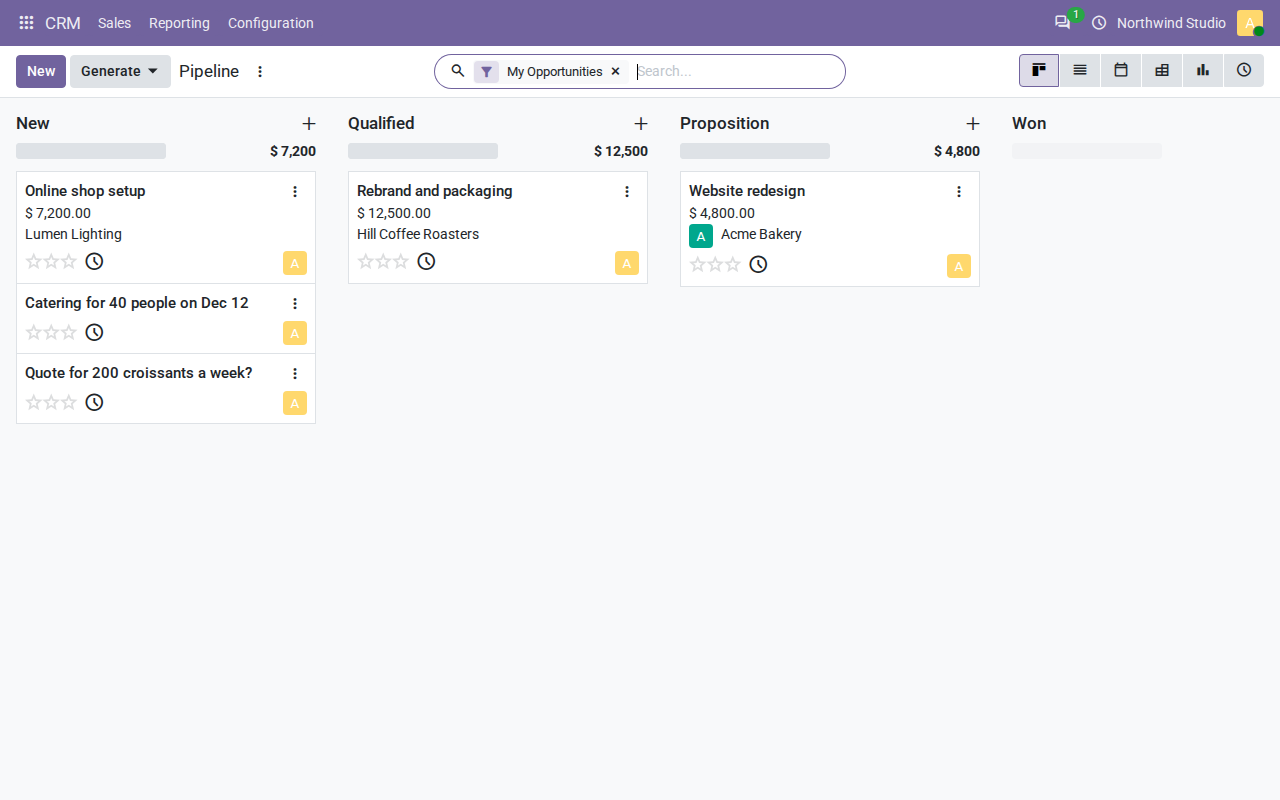
- CRM: leads and opportunities, the pipeline above.
- Sales: quotations and sales orders.
- Invoicing: invoices, bills and payments. It also installs your country's taxes and chart of accounts, from the country set at install.
Then open Settings → General Settings and fill in your company's name, address and logo: they go on every quote and invoice.
Make a quote#
In CRM, click New, name the opportunity, add the customer, and open it. New Quotation starts a quote for that customer. Add a line with a product or service and a price, and save.
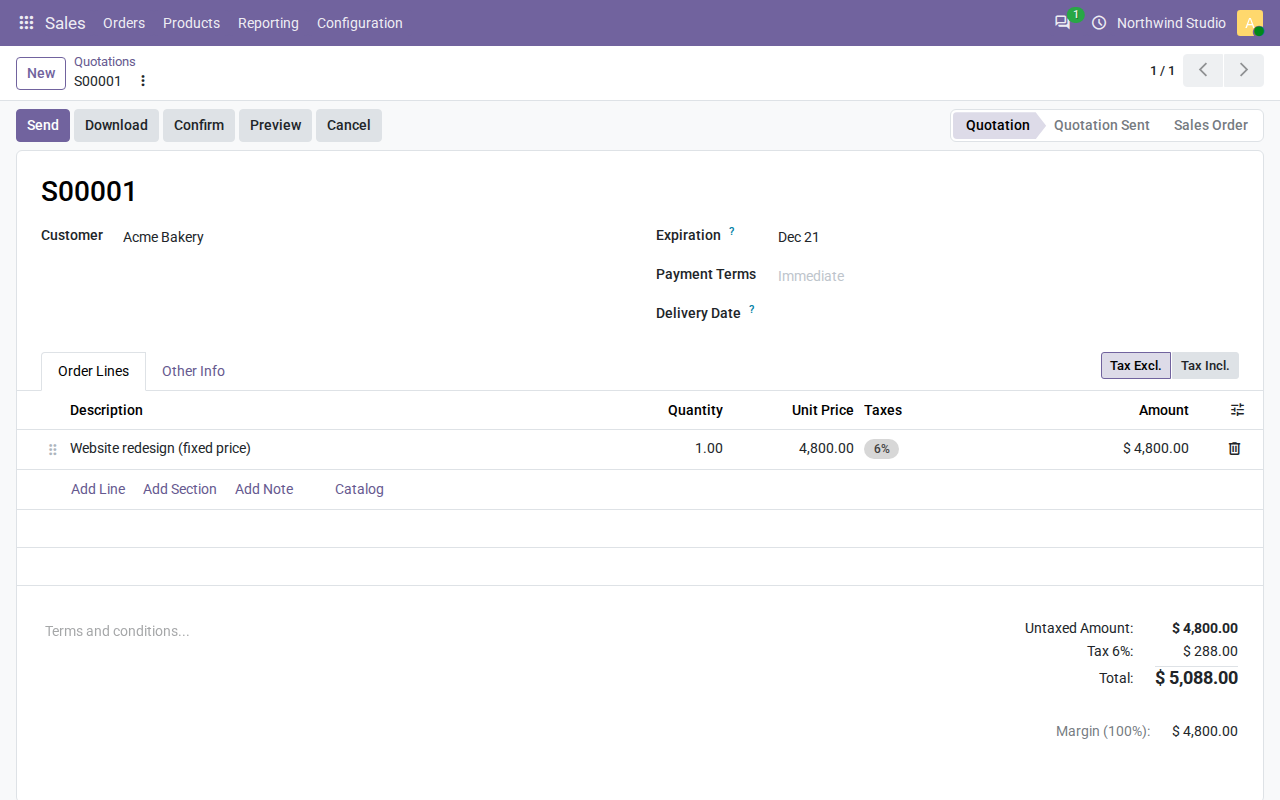
Download gives you a PDF to send yourself. Send emails it, once you've set up outgoing email. The email carries a link to the quote online, where the customer can sign and accept it; that link works only when the VM is public. Confirm turns the quote into a sales order, and from there, an invoice.
Bring your team#
Each person needs two things: access to the VM, and an Odoo user.
-
On your computer, share the VM with them (or with your whole exe.dev team, with
teaminstead of an email):ssh exe.dev share add my-odoo alice@example.com -
In Odoo, open Settings → Users & Companies → Users, click New, and enter their name and email. Pick a Role (User, or Administrator for people who manage settings) and the access level for each app, then save.
-
Until email is set up, Odoo can't send them an invitation. On the user, open the Security tab, click Change password, set a temporary one, and tell them to change it under My Preferences.
They sign in to exe.dev with their own account, and then to Odoo with
their email and password. Removing someone takes both:
ssh exe.dev share remove my-odoo alice@example.com, and archiving their
Odoo user.
Let customers in#
On your computer:
ssh exe.dev share set-public my-odoo
Now Odoo's own login is the only lock, so the install has already closed the usual holes:
- No database manager. It's switched off, nginx refuses
/web/database/...with a 404, and its master password is stored only as a hash. - No self-signup. Customers get portal accounts only when you invite them (from a contact, Grant portal access). Odoo 20 otherwise lets anyone sign up for one.
- Slow guessing. After ten wrong passwords from one address, Odoo makes it wait a minute.
Turn on two-factor sign-in for every internal user (each person does it in My Preferences → Security), and update when Odoo publishes fixes.
Quotation links in emails carry a secret token, so a customer can open, sign and accept their quote without an account. The Website and eCommerce apps publish pages at the same address, for anyone.
ssh exe.dev share set-private my-odoo closes it again. While it's
private, links you've sent stop working for customers.
Warning
Public means all of Odoo's pages, not just the portal: exe.dev can't open some paths and keep others behind its login. If you'd rather not put Odoo's login page on the internet, stay private and send customers PDFs.
Email#
Receive email#
exe.dev can deliver mail sent to any address at
my-odoo.exe.xyz to the VM. With it, mail to
leads@my-odoo.exe.xyz becomes a CRM lead, and customers' replies land
on the quote they're about. On your computer:
ssh exe.dev share receive-email my-odoo on
Then ask Shelley to set up "Receive email" in the Install by hand steps below, or follow them yourself. It needs CRM activated first. There's no spam filter, and exe.dev pauses delivery if more than 1000 messages pile up unprocessed, which the watcher prevents.
Send email#
Odoo sends quotes, invoices, invitations and password resets by email. exe.dev doesn't relay mail to your customers, so you need an SMTP server from a mail provider (your Google Workspace or Microsoft 365, or a transactional service like Postmark, Mailgun or Amazon SES).
In Settings → General Settings → Emails:
- Set Alias Domain to a domain you own, such as
example.com. Odoo sends asnotifications@that domain, and replies come back to aliases there. Your provider has to be allowed to send for it, with the SPF and DKIM records it gives you; it can't send forexe.xyz. - Turn on Custom Email Servers, open Outgoing Email Servers, and add your provider's SMTP host, port (usually 587) and login. Test Connection, then save.
If you also want replies to reach Odoo, point that domain's mail at your
provider and fetch it with an Incoming Email Server, or forward it to
@my-odoo.exe.xyz.
Connect scripts#
Odoo 20's JSON-2 API reads and writes any record. Make an Odoo API key from My Preferences → Security → Create API Key. While the VM is private, also make a VM token for exe.dev; on your computer:
ssh exe.dev ssh-key generate-api-key --vm=my-odoo --label=odoo-api
Send both, each in its own header:
curl -s https://my-odoo.exe.xyz/json/2/res.partner/search_read \
  -H "X-Exedev-Authorization: Bearer $EXE_TOKEN" \
  -H "Authorization: bearer $ODOO_API_KEY" \
  -H 'Content-Type: application/json' \
  -d '{"domain": [["is_company", "=", true]], "fields": ["name"]}'
You get a JSON list of companies. A public VM needs only the Odoo key. When you make a key, Odoo asks how long it should last: administrators can pick Never, everyone else three months at most.
Add modules#
Third-party and in-house modules go in ~/odoo/addons on the VM, one
directory per module, for the same Odoo version (20.0); the
OCA publishes hundreds. Then, on the VM:
cd ~/odoo
docker compose restart odoo
docker compose exec -T odoo odoo module install MODULE_NAME
The module is in Apps afterwards. Modules with Python dependencies the image doesn't have need a custom image; ask Shelley. Modules come with the backups.
Keep your data safe#
Every night at about 03:30 UTC, a timer saves the database, attached
files, settings and passwords into ~/odoo/backups, and keeps two weeks.
A backup of a small company's Odoo is a few megabytes.
They're on the same disk, so copy them off the VM too. On your computer:
rsync -av my-odoo.exe.xyz:odoo/backups/ ./odoo-backups/
The files hold your passwords; keep the copies somewhere private. To copy the whole disk to your own S3 bucket, see VM backups.
Next major version#
Odoo ships a major version each autumn and supports each for three years; 20.0 is supported until September 2029. A self-hosted Odoo can stay on its version for as long as you like. Update brings fixes within 20.0, and that's routine.
Moving to 21.0 is not routine. The database has to be migrated, and every
added module needs a 21.0 version. For Community, the usual tool is the
OCA's OpenUpgrade, which migrates
one version at a time and takes a few months after each release to cover
the core apps. Odoo S.A.'s upgrade service is
for Enterprise. Either way: try it on a copy of the VM
(ssh exe.dev cp my-odoo my-odoo-21), check your data, then move.
Use your own domain#
To serve Odoo at, say, erp.example.com, point a CNAME at
my-odoo.exe.xyz and register it, on your computer, as described in
custom domains:
ssh exe.dev domain add my-odoo erp.example.com
Then sign in to Odoo at the new address as the administrator: Odoo picks up the new address for links in emails and PDFs from that sign-in.
The nuts and bolts#
Happy clicking Deploy? You can stop here. These are the same setup steps
Shelley follows, plus the maintenance commands for later. Tested with Odoo
20.0 (image odoo:20.0, build 20261112) and PostgreSQL 17.12 on a default
VM (2 CPUs, 8 GB memory, 25 GB disk).
Install by hand
Create a VM#
On your computer (pick another name if my-odoo is taken):
ssh exe.dev new --name=my-odoo
ssh my-odoo.exe.xyz
All remaining installation commands run on the VM, as exedev. They
use hostname, so your VM can have any name. The images take about 4 GB;
after installing, about 10 GB of the 25 GB disk is in use.
Get Docker ready#
Enable Docker at boot, or exe.dev's on-demand Docker won't restart Odoo after a reboot:
sudo systemctl enable --now docker.service
systemctl is-enabled docker.service
Expect enabled.
Make the passwords#
Three random secrets, readable only by you: the Odoo administrator's password, the master password (which guards database operations), and the PostgreSQL passwords. It won't overwrite existing ones.
mkdir -p ~/odoo/addons ~/odoo/backups ~/odoo/initdb && cd ~/odoo
if [ ! -f .env ]; then
  (
    umask 077
    openssl rand -base64 24 | tr -d '/+=' > admin-password
    openssl rand -base64 24 | tr -d '/+=' > master-password
    cat > .env <<EOF
POSTGRES_PASSWORD=$(openssl rand -hex 24)
ODOO_DB_PASSWORD=$(openssl rand -hex 24)
EOF
  )
fi
ls -l .env admin-password master-password
Expect three files with -rw-------.
Write the settings#
PostgreSQL makes a role for Odoo the first time it starts. It may create databases (restores need that) but isn't a superuser:
cd ~/odoo
cat > initdb/10-odoo-role.sh <<'EOF'
#!/bin/bash
# Runs once, when the PostgreSQL data directory is first created:
# Odoo's own role, which may create databases but is not a superuser.
set -e
psql -v ON_ERROR_STOP=1 --username postgres -v pw="$ODOO_DB_PASSWORD" <<'SQL'
CREATE ROLE odoo LOGIN CREATEDB PASSWORD :'pw';
SQL
EOF
chmod 755 initdb/10-odoo-role.sh
odoo.conf serves one database, named odoo, with the database manager
switched off. Its master password is stored as a PBKDF2 hash, made with
the same library Odoo uses. proxy_mode makes Odoo trust the
X-Forwarded-* headers from exe.dev's proxy, for the right https://
links and the real client address. workers = 3 runs Odoo in
multi-process mode, which also starts the live-updates (WebSocket) server
on port 8072.
cd ~/odoo
HASH=$(docker run --rm -i --entrypoint python3 odoo:20.0 -c \
  'import sys; from passlib.context import CryptContext; print(CryptContext(["pbkdf2_sha512"]).hash(sys.stdin.read().strip()))' < master-password)
cat > odoo.conf <<EOF
[options]
addons_path = /mnt/extra-addons
data_dir = /var/lib/odoo
; One database, and no database manager: create, copy and restore
; databases from the command line.
db_name = odoo
dbfilter = ^odoo\$
list_db = False
admin_passwd = $HASH
; Behind exe.dev's HTTPS proxy and nginx.
proxy_mode = True
http_interface = 0.0.0.0
; Multi-process: HTTP workers on 8069, live updates (WebSocket) on 8072.
workers = 3
max_cron_threads = 1
limit_time_cpu = 600
limit_time_real = 1200
EOF
grep -c pbkdf2-sha512 odoo.conf
Expect 1 (the first run also downloads the Odoo image).
The Compose file pins Odoo's major version and PostgreSQL 17 (Odoo 20
needs 16 or newer; Docker Hub's example still says 15). Both ports listen
on localhost only; nginx is the way in. The backups and inbox
directories are mounted read-only for restores and incoming mail.
cd ~/odoo
cat > compose.yaml <<'EOF'
services:
  db:
    image: postgres:17
    restart: unless-stopped
    environment:
      POSTGRES_USER: postgres
      POSTGRES_PASSWORD: ${POSTGRES_PASSWORD}
      ODOO_DB_PASSWORD: ${ODOO_DB_PASSWORD}
    volumes:
      - ./postgres:/var/lib/postgresql/data
      - ./initdb:/docker-entrypoint-initdb.d:ro
    healthcheck:
      test: ["CMD", "pg_isready", "-U", "postgres"]
      interval: 5s
      retries: 20

  odoo:
    image: odoo:20.0
    restart: unless-stopped
    depends_on:
      db:
        condition: service_healthy
    environment:
      PGHOST: db
      PGPORT: "5432"
      PGUSER: odoo
      PGPASSWORD: ${ODOO_DB_PASSWORD}
    volumes:
      - ./odoo.conf:/etc/odoo/odoo.conf:ro
      - ./data:/var/lib/odoo
      - ./addons:/mnt/extra-addons:ro
      - ./backups:/mnt/backups:ro
      - ./inbox:/mnt/inbox:ro
    ports:
      - "127.0.0.1:8069:8069"
      - "127.0.0.1:8072:8072"
EOF
mkdir -p data inbox && sudo chown 100:101 data
docker compose up -d db
until [ "$(docker compose ps --format '{{.Health}}' db)" = healthy ]; do sleep 2; done
docker compose exec -T db psql -U postgres -tAc \
  "SELECT rolname, rolsuper, rolcreatedb FROM pg_roles WHERE rolname = 'odoo'"
Expect odoo|f|t: a role that isn't a superuser and can create
databases. (100:101 is the image's odoo user, which writes attachments
and sessions to data.)
Create the database#
The administrator's login is your exe.dev email, read from the VM's reflection integration. Set your company's country code: it picks the currency, and the taxes and chart of accounts Invoicing installs. Demo data is off by default.
cd ~/odoo
ODOO_ADMIN=$(curl -fsS https://reflection.int.exe.xyz/email | jq -r .email)
ODOO_COUNTRY=US
echo "$ODOO_ADMIN $ODOO_COUNTRY"
docker compose run --rm -T odoo odoo db init odoo \
  --username "$ODOO_ADMIN" --password "$(cat admin-password)" --country "$ODOO_COUNTRY"
Check the echoed email and country before the last command runs; it takes about half a minute. Then start Odoo:
cd ~/odoo
docker compose up -d
until curl -fs localhost:8069/web/health; do sleep 2; done; echo
Expect {"status": "pass"}.
Two settings Odoo keeps in the database. report.url makes the PDF
renderer fetch its stylesheets from Odoo directly: by default it goes
through the public address, where exe.dev's login stops it while the VM
is private, and quotes come out unstyled. invitation_scope turns off
Odoo 20's default of letting anyone sign up for a portal account.
cd ~/odoo
docker compose exec -T odoo odoo shell --no-http --log-level=warn <<'EOF'
params = env['ir.config_parameter']
params.set_str('report.url', 'http://localhost:8069')
params.set_str('auth_signup.invitation_scope', 'b2b')
env.cr.commit()
print(params.get_str('report.url'), params.get_str('auth_signup.invitation_scope'))
EOF
Expect http://localhost:8069 b2b.
Put nginx in front#
exe.dev's proxy sends HTTPS traffic to port 8000. nginx passes it to Odoo,
sends /websocket to the live-updates port, keeps exe.dev's
X-Forwarded-* headers for proxy_mode, and refuses the database
manager outright. The timeouts follow Odoo's deployment guide.
sudo tee /etc/nginx/sites-available/odoo >/dev/null <<'EOF'
# exe.dev's HTTPS proxy -> nginx :8000 -> Odoo: HTTP workers on :8069,
# live updates (/websocket) on the gevent worker at :8072.

map $http_upgrade $connection_upgrade {
    default upgrade;
    ''      close;
}

server {
    listen 8000 default_server;
    listen [::]:8000 default_server;
    server_name _;
    client_max_body_size 128m;
    proxy_read_timeout 720s;
    proxy_connect_timeout 720s;
    proxy_send_timeout 720s;

    proxy_set_header Host $http_host;
    proxy_set_header X-Forwarded-Host $http_host;
    proxy_set_header X-Forwarded-Proto $http_x_forwarded_proto;
    proxy_set_header X-Forwarded-For $http_x_forwarded_for;

    # The database manager is off in odoo.conf; refuse it here too.
    location ^~ /web/database {
        return 404;
    }

    location /websocket {
        proxy_pass http://127.0.0.1:8072;
        proxy_http_version 1.1;
        proxy_set_header Upgrade $http_upgrade;
        proxy_set_header Connection $connection_upgrade;
        proxy_set_header Host $http_host;
        proxy_set_header X-Forwarded-Host $http_host;
        proxy_set_header X-Forwarded-Proto $http_x_forwarded_proto;
        proxy_set_header X-Forwarded-For $http_x_forwarded_for;
    }

    location / {
        proxy_pass http://127.0.0.1:8069;
        proxy_redirect off;
    }

    gzip on;
    gzip_types text/css text/plain application/json application/javascript text/xml;
}
EOF
sudo rm -f /etc/nginx/sites-enabled/default
sudo ln -sf /etc/nginx/sites-available/odoo /etc/nginx/sites-enabled/odoo
sudo nginx -t && sudo systemctl enable --now nginx && sudo systemctl reload nginx
for path in /web/health /web/login /web/database/manager /web/signup; do
  echo "$path $(curl -s -o /dev/null -w '%{http_code}' localhost:8000$path)"
done
Expect 200 for the first two and 404 for the database manager and
signup.
Set up nightly backups#
odoo db dump writes Odoo's own backup format: a zip with the SQL dump
and the filestore (attachments and images, which live outside the
database). The script adds the settings, secrets and custom modules, so
one file rebuilds the whole thing.
cat > ~/odoo/backup.sh <<'EOF'
#!/bin/bash
# Back up Odoo: the database and its filestore (Odoo's own zip format,
# what `odoo db load` restores), plus the settings, secrets and custom
# addons, in one tar file. Keeps 14 days.
set -euo pipefail
cd /home/exedev/odoo
stamp=$(date -u +%Y%m%d-%H%M%S)
work=$(mktemp -d)
trap 'rm -rf "$work"' EXIT
docker compose exec -T odoo odoo db dump odoo - > "$work/odoo.zip" 2> "$work/dump.log" \
  || { cat "$work/dump.log" >&2; exit 1; }
unzip -tq "$work/odoo.zip" >/dev/null
cp -a compose.yaml odoo.conf .env admin-password master-password initdb addons "$work/"
umask 077
tar -C "$work" -cf "backups/odoo-$stamp.tar" odoo.zip compose.yaml odoo.conf .env admin-password master-password initdb addons
find backups -name 'odoo-*.tar' -mtime +13 -delete
echo "backups/odoo-$stamp.tar"
EOF
chmod 755 ~/odoo/backup.sh

sudo tee /etc/systemd/system/odoo-backup.service >/dev/null <<'EOF'
[Unit]
Description=Back up Odoo
After=docker.service

[Service]
Type=oneshot
User=exedev
ExecStart=/home/exedev/odoo/backup.sh
EOF
sudo tee /etc/systemd/system/odoo-backup.timer >/dev/null <<'EOF'
[Unit]
Description=Back up Odoo every night

[Timer]
OnCalendar=*-*-* 03:30:00
RandomizedDelaySec=30m
Persistent=true

[Install]
WantedBy=timers.target
EOF
sudo systemctl daemon-reload
sudo systemctl enable --now odoo-backup.timer
sudo systemctl start odoo-backup.service
ls -l ~/odoo/backups
Expect one odoo-<date>.tar with -rw-------.
Test a backup#
This loads the newest backup into a scratch database next to the real one, counts what's in it, and drops it again:
cat > ~/odoo/test-restore.sh <<'EOF'
#!/bin/bash
# Load the newest backup into a scratch database next to the real one,
# count what's in it, and drop it again. The live database isn't touched.
set -euo pipefail
cd /home/exedev/odoo
latest=$(ls -1t backups/odoo-*.tar | head -n 1)
echo "Testing $latest"
rm -rf backups/restore-test && mkdir backups/restore-test
trap 'rm -rf backups/restore-test' EXIT
tar -C backups/restore-test -xf "$latest" odoo.zip
docker compose exec -T odoo odoo db load odoo_restore_test /mnt/backups/restore-test/odoo.zip >/dev/null 2>&1
docker compose exec -T db psql -U postgres -d odoo_restore_test -tAc \
  "SELECT count(*) || ' contacts' FROM res_partner; SELECT count(*) || ' installed modules' FROM ir_module_module WHERE state = 'installed';"
docker compose exec -T odoo odoo db drop odoo_restore_test >/dev/null 2>&1
echo "Restore test passed"
EOF
chmod 755 ~/odoo/test-restore.sh
~/odoo/test-restore.sh
Expect a few contacts, a few dozen installed modules, and Restore test passed. Run it again now and then, after ~/odoo/backup.sh.
Installation done. Leave the rest to the owner; continue with Sign in.
Receive email (optional)#
Only after the owner has run ssh exe.dev share receive-email my-odoo on
and activated CRM. exe.dev writes each message to ~/Maildir/new; a
systemd path unit notices and hands it to Odoo's mail gateway, the same
code Odoo's own odoo-mailgate script calls. Odoo routes it by alias:
a new lead, or a reply on the record it answers.
First make my-odoo.exe.xyz the alias domain, and give the sales team
the alias leads (Invoicing already uses sales@ for its sales journal):
mkdir -p ~/Maildir/new ~/Maildir/cur
cd ~/odoo
docker compose exec -T odoo odoo shell --no-http --log-level=warn <<EOF
Alias = env['mail.alias.domain']
domain = Alias.search([('name', '=', '$(hostname).exe.xyz')]) or Alias.create({'name': '$(hostname).exe.xyz'})
env.company.alias_domain_id = domain
team = env.ref('sales_team.team_sales_department')
team.write({'alias_name': 'leads', 'alias_domain_id': domain.id})
env.cr.commit()
print(team.alias_email)
EOF
Expect leads@my-odoo.exe.xyz. Then the delivery scripts and units:
cd ~/odoo
cat > mail-in.py <<'EOF'
# Run by mail-in.sh inside `odoo shell`: hand each message in /mnt/inbox
# to Odoo's mail gateway, which routes it by alias (a lead, a reply on a
# quotation's chatter, ...). Prints one line per message.
import os
for name in sorted(os.listdir('/mnt/inbox')):
    with open(os.path.join('/mnt/inbox', name), 'rb') as f:
        raw = f.read()
    try:
        with env.cr.savepoint():
            env['mail.thread'].message_process(False, raw)
        env.cr.commit()
        print('OK', name)
    except Exception as e:
        env.cr.rollback()
        print('FAILED', name, str(e).splitlines()[0][:200])
EOF
cat > mail-in.sh <<'EOF'
#!/bin/bash
# Move new mail from ~/Maildir/new (where exe.dev delivers it) into Odoo.
# Delivered messages go to ~/Maildir/cur; ones Odoo refused, to ~/odoo/inbox-failed.
set -euo pipefail
cd /home/exedev/odoo
shopt -s nullglob
files=(/home/exedev/Maildir/new/*)
[ ${#files[@]} -eq 0 ] && exit 0
mkdir -p inbox inbox-failed
mv "${files[@]}" inbox/
chmod 644 inbox/*
docker compose exec -T odoo odoo shell --no-http --log-level=warn < mail-in.py 2>/dev/null |
while read -r status name rest; do
  case "$status" in
    OK) mv "inbox/$name" /home/exedev/Maildir/cur/ ;;
    FAILED) mv "inbox/$name" inbox-failed/; echo "Odoo refused $name: $rest" ;;
  esac
done
EOF
chmod 755 mail-in.sh

sudo tee /etc/systemd/system/odoo-mail-in.service >/dev/null <<'EOF'
[Unit]
Description=Deliver new mail from ~/Maildir to Odoo

[Service]
Type=oneshot
User=exedev
ExecStart=/home/exedev/odoo/mail-in.sh
EOF
sudo tee /etc/systemd/system/odoo-mail-in.path >/dev/null <<'EOF'
[Unit]
Description=Watch ~/Maildir/new for mail to Odoo

[Path]
DirectoryNotEmpty=/home/exedev/Maildir/new

[Install]
WantedBy=paths.target
EOF
sudo systemctl daemon-reload
sudo systemctl enable --now odoo-mail-in.path
Send a message to leads@my-odoo.exe.xyz from any mailbox. Within
seconds it's a lead in the CRM pipeline's New column, with the
sender's address on it.
Back up and restore
On the VM, ~/odoo/backup.sh makes an extra backup and prints its path.
Copy backups off the VM as in Keep your data safe.
Restore#
This replaces the live database and its files with a backup; everything since that backup is lost. On the VM, with the backup's name in place of the example:
cd ~/odoo
backup=backups/odoo-20261121-033012.tar
mkdir -p backups/restore && tar -C backups/restore -xf "$backup" odoo.zip
docker compose stop odoo
docker compose run --rm odoo odoo db load -f --move odoo /mnt/backups/restore/odoo.zip
docker compose up -d
rm -rf backups/restore
until curl -fs localhost:8000/web/health; do sleep 2; done; echo
-f drops the current database first; --move keeps the database's
identity, so Odoo treats it as the same database rather than a copy.
Expect RESTORE DB: odoo near the end of the load, then
{"status": "pass"}.
To restore onto a new VM, copy the backup there, run Get Docker
ready, unpack it with mkdir -p ~/odoo && tar -C ~/odoo -xf odoo-<date>.tar (it brings compose.yaml, odoo.conf, the
passwords and modules), then, in ~/odoo, mkdir -p backups/restore inbox data && sudo chown 100:101 data && mv odoo.zip backups/restore/,
docker compose up -d db, and the db load line above without -f.
Finish with nginx and the backup timer from the install steps. If the
VM's name changed, update the alias domain under Settings →
General Settings → Emails.
Update Odoo
The odoo:20.0 tag follows Odoo's 20.0 builds, which carry bug and
security fixes, and postgres:17 follows PostgreSQL 17's minor releases.
On the VM: back up, pull, update the modules whose version changed, and
restart.
cd ~/odoo
./backup.sh
docker compose pull
docker compose stop odoo
docker compose run --rm odoo odoo module upgrade all --outdated
docker compose up -d
until curl -fs localhost:8000/web/health; do sleep 2; done; echo
docker compose exec odoo odoo --version
docker image prune -f
Expect {"status": "pass"} and Odoo Server 20.0-<date>. If something
breaks, restore the backup. To pin an exact build instead,
use a dated tag such as odoo:20.0-20261112 in compose.yaml.
A new major version (21.0) is a migration, not an update: see Next major version.
Something not working?
On the VM:
cd ~/odoo
docker compose ps
docker compose logs --tail=100 odoo
- A script or tool gets
401or exe.dev's login page: the VM is private. Send a VM token as well, or make the VM public. - Quote and invoice PDFs have no styling: the
report.urlsetting is missing. Run theodoo shellcommand in Create the database again. - Chat and notifications only show up after a reload: live updates
aren't getting through. The log should have
GET /websocketlines ending in101; if not, check the/websocketblock in/etc/nginx/sites-available/odooandsudo nginx -t. - "The database manager has been disabled by the administrator":
by design. Use the
odoo dbcommands in these steps. - "Too many login failures, please wait a bit before trying again": ten wrong passwords from one address; wait a minute.
- The log shows
172.xaddresses instead of real visitors: nginx isn't passingX-Forwarded-For, orproxy_modeis off; Odoo's login throttle then lumps everyone together. - A new module isn't in Apps: check it's for 20.0, sits directly
under
~/odoo/addons/<name>/with a__manifest__.py, and that you restarted Odoo. - Mail doesn't become leads: check
journalctl -u odoo-mail-in.service, and~/odoo/inbox-failedfor messages Odoo refused (usually an alias that doesn't exist). Messages left in~/odoo/inboxare retried with the next delivery. - Down after a reboot: run
sudo systemctl enable --now docker.service.
Frequently asked questions#
Is Odoo Community free?
Yes. Odoo Community is open source (LGPL-3.0), with no user limit: CRM, Sales, Invoicing, Inventory, Purchase, Project, Website, eCommerce, Point of Sale and more. You pay for your exe.dev plan. Odoo Enterprise is a paid subscription from Odoo S.A. with extra apps; this recipe doesn't cover it.
What's missing from Community compared with Enterprise?
Enterprise adds full Accounting (Community has Invoicing), Studio, Knowledge, Sign, Payroll, the AI features and manufacturing extras such as PLM and Quality, plus Odoo's support and upgrade service. In Apps, those show an Upgrade button instead of Activate. Many gaps are filled by free modules from the Odoo Community Association.
How many users can it take?
Odoo's own rule of thumb is about six people working at once per HTTP worker. This setup has three workers on a 2-CPU VM and idles at about 400 MB of memory, so it's comfortable for a small team. For more, ssh exe.dev resize the VM and raise workers in odoo.conf.
Can I upgrade to Odoo 21 later?
Not by changing the image tag. A major version changes the database, and Community has no built-in migration. You can stay on 20.0 for as long as you like (Odoo supports it until September 2029), and when you move, it's a project: see Next major version.
Do customers need an exe.dev account?
Only while the VM is private. Your team signs in to exe.dev and then to Odoo. Customers following a quotation link, or using the portal or your Odoo website, need the VM public.
Can I keep Odoo private and still use its API?
Yes. Send a VM token in X-Exedev-Authorization and your Odoo API key in Authorization; both together work, as in Connect scripts.
Does it send email?
Only once you add an SMTP server from a mail provider, ideally on a domain you own. Until then, share quotes as links or PDFs. Receiving is easier: exe.dev can deliver mail for @my-odoo.exe.xyz to the VM, which can turn it into CRM leads. See Email.
Published Nov 21, 2026 · Updated Nov 20, 2026 · tested end to end Nov 20, 2026 · Markdown · manifest.json · Something wrong? Tell us