
Self-host Ghost
Your Ghost publication on a VM of its own, with an admin only you can reach.
Shelley handles the setup. About 10 minutes.
Prefer a terminal?
curl -fsSL https://exe.dev/deploy/ghost/prompt.txt | ssh exe.dev new --prompt=/dev/stdinGhost is an open-source publishing platform for blogs, newsletters, and paid memberships, the software behind Ghost(Pro) and many independent publications. Here it gets a VM of its own with a persistent disk: the official Docker images for Ghost and MySQL, your images and themes in plain directories you and Shelley can edit, and nightly backups. The site stays private until you make it public, and even then Ghost Admin opens only for the exe.dev accounts you list, already signed in, so nobody can guess passwords at your login page.
What you get#
- Ghost 6 with MySQL 8.4 under Docker Compose, restarting after a reboot.
- Ghost's setup screen waiting at your private URL, for you to name the publication and create the owner account.
- Ghost Admin open only to exe.dev accounts you list, and signed in by your exe.dev login, even after the site goes public.
- Search, member sign-up, comments, and the social web working for visitors once the site is public.
- Nightly backups of the database, images, themes, and settings, keeping a week.
What's running, and where
https://my-ghost.exe.xyz/
your publication, until you make it public
https://my-ghost.exe.xyz/ghost/
Ghost Admin, for the exe.dev accounts you list, even when the site is public
Deploy with Shelley#
Click Deploy and Shelley will set up Ghost on a new VM, then check that it works. No config-file wrangling required.
Prefer a terminal?
curl -fsSL \
  https://exe.dev/deploy/ghost/prompt.txt \
  | ssh exe.dev new --prompt=/dev/stdin
What Shelley is told
Set up Ghost on this VM by following the exe.dev recipe at https://exe.dev/deploy/ghost.md?via=deploy from top to bottom.

The recipe's example VM name is my-ghost. This VM's name is the output of `hostname`: use it wherever the recipe writes my-ghost. Skip the step that creates the VM; you are on it.

You are done when all of these are true. Check each one yourself:
- Ghost 6 with MySQL 8.4 under Docker Compose, restarting after a reboot.
- Ghost's setup screen waiting at your private URL, for you to name the publication and create the owner account.
- Ghost Admin open only to exe.dev accounts you list, and signed in by your exe.dev login, even after the site goes public.
- Search, member sign-up, comments, and the social web working for visitors once the site is public.
- Nightly backups of the database, images, themes, and settings, keeping a week.

Read the whole recipe, including the closed details. For initial setup,
follow "Install by hand" from top to bottom: Docker, ~/ghost with .env,
ghost.env and compose.yaml, the Caddyfile, the owner's email in
~/ghost/caddy/staff-emails (from the reflection integration; if that
fails, ask the owner), the exe.dev sign-in adapter, starting Ghost, and
the backup timer. Never overwrite an existing .env, ghost.env or
staff-emails. Don't fill in Ghost's setup screen yourself, and don't
make the site public, add a domain, set up email, Mailgun or Stripe,
import anything, or run the Restore or Update instructions during
initial setup; the walkthrough sections are for the owner afterwards.
Check the login gate on localhost as "Start Ghost" shows. Ghost logs
"Failed to send email" until email is set up; that's expected. Do not
reboot. Finish with https://<vm>.exe.xyz/ghost/ and ask the owner to
open it and fill in Ghost's setup screen with the same email they use
for exe.dev. Don't paste the database passwords into the chat; say
they are in ~/ghost/.env.

Finish with the URLs I should open.
Also at /deploy/ghost/prompt.txt. The recipe it follows is /deploy/ghost.md.
Finish the install#
Open https://my-ghost.exe.xyz/ghost/. You'll sign in to exe.dev if
you haven't, then land on Ghost's setup screen: a site title, your
name, an email, and a password. Use the email you sign in to exe.dev
with; that's how Ghost Admin knows you next time. Nobody else can
reach this screen, because the VM is private and /ghost is gated.
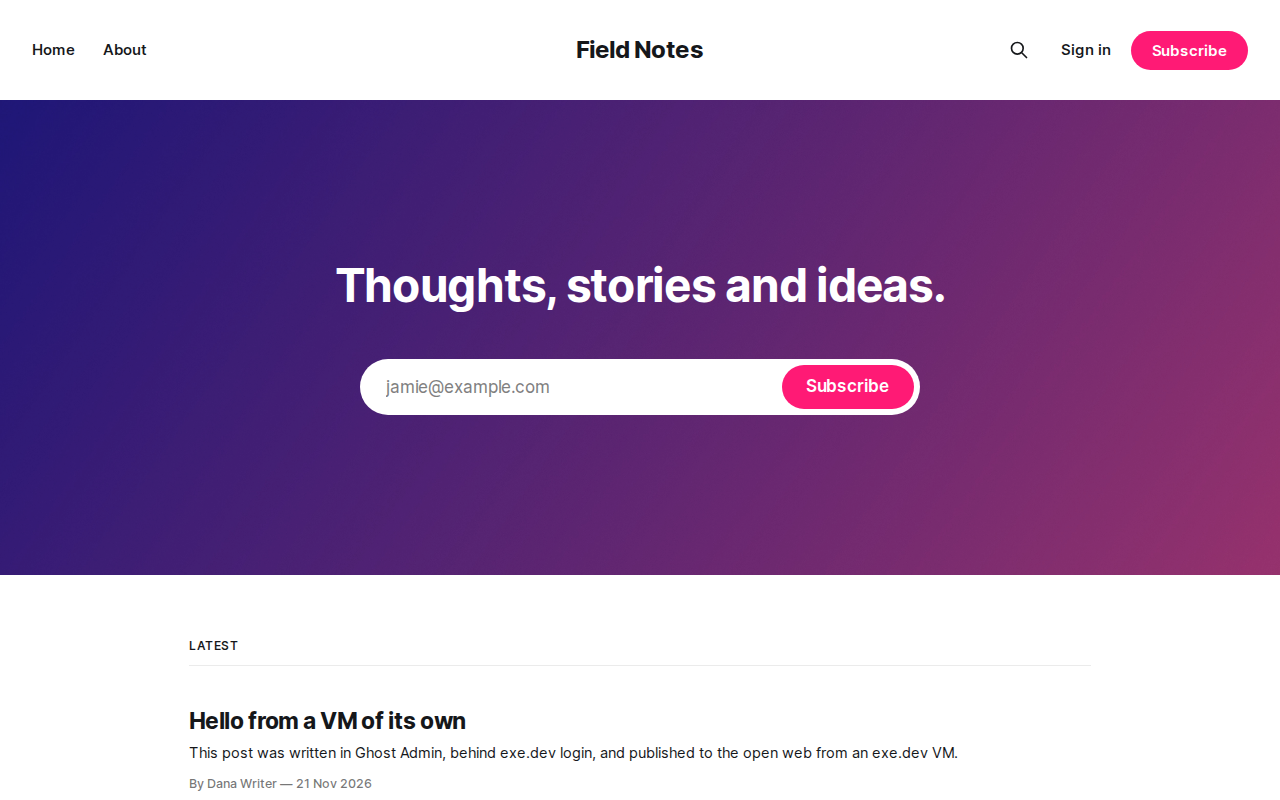
Ghost opens on its admin dashboard. Write a post, press Publish,
and open https://my-ghost.exe.xyz/ to see it on the site. From now on,
opening /ghost/ in a browser signed in to exe.dev takes you straight
in; Ghost's password is the fallback.
Until you set up email, readers who subscribe never get their confirmation link. If you make the site public before that, set Settings → Membership → Access to Nobody for now.
Who can sign in#
There are two locks on Ghost Admin. The first is exe.dev's: every
request under /ghost, its API included, needs an exe.dev sign-in
whose email is in ~/ghost/caddy/staff-emails, which starts with yours.
exe.dev's proxy adds the signed-in email to each request and removes any
copy a visitor sends, so this lock can't be faked. The second is Ghost's
own staff account, which
exe-dev-sso.js, a Ghost
sign-in adapter, opens for you when your exe.dev email matches it.
The parts of /ghost that every Ghost site serves to visitors (the
Content API behind search and the sign-up form, and the public keys
that the social web checks) stay open; the
Caddyfile lists them.
To add a writer or an editor, add a line for them to
~/ghost/caddy/staff-emails on the VM, and reload Caddy:
echo 'header X-ExeDev-Email editor@example.com' >> ~/ghost/caddy/staff-emails
cd ~/ghost && docker compose exec caddy caddy reload --config /etc/caddy/Caddyfile
Then invite them under Settings → Staff, with the same email. The invitation is an email, so set up email first. While the site is private, also share it with them. On your computer:
ssh exe.dev share add my-ghost editor@example.com
Make it public#
When the publication is ready, on your computer:
ssh exe.dev share set-public my-ghost
Now anyone can read https://my-ghost.exe.xyz/, search it, subscribe,
and comment, and /ghost still asks for your exe.dev sign-in. To take
the site private again: ssh exe.dev share set-private my-ghost.
A public site also joins the social web. Under Network in Ghost
Admin, your publication gets a handle like @index@my-ghost.exe.xyz
that people on Mastodon, Threads, and Bluesky (through a bridge) can
follow, and you can follow and reply to them. Ghost runs that service
for self-hosted sites at no cost, within limits it publishes; the
Caddyfile forwards its three paths to ap.ghost.org. The handle
follows the site's address, so move to your own
domain before you gather followers.
Email#
Ghost sends two kinds of email, and both need a mail provider:
- Transactional: sign-in and sign-up links for members, staff invitations, and password resets, sent over SMTP. Any provider works (Mailgun, Postmark, Amazon SES, Resend, your own mail server).
- Newsletters: a post sent to every subscriber. Ghost does this only through Mailgun's API.
exe.dev's email gateway only reaches you and your team, so it can't do either job. exe.dev VMs connect out to SMTP servers on ports 465 and 587.
Put the SMTP settings in ~/ghost/ghost.env on the VM (it is mode 600;
Ghost reads it as environment variables). For Mailgun's SMTP, say:
mail__transport=SMTP
mail__from='"Field Notes" <noreply@mg.example.com>'
mail__options__host=smtp.mailgun.org
mail__options__port=465
mail__options__secure=true
mail__options__auth__user=postmaster@mg.example.com
mail__options__auth__pass=your-smtp-password
Keep the single quotes around mail__from. Then apply it:
cd ~/ghost && docker compose up -d --wait
To test it, open your site in a private window, subscribe with an
address of yours, and click the link in the email. If nothing arrives,
docker compose logs ghost | grep -i mail shows what the provider said.
For newsletters, open Settings → Newsletters → Mailgun and enter your Mailgun region, sending domain, and API key. Ghost keeps them in its database, where your backups carry them. Each post's Publish button then offers Publish and email.
Use your own domain#
Point a CNAME at my-ghost.exe.xyz (apex domains need an ALIAS or A
record) and tell exe.dev about it, as the custom domain
guide explains. On your computer:
ssh exe.dev domain add my-ghost news.example.com
Then tell Ghost its new address. On the VM:
cd ~/ghost
sed -i 's|^GHOST_URL=.*|GHOST_URL=https://news.example.com|' .env
docker compose up -d --wait
Ghost stores links in posts relative to its address, so nothing else changes. Open https://news.example.com/ghost/ to check Ghost Admin; exe.dev issues the TLS certificate itself. If your DNS is at Cloudflare, turn its proxy (the orange cloud) off, as the guide explains.
Publish from scripts#
Ghost's Admin API lets a script post
for you, and it lives under /ghost, so a script needs both locks: an
exe.dev VM token for the gate and a Ghost Admin API key for Ghost.
Create the key under Settings → Advanced → Integrations → Add custom
integration. Create a VM token on your
computer:
ssh exe.dev ssh-key generate-api-key --vm=my-ghost --label=ghost-scripts
The script sends the token as X-Exedev-Authorization: Bearer <token>
next to Ghost's own Authorization: Ghost <jwt> header, and the gate
sees your email. The token is as good as your login for this VM, so keep
it where you keep passwords. Services that only take a Ghost API key
(no-code tools with a Ghost connector) can't pass the gate; the public
Content API at /ghost/api/content/ works for them for reading.
Move a publication here#
Under Settings → Advanced → Migration tools, Ghost imports from Substack (posts and subscribers; paid members too, if you connect the same Stripe account first), Mailchimp (subscribers), beehiiv, Medium, WordPress, and others. Export from the old platform, upload the file, and Ghost fetches the images itself. Members come in without emailing anyone.
From another Ghost site, use Settings → Advanced → Import/Export on
both sides for posts and settings, export members as CSV under
Members, and copy the old content/images into ~/ghost/content/images.
Change your theme with Shelley#
Themes live in ~/ghost/content/themes, owned by your user. To start
from Ghost's default theme, copy it out of the image and give it a name
of its own. On the VM:
cd ~/ghost
docker compose exec -u node ghost cp -r /var/lib/ghost/current/content/themes/source content/themes/my-theme
sed -i 's/"name": "source"/"name": "my-theme"/' content/themes/my-theme/package.json
docker compose restart ghost
Activate my-theme under Settings → Design & branding → Change
theme. Ghost caches templates, so run docker compose restart ghost
after editing them. Shelley can do all of this and check the result in
its browser; ask, for example:
In my-theme, show reading time on the home page and put the Subscribe form after every post, restart Ghost, and show me a post.
Keep your theme in git: git init in its directory.
Try changes on a copy#
Before a big change (a new theme, a major update, an import), copy the whole VM and try it there. A copy is a separate VM with its own disk. On your computer:
ssh exe.dev cp my-ghost my-ghost-staging
ssh exe.dev share set-private my-ghost-staging
The copy takes the original's sharing, so make it private right away.
It also has your members and your mail settings: turn those off before
anything else, so the copy can't email your readers. On the copy (ssh my-ghost-staging.exe.xyz):
cd ~/ghost
sed -i "s|^GHOST_URL=.*|GHOST_URL=https://$(hostname).exe.xyz|" .env
sed -i 's/^mail__/# mail__/' ghost.env
docker compose exec -T db sh -c 'MYSQL_PWD="$MYSQL_ROOT_PASSWORD" exec mysql -uroot ghost -e "UPDATE settings SET value = NULL WHERE \`key\` IN (\"mailgun_api_key\", \"mailgun_domain\")"'
docker compose up -d --wait
Now https://my-ghost-staging.exe.xyz/ is a private twin of your
publication. When you're happy, make the same change on the live VM, and
delete the copy with ssh exe.dev rm my-ghost-staging. Dev, test, and
prod on exe.dev has more on working this way.
Keep your publication#
Every night, a backup of the database, ~/ghost/content (images,
media, themes, and the adapter), and the settings files lands in
~/ghost/backups; the newest 7 stay. A backup on the same disk won't
survive losing the VM, so keep a copy off the VM. On your computer:
scp -r my-ghost.exe.xyz:ghost/backups ghost-backups
The backups hold your members' emails, your database password, and your
mail credentials, so keep them private. exe.dev's VM
backups (in preview) can also copy the whole disk to
your own S3 bucket. Before any big change, run ~/ghost/backup.sh on
the VM. To restore, see Back up and restore.
Something odd? On the VM, cd ~/ghost && docker compose logs --tail 50
usually explains it, or ask Shelley to look.
The nuts and bolts#
Happy clicking Deploy? You can stop here. These are the same setup steps Shelley follows, plus the maintenance commands for later.
Install by hand
Create a VM#
On your computer (pick another name if my-ghost is taken):
ssh exe.dev new --name=my-ghost
ssh my-ghost.exe.xyz
All remaining installation commands run on the VM, as exedev.
Commands use hostname, so your VM can have any name.
Write the settings#
Docker comes with the VM; make sure it starts at boot. Then make
~/ghost, with the site's address and two fresh database passwords in
.env, and an empty ghost.env for Ghost's own settings, both mode 600:
sudo systemctl enable --now docker.service
mkdir -p ~/ghost/caddy ~/ghost/content/adapters/sso/exe-dev && cd ~/ghost
[ -e .env ] || (umask 077; cat > .env <<EOF
GHOST_URL=https://$(hostname).exe.xyz
DB_PASSWORD=$(openssl rand -hex 24)
DB_ROOT_PASSWORD=$(openssl rand -hex 24)
EOF
)
[ -e ghost.env ] || (umask 077; echo '# Ghost settings, such as email: https://exe.dev/deploy/ghost#email' > ghost.env)
Now compose.yaml. Ghost listens only inside Docker's network; Caddy
is the one service on port 8000, where exe.dev's proxy sends
https://my-ghost.exe.xyz/. Ghost's emailed new-device codes are off,
because exe.dev's login guards Ghost Admin instead.
cat > compose.yaml <<'EOF'
name: ghost
services:
  db:
    image: mysql:8.4
    restart: unless-stopped
    environment:
      MYSQL_DATABASE: ghost
      MYSQL_USER: ghost
      MYSQL_PASSWORD: ${DB_PASSWORD:?}
      MYSQL_ROOT_PASSWORD: ${DB_ROOT_PASSWORD:?}
    volumes: ["./mysql:/var/lib/mysql"]
    healthcheck:
      test: ["CMD-SHELL", "MYSQL_PWD=\"$$MYSQL_ROOT_PASSWORD\" mysqladmin ping -h 127.0.0.1 -uroot --silent"]
      interval: 5s
      timeout: 5s
      start_period: 120s
      retries: 30
  ghost:
    image: ghost:6-alpine
    restart: unless-stopped
    env_file: ghost.env
    environment:
      NODE_ENV: production
      url: ${GHOST_URL:?}
      database__client: mysql
      database__connection__host: db
      database__connection__user: ghost
      database__connection__password: ${DB_PASSWORD:?}
      database__connection__database: ghost
      adapters__sso__active: exe-dev
      security__staffDeviceVerification: "false"
    volumes: ["./content:/var/lib/ghost/content"]
    depends_on:
      db: { condition: service_healthy }
    healthcheck:
      test: ["CMD", "wget", "-qO", "/dev/null", "--header", "X-Forwarded-Proto: https", "http://127.0.0.1:2368/ghost/api/admin/site/"]
      interval: 30s
      timeout: 5s
      start_period: 120s
      start_interval: 2s
  caddy:
    image: caddy:2.11-alpine
    restart: unless-stopped
    environment:
      ACTIVITYPUB_TARGET: ${ACTIVITYPUB_TARGET:-https://ap.ghost.org}
    ports: ["8000:8000"]
    volumes:
      - ./caddy:/etc/caddy:ro
      - caddy-data:/data
    depends_on:
      ghost: { condition: service_healthy }
volumes:
  caddy-data:
EOF
Add the login gate#
The Caddyfile sends visitors
who open /ghost without an exe.dev sign-in to exe.dev's, answers
signed-in strangers with 403, and lets through the emails in
caddy/staff-emails, which starts with yours.
exe-dev-sso.js then signs
them in to Ghost as the staff user with the same email.
curl -fsSL -o caddy/Caddyfile https://exe.dev/deploy/ghost/Caddyfile
curl -fsSL -o content/adapters/sso/exe-dev/index.js https://exe.dev/deploy/ghost/exe-dev-sso.js
[ -s caddy/staff-emails ] || echo "header X-ExeDev-Email $(curl -fsS https://reflection.int.exe.xyz/email | jq -r .email)" > caddy/staff-emails
cat caddy/staff-emails
It should print header X-ExeDev-Email and your email. If the email is
missing, write it into that file yourself.
Start Ghost#
docker compose up -d --wait --quiet-pull
docker compose ps
db, ghost, and caddy should all be up and healthy, after a minute
or so. On first start, Ghost creates its tables and copies its default
themes into ~/ghost/content. Check the site and the gate:
h=(-H "Host: $(hostname).exe.xyz" -H 'X-Forwarded-Proto: https')
me=$(awk '{print $3; exit}' caddy/staff-emails)
curl -s -o /dev/null -w '%{http_code}\n' "${h[@]}" http://localhost:8000/
curl -s -o /dev/null -w '%{http_code} %{redirect_url}\n' "${h[@]}" http://localhost:8000/ghost/
curl -s -o /dev/null -w '%{http_code}\n' "${h[@]}" -H 'X-ExeDev-Email: someone@example.com' http://localhost:8000/ghost/
curl -s -o /dev/null -w '%{http_code}\n' "${h[@]}" -H "X-ExeDev-Email: $me" http://localhost:8000/ghost/
That prints 200 for the site, 302 to /__exe.dev/login for
nobody, 403 for a stranger, and 200 for you. Ghost logs Failed to send email until you set up email; that's expected.
Set up nightly backups#
backup.sh dumps the database
with mysqldump and packs it with .env, ghost.env, compose.yaml,
caddy/, and content (minus logs) into one .tar.gz in
~/ghost/backups, keeping the newest 7. Ghost itself isn't in it: the
image brings it back.
curl -fsSL -o ~/ghost/backup.sh https://exe.dev/deploy/ghost/backup.sh
chmod +x ~/ghost/backup.sh
Run it at 03:30 every night, or soon after the VM starts if it was off:
sudo tee /etc/systemd/system/ghost-backup.service >/dev/null <<EOF
[Unit]
Description=Back up Ghost to ~/ghost/backups
After=docker.service

[Service]
Type=oneshot
User=$USER
ExecStart=$HOME/ghost/backup.sh
EOF
sudo tee /etc/systemd/system/ghost-backup.timer >/dev/null <<'EOF'
[Unit]
Description=Back up Ghost every night

[Timer]
OnCalendar=*-*-* 03:30:00
RandomizedDelaySec=30m
Persistent=true

[Install]
WantedBy=timers.target
EOF
sudo systemctl daemon-reload
sudo systemctl enable --now ghost-backup.timer
sudo systemctl start ghost-backup.service
ls -l ~/ghost/backups
You should see one ghost-<date>.tar.gz, and
systemctl list-timers ghost-backup.timer shows the next run.
Fill in the setup screen#
Open https://my-ghost.exe.xyz/ghost/ in your browser and fill in Ghost's setup screen, as in Finish the install. Then check that Ghost knows its address:
curl -s -H "Host: $(hostname).exe.xyz" -H 'X-Forwarded-Proto: https' http://localhost:8000/ghost/api/admin/site/ | jq -r '.site.title, .site.url, .site.version'
It prints your site title, https://<your VM>.exe.xyz/, and Ghost's
version, 6.78 or newer.
Back up and restore
On the VM, ~/ghost/backup.sh takes an extra backup and prints its file
name. Each backup holds ghost.sql (the database), .env, ghost.env,
compose.yaml, caddy/, and content/. Look inside one with
tar -tzf ~/ghost/backups/<file> | less.
For posts and members alone, Ghost's own exports work too: Settings → Advanced → Import/Export for content, and Members → Export for a CSV of your list.
Put the whole publication back#
To roll back to a backup, on the same VM or a new one: on a new VM, run
sudo systemctl enable --now docker.service first. Copy the backup to
~/ on the VM (scp it from your computer, or
cp ~/ghost/backups/ghost-<date>.tar.gz ~/), then:
cd ~/ghost 2>/dev/null && docker compose down
sudo rm -rf ~/ghost
mkdir ~/ghost && cd ~/ghost
tar -xzf ~/ghost-<date>.tar.gz
docker compose up -d --wait --quiet-pull db
docker compose exec -T db sh -c 'MYSQL_PWD="$MYSQL_ROOT_PASSWORD" exec mysql -uroot ghost' < ghost.sql
rm ghost.sql
docker compose up -d --wait
This deletes the VM's current Ghost first, so on a VM with a
publication you want to keep, take a backup before. Then set up the
backup timer from Install by hand. On a VM with a
different name, set its address as in Use your own
domain, with https://<VM>.exe.xyz.
Back up more often#
For hourly backups, change OnCalendar in
/etc/systemd/system/ghost-backup.timer to hourly and the keep line
in ~/ghost/backup.sh to keep a day or two, then run
sudo systemctl daemon-reload.
Update Ghost, MySQL, and Caddy
Ghost, MySQL, and Caddy come from Docker images, and Ghost Admin tells you when a new Ghost is out. On the VM:
cd ~/ghost
./backup.sh
docker compose pull --quiet
docker compose up -d --wait
docker image prune -f
That moves to the newest Ghost 6, MySQL 8.4, and Caddy 2.11; Ghost
updates its own database as it starts. Ghost releases every week or
two, so run this often. When Ghost 7 comes out, read its upgrade notes,
update to the last Ghost 6 first, then change ghost:6-alpine to
ghost:7-alpine in compose.yaml and run the same commands, on a
copy first.
Something not working?
Logs first. On the VM:
cd ~/ghost
docker compose ps
docker compose logs --tail 50 ghost
docker compose logs --tail 50 caddy
Redirected to exe.dev's sign-in, or "can't open Ghost Admin on this
site". That's the login gate. Add the email you sign in to exe.dev
with to ~/ghost/caddy/staff-emails and reload Caddy, as in Who can
sign in.
Ghost asks for a password instead of signing you in. Your Ghost staff account's email differs from your exe.dev email. Sign in with Ghost's password once, and change the email under your profile.
Locked out of Ghost. Add a staff email you can sign in to exe.dev with, or reset the password from the sign-in page once email works.
ghost stays unhealthy. docker compose logs ghost shows why;
usually the database. If you changed DB_PASSWORD in .env after the
first start, change it back: MySQL set the password when it created the
database and doesn't read it again.
Too many redirects, or http:// links. Something in front of
exe.dev's proxy, such as Cloudflare's orange-cloud proxy, is changing
the request; turn it off. Check that GHOST_URL in .env is the
address you use, with https://.
Subscribers don't get their sign-in link. Set up
email; docker compose logs ghost | grep -i mail shows what
the mail server said.
The site is down after a restart. systemctl is-enabled docker.service should say enabled; all three services have
restart: unless-stopped, so they come back with Docker unless you
stopped them with docker compose stop or down. Start them with
docker compose up -d.
Frequently asked questions#
Is self-hosted Ghost free?
Yes. Ghost is open source under the MIT license, with every feature of Ghost(Pro): members, paid subscriptions, newsletters, comments, and the social web. You pay for the VM (see exe.dev plans), for a mail provider once you have readers to email, and Stripe's fees if you sell subscriptions; Ghost takes no cut.
Can I send newsletters from exe.dev?
Why put Ghost Admin behind exe.dev's login?
Ghost serves the site and Ghost Admin from the same address, so on most hosts its sign-in page faces the internet. Here a visitor who opens /ghost is sent to exe.dev's sign-in, and only the accounts in ~/ghost/caddy/staff-emails get through, already signed in to Ghost. That replaces Ghost's emailed new-device codes, which this setup turns off.
Why MySQL 8.4 and not SQLite or MySQL 9?
Ghost supports MySQL 8 in production and nothing else: SQLite is for development, and MySQL 9 isn't on Ghost's supported list yet. 8.4 is MySQL's long-term-support release, maintained into 2032. It runs inside the Compose project, so it doesn't clash with MySQL on exe.dev if you also run that.
Can I move my newsletter from Substack, Mailchimp, beehiiv, or WordPress?
Yes, with Ghost's built-in importers under Settings → Advanced → Migration tools: Substack brings posts and subscribers (and paid members, on the same Stripe account), Mailchimp brings subscribers. See Move a publication here.
Can I sell paid subscriptions?
Yes. Make the site public, then connect Stripe under Settings → Membership → Tiers. Stripe reaches Ghost's webhook at /members/webhooks/stripe/, which is public; only /ghost sits behind the login gate.
How big a publication fits?
Ghost, MySQL, and Caddy use about 700 MB of memory and 2.5 GB of disk for their images. Posts take little room; images and media grow ~/ghost/content. Run df -h / on the VM to see what's free; ssh exe.dev resize my-ghost --disk=50GB grows the disk.
Published Nov 21, 2026 · Updated Nov 21, 2026 · tested end to end Nov 21, 2026 · Markdown · manifest.json · Something wrong? Tell us


