Run Orca's agents on a remote server
A big, always-on box for Orca's parallel coding agents.
Shelley handles the setup. About 10 minutes.
Prefer a terminal?
curl -fsSL https://exe.dev/deploy/orca/prompt.txt | ssh exe.dev new --prompt=/dev/stdinOrca is a desktop app for running many coding agents at once: Claude Code, Codex and others, each in its own Git worktree, side by side. Its SSH worktrees put that work on a remote box. Make the box an exe.dev VM and you get as many CPUs as your plan allows, worktrees on a disk that persists, and agents that keep going when your laptop sleeps.
Claude Code and Codex come preinstalled on exe.dev and use its LLM integration: no API keys on the VM, and model usage billed to your exe.dev account.
What you get#
- Claude Code and Codex on the VM using exe.dev's LLM integration, with no API key to paste
- Git set up, with a project at
~/projectfor Orca's worktrees - The VM ready to add in Orca as an SSH target; Orca installs its own server on first connect
What's running, and where
ssh my-orca.exe.xyz
how Orca on your computer reaches the VM, and your terminal
https://my-orca.exe.xyz/
a dev server an agent starts on port 8000, behind exe.dev login
Deploy with Shelley#
Click Deploy and Shelley will set up Orca on a new VM, then check that it works. No config-file wrangling required.
Prefer a terminal?
curl -fsSL \
  https://exe.dev/deploy/orca/prompt.txt \
  | ssh exe.dev new --prompt=/dev/stdin
What Shelley is told
Set up Orca on this VM by following the exe.dev recipe at https://exe.dev/deploy/orca.md from top to bottom.

The recipe's example VM name is my-orca. This VM's name is the output of `hostname`: use it wherever the recipe writes my-orca. Skip the step that creates the VM; you are on it.

You are done when all of these are true. Check each one yourself:
- Claude Code and Codex on the VM using exe.dev's LLM integration, with no API key to paste
- Git set up, with a project at `~/project` for Orca's worktrees
- The VM ready to add in Orca as an SSH target; Orca installs its own server on first connect

Run the VM-side commands in "Set up the VM" only; skip creating the VM.
If `exeuntu configure` reports an existing user config, leave it alone.
For `git config`, use the owner's name and email if you know them, and
skip those two lines if you don't. If `~/project` already exists, leave
it alone. Verify with the checks at the end of that section: both print
`OK`. Skip the later sections and the FAQ. Finish by telling the owner to
add `<this VM's name>.exe.xyz` with user `exedev` in Orca under
Settings → SSH ("Connect Orca"), and that `/home/exedev/project` is the
project to add.

Finish with the URLs I should open.
Also at /deploy/orca/prompt.txt. The recipe it follows is /deploy/orca.md.
Set up the VM#
On your computer, create a VM and connect once, which also saves its host key for Orca. Pick any free name; if you've already clicked Deploy or have a VM, skip the first command and use its name:
ssh exe.dev new --name=my-orca
ssh my-orca.exe.xyz
On the VM, connect Claude Code and Codex to the LLM integration, tell Git who you are, and make a project for Orca's worktrees, a Git repository with a first commit:
exeuntu configure claude
exeuntu configure codex
git config --global user.name "Your Name"
git config --global user.email you@example.com
git init ~/project
git -C ~/project commit --allow-empty -m "Start"
Important
Do this before Orca first connects. Orca adds its own hooks to
~/.claudeand~/.codex, andexeuntu configureleaves an existing config alone.
Check that both agents answer through exe.dev:
claude -p "Reply with exactly: OK"
codex exec "Reply with exactly: OK"
Connect Orca#
On your computer, install Orca from onorca.dev or its releases. Then, in Orca:
-
Open Settings → SSH and choose Add Target. Enter host
my-orca.exe.xyz, userexedevand port22, with the SSH key you use for exe.dev (Orca also uses your SSH agent). Choose Test, then Save. -
Add
/home/exedev/projectas a project, with the VM as its location. The first connection takes about 20 seconds while Orca installs its server on the VM (about 180 MB in~/.orca-remote). -
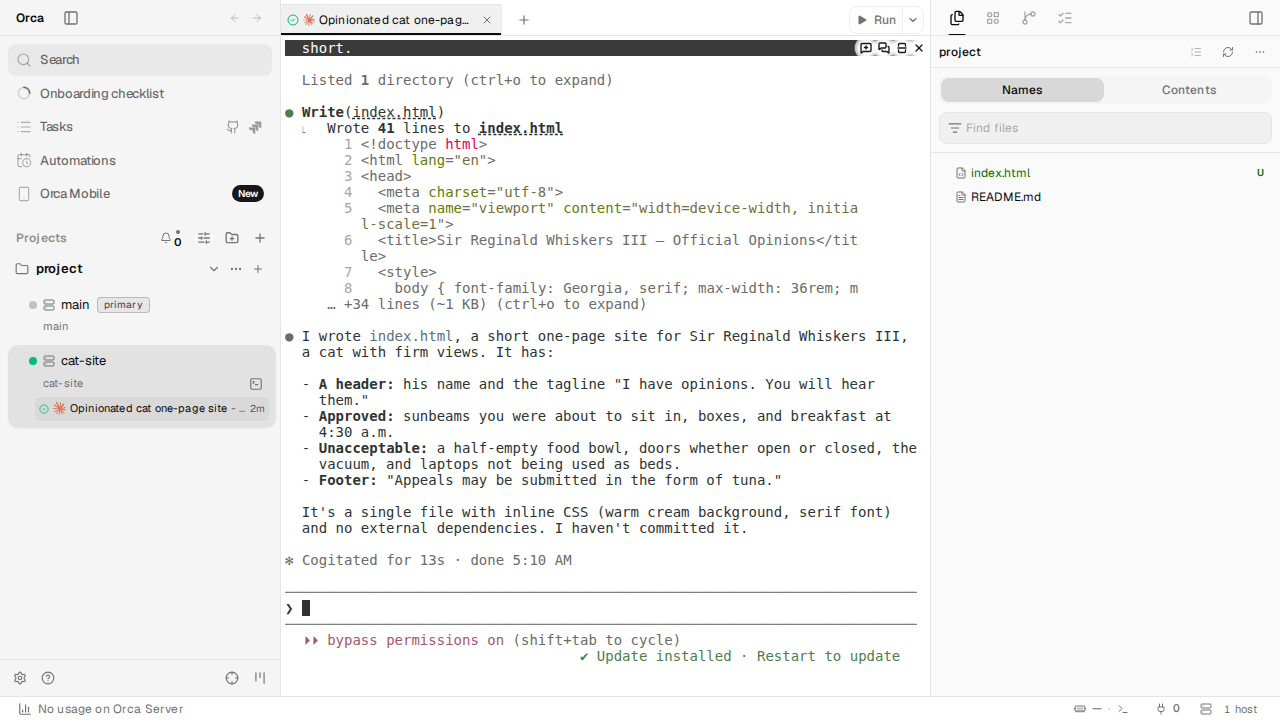
Create a worktree in that project, pick Claude Code or Codex, and give it a task, such as:
Write index.html: a one-page site for a very opinionated cat. Keep it short.
The agent runs on the VM, in a new branch and folder under
~/orca/workspaces/project/. Create more worktrees for more agents; each
one gets its own branch, and Orca shows their status side by side.
The first Claude Code session asks you to pick a text style and to accept
Bypass Permissions mode, once. Orca starts agents with their
permission prompts off (Claude Code's --dangerously-skip-permissions,
Codex's --dangerously-bypass-approvals-and-sandbox), which suits a VM
that holds nothing else; a worktree is a separate checkout, not a
sandbox. To have agents ask first, switch Settings →
Agents → Agent Permissions to Manual.
Room for more agents#
A new VM has 2 vCPUs, 8 GB of memory and a 25 GB disk, enough for a few agents. Builds, tests and dev servers in many worktrees at once need more. On your computer, give the VM more, up to your plan's capacity:
ssh exe.dev resize my-orca --cpu=8 --memory=32GB --disk=100GB
Disks can only grow. Each worktree is a full checkout with its own
dependencies, so check df -h / on the VM now and then, and remove
worktrees you've merged. To start big instead, pass the same flags to
ssh exe.dev new.
Bring your code#
Connect a GitHub repo to the VM and it can
clone, pull and push without a token or deploy key on it. On your
computer, replace you/app with your repository:
ssh exe.dev integrations add github --name app --repository you/app --attach vm:my-orca
On the VM, clone it:
git clone https://github.int.exe.xyz/you/app.git ~/app
Then add /home/exedev/app as a project in Orca, the same way as
~/project. Worktree branches push to the same remote. For gh on the
VM (pull requests, issues), set GH_HOST=github.int.exe.xyz; see the
GitHub integration docs.
Preview what they build#
Ask an agent to serve its work on 0.0.0.0:8000, then open
https://my-orca.exe.xyz/. exe.dev's HTTPS proxy serves
any port from 3000 to 9999 at https://my-orca.exe.xyz:<port>/, so
worktrees can each use their own port. The pages are private until you
share them. Orca's Ports tab can also forward a
port to your computer's localhost.
Orca in a browser#
Orca can also run as a server on the VM and serve its UI to a browser, so you can check on agents from another computer with your laptop shut. This is a separate Orca with its own projects, next to the SSH setup above.
On the VM, install the Linux package from Orca's releases (the CLI is
called orca-ide on Linux; replace the version with the
latest), then start the
server on port 7000 (Orca's SSH server already uses 6768 on this VM):
curl -fLO https://github.com/stablyai/orca/releases/download/v1.4.245/orca-ide_1.4.245_amd64.deb
sudo apt-get install -y ./orca-ide_1.4.245_amd64.deb
orca-ide serve --port 7000 --pairing-address https://$(hostname).exe.xyz:7000
Open the Web client URL it prints in your browser. exe.dev asks you to
log in, then Orca pairs the browser; if it opens unpaired, open the link
again now that you're logged in. Back on the VM, press Ctrl-C and
run Orca as a service that starts on boot; the browser stays paired:
orca-ide serve service install --port 7000 --pairing-address https://$(hostname).exe.xyz:7000
orca-ide serve service status
orca-ide repo add --path ~/project
Warning
The Web client URL is a lasting key to the server, and a paired browser can run any command on the VM. Keep port 7000 private.
Back up and update#
Commit and push your work from each worktree; that's the copy that matters. For a copy of the whole VM, run this on your computer:
ssh exe.dev cp my-orca my-orca-backup
Orca keeps its server on the VM in step with the desktop app. Update the agents on the VM with sudo exeuntu update claude and
sudo exeuntu update codex.
Troubleshooting#
- Orca can't connect. Check that
ssh my-orca.exe.xyz trueworks in a terminal on your computer, with the same key, and that the target's user isexedev. - An agent asks for a login or API key. Orca connected before
exeuntu configureran, so it left Orca's config alone. On the VM, move~/.claude/settings.jsonand~/.codex/config.tomlaside, runexeuntu configure claudeandexeuntu configure codex, then reconnect the target in Orca. - Claude Code exits right after starting. Its Bypass Permissions warning defaults to No, exit. Choose Yes, I accept in the terminal, once.
- The VM is slow with many agents. Check
uptimeandfree -hon the VM, then give it more.
For everything else, see Orca's SSH docs.
Frequently asked questions#
Does the Orca app run on the VM?
No. The desktop app stays on your computer and is the UI. The VM runs the work: Git worktrees, terminals, and the agents, through a small server Orca installs over SSH into ~/.orca-remote. Nothing else on the VM changes, and you don't need to install Node.js or any packages for it. To reach Orca from a browser with your laptop shut, see Orca in a browser.
Do agents keep running when my laptop sleeps?
Yes. A disconnect doesn't stop them: Orca keeps remote terminals alive until you end them, and reattaches with their scrollback when your laptop reconnects. After a VM restart, Orca reconnects on its own and the worktrees are all there, but agents that were running have stopped and need a new start.
Can I use my own Claude or ChatGPT subscription?
Yes. On the VM, run claude auth login or codex login, after removing what exeuntu configure added: apiKeyHelper and env.ANTHROPIC_BASE_URL in ~/.claude/settings.json, and the exe-llm provider in ~/.codex/config.toml. Logins on your laptop don't carry over to the VM.
What about OpenCode, Pi, Grok Bot and the other agents?
Does Orca Mobile work with this?
The phone app pairs with the Orca desktop app, so it can follow and steer worktrees on the VM while the desktop app is running. See Orca's mobile docs.
How much does it cost?
Orca is free and MIT-licensed. You pay for the VM as part of your exe.dev plan, and model usage through the LLM integration is billed to your exe.dev account. exe.dev keeps a list of models and prices.
Updated Oct 31, 2026 · tested end to end Oct 31, 2026 · Markdown · manifest.json · Something wrong? Tell us