Run DeepSeek Harness on a remote server
DeepSeek's agent in a browser tab, on a computer that never sleeps.
Shelley handles the setup. About 5 minutes.
Prefer a terminal?
curl -fsSL https://exe.dev/deploy/deepseek-harness/prompt.txt | ssh exe.dev new --prompt=/dev/stdinDeepSeek Harness (dsh)
is DeepSeek's open-source agent: it reads and edits files, runs commands,
and works through long tasks in a desktop app, a terminal, or a web app.
This guide runs the web app, dsh web, on an exe.dev VM that stays on.
exe.dev's HTTPS proxy keeps it private to your exe.dev
account, so there's no tunnel to set up, and DeepSeek V4.1 Flash comes
through exe.dev's LLM integration with no key on
the VM. DeepSeek Harness is a developer preview, so expect changes.
What you get#
- DeepSeek Harness's web app at
https://<vm>.exe.xyz:3080/, behind your exe.dev login and DeepSeek Harness's own sign-in link. - DeepSeek V4.1 Flash through exe.dev's LLM integration, with no API key to paste.
- A project folder at
~/projecton persistent disk. - A service that keeps running when you close the tab and comes back after a reboot.
What's running, and where
https://my-dsh.exe.xyz:3080/
DeepSeek Harness in your browser, after a one-time sign-in link
ssh my-dsh.exe.xyz
your terminal
dsh web, managed by systemd
Deploy with Shelley#
Click Deploy and Shelley will set up DeepSeek Harness on a new VM, then check that it works. No config-file wrangling required.
Prefer a terminal?
curl -fsSL \
  https://exe.dev/deploy/deepseek-harness/prompt.txt \
  | ssh exe.dev new --prompt=/dev/stdin
What Shelley is told
Set up DeepSeek Harness on this VM by following the exe.dev recipe at https://exe.dev/deploy/deepseek-harness.md from top to bottom.

The recipe's example VM name is my-dsh. This VM's name is the output of `hostname`: use it wherever the recipe writes my-dsh. Skip the step that creates the VM; you are on it.

You are done when all of these are true. Check each one yourself:
- DeepSeek Harness's web app at `https://<vm>.exe.xyz:3080/`, behind your exe.dev login and DeepSeek Harness's own sign-in link.
- DeepSeek V4.1 Flash through exe.dev's LLM integration, with no API key to paste.
- A project folder at `~/project` on persistent disk.
- A service that keeps running when you close the tab and comes back after a reboot.

Run the VM-side commands in "Start DeepSeek Harness" and "Open it in
your browser". If ~/.dsh/profiles/web/cordis.patch.yml already holds
more than `[]`, add the two rows to it instead of replacing it; same for
~/.dsh/.env. Keep `dsh web` on its default 127.0.0.1 address and never
run share set-public. Verify with the `dsh headless` command, check that
`systemctl is-enabled dsh-web` prints enabled and `systemctl is-active
dsh-web` prints active. Skip the optional sections (own DeepSeek key,
superagent) unless the owner asks. Finish with the sign-in link from
the journal command in "Open it in your browser"; this conversation is
private to the owner.

Finish with the URLs I should open.
Also at /deploy/deepseek-harness/prompt.txt. The recipe it follows is /deploy/deepseek-harness.md.
Start DeepSeek Harness#
On your computer, create a VM and connect. Pick any free name; if you've already clicked Deploy or have a VM, skip the first command and use its name:
ssh exe.dev new --name=my-dsh
ssh my-dsh.exe.xyz
On the VM, install Node.js 24 and DeepSeek Harness:
curl -fsSL https://deb.nodesource.com/setup_24.x | sudo -E bash -
sudo apt-get install -y nodejs
sudo npm install -g @deepseek-ai/dsh@0.2.1-rc.5
Point DeepSeek Harness at exe.dev's LLM gateway, which serves DeepSeek V4.1
Flash through Fireworks. The gateway needs no key, but DeepSeek Harness
wants one set, so EXE_LLM_KEY is a placeholder:
mkdir -p ~/.dsh/profiles/web ~/project
echo 'EXE_LLM_KEY=not-a-secret' >> ~/.dsh/.env
cat > ~/.dsh/profiles/web/cordis.patch.yml <<'EOF'
# DeepSeek V4.1 Flash through exe.dev's LLM integration: no API key on the VM.
- id: llm-pi-ai
  config:
    providers:
      exe-llm:
        displayName: exe.dev
        api: openai-completions
        baseURL: https://llm.int.exe.xyz/fireworks/inference/v1
        apiKeyEnv: EXE_LLM_KEY
        models:
          - id: accounts/fireworks/models/deepseek-v4p1-flash-1017
            name: DeepSeek V4.1 Flash 1017
            contextWindow: 1048576
            input: [ text, image ]
            compat:
              thinkingFormat: deepseek
            reasoningEfforts:
              off:
              high: high
              max: max
          - id: accounts/fireworks/models/deepseek-v4p1-flash
            name: DeepSeek V4.1 Flash
            contextWindow: 1048576
            input: [ text, image ]
            compat:
              thinkingFormat: deepseek
            reasoningEfforts:
              off:
              high: high
              max: max
- id: agent-default-model
  config:
    provider: exe-llm
    model: accounts/fireworks/models/deepseek-v4p1-flash-1017
EOF
Check that a model answers. dsh headless uses its own profile, so pass the
web profile's settings:
cd ~/project
dsh headless --patch ~/.dsh/profiles/web/cordis.patch.yml "Reply with exactly: OK"
Open it in your browser#
Run dsh web as a service, so it keeps going when you disconnect and starts
again after a reboot. It stays on its default address, 127.0.0.1:3080, and
exe.dev's proxy brings it to https://my-dsh.exe.xyz:3080/, behind your
exe.dev login. --trusted-host lets that address through DeepSeek Harness's
own host check:
sudo tee /etc/systemd/system/dsh-web.service >/dev/null <<'EOF'
[Unit]
Description=DeepSeek Harness Web UI
After=network-online.target
Wants=network-online.target

[Service]
User=exedev
WorkingDirectory=/home/exedev/project
ExecStart=/bin/bash -lc 'exec dsh web --no-open --trusted-host "$(hostname).exe.xyz" --public-url "https://$(hostname).exe.xyz:3080/"'
Restart=on-failure
RestartSec=5

[Install]
WantedBy=multi-user.target
EOF
sudo systemctl daemon-reload
sudo systemctl enable --now dsh-web
Print the sign-in link:
journalctl -u dsh-web -o cat | grep 'dsh web:' | tail -1
Open it. The token in the link signs your browser in for 30 days, and works
until the service restarts; after that, print the new one the same way.
Accept the preview notice, open the project folder as your workspace, and
give it a task, such as "Write index.html for a one-page website for a bakery
that only sells sourdough."
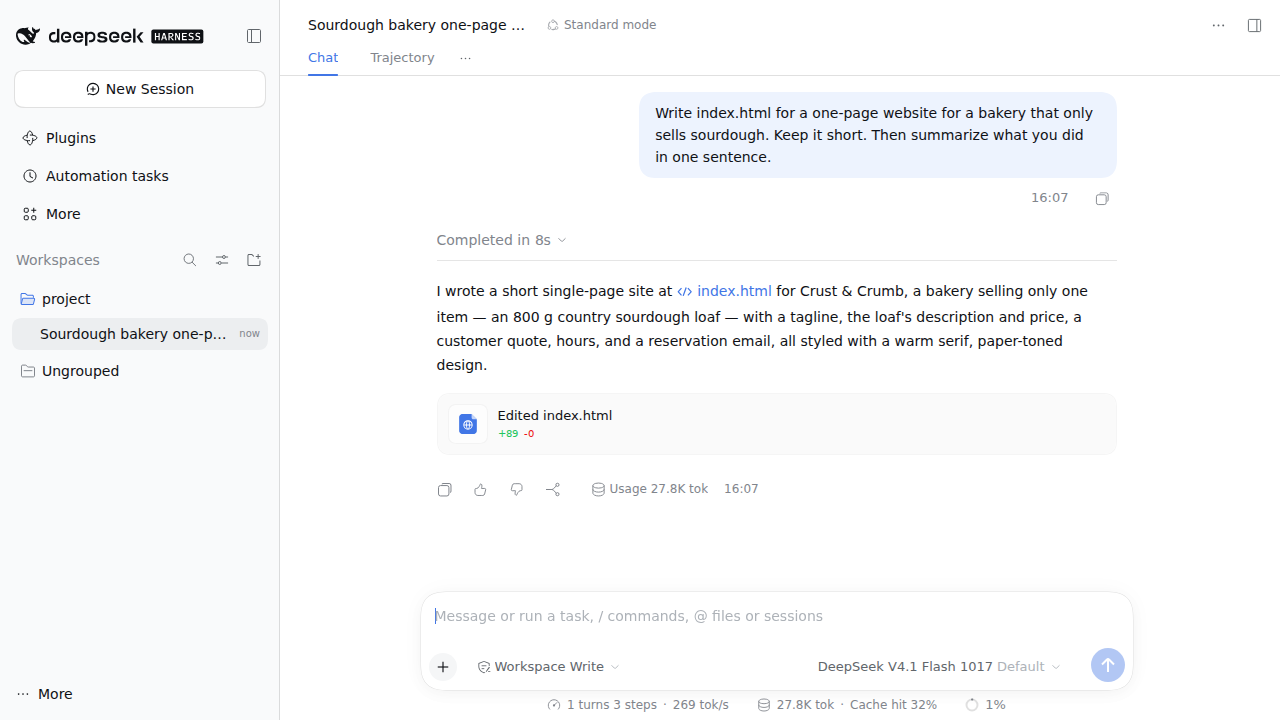
Close the tab whenever you like; running tasks keep going on the VM.
Use your own DeepSeek key#
Optional. DeepSeek V4-Pro and DeepSeek's own API need a DeepSeek API key. Keep it off the VM with an HTTP proxy integration that adds it to every request. On your computer:
ssh exe.dev integrations add http-proxy --name deepseek --target https://api.deepseek.com --header x-api-key:YOUR_DEEPSEEK_KEY --attach vm:my-dsh
On the VM, send DeepSeek Harness's DeepSeek provider through it, with a placeholder key, and restart:
echo 'DEEPSEEK_API_KEY=not-a-secret' >> ~/.dsh/.env
cat >> ~/.dsh/profiles/web/cordis.patch.yml <<'EOF'
- id: llm-deepseek
  config:
    baseURL: https://deepseek.int.exe.xyz/anthropic
EOF
sudo systemctl restart dsh-web
DeepSeek-V4.1-Flash and DeepSeek-V4-Pro then show up under DeepSeek in the model picker. We checked that DeepSeek Harness sends its requests and key header this way, but haven't run it with a real DeepSeek key.
Add the superagent#
Optional, and early. On Oct 31, DeepSeek published dsh-superagent, a service that watches GitHub notifications for a dedicated agent account and answers issues and mentions with comments and pull requests. Its README calls it a research prototype, not an official DeepSeek product. It needs a separate GitHub user account (not an app) on github.com.
It runs as a second DeepSeek Harness profile on port 3082. On the VM, install pnpm and build it:
sudo npm install -g pnpm@11
git clone https://github.com/deepseek-ai/dsh-superagent-prototype.git ~/dsh-superagent
cd ~/dsh-superagent
pnpm install && pnpm build
dsh superagent --from-default-profile web --dump-config > /dev/null
dsh plugin --profile superagent add "link:$PWD"
Give the new profile the same model settings, and the port and state folder from its deployment guide:
mkdir -p ~/.dsh/state/superagent
{ cat ~/.dsh/profiles/web/cordis.patch.yml; cat <<EOF
- id: webserver
  config:
    host: 127.0.0.1
    port: 3082
- id: dsh-superagent
  config:
    stateDir: $HOME/.dsh/state/superagent
EOF
} > ~/.dsh/profiles/superagent/cordis.patch.yml
Its scripts/dsh-superagent helper finds the service by process name, and
Node.js 24 names it MainThread, so status reports a running service as
down. Until that's fixed upstream, patch your copy:
sed -i "s/('node', 'dsh')/('node', 'dsh', 'MainThread')/" scripts/dsh-superagent
The rest is accounts and settings, which its
SETUP.md
has an agent walk you through one step at a time. Ask DeepSeek Harness (or
Shelley) on the VM: "Read SETUP.md in ~/dsh-superagent and
set up dsh-superagent with me." It has you create the agent's GitHub account
and sign it in with gh, starts the service in tmux, and sets up an hourly
check that restarts it.
Its settings panel only accepts requests to localhost, so open it through an SSH tunnel. On your computer:
ssh -L 3082:localhost:3082 my-dsh.exe.xyz
In that session, print its sign-in link and open it on your computer:
grep -h 'dsh web:' ~/dsh-superagent/.artifacts/*.log | tail -1
We built and started the service on a VM and it waited for setup as expected; we didn't create a GitHub account for it, so we haven't seen it answer an issue.
Frequently asked questions#
Is DeepSeek Harness ready for real work?
It's a developer preview: DeepSeek warns of breaking changes, and its safety notes say the agent runs model-generated commands and recommend a disposable machine. An exe.dev VM is one: keep secrets you care about off it, and copy it with ssh exe.dev cp my-dsh my-dsh-backup before big changes.
What does it cost?
Your VM plan plus model usage, billed through the LLM integration. With your own DeepSeek key, DeepSeek bills you for those models instead.
Can I use the desktop or phone apps?
Harness Desktop runs on your own computer, not on a VM, and we haven't tested it against one. The web app works in any browser, phones included, once you've opened the sign-in link there.
How do I update DeepSeek Harness?
On the VM, run sudo npm install -g @deepseek-ai/dsh@latest, then sudo systemctl restart dsh-web. Read the releases first: preview releases can change settings. Your sessions and settings in ~/.dsh stay put.
Something's not working. Where do I look?
journalctl -u dsh-web -e shows the service's log. No API key for provider: exe-llm means ~/.dsh/.env is missing EXE_LLM_KEY. A blank page or 403 usually means the address you opened isn't the one in --trusted-host; open the link the journal prints.
How do I back up my work?
Commit and push your code. Sessions and settings live in ~/.dsh. For a copy of the whole VM, run ssh exe.dev cp my-dsh my-dsh-backup on your computer.
Updated Oct 31, 2026 · tested end to end Oct 31, 2026 · Markdown · manifest.json · Something wrong? Tell us