
Self-host LibreChat
GPT, Claude, Grok, and open models in one private team chat. No API keys.
Shelley handles the setup. About 15 minutes.
Prefer a terminal?
curl -fsSL https://exe.dev/deploy/librechat/prompt.txt | ssh exe.dev new --prompt=/dev/stdinLibreChat is an open-source chat app in the style of ChatGPT, built around one idea: every model in one place. Here it runs on your own exe.dev VM, and exe.dev's LLM gateway supplies GPT, Claude, Grok, and open models like GLM, Kimi, and DeepSeek, with no API keys anywhere. Start a chat with one model and finish it with another.
The VM is private, so only people you share it with get as far as the sign-in page, and each of them gets their own LibreChat account and history. Chats, uploads, and agents live on the VM's disk, backed up every night.
What you get#
- LibreChat at your VM's private URL, with you as its admin.
- GPT, Claude, Grok, and open models from exe.dev's LLM gateway in one model menu. No API keys.
- Switch models in the middle of a chat, and search every chat you've had.
- Agents, file uploads, and document search, all stored on the VM.
- Starts again after a reboot; nightly backups, with one checked.
What's running, and where
https://my-librechat.exe.xyz/
Your chats, behind exe.dev login and your LibreChat password
https://my-librechat.exe.xyz/
Teammates you share the VM with, each with their own account
https://my-librechat.exe.xyz:3000/
LibreChat's admin panel (a preview), for admins
Deploy with Shelley#
Click Deploy and Shelley will set up LibreChat on a new VM, then check that it works. No config-file wrangling required.
Prefer a terminal?
curl -fsSL \
  https://exe.dev/deploy/librechat/prompt.txt \
  | ssh exe.dev new --prompt=/dev/stdin
What Shelley is told
Set up LibreChat on this VM by following the exe.dev recipe at https://exe.dev/deploy/librechat.md from top to bottom.

The recipe's example VM name is my-librechat. This VM's name is the output of `hostname`: use it wherever the recipe writes my-librechat. Skip the step that creates the VM; you are on it.

You are done when all of these are true. Check each one yourself:
- LibreChat at your VM's private URL, with you as its admin.
- GPT, Claude, Grok, and open models from exe.dev's LLM gateway in one model menu. No API keys.
- Switch models in the middle of a chat, and search every chat you've had.
- Agents, file uploads, and document search, all stored on the VM.
- Starts again after a reboot; nightly backups, with one checked.

Read the whole recipe, including the closed details. For initial setup,
follow "Install by hand" first, skipping VM creation and SSH: Docker,
LibreChat's files and settings, the model list, the Compose stack, the
owner's admin account, the two-model chat check, the backup timer, and
the backup check. Those checks are enough; don't install extra tools to
test further. The walkthrough at the top is for the owner afterwards. Do
not run Restore or Update.
Work as exedev in ~/librechat. Never overwrite an existing .env,
librechat.yaml, or admin-password.
Make the VM's owner the admin, using the email from the reflection
integration; if it prints nothing, ask the user for their exe.dev email.
Don't print the password; tell the owner the command that shows it.
The VM is private until it's shared, so start LibreChat as written.
Don't share the VM or make it public. Keep test chats to a word or two.
Verify docker.service is enabled; do not reboot.

Finish with the URLs I should open.
Also at /deploy/librechat/prompt.txt. The recipe it follows is /deploy/librechat.md.
Start chatting#
Open the URL Shelley gives you. It'll look like
https://my-librechat.exe.xyz/. Sign in to exe.dev if you're asked, then
sign in to LibreChat with your exe.dev email and the password Shelley made
for you. On your computer, this shows it:
ssh my-librechat.exe.xyz cat librechat/admin-password
You're LibreChat's admin. To choose your own password, run this on the VM and answer the questions; LibreChat has no change-password page:
cd ~/librechat && docker compose exec api npm run reset-password
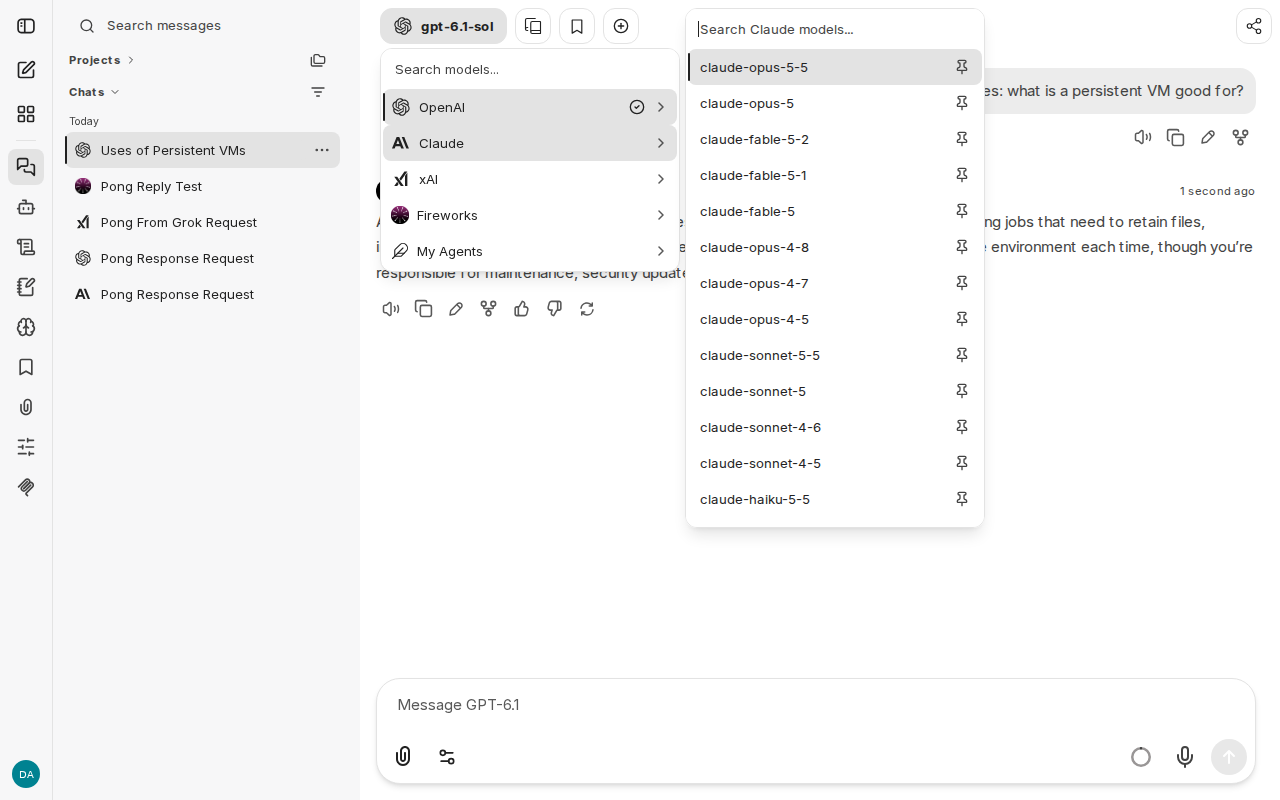
Pick a model at the top of the chat and say hello. The menu groups the models by maker: OpenAI, Claude, xAI, and Fireworks for open models. Pick another one at any point in a chat, and the next reply comes from it, with the whole conversation as context.
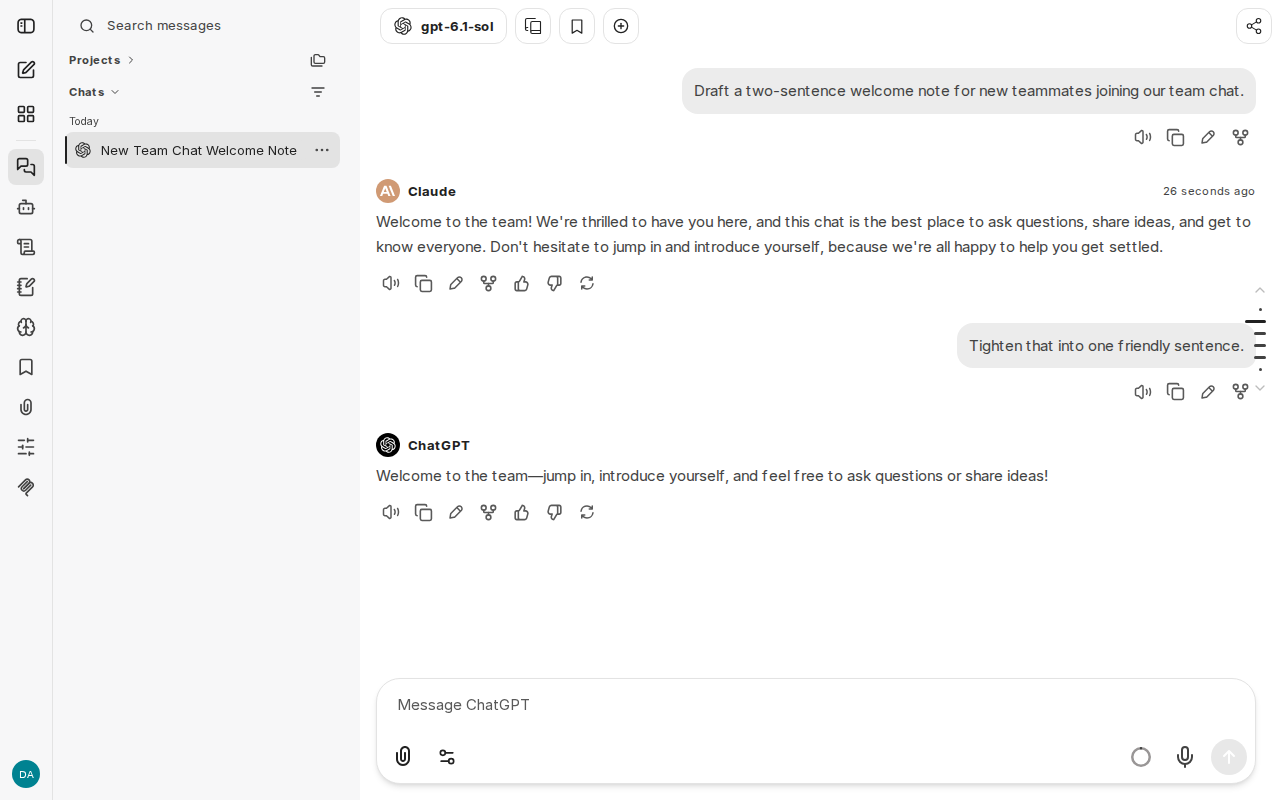
Search messages, top left, finds words in any of your chats.
Bring your team#
On your computer, share the VM with a teammate:
ssh exe.dev share add my-librechat teammate@example.com
They get an email invitation. Once they've signed in to exe.dev, they open
the same URL, click Sign up, and create their own LibreChat account.
Their chats are separate from yours. ssh exe.dev share add my-librechat team
shares with everyone in your exe.dev team.
People you haven't shared with see exe.dev's login screen and never reach
LibreChat. ssh exe.dev share remove my-librechat teammate@example.com
locks someone out again; their account and chats stay on the VM.
Once everyone has an account, you can turn sign-up off. On the VM:
cd ~/librechat
sed -i 's/^ALLOW_REGISTRATION=.*/ALLOW_REGISTRATION=false/' .env
docker compose restart api
Then add people yourself, with a password you send them:
docker compose exec api npm run create-user -- teammate@example.com Name username.
The same npm run works with list-users, delete-user, and
ban-user.
Warning
Don't make the VM public with
share set-public. Anyone could then sign up while sign-up is on, and every chat counts against your LLM allocation.
Models, files, and agents#
The model list comes from ~/librechat/librechat.yaml, written once from
the gateway's catalog. When the gateway adds a model, add its ID to the
matching models: default: list there (the IDs are in
https://llm.int.exe.xyz/models.json) and restart:
docker compose restart api. Remove models you don't want people to use
the same way.
- Files: attach a document with the paperclip and ask about it. Uploads
are stored in
~/librechat/uploads. - Agents: Agent Builder, in the icon bar on the left, makes an assistant with its own model, instructions, and files to search. Agents can use any model in the menu, and you can share them with your team.
- Temporary chats, presets, bookmarks, and shared links are all there, as in LibreChat's docs.
Agents, MCP, and more#
These need more than the gateway, so they are off for now:
- MCP servers give agents tools. Add them under
mcpServersinlibrechat.yaml, or under MCP Settings in the app; see LibreChat's MCP guide. To write your own server, see Remote MCP server. - Code Interpreter runs code for agents in a sandbox. It's a separate open-source service you'd host next to LibreChat; see Code Interpreter.
- Web search needs keys for a search API, a scraper, and a reranker; see Web search. For keys that shouldn't sit on the VM, see the HTTP proxy integration.
Ask Shelley on the VM to set any of these up; it can read this page and LibreChat's docs.
Keep your chats#
Backups run nightly into ~/librechat-backups. Each one includes accounts,
chats, agents, uploads, the search index, document vectors, and .env,
which holds the keys that encrypt saved credentials. Keep a copy
off the VM. On your computer:
scp -r my-librechat.exe.xyz:librechat-backups .
Keep these files private. To restore one, or to update LibreChat, see the
sections below, or ask Shelley to help. Something stuck? On the VM, try
cd ~/librechat && docker compose logs --tail=100 api.
The nuts and bolts#
Happy clicking Deploy? You can stop here. These are the same setup steps Shelley follows, plus the maintenance commands for later.
Install by hand
Create a VM#
On your computer (pick another name if my-librechat is taken):
ssh exe.dev new --name=my-librechat
ssh my-librechat.exe.xyz
All remaining installation commands run on the VM, as exedev.
Commands use hostname, so your VM can have any name.
Get Docker ready#
LibreChat's recommended install is Docker Compose: the app, MongoDB,
Meilisearch, the RAG API, and pgvector. Enable Docker at boot, or
exe.dev's on-demand Docker won't restart LibreChat after a reboot. Install
jq if needed:
sudo systemctl enable --now docker.service
systemctl is-enabled docker.service
command -v jq >/dev/null || sudo apt-get install -y jq
The check should print enabled.
Get LibreChat#
Clone the v0.8.8 release. The repository holds the Compose file and the example settings; the app itself comes as a Docker image.
git clone --quiet --depth 1 --branch v0.8.8 -c advice.detachedHead=false \
  https://github.com/LibreChat-AI/LibreChat.git ~/librechat
grep -m1 '"version"' ~/librechat/package.json
Expect "version": "v0.8.8".
Write the settings#
This writes .env once, from LibreChat's example: the site's
address, fresh secret keys, chat search, the gateway for document
embeddings, and only the custom endpoints and agents in the menu. The
gateway needs no key, so LibreChat gets a placeholder.
cd ~/librechat
if [ ! -e .env ]; then
  cp .env.example .env
  chmod 600 .env
  # set_env KEY VALUE: replace the KEY= line, or its commented-out form.
  set_env() {
    if grep -qE "^#? ?$1=" .env; then
      sed -i -E "0,/^#? ?$1=.*/s||$1=$2|" .env
    else
      echo "$1=$2" >> .env
    fi
  }
  url="https://$(hostname).exe.xyz"
  set_env HOST 0.0.0.0
  set_env PORT 8000
  set_env DOMAIN_CLIENT "$url"
  set_env DOMAIN_SERVER "$url"
  set_env UID "$(id -u)"
  set_env GID "$(id -g)"
  set_env CREDS_KEY "$(openssl rand -hex 32)"
  set_env CREDS_IV "$(openssl rand -hex 16)"
  set_env JWT_SECRET "$(openssl rand -hex 32)"
  set_env JWT_REFRESH_SECRET "$(openssl rand -hex 32)"
  set_env MEILI_MASTER_KEY "$(openssl rand -hex 32)"
  set_env SEARCH true
  set_env ADMIN_PANEL_SESSION_SECRET "$(openssl rand -hex 32)"
  set_env ADMIN_PANEL_URL "$url:3000"
  set_env ADMIN_PANEL_SESSION_COOKIE_SECURE true
  set_env ENDPOINTS custom,agents
  set_env OPENAI_API_KEY ""
  set_env ANTHROPIC_API_KEY ""
  set_env GOOGLE_KEY ""
  set_env ASSISTANTS_API_KEY ""
  set_env RAG_OPENAI_BASEURL https://llm.int.exe.xyz/v1
  set_env RAG_OPENAI_API_KEY exe-llm-gateway
  set_env EMBEDDINGS_PROVIDER openai
  set_env EMBEDDINGS_MODEL text-embedding-3-small
  # One LibreChat process without Redis, which scheduled chats need to know.
  set_env SCHEDULES_SINGLE_PROCESS true
fi
grep -E '^(DOMAIN_CLIENT|PORT|ENDPOINTS|SEARCH|ALLOW_REGISTRATION)=' .env
grep -cE '^(CREDS_KEY|CREDS_IV|JWT_SECRET|JWT_REFRESH_SECRET|MEILI_MASTER_KEY|ADMIN_PANEL_SESSION_SECRET)=.' .env
Expect your VM's URL, port 8000, custom,agents, true, sign-up on
(ALLOW_REGISTRATION=true), and 6 secrets. Losing CREDS_KEY and
CREDS_IV makes saved credentials unreadable, so .env goes into every
backup.
Choose the models#
The gateway lists its models at https://llm.int.exe.xyz/models.json.
This writes librechat.yaml once, with four endpoints: OpenAI and
Claude through the gateway's native OpenAI and Anthropic routes, and xAI
and Fireworks through its OpenAI-compatible one. It leaves out very
expensive -pro models and the -codex coding models. Small models write
the chat titles.
cd ~/librechat
if [ ! -e librechat.yaml ]; then
  catalog=$(curl -fsS https://llm.int.exe.xyz/models.json)
  # models PROVIDER [keep]: its chat models as a list; "keep" keeps the
  # "provider/" prefix, which the gateway's shared route needs for Fireworks.
  models() {
    jq -c --arg p "$1" --arg keep "${2:-}" '[.models[]
      | select(.provider == $p)
      | select((.apis // []) | (index("openai_chat") or index("anthropic_messages")))
      | .id | if $keep == "" then sub("^[a-z]+/"; "") else . end
      | select(test("-pro$|-codex$") | not)]' <<<"$catalog"
  }
  cat > librechat.yaml <<EOF
# LibreChat on exe.dev: every model comes through exe.dev's LLM gateway,
# so there are no API keys on this VM. "exe-llm-gateway" is a placeholder.
# Reference: https://www.librechat.ai/docs/configuration/librechat_yaml
version: 1.3.17
cache: true

registration:
  socialLogins: []

endpoints:
  custom:
    - name: OpenAI
      iconURL: openAI
      apiKey: exe-llm-gateway
      baseURL: https://llm.int.exe.xyz/openai/v1
      models:
        default: $(models openai)
        fetch: false
      titleConvo: true
      titleModel: gpt-5.4-nano
      modelDisplayLabel: ChatGPT

    - name: Claude
      provider: anthropic
      iconURL: anthropic
      apiKey: exe-llm-gateway
      baseURL: https://llm.int.exe.xyz/anthropic
      models:
        default: $(models anthropic)
        fetch: false
      titleConvo: true
      titleModel: claude-haiku-4-5
      modelDisplayLabel: Claude

    - name: xAI
      iconURL: xai
      apiKey: exe-llm-gateway
      baseURL: https://llm.int.exe.xyz/v1
      models:
        default: $(models xai)
        fetch: false
      titleConvo: true
      titleModel: current_model
      modelDisplayLabel: Grok

    - name: Fireworks
      apiKey: exe-llm-gateway
      baseURL: https://llm.int.exe.xyz/v1
      models:
        default: $(models fireworks keep)
        fetch: false
      titleConvo: true
      titleModel: current_model
      modelDisplayLabel: Open models
EOF
fi
grep -cE '^ +default: \["' librechat.yaml
grep -E '^ +default:' librechat.yaml | grep -oE '"[^"]+"' | wc -l
Expect 4 endpoints and a few dozen models. If an endpoint's list is
[], the gateway doesn't offer that provider right now; delete that
endpoint's block.
Pin the versions#
LibreChat's Compose file follows its development builds. A
docker-compose.override.yml beside it pins the release images and puts
librechat.yaml into the app. Create the data directories too, so they
belong to you rather than to root:
cd ~/librechat
cat > docker-compose.override.yml <<'EOF'
# exe.dev's changes to LibreChat's docker-compose.yml:
# pinned releases, and librechat.yaml mounted into the app.
services:
  api:
    image: registry.librechat.ai/librechat-ai/librechat:v0.8.8
    volumes:
      - type: bind
        source: ./librechat.yaml
        target: /app/librechat.yaml
  admin-panel:
    image: registry.librechat.ai/clickhouse/librechat-admin-panel:1.0.0
  rag_api:
    image: registry.librechat.ai/librechat-ai/librechat-rag-api-dev-lite:v0.9.0
EOF
mkdir -p data-node meili_data_v1.35.1 uploads images logs
docker compose config --images
Expect six images, each with a version: librechat:v0.8.8,
librechat-admin-panel:1.0.0, librechat-rag-api-dev-lite:v0.9.0,
mongo:8.0.20, meilisearch:v1.35.1, and pgvector:0.8.0-pg15-trixie.
Every service has restart: always, so they come back after a reboot.
Start LibreChat#
The first start downloads about 6 GB of images, which takes a few minutes:
cd ~/librechat
docker compose up -d
until curl -fs http://localhost:8000/health; do sleep 5; done; echo
docker compose ps --format '{{.Service}}: {{.Status}}'
Expect OK and six services Up. If the loop runs for more than ten
minutes, stop it with Ctrl-C and check the logs.
Make yourself the admin#
The first LibreChat account becomes its admin. The VM is private until you share it, so nobody else can get there first, but create your account now. Find your exe.dev email:
owner=$(curl -fsS https://reflection.int.exe.xyz/email | jq -r '.email // empty')
echo "$owner"
If that prints nothing, set it yourself: owner=you@example.com, using the
email you sign in to exe.dev with. Then create the account with a random
password, kept in a file only you can read:
cd ~/librechat
[ -e admin-password ] || (umask 077; openssl rand -base64 18 > admin-password)
name=$(printf %s "${owner%@*}" | tr -cd 'A-Za-z0-9_.')
docker compose exec -T api npm run create-user -- \
  "$owner" "$name" "$name" --email-verified=true < admin-password \
  | grep -E 'created|Error'
Expect User created successfully!. cat ~/librechat/admin-password
shows the password.
Check two models#
Sign in as you and ask GPT and Claude for one word each, through LibreChat
and the gateway. LibreChat refuses chat requests that don't come from a
browser, so curl says it is one. The test chats are deleted at the end.
cd ~/librechat
owner=${owner:-$(curl -fsS https://reflection.int.exe.xyz/email | jq -r '.email // empty')}
ua='Mozilla/5.0 (X11; Linux x86_64) Chrome/130.0 Safari/537.36'
api() { curl -fsS -A "$ua" -H "Authorization: Bearer ${token:-}" \
  -H 'Content-Type: application/json' "$@"; }
token=$(api http://localhost:8000/api/auth/login -d "$(jq -n --arg email "$owner" \
  --rawfile pw admin-password '{email: $email, password: ($pw | rtrimstr("\n"))}')" \
  | jq -r .token)
ask() {  # ask ENDPOINT MODEL
  stream=$(api "http://localhost:8000/api/agents/chat/$1" -d "$(jq -n \
    --arg endpoint "$1" --arg model "$2" --arg id "$(cat /proc/sys/kernel/random/uuid)" \
    '{text: "Reply with one word: pong", sender: "User", isCreatedByUser: true,
      messageId: $id, conversationId: null,
      parentMessageId: "00000000-0000-0000-0000-000000000000",
      endpoint: $endpoint, endpointType: "custom", model: $model}')" | jq -r .streamId)
  api -N --max-time 120 "http://localhost:8000/api/agents/chat/stream/$stream" \
    | sed -n 's/^data: //p' | jq -r 'select(.final) | .responseMessage
      | "\(.model): \([.content[]? | select(.type == "text") | .text] | join(""))"'
}
ask OpenAI gpt-5.4-nano
ask Claude claude-haiku-4-5
api -X DELETE http://localhost:8000/api/convos/all | jq .deletedCount
Expect gpt-5.4-nano: pong, claude-haiku-4-5: Pong (or similar), and
2. If a model isn't in your librechat.yaml, use another from the same
endpoint.
Set up nightly backups#
The backup stops LibreChat for a few seconds, so MongoDB and the vector database are copied in a consistent state. It runs as root because the document vectors live in a Docker volume, and skips the logs.
cat > ~/librechat/backup.sh <<'EOF'
#!/usr/bin/env bash
# Back up LibreChat: this directory (.env with its keys, librechat.yaml,
# MongoDB, the search index, uploads) and its Docker volumes (document
# vectors, app data). Run with sudo.
set -euo pipefail
umask 077
cd "$(dirname "$(readlink -f "$0")")"
name=$(basename "$PWD")
owner=$(stat -c %U:%G .)
dest="$(dirname "$PWD")/librechat-backups"
volumes="$(docker info -f '{{.DockerRootDir}}')/volumes"
mkdir -p "$dest"
out="$dest/librechat-$(date -u +%Y%m%d-%H%M%S).tar.gz"

# A short stop keeps MongoDB and the vector database consistent.
docker compose stop
trap 'docker compose start' EXIT
tar -czf "$out.part" --exclude="$name/logs" -C .. "$name" \
  -C "$volumes" "${name}_pgdata2" "${name}_librechat-data"
docker compose start
trap - EXIT
mv "$out.part" "$out"
chown -R "$owner" "$dest"

# Keep the 14 newest backups.
ls -1t "$dest"/librechat-*.tar.gz | tail -n +15 | xargs -r rm --
echo "$out"
EOF
chmod +x ~/librechat/backup.sh
Schedule it for 03:30 UTC (or so), then take a first backup:
sudo tee /etc/systemd/system/librechat-backup.service >/dev/null <<EOF
[Unit]
Description=Back up LibreChat to ~/librechat-backups
Requires=docker.service
After=docker.service

[Service]
Type=oneshot
ExecStart=$HOME/librechat/backup.sh
EOF
sudo tee /etc/systemd/system/librechat-backup.timer >/dev/null <<'EOF'
[Unit]
Description=Back up LibreChat every night

[Timer]
OnCalendar=*-*-* 03:30:00
RandomizedDelaySec=30m
Persistent=true

[Install]
WantedBy=timers.target
EOF
sudo systemctl daemon-reload
sudo systemctl enable --now librechat-backup.timer
sudo systemctl start librechat-backup.service
systemctl list-timers librechat-backup.timer
ls -lh ~/librechat-backups
until curl -fs http://localhost:8000/health; do sleep 5; done; echo
Check that the timer has a next run, the directory has a tarball, and
LibreChat is back (OK). For failures:
journalctl -u librechat-backup.service.
Test a backup#
List the newest backup's key files, without unpacking it:
latest=$(ls -1t ~/librechat-backups/librechat-*.tar.gz | head -n 1)
tar -tzf "$latest" | grep -E '^librechat/(\.env|librechat\.yaml|admin-password|data-node/WiredTiger)$|^librechat_pgdata2/_data/PG_VERSION$'
Expect five lines: .env, librechat.yaml, admin-password, MongoDB's
WiredTiger file, and the vector database's PG_VERSION.
Installation done. Leave sharing to the owner; continue with Start chatting.
Back up and restore
On the VM, sudo ~/librechat/backup.sh makes an extra backup and prints
its path. Copy backups off the VM as shown in
Keep your chats.
Restore#
On a new VM, get Docker ready as in Install. Create
~/librechat-backups there, then copy your backup over from your computer:
scp librechat-20261116-033012.tar.gz my-librechat.exe.xyz:librechat-backups/
Use your backup's actual filename in this and the commands below. All remaining commands run on the VM. If LibreChat already runs there, back it up, stop it, remove its volumes (they are in that backup), and keep its directory aside first:
sudo ~/librechat/backup.sh
cd ~/librechat && docker compose down -v
sudo mv ~/librechat ~/librechat.before-restore
Unpack the backup, point it at this VM's address, recreate the volumes, and start it:
sudo mkdir /tmp/librechat-restore
sudo tar -xzf ~/librechat-backups/librechat-20261116-033012.tar.gz -C /tmp/librechat-restore
sudo mv /tmp/librechat-restore/librechat ~/librechat
cd ~/librechat
mkdir -p logs
url="https://$(hostname).exe.xyz"
sed -i -E "s#^(DOMAIN_CLIENT|DOMAIN_SERVER)=.*#\1=$url#; s#^ADMIN_PANEL_URL=.*#ADMIN_PANEL_URL=$url:3000#" .env
docker compose up --no-start
volumes="$(docker info -f '{{.DockerRootDir}}')/volumes"
for v in pgdata2 librechat-data; do
  sudo cp -a "/tmp/librechat-restore/librechat_$v/_data/." "$volumes/librechat_$v/_data/"
done
sudo rm -rf /tmp/librechat-restore
docker compose up -d
until curl -fs http://localhost:8000/health; do sleep 5; done; echo
Open the site and sign in; your chats should be there. On a new VM,
recreate the backup timer from Install. Keep
~/librechat.before-restore until you're happy everything is back.
Update LibreChat
LibreChat publishes releases on
GitHub; skip the
-rc ones. Read the release notes and the new UPGRADING.md first: some
releases need a database migration. On the VM, back up, then fetch the new
release's files (here v0.8.9; use the real tag):
cd ~/librechat
sudo ./backup.sh
git fetch --quiet --depth 1 origin tag v0.8.9
git -c advice.detachedHead=false checkout --quiet v0.8.9
grep -m1 '"version"' package.json
less UPGRADING.md
grep -n 'image:' docker-compose.yml
In docker-compose.override.yml, change librechat:v0.8.8 to the new
version. If docker-compose.yml names a different admin panel or RAG API
image, pin those to their newest release too. Then pull and restart:
docker compose pull
docker compose up -d
until curl -fs http://localhost:8000/health; do sleep 5; done; echo
docker compose ps --format '{{.Service}}: {{.Image}}'
docker image prune -f
Reload the site with Ctrl+Shift+R (Cmd+Shift+R on a Mac) so your browser picks up the new pages. The last command frees the old images' disk space. To roll back, restore the backup: going back to the old tag alone won't undo database migrations.
If a new release changes the Meilisearch version, its data directory gets a new name and LibreChat rebuilds the chat search index on its own.
Something not working?
On the VM:
cd ~/librechat
docker compose ps
docker compose logs --tail=100 api
- 502 right after starting or updating: LibreChat takes up to a minute
to start. Wait for
curl -fsS http://localhost:8000/health. - MongoDB or Meilisearch keeps restarting with "Permission denied":
Docker created their data directories as root. Run
docker compose down, thensudo chown -R $(id -u):$(id -g) data-node meili_data_v1.35.1 uploads images logs, thendocker compose up -d. - "Your account has been temporarily banned": LibreChat bans an
address for a while after suspicious requests, such as scripts that don't
look like a browser. Wait two hours, or restart with
docker compose restart apiafter deleting the ban:docker compose exec mongodb mongosh LibreChat --quiet --eval 'db.logs.deleteMany({key: /^(ban|BANS):/})'. - I changed
librechat.yamlor.envand nothing happened: rundocker compose restart api, then look for config errors in its log. - A model replies with an error: check its ID is still in
https://llm.int.exe.xyz/models.json. Fireworks models keep theirfireworks/prefix; OpenAI, Claude, and xAI models don't. - Down after a reboot: run
sudo systemctl enable --now docker.service. - Disk full: check
df -h /and rundocker image prune -f.
Frequently asked questions#
How much does it cost?
LibreChat is free. You pay for your VM plan, and chats use your exe.dev LLM allocation, including your teammates' chats. Bigger models use it up faster.
Should I pick LibreChat or Open WebUI?
Both are private team chats on a VM. Pick LibreChat for Claude next to GPT and Grok, agents that call MCP servers, and per-endpoint settings. Pick Open WebUI for a lighter setup (one container), your exe.dev login as the only sign-in, and built-in web search and voice.
Why do I need a LibreChat password on top of exe.dev login?
LibreChat can't take the signed-in email from exe.dev's proxy; it signs people in with its own accounts (or OpenID, LDAP, or SAML). exe.dev login decides who reaches the site at all, and the LibreChat account decides whose chats you see.
Can I use my own API key or ChatGPT subscription?
Yes, without touching LibreChat. Point your LLM integration at your own provider key or ChatGPT account, and the same gateway address serves your models.
Who can read my chats?
Each account sees only its own chats, unless someone shares a link. Anyone with a shell on the VM can read the database and uploads, and prompts and replies go to the model provider through exe.dev's gateway.
Does it do web search and code execution?
Not out of the box. LibreChat's web search needs keys for a search service and a page scraper, and its Code Interpreter is a separate service you'd host next to it. See Agents, MCP, and more.
Is it free for my company?
Yes. LibreChat is MIT-licensed, so you can use and change it commercially.
Updated Nov 16, 2026 · tested end to end Nov 16, 2026 · Markdown · manifest.json · Something wrong? Tell us