
Self-host Immich
Your photo and video library, Google Photos style, on your own disk.
Shelley handles the setup. About 15 minutes. Needs a 100 GB disk: Shelley sends you a link to grow it.
Prefer a terminal?
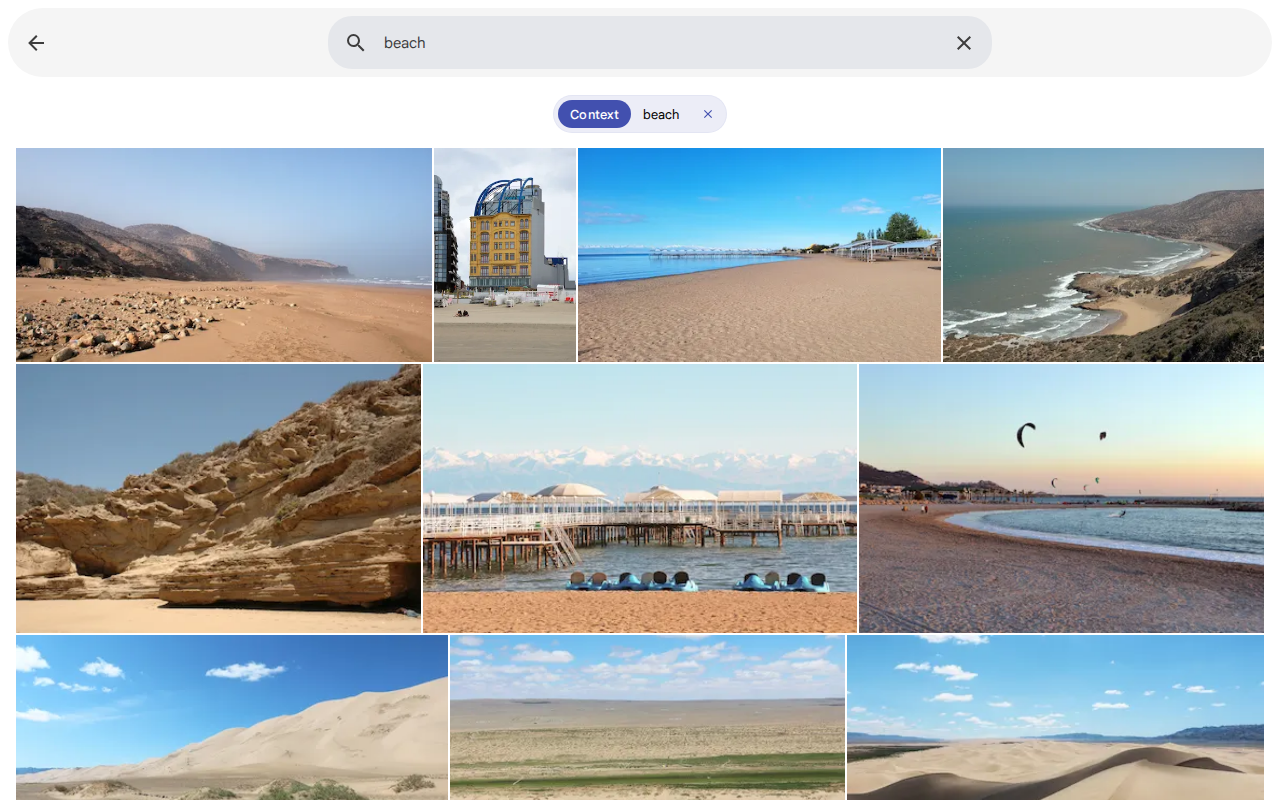
curl -fsSL https://exe.dev/deploy/immich/prompt.txt | ssh exe.dev new --disk=100GB --prompt=/dev/stdinImmich is an open-source photo and video library that works like Google Photos: phone apps that back up your camera roll, a fast timeline, albums and sharing, a map, face grouping, and search that finds "dog on a beach" without tags. It's one of the most popular self-hosted projects on GitHub, and it runs as four containers.
An exe.dev VM is a good home for it. The library sits on a real,
persistent disk that you can grow in a minute, and the web app is at
https://my-immich.exe.xyz/ with HTTPS and private by default: nobody
reaches Immich's login page without first signing in to exe.dev as you or
someone you've shared the VM with. The phone app gets through with a
VM token in a custom header, so your photos
never have to be on the open internet. Shelley sets it up, and can look
after backups and updates later.
What you get#
- Immich 3.4 on Docker Compose, with Immich's own compose file pinned to one release.
- The web app at https://my-immich.exe.xyz/, private behind exe.dev login, ready for the owner's admin account.
- The library and database on the VM's disk, with room to grow and Immich's nightly database dumps on.
- Everything starts again after a reboot.
What's running, and where
https://my-immich.exe.xyz/
The Immich web app and API, behind exe.dev login and Immich's own accounts
https://my-immich.exe.xyz/
The same, for the Immich mobile app with a VM token in a custom header
Deploy with Shelley#
Click Deploy and Shelley will set up Immich on a new VM, then check that it works. No config-file wrangling required.
Immich needs a 100 GB disk, more than a new VM has. Shelley checks first and, if it's too small, gives you a link to grow it; the terminal command below makes the VM that size from the start.
Prefer a terminal?
curl -fsSL \
  https://exe.dev/deploy/immich/prompt.txt \
  | ssh exe.dev new --disk=100GB --prompt=/dev/stdin
What Shelley is told
Set up Immich on this VM by following the exe.dev recipe at https://exe.dev/deploy/immich.md?via=deploy from top to bottom.

The recipe's example VM name is my-immich. This VM's name is the output of `hostname`: use it wherever the recipe writes my-immich. Skip the step that creates the VM; you are on it.

This recipe needs a 100GB disk, and a new VM's may be smaller. Before you install anything, run `df -h /`. If its size is under 90G, stop and ask me to grow the disk, either with this link: https://exe.dev/suggest?command=resize%20my-immich%20--disk%3D100GB or, on my computer, with `ssh exe.dev resize my-immich --disk=100GB`. When I say it's done, run `sudo resize2fs "$(findmnt -no SOURCE /)"`, check `df -h /` again, and carry on.

You are done when all of these are true. Check each one yourself:
- Immich 3.4 on Docker Compose, with Immich's own compose file pinned to one release.
- The web app at https://my-immich.exe.xyz/, private behind exe.dev login, ready for the owner's admin account.
- The library and database on the VM's disk, with room to grow and Immich's nightly database dumps on.
- Everything starts again after a reboot.

Read the whole recipe, including the closed details. For initial setup,
follow "Install by hand" first, from "Check the disk" on (skip creating
the VM). The walkthrough at the top is for the owner afterwards.
Work as exedev in ~/immich. Never overwrite an existing .env. Don't create
the Immich admin account: the first person to open the web app becomes
admin, and that must be the owner. Don't make the VM public, upload
photos, generate tokens or change Immich settings. Don't run Restore or
Update.
If the disk is under 90 GB, stop and give the owner a suggest link to
resize it, as the recipe says, before installing.
Verify docker.service is enabled, all four containers are up and
healthy, and curl localhost:8000/api/server/ping returns pong. Do not
reboot. Finish by sending the owner to https://<vm>.exe.xyz/ to create
the admin account, and point them to "Back up your phone".

Finish with the URLs I should open.
Also at /deploy/immich/prompt.txt. The recipe it follows is /deploy/immich.md.
Make your admin account#
Open https://my-immich.exe.xyz/ and sign in to exe.dev if asked. Immich
greets you with Welcome to Immich; click Getting Started and fill
in your email, a password and your name. The first account made is the
admin, so do this before you share the VM with anyone. Pick a strong password;
Immich's login sits behind exe.dev's, and it's the only lock left if you
ever make the VM public.
The onboarding then asks about theme, language, privacy (the map and version check use outside services) and the storage template; the defaults are fine. You land on an empty Photos timeline.
Upload photos#
Drag photos and videos onto the browser window, or click Upload at the top. Immich reads each file's date and location, makes thumbnails, and then works through face detection, smart search and text recognition in the background (see Faces and smart search on CPU). Administration → Job Queues shows what it's still doing.
For a big folder, use the Immich CLI. It can't add exe.dev's token header, so give it an SSH tunnel instead. Create a key in Immich (Account Settings → API Keys → New API Key, all permissions), then, on your computer:
ssh -fN -L 2283:localhost:8000 my-immich.exe.xyz
docker run --rm --network host -v "$HOME/Pictures/2024":/import:ro \
  -e IMMICH_INSTANCE_URL=http://localhost:2283/api -e IMMICH_API_KEY=your-api-key \
  ghcr.io/immich-app/immich-cli:3.4.2 upload --recursive --album /import
--album makes an album per folder. With Node.js 22 or newer,
npm i -g @immich/cli works instead of Docker (--network host needs Linux;
on a Mac, use the npm CLI). Uploads are inbound traffic, which exe.dev
doesn't count against your bandwidth.
Lots of photos? Copy them to the VM first (rsync -a ~/Pictures/ my-immich.exe.xyz:import/), so a dropped connection doesn't stall Immich,
and run the same docker run on the VM with -v ~/import:/import:ro
and IMMICH_INSTANCE_URL=http://localhost:8000/api. To leave the files
where they are instead, see Photos already on the VM.
Back up your phone#
Immich's phone apps back up your camera roll as you take photos. The VM is private, so the app needs a VM token to get past exe.dev's login; without one it says Server is not reachable.
On your computer, make a token for this VM, one per phone so you can revoke them separately:
ssh exe.dev ssh-key generate-api-key --vm=my-immich --label=immich-phone --exp=1y
It prints a token starting with exe1.. Keep it like a password: it gets
anyone past exe.dev's login to this VM (Immich's own login still applies).
Install the Immich app (Android, iPhone), and before you log in:
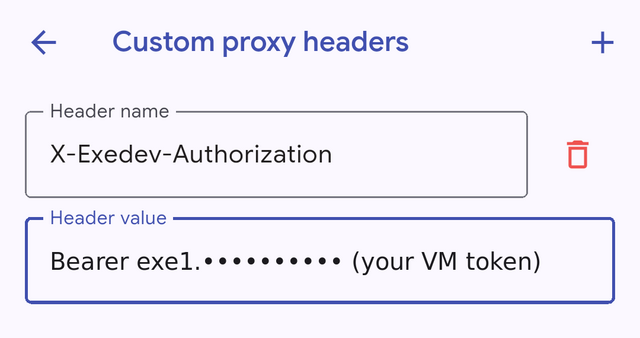
- On the login screen, tap Settings (under Next), then Advanced and Custom proxy headers.
- Tap + and enter Header name
X-Exedev-Authorizationand Header valueBearerfollowed by the token. Go back; it saves on its own. - Back on the login screen, enter
https://my-immich.exe.xyzas Server Endpoint URL, tap Next, and log in with your Immich email and password.
Then tap the cloud icon at the top right, Select the albums to back up (Camera, at least), and turn on Enable Backup. By default the app only uploads on Wi-Fi; to back up over mobile data, open Backup Options (the gear) and turn on Photos and Videos under Network Requirements. Android also suggests turning off battery optimization for Immich, which helps background backup.
The app sends the header with every request, including background
uploads. On Android we watched it upload new photos with the app closed.
When the token expires, the app stops reaching the server: make a new one
and replace the header value. To cut a phone off, on your computer:
ssh exe.dev ssh-key remove immich-phone.
If an app can't add headers, the token also works as a password in the
URL, https://x:TOKEN@my-immich.exe.xyz. The Immich app accepts that
too, but shows the token in plain text on its screens, so prefer the
header.
Share it with your family#
Each person needs two things: exe.dev access to the VM, and an Immich account.
- On your computer, share the VM's web server with them:
ssh exe.dev share add my-immich mum@example.com. They get an email, sign in to exe.dev with that address, and can openhttps://my-immich.exe.xyz/. They can't log in to the VM itself. - In Immich, Administration → Users → Create user with the same email and a first password (Immich asks them to change it).
- For their phone, make them a token of their own, as in
Back up your phone, with a different
--label, so you can revoke it alone.
Inside Immich, share albums with other users, or turn on Partner Sharing so a partner sees your whole timeline. Immich's shared links (an album for anyone with the URL) only work for people who can get past exe.dev's login: on a private VM, that means people you've shared the VM with. For public links, see the FAQ on making Immich public.
Disk and what it costs#
A new exe.dev VM has a 25 GB disk, and Immich's images, its machine-learning models and an empty database take about 7 GB of it on top of the system's 5 GB. So this recipe makes the disk at least 100 GB. That costs nothing up front: exe.dev bills disk by what's used, not its size.
What you use is your photos and videos, plus 10-20% for thumbnails and transcoded video, plus the database (a few GB for a large library). Your exe.dev plan includes disk shared by all your VMs: on Personal, 100 GB per 2 vCPU of capacity (100 GB at $15 a month, 200 GB at $35, 400 GB at $75, 800 GB at $155). Beyond that, extra disk is billed per GiB-month at the rate on the pricing page, on your average use over the month (see Usage). As a rule of thumb, a 60 GB phone library fits in the $15 plan's 100 GB with Immich's overhead, if this is your only VM with much on it.
Watch it with df -h / on the VM, or Administration → Server Stats.
Grow the disk before it fills; on your computer:
ssh exe.dev resize my-immich --disk=300GB
Then on the VM, sudo resize2fs "$(findmnt -no SOURCE /)". We grew a test
VM this way with Immich running, with no restart. Disks only grow.
Bandwidth: plans include 200 GB a month of outbound traffic. Backing up your phone is inbound and free; browsing and downloading count, mostly as thumbnails and previews. Streaming lots of full-size video is what adds up.
Faces and smart search on CPU#
exe.dev VMs have no GPU, so Immich's machine learning runs on the CPU. It's fine for a personal library, but expect a backlog after a big import, not instant results. On a default VM (2 vCPU, 8 GB), we imported 176 photos with every job on: thumbnails, faces, smart search and OCR were all done in about six minutes, roughly 30 photos a minute. At that pace 10,000 photos take five or six hours. The first search after a while takes a few seconds, while the model loads.
Smart search (type a description into Search), face grouping (Explore → People) and text in photos (OCR) all work once their jobs finish, and new photos are processed as they arrive. To make it easier on a small VM:
- Let the first import run overnight. The timeline works while jobs run in the background.
- More CPUs for the import, fewer after. On your computer,
ssh exe.dev resize my-immich --cpu=4 --memory=16GB(within your plan's capacity), and back down later. The change may restart the VM. - Turn off what you don't use. In Administration → Settings → Machine Learning Settings, switch off Smart Search, Facial Recognition or OCR individually, or machine learning entirely.
Photos already on the VM#
An external library is a
folder Immich indexes in place, without copying the files into its own
storage: an archive you rsync to the VM, or a folder another tool keeps
in sync. Mounted read-only, Immich can't change or delete anything in it.
On the VM, make the folder and mount it into Immich through the override file, so Immich's own compose file stays untouched:
mkdir -p ~/photos
cat > ~/immich/docker-compose.override.yml <<'YAML'
services:
  immich-server:
    ports:
      - '8000:2283'
    volumes:
      - /home/exedev/photos:/external/photos:ro
YAML
cd ~/immich && docker compose up -d
Then in Immich, Administration → External Libraries → Create Library,
choose its owner, Add the folder /external/photos, and Scan.
Immich rescans on a schedule, set under Administration → Settings →
External Library. These photos live in ~/photos, not in Immich's
storage, so back that folder up too.
Keep your photos safe#
For many people this is the only copy of their photos, and a copy on the same VM doesn't count. Immich does half the job:
- The database. Immich dumps its database every night at 02:00 (VM
time, UTC) and keeps the last 14, in
~/immich/library/backups. It holds albums, people, descriptions and which file is which; Immich doesn't rebuild it from the files. - The photos. Those are up to you. What matters is
~/immich/library/upload,libraryandprofile;thumbsandencoded-videocan be regenerated.
The simplest real backup is a copy at home. On your computer, as often as you like:
rsync -a --exclude thumbs/ --exclude encoded-video/ \
  my-immich.exe.xyz:immich/library/ ./immich-backup/
That takes the originals and the database dumps together, and only new files travel after the first run. The dumps include password and API key hashes, so keep the copy private.
Two more layers, if you want them:
- Whole-VM backups with exe.dev's VM backups (preview): incremental snapshots of the entire disk to an Amazon S3 bucket of yours, restorable onto a new VM or mounted anywhere.
- Another S3 store, such as an exe.dev VM running
S3-compatible storage, filled with
rclone syncfrom this one. Never this VM itself.
To restore, or to check that a backup restores, see Back up and restore, or ask Shelley.
The nuts and bolts#
Happy clicking Deploy? You can stop here. These are the same setup steps Shelley follows, plus the maintenance commands for later. Tested with Immich 3.4.2 (server, machine learning and CLI) on a 2 vCPU, 8 GB exe.dev VM, with Docker 29.1 and Compose 2.40.
Install by hand
Create a VM#
On your computer (pick another name if my-immich is taken):
ssh exe.dev new --name=my-immich --disk=100GB
ssh my-immich.exe.xyz
All remaining installation commands run on the VM, as exedev.
Check the disk and memory#
df -h /
free -g
If Size is under 90G, the VM was made with a smaller disk. Grow it with
this link
(with your VM's name), or on your computer with
ssh exe.dev resize my-immich --disk=100GB. Then, back on the VM:
sudo resize2fs "$(findmnt -no SOURCE /)"
df -h /
Immich asks for at least 6 GB of memory. If free -g shows a total under
7, resize with --memory=8GB the same way, or plan to turn machine
learning off.
Get Docker ready#
Enable Docker at boot, or exe.dev's on-demand Docker won't start Immich after a reboot:
sudo systemctl enable --now docker.service
systemctl is-enabled docker.service
Expect enabled.
Get Immich's compose file and settings#
Immich's docker-compose.yml belongs to a release, so download the one for
the version you run. This writes .env with a random database password,
once, readable only by you:
mkdir -p ~/immich && cd ~/immich
IMMICH_VERSION=v3.4.2
curl -fsSL -o docker-compose.yml \
  "https://github.com/immich-app/immich/releases/download/$IMMICH_VERSION/docker-compose.yml"
if [ ! -f .env ]; then
  ( umask 077
    cat > .env <<EOF
# Immich settings: https://docs.immich.app/install/environment-variables
UPLOAD_LOCATION=./library
DB_DATA_LOCATION=./postgres
TZ=Etc/UTC
IMMICH_VERSION=$IMMICH_VERSION
DB_PASSWORD=$(openssl rand -hex 24)
DB_USERNAME=postgres
DB_DATABASE_NAME=immich
EOF
  )
fi
ls -l .env
Expect -rw-------. The database password is only used inside the VM, but
.env is the file to keep if you rebuild.
Publish it on port 8000#
Immich listens on 2283. exe.dev's proxy serves https://<vm>.exe.xyz/ from
port 8000, so a small override file adds that port. Compose reads it
automatically, and Immich's own file stays as released:
cat > ~/immich/docker-compose.override.yml <<'EOF'
# Ours, not Immich's: publish the web app and API on port 8000, the port
# behind https://<vm>.exe.xyz/. Immich's docker-compose.yml stays as released.
services:
  immich-server:
    ports:
      - '8000:2283'
EOF
Start Immich#
The first pull is about 4.6 GB of images, a minute or two on exe.dev:
cd ~/immich
docker compose pull -q
docker compose up -d
until curl -fs localhost:8000/api/server/ping; do sleep 3; done; echo
docker compose ps --format '{{.Name}} {{.Status}}'
Expect {"res":"pong"}, then four containers Up, all (healthy) within
a minute. The machine-learning container downloads its models (about
1.7 GB) the first time a job needs them.
Installation done. Continue with Make your admin account.
Back up and restore
Immich's nightly database dumps land in ~/immich/library/backups; you can
change the time and how many it keeps in Administration → Settings →
Database Dump Settings, or make one now from Administration → Job
Queues → Create job → Create Database Dump. Copy them off the VM with
the photos, as in Keep your photos safe.
Roll back the database on the same VM#
If a bad edit or a bulk delete went wrong, but the files are fine: in Administration → Maintenance → Restore database backup, pick a dump and click Restore. Immich makes a restore point first and rolls back to it if the restore fails. Anything changed since that dump is lost.
Restore onto a new VM#
This brings back everything from a copy made with the rsync command in
Keep your photos safe. Use a VM with enough disk
for the library.
On the new VM, follow Install by hand through Start
Immich, with the same IMMICH_VERSION as the backup's dumps (it's in
their file names, such as ...-v3.4.2-pg14.19.sql.gz). Don't make an
account. Then, on your computer, copy the backup over:
rsync -a ./immich-backup/ my-immich.exe.xyz:immich-restore/
On the VM, replace the empty library and database with it, and load the
newest dump. This is Immich's
command-line restore;
the rm deletes the new install's data, so never run it on a VM with
photos you want to keep:
cd ~/immich
docker compose down
sudo rm -rf postgres library
sudo mkdir library
sudo rsync -a ~/immich-restore/ library/
sudo mkdir -p library/thumbs library/encoded-video
sudo touch library/thumbs/.immich library/encoded-video/.immich
DUMP=$(ls -1 library/backups/immich-db-backup-*.sql.gz | tail -n 1); echo "$DUMP"
docker compose create
docker start immich_postgres
until [ "$(docker inspect -f '{{.State.Health.Status}}' immich_postgres)" = healthy ]; do sleep 2; done
gunzip --stdout "$DUMP" \
  | sed "s/SELECT pg_catalog.set_config('search_path', '', false);/SELECT pg_catalog.set_config('search_path', 'public, pg_catalog', true);/g" \
  | docker exec -i immich_postgres psql --dbname=immich --username=postgres --single-transaction --set ON_ERROR_STOP=on -q >/dev/null
docker compose up -d
until curl -fs localhost:8000/api/server/ping; do sleep 3; done; echo
The two .immich files are Immich's markers for the folders the backup
leaves out; without them the server keeps restarting with Failed to read ... encoded-video/.immich. Expect pong, then log in with your old
account: albums, people and search come back with the database, and the
originals open, but the timeline is grey until thumbnails are rebuilt. In
Administration → Job Queues, click All on Generate Thumbnails
(Missing skips them, since the database thinks they exist) and on
Transcode Videos. We restored a test library onto a fresh VM this way.
Once it all looks right, rm -rf ~/immich-restore. If you used an external
library, copy ~/photos back and add the same mount to the override file
before the last docker compose up -d.
Update Immich
Immich releases often (3.4.0 to 3.4.2 took eight days in November 2026). Read the release notes first, and for a new major version, the breaking-change notes and migration guide they link. Immich's server only works with the matching major version of the phone app, so update the apps before a major server update. Downgrades aren't supported.
On the VM, take a database dump, then switch both the compose file and
IMMICH_VERSION to the new release. Replace v3.4.3 with the version you
want:
cd ~/immich
docker exec immich_postgres pg_dump --clean --if-exists --dbname=immich --username=postgres \
  | gzip > "pre-update-$(date -u +%Y%m%d-%H%M%S).sql.gz"
OLD=$(grep '^IMMICH_VERSION=' .env | cut -d= -f2)
NEW=v3.4.3
curl -fsSL -o docker-compose.yml \
  "https://github.com/immich-app/immich/releases/download/$NEW/docker-compose.yml"
sed -i "s/^IMMICH_VERSION=.*/IMMICH_VERSION=$NEW/" .env
docker compose pull -q
docker compose up -d
until curl -fs localhost:8000/api/server/ping; do sleep 3; done; echo
curl -s localhost:8000/api/server/version; echo
docker image rm ghcr.io/immich-app/immich-server:$OLD ghcr.io/immich-app/immich-machine-learning:$OLD
Expect pong and the new version numbers. Database migrations run on
start, so the first start after an update can take longer. The
docker image rm frees the old version's 3.5 GB. Our override file
doesn't change, since it only adds the port (and your external library).
To go back, you'd restore the pre-update-*.sql.gz dump into the old
version, as in Restore onto a new VM; a whole-VM
backup taken just before is the quicker undo.
Something not working?
On the VM:
cd ~/immich
docker compose ps
docker compose logs --tail=100 immich-server
docker compose logs --tail=100 immich-machine-learning
- The phone app or a script gets
401andinvalid or missing authentication: that's exe.dev's proxy, not Immich: the request had no valid VM token. Check the custom header's name and theBearerprefix, and whether the token expired (ssh exe.dev ssh-key liston your computer). - The CLI says
Expected a JSON response ... HTTP 401: the same; the CLI can't send the token header. Use the SSH tunnel in Upload photos. - Containers gone after a reboot: run
sudo systemctl enable --now docker.service. Immich's containers restart on their own once Docker runs. - Uploads fail or the server is
unhealthy, withNo space left on devicein the log: the disk is full. Grow it as in Disk and what it costs. - Smart search finds nothing, or People is empty: the jobs haven't run yet. Check Administration → Job Queues; the first job also downloads the models, so look for download errors in the machine-learning log.
- The server restarts with out-of-memory errors: Immich wants 6 GB or more. Resize the VM's memory, lower Job Settings concurrency, or turn machine learning off.
- An external library shows no photos: the folder must be mounted in
the override file, and the library's path is the path inside the
container (
/external/photos), not on the VM.
Frequently asked questions#
Does the Immich mobile app work with a private exe.dev VM?
Yes. Make a VM token with ssh exe.dev ssh-key generate-api-key --vm=my-immich, and add it in the app under Settings, Advanced, Custom proxy headers as X-Exedev-Authorization: Bearer <token>. We tested the Android app: login, timeline, and foreground and background backup all work through exe.dev's login.
How much disk do I need, and what does it cost?
Your library plus 10-20% for thumbnails and transcoded video, plus about 12 GB for the system, Immich and its models. exe.dev bills disk by what's used, not its size; the Personal plan includes 100 GB shared by your VMs, and more with bigger plans or as extra disk.
Is face recognition and smart search usable without a GPU?
Yes, for a personal library. On the default 2 vCPU VM, Immich worked through about 30 photos a minute with every machine-learning job on, so a 10,000-photo import finishes overnight. Searches answer in a second or so once the model is loaded.
Can I make Immich public instead?
Yes: ssh exe.dev share set-public my-immich on your computer, after you've made the admin account. Then Immich's own login is the only lock, the phone app needs no token, and shared-album links work for anyone. Use strong passwords and keep Immich updated.
Is Immich free?
Yes. Immich is AGPL-3.0 open source with every feature included. Its makers sell an optional supporter license that unlocks nothing. You pay for your exe.dev plan and any disk beyond its allowance.
Published Nov 21, 2026 · Updated Nov 21, 2026 · tested end to end Nov 21, 2026 · Markdown · manifest.json · Something wrong? Tell us


