A desktop and browser for your AI agent
A Linux desktop your agent drives and you can watch, from any browser.
Shelley handles the setup. About 10 minutes.
Prefer a terminal?
curl -fsSL https://exe.dev/deploy/computer-use/prompt.txt | ssh exe.dev new --prompt=/dev/stdinComputer-use agents work the way people do: they look at a screenshot, move the mouse, click, and type. They need a computer to do it on, one where a wrong click can't hurt you. This recipe turns an exe.dev VM into that computer: an Xfce desktop with Google Chrome, running all the time, that you open in a browser tab to watch the agent work or take the mouse yourself.
Agents get two ways in. Claude's computer use tool sees the whole screen and drives the mouse and keyboard, for any app on the desktop; a short script here runs it, asks you before each action, and records every run. Coding agents such as Claude Code and Codex drive the same Chrome through Playwright MCP and Chrome's DevTools protocol, which is faster and cheaper for web work. The models come through exe.dev's LLM integration, so there is no API key on the VM. Everything stays private: the desktop is behind exe.dev login, and VNC and DevTools listen only inside the VM. E2B Desktop, Daytona, and hosted browsers like Browserbase sell the same idea per minute; here it's a VM you keep.
What you get#
- An Xfce desktop on display :1 and Google Chrome on it, restarted on failure and after a reboot
- The desktop at
https://<vm>.exe.xyz:6080/, behind exe.dev login, with VNC and Chrome's DevTools port reachable only from the VM - Playwright MCP on
localhost:8931, registered with Claude Code and Codex, driving the desktop's Chrome agent.py: Claude's computer use tool on the desktop, asking before each action, with a log and a screen recording of every run- Claude reachable through exe.dev's LLM integration, with no API key on the VM
What's running, and where
https://my-computer-use.exe.xyz:6080/
the desktop in your browser, to watch the agent or take over
ssh my-computer-use.exe.xyz
your terminal, and SSH tunnels to VNC and CDP for agents elsewhere
Deploy with Shelley#
Click Deploy and Shelley will set up Computer use on a new VM, then check that it works. No config-file wrangling required.
Prefer a terminal?
curl -fsSL \
  https://exe.dev/deploy/computer-use/prompt.txt \
  | ssh exe.dev new --prompt=/dev/stdin
What Shelley is told
Set up Computer use on this VM by following the exe.dev recipe at https://exe.dev/deploy/computer-use.md from top to bottom.

The recipe's example VM name is my-computer-use. This VM's name is the output of `hostname`: use it wherever the recipe writes my-computer-use. Skip the step that creates the VM; you are on it.

You are done when all of these are true. Check each one yourself:
- An Xfce desktop on display :1 and Google Chrome on it, restarted on failure and after a reboot
- The desktop at `https://<vm>.exe.xyz:6080/`, behind exe.dev login, with VNC and Chrome's DevTools port reachable only from the VM
- Playwright MCP on `localhost:8931`, registered with Claude Code and Codex, driving the desktop's Chrome
- `agent.py`: Claude's computer use tool on the desktop, asking before each action, with a log and a screen recording of every run
- Claude reachable through exe.dev's LLM integration, with no API key on the VM

Run "Set up by hand" from "On the VM" (skip creating the VM), then the
VM-side commands in "Let a coding agent drive the browser" for Claude
Code and Codex, checking Playwright MCP with the `claude -p` command
from that section. Then download agent.py as in "Run a computer-use
agent" and check it with
`uv run agent.py "Take a screenshot and tell me which windows are open. Don't click or type anything."`,
which only takes screenshots, so it runs without asking. Don't run
tasks that click or type: agent.py asks a person before each of those.
If Claude or Codex settings already exist, add the MCP server without
replacing them. Never make the VM public: the desktop has no password
of its own. Finish with the desktop's URL and the first task to try
from "Run a computer-use agent".

Finish with the URLs I should open.
Also at /deploy/computer-use/prompt.txt. The recipe it follows is /deploy/computer-use.md.
Set up the desktop#
Deploy does this for you. By hand, it's one script that installs the desktop, Chrome, noVNC, Node.js 24, and Playwright MCP, and starts them as systemd services.
Set up by hand
On your computer, create a VM and connect. Pick any free name; if you've already clicked Deploy or have a VM, skip the first command and use its name:
ssh exe.dev new --name=my-computer-use
ssh my-computer-use.exe.xyz
On the VM, read setup.sh, then run it:
curl -fsSL https://exe.dev/deploy/computer-use/setup.sh | bash
It takes about two minutes and ends with a line per service, active, and
the desktop's address. It installs Xfce, TigerVNC, noVNC, xdotool and
ffmpeg from Ubuntu, Google Chrome from Google (which adds Google's apt repository
for updates), Node.js 24 from NodeSource, and @playwright/mcp from npm.
Then it writes these units in /etc/systemd/system, all running as
exedev:
| Service | What it runs |
|---|---|
desktop-vnc |
Xvnc :1: the X display and its VNC server, on localhost:5900, without a password |
desktop-xfce |
the Xfce session on display :1 |
desktop-novnc |
websockify serving noVNC on port 6080 |
desktop-chrome |
Google Chrome on :1, profile ~/.config/agent-chrome, DevTools on localhost:9222 |
desktop-playwright-mcp |
Playwright MCP attached to that Chrome, on localhost:8931/mcp |
Each restarts when it stops, and all come back after a reboot. If you close Chrome on the desktop, it reopens two seconds later. Running the script again updates the units and restarts the desktop.
Check Chrome's DevTools port:
curl -s localhost:9222/json/version
It answers with "Browser": "Chrome/...".
Watch the desktop#
Open https://my-computer-use.exe.xyz:6080/ in your browser and sign in
to exe.dev if asked. noVNC connects straight away and shows the desktop,
scaled to the tab, with Chrome open. It says Connected (encrypted): the
connection is HTTPS from your browser to exe.dev, and VNC from there
stays inside the VM.
The screen is shared: you see the agent's clicks as they happen, and you
can click and type too. The tab on the left edge opens noVNC's controls,
including a clipboard box for pasting text into the desktop and full
screen. To let someone else watch, share the VM with them:
ssh exe.dev share add my-computer-use teammate@example.com on your
computer. They sign in to exe.dev and open the same address.
Warning
The desktop has no password of its own; exe.dev login is the lock. Don't forward port 6080 elsewhere or point port 8000 at it with
share portandshare set-public, or anyone could use it.
Let a coding agent drive the browser#
Playwright MCP gives an agent tools such as browser_navigate,
browser_click, browser_type and browser_snapshot, which reads the
page's accessibility tree rather than pixels. It drives the desktop's
Chrome, so you watch each step on the desktop, and pages you have signed
in to are signed in for the agent too.
On the VM, connect Claude Code to the LLM integration (if you haven't) and to Playwright MCP:
exeuntu configure claude
claude mcp add --transport http --scope user playwright http://localhost:8931/mcp
claude mcp list
The list shows playwright: http://localhost:8931/mcp (HTTP) - ✔ Connected.
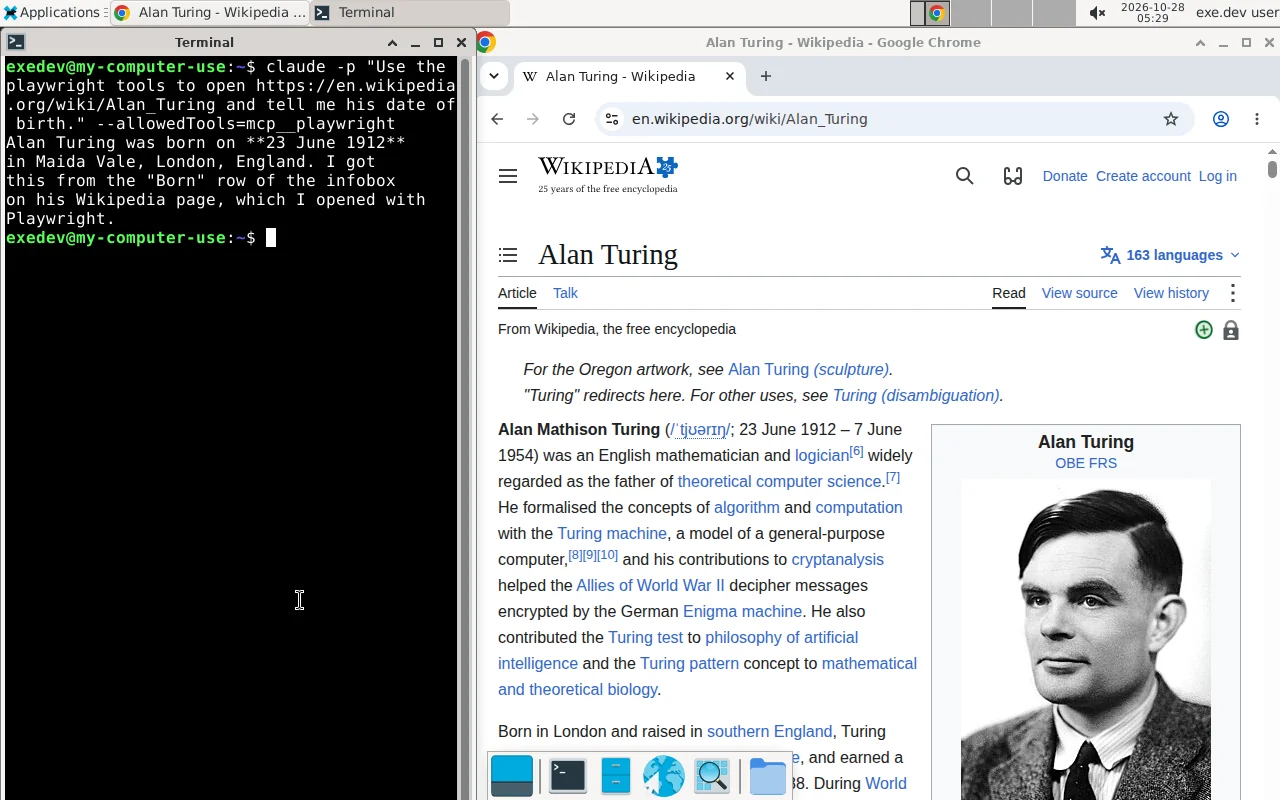
Try it while you watch the desktop:
claude -p "Use the playwright tools to open https://en.wikipedia.org/wiki/Alan_Turing and tell me his date of birth." --allowedTools=mcp__playwright
Chrome goes to the page, and Claude answers 23 June 1912. In an
interactive claude session, it asks before using each tool unless you
allow them.
For Codex:
exeuntu configure codex
codex mcp add playwright --url http://localhost:8931/mcp
Codex asks you to approve each browser action. To let it browse without
asking, for codex exec for example, add
default_tools_approval_mode = "approve" under [mcp_servers.playwright]
in ~/.codex/config.toml.
Any other agent that speaks MCP over HTTP works the same way with
http://localhost:8931/mcp. Programs can skip MCP and attach to Chrome
themselves: Playwright's chromium.connect_over_cdp("http://localhost:9222")
and Puppeteer's puppeteer.connect({ browserURL: "http://localhost:9222" })
both do.
Run a computer-use agent#
For anything that isn't a web page, or when you want the agent to see
what a person sees, use computer use: the model gets screenshots of the
whole desktop and answers with clicks and keystrokes.
agent.py is a short
script that runs Claude's computer use tool on this desktop. It uses the
Anthropic Python SDK, with xdotool doing the clicks and typing. It
asks before every action, prints each step as it happens, and records
the screen. On the VM:
curl -fsSLO https://exe.dev/deploy/computer-use/agent.py
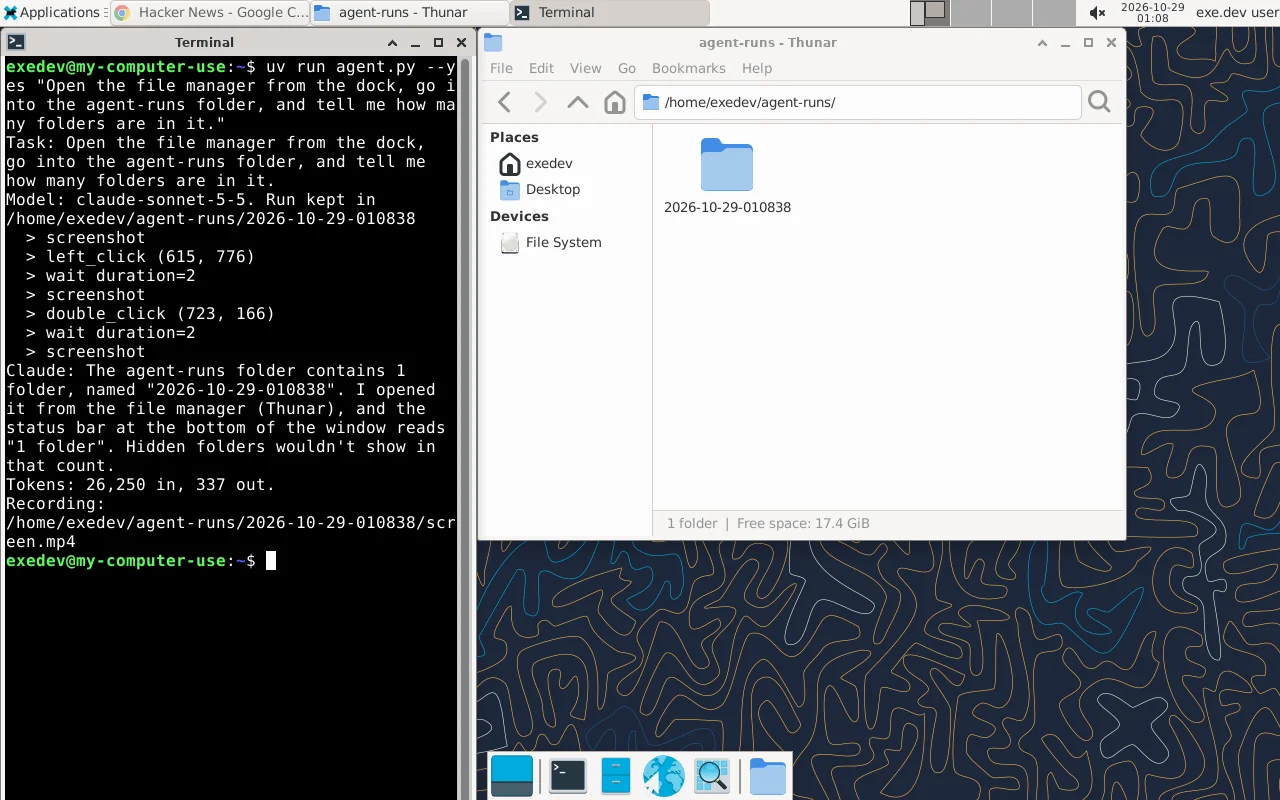
uv run agent.py "Open the file manager from the dock, go into the agent-runs folder, and tell me how many folders are in it."
uv installs the SDK the first time. The model comes through the LLM
integration, so there is no key to set; the default is
claude-sonnet-5-5, and --model or MODEL picks another. With the
desktop open in a tab beside it, you watch Claude open the file manager
while the terminal shows each step:
Task: Open the file manager from the dock, go into the agent-runs folder, and tell me how many folders are in it.
Model: claude-sonnet-5-5. Run kept in /home/exedev/agent-runs/2026-10-29-010838
  > screenshot
  > left_click (615, 776)   run it? [y/n/a] y
  > wait duration=2
  > screenshot
  > double_click (723, 166)   run it? [y/n/a] y
  > wait duration=2
  > screenshot
Claude: The agent-runs folder contains 1 folder, named "2026-10-29-010838". ...
Tokens: 26,250 in, 337 out.
Recording: /home/exedev/agent-runs/2026-10-29-010838/screen.mp4
Screenshots, zooms and waits run without asking. For anything else,
answer y to run it, n to refuse it (Claude is told, and usually stops
to ask you), or a to run it and everything after. --yes approves
everything from the start. Asking is the right default for an agent on
the open web: a page can contain instructions aimed at it. Ctrl-C stops
a run, and --max-steps (default 50) caps how many turns Claude gets.
Review a run#
Each run keeps a folder in ~/agent-runs/: log.txt has the task, every
action, and Claude's replies, with times, and screen.mp4 is a
recording of the desktop at 5 frames a second, from start to finish. A
minute of recording is a few hundred kilobytes. Copy one to your
computer to watch it:
scp my-computer-use.exe.xyz:agent-runs/2026-10-29-010838/screen.mp4 .
--no-record skips the recording. To record anything else on the
desktop, such as a Claude Code session driving Chrome, run this on the
VM and press q to stop:
ffmpeg -f x11grab -framerate 5 -video_size 1280x800 -i :1 -c:v libx264 -preset veryfast -crf 30 -pix_fmt yuv420p ~/session.mp4
Build your own#
agent.py is a starting point: the SDK's computer toolset does the
model side, and the Desktop class, about a hundred lines, turns its
calls into xdotool commands and screenshots of display :1. Its
SYSTEM prompt tells Claude about the desktop; tips that save Claude
steps on your tasks belong there. Anthropic's
computer toolset quickstart
has a driver that talks VNC instead, so it also works from another
computer (see below), and the
SDK guide
covers running the toolset safely.
OpenAI's computer use tool
works through the same integration: send Responses API requests with
"tools": [{"type": "computer"}] to https://llm.int.exe.xyz/v1/responses
with a model that supports it, such as gpt-5.5. OpenAI leaves the
driver to you, and the Desktop class's xdotool commands and
screenshots carry over.
Connect an agent from elsewhere#
The agent doesn't have to run on the VM. SSH forwards the desktop's ports to your computer, without opening them to anyone else. On your computer:
ssh -N -L 9222:localhost:9222 -L 5901:localhost:5900 -L 8931:localhost:8931 my-computer-use.exe.xyz
While that runs, http://localhost:9222 is the VM's Chrome for
Playwright or Puppeteer on your computer, http://localhost:8931/mcp is
its Playwright MCP for a local agent, and localhost:5901 is the VNC
server, for a VNC client or a computer-use driver such as Anthropic's
quickstart (VNC_PORT=5901). Port 5901 rather than 5900 keeps clear of
a VNC server on your own computer, such as macOS Screen Sharing. The
quickstart's driver sends every screenshot uncompressed, about 4 MB at
1280×800, so it is noticeably slower over the internet than on the VM.
agent.py needs the display itself, so it runs on the VM.
Often simpler is to leave the agent on the VM and start it remotely:
ssh my-computer-use.exe.xyz 'claude -p "..."' or
ssh -t my-computer-use.exe.xyz 'uv run agent.py "..."' (-t, so it
can ask you before each action), or from a program with
exe.dev's HTTPS API. To run many tasks side by side,
give each its own copy of the VM; see the FAQ.
Back up and restore#
The only state worth keeping is Chrome's profile in
~/.config/agent-chrome (cookies, signed-in sessions, history) and any
files the agent made. To copy the whole VM, on your computer:
ssh exe.dev cp my-computer-use my-computer-use-backup
The copy starts with the desktop, Chrome, and its profile, ready to use at
https://my-computer-use-backup.exe.xyz:6080/. To carry just the profile
to another desktop, stop Chrome, copy the folder, and start it again:
sudo systemctl stop desktop-chrome
tar -C ~/.config -czf ~/agent-chrome.tgz agent-chrome
sudo systemctl start desktop-chrome
Restore by stopping Chrome there, unpacking it into ~/.config, and
starting Chrome again.
Update#
On the VM:
sudo apt-get update && sudo apt-get upgrade -y          # Chrome, Xfce, noVNC, Node.js
sudo npm install -g @playwright/mcp@0                    # Playwright MCP
sudo systemctl restart desktop-chrome desktop-playwright-mcp
curl -fsSLO https://exe.dev/deploy/computer-use/agent.py  # the computer-use script
Troubleshooting#
- The tab says Failed to connect to server.
systemctl status desktop-novnc desktop-vncshows which half is down;journalctl -u desktop-vnc -n 50says why. - A grey screen with no panel. The Xfce session stopped:
sudo systemctl restart desktop-xfce, and seejournalctl -u desktop-xfce -n 50. - Chrome doesn't come back, or
curl localhost:9222fails.journalctl -u desktop-chrome -n 50. Chrome's own D-Bus errors in that log are harmless. claude mcp listsays Failed to connect. Checksystemctl status desktop-playwright-mcp; it needs Chrome on 9222. If a browser tool fails after Chrome restarted, ask the agent to try again: Playwright MCP reattaches on the next call.agent.pysayserror: X connection failed. The desktop isn't running:sudo systemctl restart desktop-vnc desktop-xfce. If it saysauthentication_erroror401, the LLM integration isn't attached to this VM, orANTHROPIC_BASE_URLorANTHROPIC_API_KEYis set to something else in your shell; see the LLM integration.- Claude types a web address onto the end of the old one. When
Chrome's address bar already has the focus, a click there only moves
the cursor rather than selecting the address. Claude notices on the
next screenshot and fixes it, at the cost of a few steps;
agent.py'sSYSTEMprompt tells it to press Ctrl+L first, which avoids it. Tips like that for your own apps go there too. - The agent clicks in the wrong places. Keep the screen at most
1920×1200, which
agent.pysends unscaled, and let the agent take a fresh screenshot after every page load.
Frequently asked questions#
Who can see the desktop?
Only people with access to the VM. Port 6080 is reachable through exe.dev's HTTPS proxy, which asks for an exe.dev login, and ports other than the main one can never be made public. VNC itself (5900), Chrome's DevTools port (9222), and Playwright MCP (8931) listen on localhost only. To let a teammate watch, run ssh exe.dev share add my-computer-use teammate@example.com.
Can the agent and I use the desktop at the same time?
Yes, it is one shared screen, mouse, and keyboard. Watching is safe. To take over, stop the agent first (Ctrl-C, or answer n to its next action), or you will be fighting over the mouse.
Which models can drive it?
For the screenshot-and-mouse loop, Claude models that support Anthropic's computer_toolset_20260801 (agent.py defaults to claude-sonnet-5-5), and OpenAI models with the Responses API computer tool; both work through exe.dev's LLM integration. Through Playwright MCP, any model your coding agent uses can drive Chrome, since it works from the page's structure rather than screenshots.
Can I log the browser in to my accounts?
You can sign in to a site in the desktop's Chrome yourself, and agents using Playwright MCP reuse that session. Only do that for accounts you would hand to the agent: a web page can carry instructions that steer it. Sessions live in ~/.config/agent-chrome and survive restarts.
How do I get a fresh desktop for each task?
Set one VM up as a template, then copy it per task with ssh exe.dev cp my-computer-use task-123 and delete the copy with ssh exe.dev rm task-123 when done. The copy starts with the same desktop, browser profile, and services. From code, the Python SDK does the same.
Can I use the Chromium that comes with the VM instead of installing Chrome?
Not for a desktop you watch. exe.dev's default image ships Chromium at /headless-shell/headless-shell for Shelley's browser tool, but it is Chrome's headless shell: it never draws a window, even on the desktop's display, so you can't see or take over what it does. It is fine for automation nobody needs to watch: start it with --remote-debugging-port and connect Playwright over CDP. For the desktop, the setup installs full Google Chrome.
Can I use a bigger screen?
Yes: run the setup again with GEOMETRY=1920x1080 in front of bash. agent.py refuses screens larger than 1920×1200, since it sends screenshots unscaled, and smaller screens cost fewer tokens per screenshot; 1280×800 is a good default for agents. noVNC scales the desktop to your browser window either way.
How much does it cost?
The VM shares your exe.dev plan's CPU and memory; with the desktop and Chrome idle, the VM uses about 700 MB of memory. Model calls through the LLM integration are billed to your exe.dev account. Each screenshot the agent looks at is input tokens, so a long computer-use task costs more than the same task through Playwright MCP.
Updated Oct 28, 2026 · tested end to end Oct 28, 2026 · Markdown · manifest.json · Something wrong? Tell us