Run agent-browser on a remote server for your coding agents
The browser CLI for AI agents, on a VM you watch from any browser.
Shelley handles the setup. About 5 minutes.
Prefer a terminal?
curl -fsSL https://exe.dev/deploy/agent-browser/prompt.txt | ssh exe.dev new --prompt=/dev/stdinexe.dev gives you persistent Linux VMs with HTTPS, sign-in and coding agents built in, which makes one a good place for a browser your agents can use all day without touching your own Chrome.
agent-browser is Vercel Labs' browser CLI for
AI agents. An agent runs agent-browser open, reads a compact snapshot
where every button and field has a ref like @e3, and clicks and types by
ref. Each task gets its own headless Chrome, and a dashboard shows them all
live. On an exe.dev VM, Claude Code, Codex and OpenCode run next to it,
logins stay in Chrome profiles on the VM's disk, and you watch from any
browser behind exe.dev's login.
If you want a browser for yourself, with sound and a full window, see Cloud browser instead; the FAQ compares them.
What you get#
- agent-browser 0.45.0 and its own Chrome, ready for any program on the VM
- Its skill installed for Claude Code, Codex and OpenCode, all three using exe.dev's LLM integration
- Codex's sandbox opened just enough for agent-browser to run in it
- The dashboard at
https://<vm>.exe.xyz:4848/, behind exe.dev login, showing every browser live - Logins kept in Chrome profiles on the VM's disk
What's running, and where
https://my-agent-browser.exe.xyz:4848/
the dashboard, behind exe.dev login, with the access link the VM prints
ssh my-agent-browser.exe.xyz
your terminal, where you and your agents run agent-browser
Deploy with Shelley#
Click Deploy and Shelley will set up agent-browser on a new VM, then check that it works. No config-file wrangling required.
Prefer a terminal?
curl -fsSL \
  https://exe.dev/deploy/agent-browser/prompt.txt \
  | ssh exe.dev new --prompt=/dev/stdin
What Shelley is told
Set up agent-browser on this VM by following the exe.dev recipe at https://exe.dev/deploy/agent-browser.md?via=deploy from top to bottom.

The recipe's example VM name is my-agent-browser. This VM's name is the output of `hostname`: use it wherever the recipe writes my-agent-browser. Skip the step that creates the VM; you are on it.

You are done when all of these are true. Check each one yourself:
- agent-browser 0.45.0 and its own Chrome, ready for any program on the VM
- Its skill installed for Claude Code, Codex and OpenCode, all three using exe.dev's LLM integration
- Codex's sandbox opened just enough for agent-browser to run in it
- The dashboard at `https://<vm>.exe.xyz:4848/`, behind exe.dev login, showing every browser live
- Logins kept in Chrome profiles on the VM's disk

Run the VM-side commands in "Set up agent-browser" and "Watch it work"
only. If `exeuntu configure` reports an existing user config, leave it
alone. If `~/.codex/config.toml` already has a
`[sandbox_workspace_write]` table, add the two `writable_roots` to it
instead of appending a second one. Check that `agent-browser --version`
prints 0.45.0, that the `claude -p` test in "Hand it to your agents"
answers "Example Domain", and that
`systemctl --user is-active agent-browser-dashboard` says active. Never
make the VM public or point port 8000 at port 4848. Finish by giving the
owner the dashboard link that
`agent-browser dashboard start --allowed-origins https://$(hostname).exe.xyz:4848`
prints, and tell them it only works in a browser signed in to exe.dev.

Finish with the URLs I should open.
Also at /deploy/agent-browser/prompt.txt. The recipe it follows is /deploy/agent-browser.md.
Set up agent-browser#
On your computer, create a VM and connect. Pick any free name; if you've already clicked Deploy or have a VM, skip the first command and use its name:
ssh exe.dev new --name=my-agent-browser
ssh my-agent-browser.exe.xyz
On the VM, install Node.js from NodeSource (the image doesn't include it),
then agent-browser from npm, pinned to a version, then its Chrome. The last
command downloads Chrome for Testing (about 200 MB) into
~/.agent-browser and installs the system libraries Chrome needs with
sudo:
curl -fsSL https://deb.nodesource.com/setup_26.x | sudo -E bash -
sudo apt-get install -y nodejs
sudo npm install -g agent-browser@0.45.0
agent-browser install --with-deps
It takes under a minute and about 1 GB of disk. Try it:
agent-browser open https://httpbin.org/forms/post
agent-browser snapshot -i
The snapshot lists what's on the page that you can use, each with a ref:
- textbox "Customer name:" [ref=e2]
- textbox "Telephone:" [ref=e3]
- textbox "E-mail address:" [ref=e4]
- radio "Small" [ref=e5]
...
- button "Submit order" [ref=e1]
Use the refs, take a screenshot, and close the browser:
agent-browser fill @e2 "Ada Lovelace"
agent-browser click @e1
agent-browser screenshot ~/submitted.png
agent-browser close
Refs belong to one snapshot: after the page changes, take a new one. The first command starts a background daemon and Chrome (about a second); a headless browser closes by itself after an hour without commands. The command reference has the rest: tabs, waits, cookies, network, PDFs, recordings.
Hand it to your agents#
agent-browser ships its instructions as a skill. On the VM, connect Claude Code and Codex to exe.dev's LLM integration, and install the skill for all three agents:
exeuntu configure claude
exeuntu configure codex
npx -y skills add vercel-labs/agent-browser --global --yes \
  --agent claude-code codex opencode
The skill lands in ~/.agents/skills/agent-browser, with a link in
~/.claude/skills. It is a short stub: it tells the agent to run
agent-browser skills get core, which prints the full guide for the
installed version. For an agent that doesn't read skills, upstream suggests
one line in its AGENTS.md instead:
Use `agent-browser` for browser automation. Before the first use, run `agent-browser skills get core` and follow it.
Codex runs commands in a sandbox that can't write agent-browser's lock
files or reach the network, so the first command fails with Read-only file system. Let it write those two places and use the network:
cat >> ~/.codex/config.toml <<EOF

[sandbox_workspace_write]
writable_roots = ["/run/user/$(id -u)/agent-browser", "$HOME/.agent-browser"]
network_access = true
EOF
OpenCode needs the LLM integration in ~/.config/opencode/opencode.json,
as on the OpenCode page; without it, OpenCode uses
its own free models, which weren't available when we tested.
Check Claude Code:
claude -p "Use agent-browser to open https://example.com and tell me the page title." \
  --allowedTools "Bash(agent-browser:*)" Skill
Then give an agent something with a few steps. In our tests, Claude Code did this in 32 seconds, using the search box, the results page and the module page:
mkdir -p ~/shots && cd ~/shots
claude -p "Use agent-browser to go to https://docs.python.org/3/, search the documentation for pathlib using the site's search box, open the pathlib module's page from the results, and summarize it in five bullets. Save a screenshot of the page to ~/shots/pathlib.png." \
  --allowedTools "Bash(agent-browser:*)" Skill
Codex ordered a pizza on the test form, saved a screenshot, submitted it and reported the echoed JSON in 18 seconds:
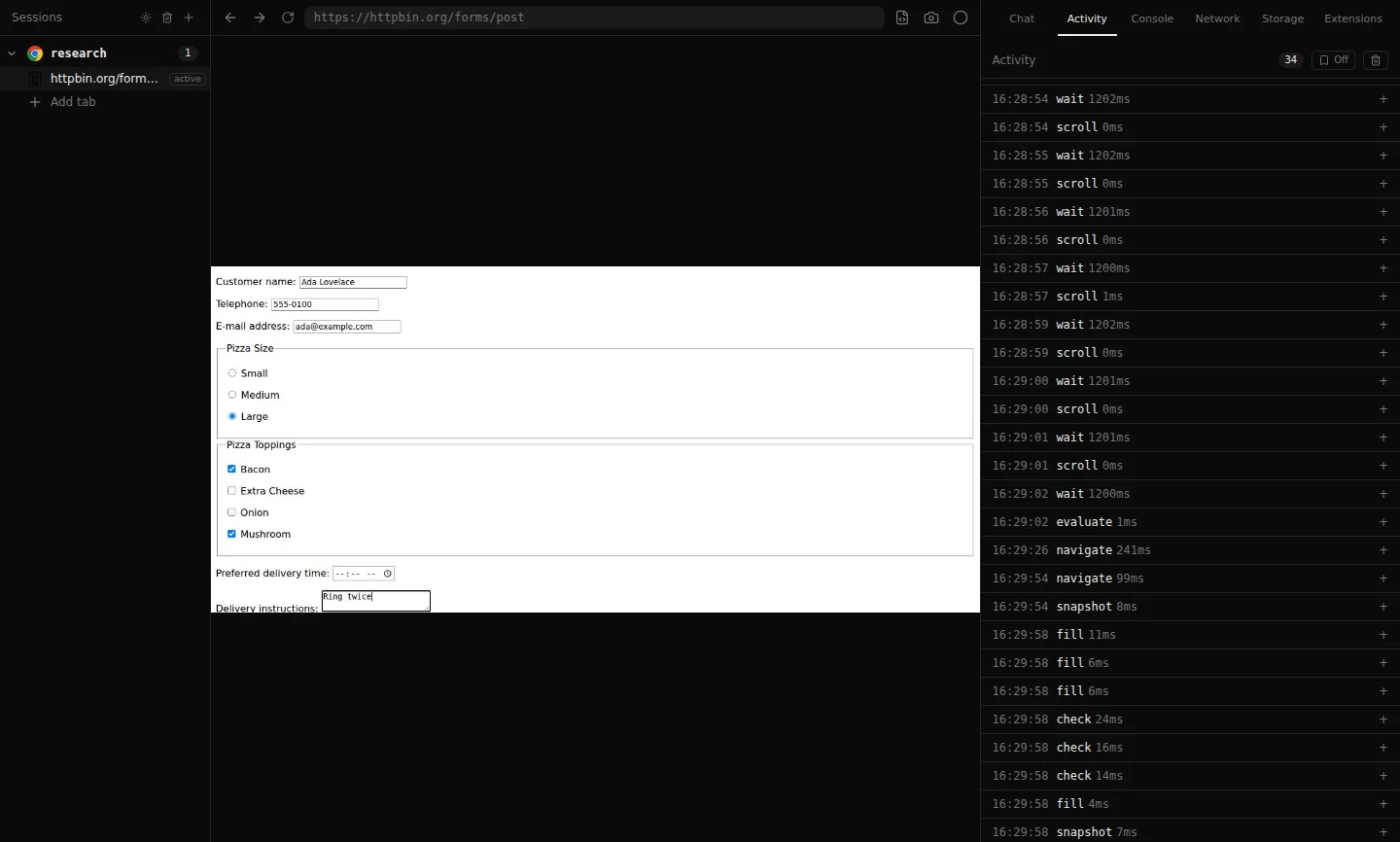
codex exec --skip-git-repo-check -s workspace-write "Use agent-browser to order a pizza on https://httpbin.org/forms/post: customer Ada Lovelace, telephone 555-0100, email ada@example.com, size Large, toppings Bacon and Mushroom, delivery instructions 'Ring twice'. Save a screenshot of the filled form to form.png, submit it, and report the JSON the site echoes back."
In an interactive claude, codex or opencode, just ask; they find the
skill themselves. Agents following the skill name their sessions per task,
so several agents on the VM get separate browsers.
Watch it work#
The dashboard shows every session's page live, with the commands as they
run and the console, network and storage. It listens on localhost:4848,
and exe.dev's proxy puts it behind your login at
https://<vm>.exe.xyz:4848/. On the VM, run it as a service that starts on
boot (exe.dev VMs keep user services running without a login):
mkdir -p ~/.config/systemd/user
cat > ~/.config/systemd/user/agent-browser-dashboard.service <<'EOF'
[Unit]
Description=agent-browser dashboard on port 4848
After=network-online.target

[Service]
Type=oneshot
RemainAfterExit=yes
Environment=AI_GATEWAY_URL=https://llm.int.exe.xyz
Environment=AI_GATEWAY_API_KEY=exe-llm-integration
Environment=AI_GATEWAY_MODEL=openai/gpt-5.4-mini
ExecStart=/usr/bin/agent-browser dashboard start --allowed-origins https://%H.exe.xyz:4848
ExecStop=/usr/bin/agent-browser dashboard stop

[Install]
WantedBy=default.target
EOF
systemctl --user daemon-reload
systemctl --user enable --now agent-browser-dashboard
agent-browser dashboard start --allowed-origins https://$(hostname).exe.xyz:4848
The last command prints a link like
https://my-agent-browser.exe.xyz:4848/#dashboard-access-token=…. Open it
in a browser signed in to exe.dev: exe.dev's login keeps everyone else out,
and the token is the dashboard's own lock on top. Run that command again
whenever you need the link; the token changes each time the dashboard
restarts.
Sessions appear on the left as agents start them. Click into the live view
and you're driving: type into a field, solve a CAPTCHA, or sign in, and the
agent carries on from there. The three Environment= lines point the
Chat tab, where you tell the browser what to do in plain words, at the
LLM integration instead of Vercel's AI Gateway. Through the integration it
works with OpenAI models such as gpt-5.4-mini; Claude models aren't
offered on the endpoint it calls.
Note
The VM can't open its own
https://<vm>.exe.xyzaddress, so agents on the VM can't load the dashboard. They don't need to: the sessions are theirs.
Want to see a real window instead? On a Linux desktop
VM, install agent-browser the same way; in its terminals DISPLAY is set,
so agent-browser --headed open … opens Chrome on the desktop you're
watching. Headed sessions don't close after an idle hour.
Keep logins#
By default each session starts with a clean Chrome. A profile directory keeps cookies, local storage and history on the VM's disk between runs:
agent-browser --session me --profile ~/profiles/me open https://github.com/login
Sign in through the dashboard's live view, then tell your agents to use
--session me --profile ~/profiles/me for that site, for example in
AGENTS.md. In our tests a cookie and local storage survived closing and
reopening; cookies without an expiry date don't, as in any Chrome. One
profile can only be open in one browser at a time, so give each session
its own directory. (Setting profile in ~/.agent-browser/config.json
applies it to every session, and the second agent to start then fails.)
For passwords, agent-browser has a vault that fills login forms without the model seeing them:
agent-browser auth save github --url https://github.com/login \
  --username you --password-stdin
agent-browser auth login github
Set AGENT_BROWSER_ENCRYPTION_KEY to encrypt it; see
Security.
Many browsers at once#
One VM runs several sessions side by side. Measured on a 2-CPU, 8 GB VM:
| Running | Memory used |
|---|---|
| No browser | 0.2 GB |
| One Chrome session | about 0.5 GB |
| Four sessions, each with its own profile | 1.3 GB |
Memory is rarely the limit; two CPUs are busy when four pages load at once. For many agents, or tasks you want kept apart, copy the VM. On your computer:
ssh exe.dev cp my-agent-browser my-agent-browser-2
The copy has agent-browser, the skill, the agents' settings and every
profile, so it is signed in wherever the original is. Its dashboard starts
on boot; get its link with the dashboard start command above. Delete
copies with ssh exe.dev rm <name> when you're done. To make one VM
bigger instead, use
ssh exe.dev resize my-agent-browser --cpu=4 --memory=16GB.
Use it from other machines#
An agent on your laptop can use the VM's browser over SSH. Each command is one round trip:
ssh my-agent-browser.exe.xyz agent-browser open https://example.com
ssh my-agent-browser.exe.xyz agent-browser snapshot -i
agent-browser mcp is an MCP server over stdio, with 33 browser tools in
its default profile, so a local MCP client can run it through SSH. With
Claude Code on your computer:
claude mcp add agent-browser -- ssh my-agent-browser.exe.xyz agent-browser mcp
To let an agent create, copy and delete these VMs itself, give it
exe.dev's MCP server: it can copy my-agent-browser
for a task, run agent-browser there, and remove the copy afterwards.
What doesn't work#
- Some sites refuse data-center IPs. Expect CAPTCHAs and blocks on some sites; take over in the dashboard or use the site's API.
- No GPU. Chrome renders in software. Ordinary pages are fine; WebGL and video-heavy pages are slow.
- The dashboard link changes after the dashboard restarts, including
after a reboot. Rerun the
dashboard startcommand to get the new one. - Chat tab models. Through the LLM integration, the Chat tab and
agent-browser chatwork with OpenAI models;gpt-6-lunaand Claude models fail on the endpoint they use.
Next steps#
- Cloud browser: a Chrome you use in a tab, with DevTools for Playwright and Puppeteer.
- Linux desktop: watch headed browsers and agents on a whole desktop.
- Claude Code, Codex and OpenCode: set up the agents themselves, with your own subscriptions if you like.
- exe.dev MCP: let agents elsewhere create and copy VMs like this one.
Update
On the VM, install a newer version (check the releases), update Chrome, refresh the skill and restart the dashboard:
sudo npm install -g agent-browser@<version>
agent-browser install --with-deps
npx -y skills add vercel-labs/agent-browser --global --yes \
  --agent claude-code codex opencode
systemctl --user restart agent-browser-dashboard
The skill stub reads its guide from the installed CLI, so the agents' instructions match the new version.
Troubleshooting
Read-only file systemfrom Codex: add the[sandbox_workspace_write]settings in "Hand it to your agents", and runcodex execwith-s workspace-write.- A profile is locked or the browser won't start with
--profile: another session has that profile open. Close it (agent-browser --session <name> close) or use another directory. - The dashboard says the link is invalid: the dashboard restarted.
Get a new link with
agent-browser dashboard start --allowed-origins https://$(hostname).exe.xyz:4848. - Something else:
agent-browser doctorchecks the install, Chrome and the daemon.
Frequently asked questions#
Should I use this or the cloud browser recipe?
Use agent-browser when agents do the browsing: it's a command they call from their shell, its snapshots give them short numbered lists of what they can click instead of screenshots, and each task gets its own headless Chrome. Use the cloud browser when you browse too: it's one Chrome that keeps running, fills a tab with sound and clipboard, and gives Playwright, Puppeteer and Playwright MCP a DevTools endpoint. Both fit on one VM.
How many browsers can one VM run?
On a VM with 2 CPUs and 8 GB, one Chrome session used about 0.5 GB and four at once used 1.3 GB, so memory goes a long way; the CPUs are what fill up when several pages load at the same moment. For more than a handful of busy agents, copy the VM (see "Many browsers at once") or resize it.
Does it send data to Vercel?
agent-browser's documentation describes no telemetry. It checks Google's Chrome Releases blog to warn about an outdated Chrome (AGENT_BROWSER_NO_VERSION_CHECK=1 turns that off), and npx skills fetches the skill from GitHub. The dashboard's Chat tab talks to Vercel's AI Gateway unless you point it elsewhere, as this page does.
Will sites block it?
Some will. The browser runs from a data-center IP address, which some sites answer with CAPTCHAs or refuse. agent-browser doesn't try to get around that, and neither should you: open the session in the dashboard and solve the CAPTCHA yourself, or use the site's API.
Can I use my own Claude or ChatGPT subscription?
Yes. On the VM, run claude auth login or codex login after removing what exeuntu configure added (see the Claude Code and Codex recipes). agent-browser itself needs no model or key.
How much does it cost?
agent-browser is free and Apache-2.0 licensed. You pay for the VM as part of your exe.dev plan, and for model usage through the LLM integration. The pathlib task below cost Claude Code about $0.30.
Published Nov 27, 2026 · Updated Nov 27, 2026 · tested end to end Nov 26, 2026 · Markdown · manifest.json · Something wrong? Tell us