# LLM Integration
The LLM integration exposes Anthropic, OpenAI, and Fireworks model providers
to attached VMs through an exe.dev integration hostname. New accounts get a
default `llm` integration attached to `auto:all`, so VMs can call
`https://llm.int.exe.xyz/v1/models` without storing provider API keys on the
VM.
Choose one source for each provider:
- `exe.dev LLM gateway`: use exe.dev managed credentials and your exe.dev LLM allocation.
- `API Key`: store your provider API key in the integration. The VM can call the integration hostname, but cannot read the key.
- `ChatGPT subscription`: connect a ChatGPT account and use it as the OpenAI source for a personal LLM integration. This is not an OpenAI Platform API key.
- `Disabled`: hide that provider from the integration.
ChatGPT subscriptions are only available for the OpenAI provider, and only on
personal LLM integrations. Team LLM integrations can use the exe.dev gateway
or provider API keys.
## Configure in the browser
Open the [Integrations page](/integrations) and click `LLM`.
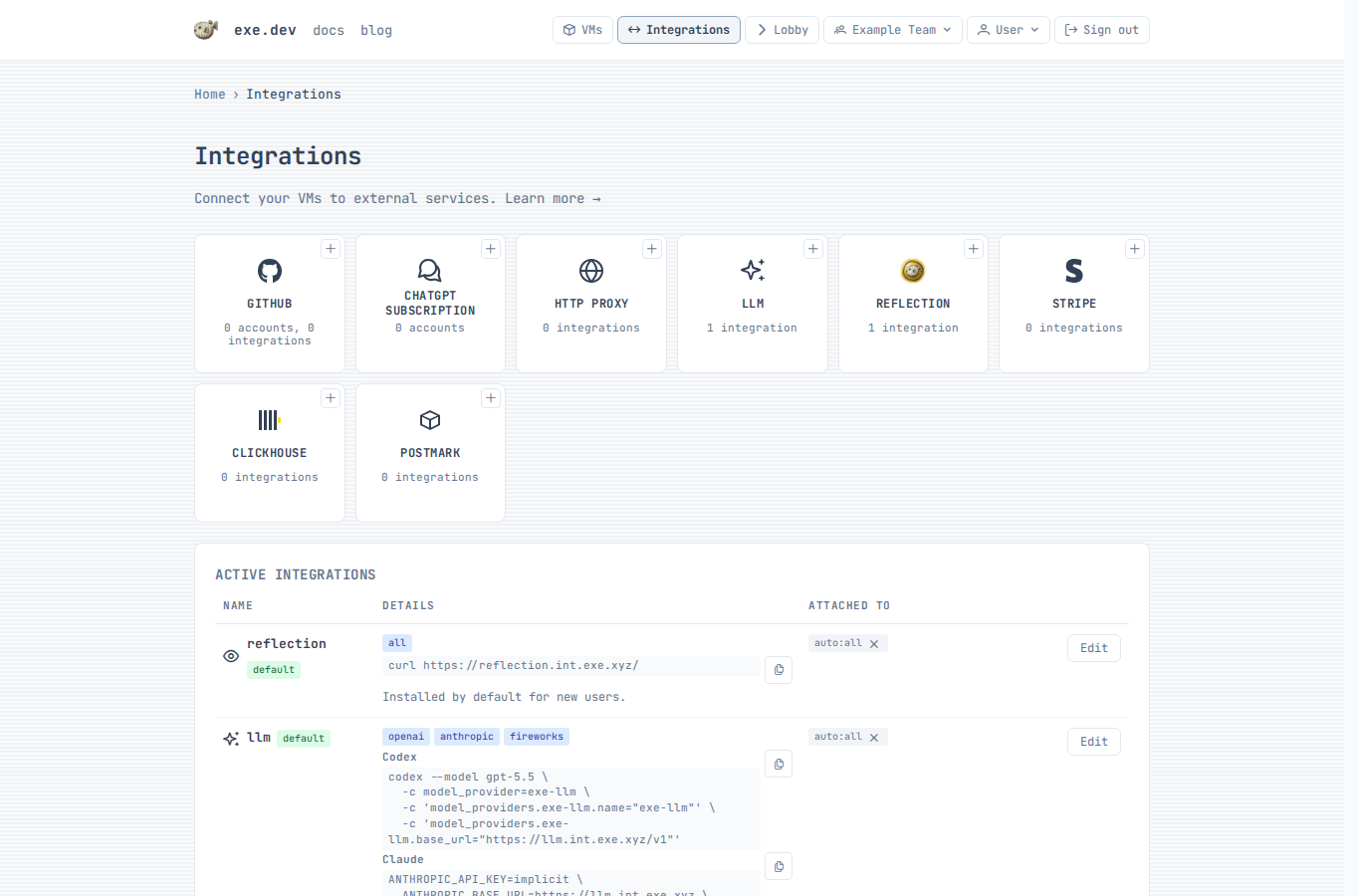 ### Add an LLM integration
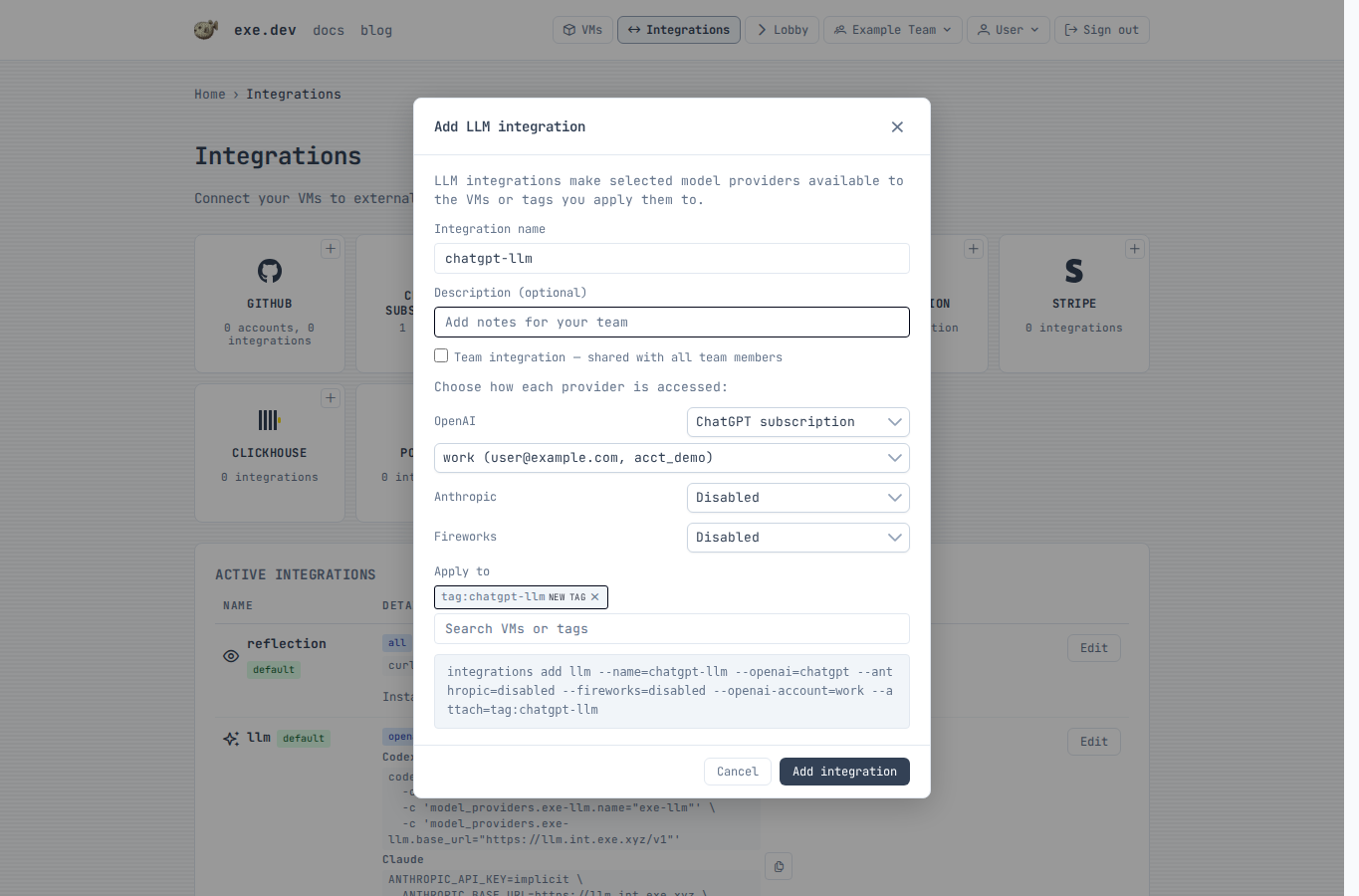
1. Choose an integration name. The default name `llm` gives attached VMs the
hostname `llm.int.exe.xyz`.
2. For each provider, choose `exe.dev LLM gateway`, `API Key`,
`ChatGPT subscription`, or `Disabled`.
3. If you choose `ChatGPT subscription` for OpenAI, connect a ChatGPT account
first, then select the connected account by name.
4. If you choose `API Key`, paste the provider key and optionally click `Test`.
5. Choose where to apply the integration: a VM, a tag, or `auto:all`.
6. Click `Add integration`.
### Add an LLM integration
1. Choose an integration name. The default name `llm` gives attached VMs the
hostname `llm.int.exe.xyz`.
2. For each provider, choose `exe.dev LLM gateway`, `API Key`,
`ChatGPT subscription`, or `Disabled`.
3. If you choose `ChatGPT subscription` for OpenAI, connect a ChatGPT account
first, then select the connected account by name.
4. If you choose `API Key`, paste the provider key and optionally click `Test`.
5. Choose where to apply the integration: a VM, a tag, or `auto:all`.
6. Click `Add integration`.
 The integration hostname is available from any attached VM after the
integration is saved.
### Connect a ChatGPT account
Connect a ChatGPT account only if you want the OpenAI provider to use a
ChatGPT subscription instead of the exe.dev LLM gateway or an OpenAI API key.
#### Enable device code login in ChatGPT
ChatGPT subscription integrations use ChatGPT's device-code authorization
flow. Before connecting an account in exe.dev, make sure device code login
is enabled on the ChatGPT side.
Enable device code login in your ChatGPT security settings (personal account)
or ChatGPT workspace permissions (workspace admin).
The integration hostname is available from any attached VM after the
integration is saved.
### Connect a ChatGPT account
Connect a ChatGPT account only if you want the OpenAI provider to use a
ChatGPT subscription instead of the exe.dev LLM gateway or an OpenAI API key.
#### Enable device code login in ChatGPT
ChatGPT subscription integrations use ChatGPT's device-code authorization
flow. Before connecting an account in exe.dev, make sure device code login
is enabled on the ChatGPT side.
Enable device code login in your ChatGPT security settings (personal account)
or ChatGPT workspace permissions (workspace admin).
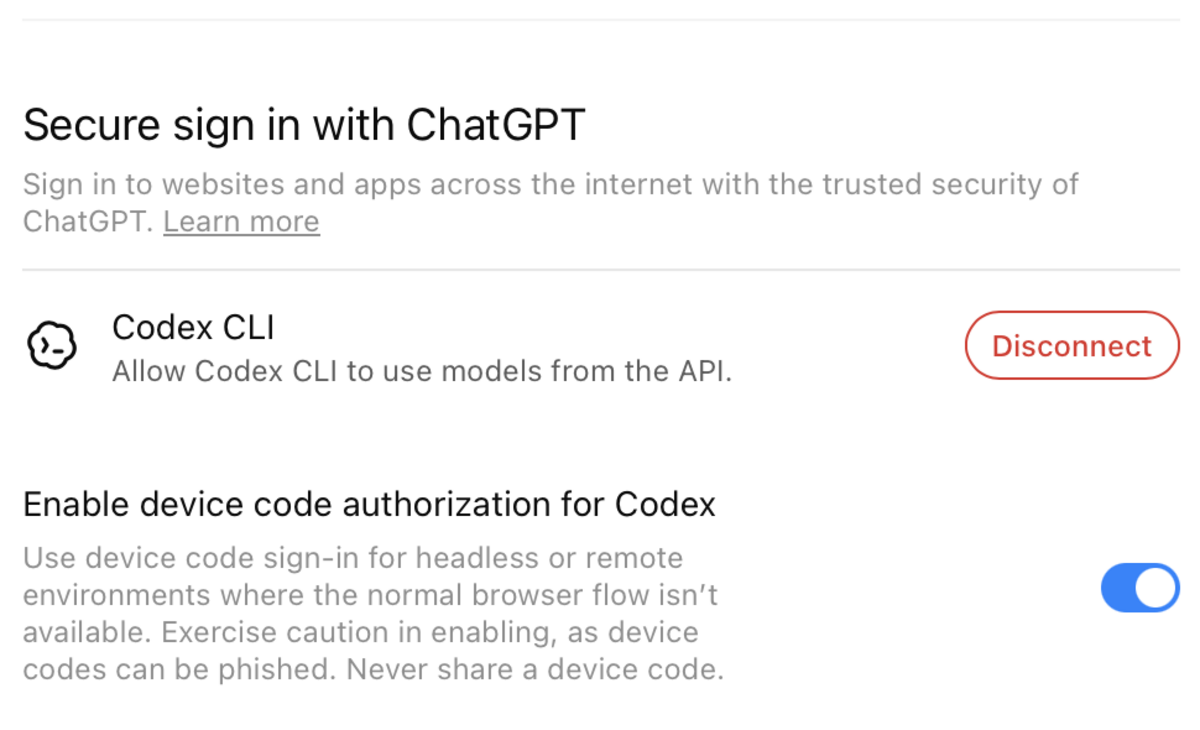 If this setting is disabled, exe.dev can still show a one-time code, but
ChatGPT may reject the authorization before the account is connected.
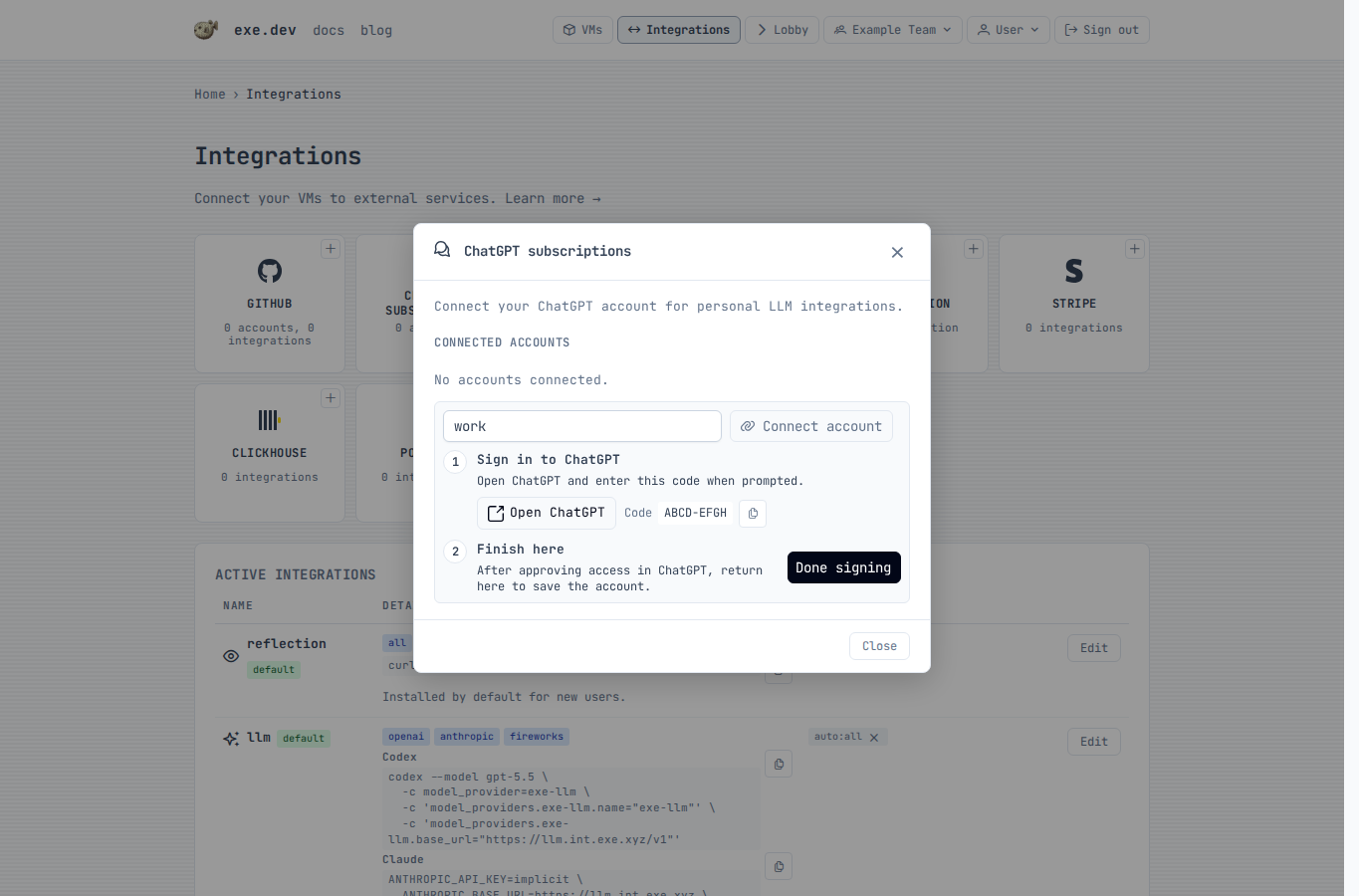
1. Confirm device code login is enabled in ChatGPT.
2. Click `ChatGPT subscription`.
3. Enter a short local account name, such as `work`.
4. Click `Connect account`.
5. Click `Open ChatGPT`, sign in, and enter the one-time code.
6. Return to exe.dev and click `Done signing in`.
If this setting is disabled, exe.dev can still show a one-time code, but
ChatGPT may reject the authorization before the account is connected.
1. Confirm device code login is enabled in ChatGPT.
2. Click `ChatGPT subscription`.
3. Enter a short local account name, such as `work`.
4. Click `Connect account`.
5. Click `Open ChatGPT`, sign in, and enter the one-time code.
6. Return to exe.dev and click `Done signing in`.
 The saved account can now be selected by LLM integrations. You can connect
more than one ChatGPT account and choose the account by name.
## Configure over SSH
Reinstall the default managed LLM integration:
```
exe.dev ▶ integrations add llm --name llm --attach auto:all
```
Create a bring-your-own-key integration. From your local shell, use `-` to
read one provider key from stdin so the key is not left in shell history:
```
$ printf '%s' "$OPENAI_API_KEY" | ssh exe.dev integrations add llm --name openai-key --openai=byok --openai-key=- --anthropic=disabled --fireworks=disabled --attach tag:llm
```
Edit an existing integration:
```
$ printf '%s' "$ANTHROPIC_API_KEY" | ssh exe.dev integrations edit llm --anthropic=byok --anthropic-key=-
exe.dev ▶ integrations edit llm --openai=disabled
```
To use a ChatGPT subscription for OpenAI, connect a ChatGPT account with the
device-code flow. Device code login must already be enabled in ChatGPT before
this flow can complete. Enable device code login in your ChatGPT security
settings (personal account) or ChatGPT workspace permissions (workspace
admin).
```
exe.dev ▶ integrations setup chatgpt --name work
Open this URL to authorize ChatGPT:
https://chatgpt.com/...
Enter this code:
ABCD-EFGH
Waiting for authorization...
```
After the account is connected, create a personal LLM integration that uses it
for OpenAI:
```
exe.dev ▶ integrations add llm --name chatgpt-llm --openai=chatgpt --openai-account=work --anthropic=disabled --fireworks=disabled --attach auto:all
```
List, verify, or disconnect ChatGPT accounts:
```
exe.dev ▶ integrations setup chatgpt --list
exe.dev ▶ integrations setup chatgpt --verify
exe.dev ▶ integrations setup chatgpt --name work --delete
```
## Use from a VM
Attached personal integrations are available at
`https://.int.exe.xyz`. Team integrations use
`https://.team.exe.xyz`.
List available models:
```
$ curl https://llm.int.exe.xyz/v1/models
```
Call the OpenAI Responses API:
```
$ curl https://llm.int.exe.xyz/v1/responses \
-H "content-type: application/json" \
-d '{
"model": "gpt-5.5",
"input": "Say hello from exe.dev."
}'
```
Call the Anthropic Messages API:
```
$ curl https://llm.int.exe.xyz/v1/messages \
-H "content-type: application/json" \
-H "anthropic-version: 2023-06-01" \
-d '{
"model": "claude-sonnet-4-6",
"max_tokens": 256,
"messages": [{"role": "user", "content": "Hello!"}]
}'
```
The generic `/v1` endpoints route by model ID. To force a provider, prefix the
path with `/openai`, `/anthropic`, or `/fireworks/inference`; for example:
`https://llm.int.exe.xyz/openai/v1/models`.
## Use with Shelley
Shelley automatically discovers attached LLM integrations through the
`reflection` integration. On new accounts, the default `reflection`
integration is attached to `auto:all`, so Shelley can see the default `llm`
integration and show its models in the `Model:` picker without custom model
setup or API keys in the VM.
If the model list changes while Shelley is open, choose `Add / Remove
Models...` from the `Model:` picker and click `Refresh`. Use `Add Model` only
for separate custom model providers.
If Shelley does not show the integration models, reinstall Reflection with the
attached integrations field exposed:
```
exe.dev ▶ integrations add reflection --name reflection --fields all --attach auto:all
```
If you use a different LLM integration name, attach that integration to the VM,
a tag, or `auto:all`. Shelley discovers every attached integration of type
`llm`.
## Use with Codex
When the OpenAI provider is enabled, run Codex inside an attached VM with the
integration as its model provider:
```
$ codex --model gpt-5.5 \
-c model_provider=exe-llm \
-c 'model_providers.exe-llm.name="exe-llm"' \
-c 'model_providers.exe-llm.base_url="https://llm.int.exe.xyz/v1"'
```
Or add a provider to `~/.codex/config.toml`:
```toml
model_provider = "exe-llm"
[model_providers.exe-llm]
name = "exe-llm"
base_url = "https://llm.int.exe.xyz/v1"
requires_openai_auth = false
```
If your LLM integration uses `--openai=chatgpt`, the ChatGPT account is
connected to exe.dev, not to the VM. Codex still talks to the integration
hostname without an OpenAI API key in the VM.
## Use with Claude Code
When the Anthropic provider is enabled, Claude Code expects an API key value,
so provide a harmless placeholder and point it at the integration hostname:
```
$ ANTHROPIC_API_KEY=implicit \
ANTHROPIC_BASE_URL=https://llm.int.exe.xyz \
claude --model opus
```
Or add the configuration to `~/.claude/settings.json`:
```json
{
"apiKeyHelper": "printf exe-gateway",
"env": {
"ANTHROPIC_BASE_URL": "https://llm.int.exe.xyz"
}
}
```
If you use a different integration name, replace `llm` in the hostname with
that name.
## Attachments
The default `llm` integration is attached to `auto:all`. If you create a
separate integration, attach it to a VM, a tag, or all VMs:
```
exe.dev ▶ integrations attach chatgpt-llm vm:devbox
exe.dev ▶ integrations attach chatgpt-llm tag:llm
exe.dev ▶ integrations attach chatgpt-llm auto:all
```
See [Attaching Integrations](integrations-attach) for more attachment
examples.
The saved account can now be selected by LLM integrations. You can connect
more than one ChatGPT account and choose the account by name.
## Configure over SSH
Reinstall the default managed LLM integration:
```
exe.dev ▶ integrations add llm --name llm --attach auto:all
```
Create a bring-your-own-key integration. From your local shell, use `-` to
read one provider key from stdin so the key is not left in shell history:
```
$ printf '%s' "$OPENAI_API_KEY" | ssh exe.dev integrations add llm --name openai-key --openai=byok --openai-key=- --anthropic=disabled --fireworks=disabled --attach tag:llm
```
Edit an existing integration:
```
$ printf '%s' "$ANTHROPIC_API_KEY" | ssh exe.dev integrations edit llm --anthropic=byok --anthropic-key=-
exe.dev ▶ integrations edit llm --openai=disabled
```
To use a ChatGPT subscription for OpenAI, connect a ChatGPT account with the
device-code flow. Device code login must already be enabled in ChatGPT before
this flow can complete. Enable device code login in your ChatGPT security
settings (personal account) or ChatGPT workspace permissions (workspace
admin).
```
exe.dev ▶ integrations setup chatgpt --name work
Open this URL to authorize ChatGPT:
https://chatgpt.com/...
Enter this code:
ABCD-EFGH
Waiting for authorization...
```
After the account is connected, create a personal LLM integration that uses it
for OpenAI:
```
exe.dev ▶ integrations add llm --name chatgpt-llm --openai=chatgpt --openai-account=work --anthropic=disabled --fireworks=disabled --attach auto:all
```
List, verify, or disconnect ChatGPT accounts:
```
exe.dev ▶ integrations setup chatgpt --list
exe.dev ▶ integrations setup chatgpt --verify
exe.dev ▶ integrations setup chatgpt --name work --delete
```
## Use from a VM
Attached personal integrations are available at
`https://.int.exe.xyz`. Team integrations use
`https://.team.exe.xyz`.
List available models:
```
$ curl https://llm.int.exe.xyz/v1/models
```
Call the OpenAI Responses API:
```
$ curl https://llm.int.exe.xyz/v1/responses \
-H "content-type: application/json" \
-d '{
"model": "gpt-5.5",
"input": "Say hello from exe.dev."
}'
```
Call the Anthropic Messages API:
```
$ curl https://llm.int.exe.xyz/v1/messages \
-H "content-type: application/json" \
-H "anthropic-version: 2023-06-01" \
-d '{
"model": "claude-sonnet-4-6",
"max_tokens": 256,
"messages": [{"role": "user", "content": "Hello!"}]
}'
```
The generic `/v1` endpoints route by model ID. To force a provider, prefix the
path with `/openai`, `/anthropic`, or `/fireworks/inference`; for example:
`https://llm.int.exe.xyz/openai/v1/models`.
## Use with Shelley
Shelley automatically discovers attached LLM integrations through the
`reflection` integration. On new accounts, the default `reflection`
integration is attached to `auto:all`, so Shelley can see the default `llm`
integration and show its models in the `Model:` picker without custom model
setup or API keys in the VM.
If the model list changes while Shelley is open, choose `Add / Remove
Models...` from the `Model:` picker and click `Refresh`. Use `Add Model` only
for separate custom model providers.
If Shelley does not show the integration models, reinstall Reflection with the
attached integrations field exposed:
```
exe.dev ▶ integrations add reflection --name reflection --fields all --attach auto:all
```
If you use a different LLM integration name, attach that integration to the VM,
a tag, or `auto:all`. Shelley discovers every attached integration of type
`llm`.
## Use with Codex
When the OpenAI provider is enabled, run Codex inside an attached VM with the
integration as its model provider:
```
$ codex --model gpt-5.5 \
-c model_provider=exe-llm \
-c 'model_providers.exe-llm.name="exe-llm"' \
-c 'model_providers.exe-llm.base_url="https://llm.int.exe.xyz/v1"'
```
Or add a provider to `~/.codex/config.toml`:
```toml
model_provider = "exe-llm"
[model_providers.exe-llm]
name = "exe-llm"
base_url = "https://llm.int.exe.xyz/v1"
requires_openai_auth = false
```
If your LLM integration uses `--openai=chatgpt`, the ChatGPT account is
connected to exe.dev, not to the VM. Codex still talks to the integration
hostname without an OpenAI API key in the VM.
## Use with Claude Code
When the Anthropic provider is enabled, Claude Code expects an API key value,
so provide a harmless placeholder and point it at the integration hostname:
```
$ ANTHROPIC_API_KEY=implicit \
ANTHROPIC_BASE_URL=https://llm.int.exe.xyz \
claude --model opus
```
Or add the configuration to `~/.claude/settings.json`:
```json
{
"apiKeyHelper": "printf exe-gateway",
"env": {
"ANTHROPIC_BASE_URL": "https://llm.int.exe.xyz"
}
}
```
If you use a different integration name, replace `llm` in the hostname with
that name.
## Attachments
The default `llm` integration is attached to `auto:all`. If you create a
separate integration, attach it to a VM, a tag, or all VMs:
```
exe.dev ▶ integrations attach chatgpt-llm vm:devbox
exe.dev ▶ integrations attach chatgpt-llm tag:llm
exe.dev ▶ integrations attach chatgpt-llm auto:all
```
See [Attaching Integrations](integrations-attach) for more attachment
examples.