---
title: "Run T3 Code on a remote server"
description: "Run T3 Code on an always-on exe.dev VM and steer Claude Code and Codex from your phone or any browser. Private by default, no API keys to paste."
url: https://exe.dev/deploy/t3code
category: "AI agents"
updated: 2026-10-30
---
# Run T3 Code on a remote server
Your coding agents on an always-on VM, steered from your phone.
- **Software:** T3 Code (https://t3.codes)
- **Source:** https://github.com/pingdotgg/t3code
- **License:** MIT
- **Time:** 5 minutes
- **Example VM name:** `my-t3code` (yours will differ; on the VM, `hostname` prints it)
- **Machine-readable:** https://exe.dev/deploy/t3code/manifest.json
## What you get
- T3 Code running as a background service on port 3773, back after a reboot
- Claude Code and Codex ready in T3 Code through exe.dev's LLM integration, with no API key to paste
- A Git project at `~/project`, added to T3 Code
- T3 Code's web app at port 3773, behind exe.dev login and T3 Code's own pairing
Running on the VM:
- **T3 Code server**: the t3 command, run as a systemd user service, port 3773, data in `~/.t3/userdata`
- **Claude Code and Codex**: preinstalled; connected to exe.dev's LLM integration, data in `~/.claude, ~/.codex`
- **Your project**, data in `~/project`
How it is reached:
- https://my-t3code.exe.xyz:3773/ (private): T3 Code in your phone's or laptop's browser, after a one-time pairing link
- ssh my-t3code.exe.xyz (private): your terminal, for pairing links and upkeep
## Deploy with Shelley
Open https://exe.dev/new?prompt=Set%20up%20T3%20Code%20on%20this%20VM%20by%20following%20the%20exe.dev%20recipe%20at%20https%3A%2F%2Fexe.dev%2Fdeploy%2Ft3code.md%20from%20top%20to%20bottom.%0A%0AThe%20recipe%27s%20example%20VM%20name%20is%20my-t3code.%20This%20VM%27s%20name%20is%20the%20output%20of%20%60hostname%60%3A%20use%20it%20wherever%20the%20recipe%20writes%20my-t3code.%20Skip%20the%20step%20that%20creates%20the%20VM%3B%20you%20are%20on%20it.%0A%0AYou%20are%20done%20when%20all%20of%20these%20are%20true.%20Check%20each%20one%20yourself%3A%0A-%20T3%20Code%20running%20as%20a%20background%20service%20on%20port%203773%2C%20back%20after%20a%20reboot%0A-%20Claude%20Code%20and%20Codex%20ready%20in%20T3%20Code%20through%20exe.dev%27s%20LLM%20integration%2C%20with%20no%20API%20key%20to%20paste%0A-%20A%20Git%20project%20at%20%60~%2Fproject%60%2C%20added%20to%20T3%20Code%0A-%20T3%20Code%27s%20web%20app%20at%20port%203773%2C%20behind%20exe.dev%20login%20and%20T3%20Code%27s%20own%20pairing%0A%0ARun%20the%20VM-side%20commands%20in%20%22Set%20up%20T3%20Code%22%20only.%20If%20%60exeuntu%20configure%60%0Areports%20an%20existing%20user%20config%2C%20leave%20it%20alone.%20Do%20not%20create%20a%20pairing%0Alink%3A%20they%20expire%20in%20five%20minutes%20and%20work%20once.%20Verify%20that%0A%60t3%20service%20status%60%20says%20installed%2C%20that%20%60ss%20-ltn%60%20shows%20%600.0.0.0%3A3773%60%2C%0Aand%20that%20the%20setup-check%20thread%20prints%20%60OK%60.%20Skip%20%22Prefer%20Paseo%3F%22%2C%20the%0Abackup%2C%20update%20and%20troubleshooting%20sections%2C%20and%20the%20FAQ.%20Finish%20by%0Agiving%20the%20owner%20the%20browser%20URL%20and%20the%20%60ssh%20...%20t3%20pair%60%20command%20from%0A%22Pair%20your%20browser%22%2C%20with%20this%20VM%27s%20name%2C%20and%20tell%20them%20to%20follow%20%22Add%0Ayour%20phone%22%20next.%0A%0AFinish%20with%20the%20URLs%20I%20should%20open.%0A to create a VM whose agent, Shelley, follows this recipe. From a terminal:
```sh
curl -fsSL https://exe.dev/deploy/t3code/prompt.txt | ssh exe.dev new --prompt=/dev/stdin
```
Or follow the steps below by hand.
[T3 Code](https://t3.codes) is an open-source control panel for coding
agents: a web, desktop and phone app for Claude Code, Codex and others that
run on one machine. Make that machine an exe.dev VM and the agents keep
working when your laptop sleeps, while your phone reaches them over HTTPS
behind exe.dev's login.
Claude Code and Codex come preinstalled on exe.dev and use its
[LLM integration](/docs/integrations-llm): no API keys to paste, and model
usage billed to your exe.dev account.
## Set up T3 Code
On your computer, create a VM and connect. Pick any free name; if you've
already clicked Deploy or have a VM, skip the first command and use its name:
```bash
ssh exe.dev new --name=my-t3code
ssh my-t3code.exe.xyz
```
On the VM, connect Claude Code and Codex to the LLM integration and install
T3 Code with its official installer, which puts the `t3` command in
`~/.local/bin`:
```bash
exeuntu configure claude
exeuntu configure codex
curl -fsSL https://t3.codes/install.sh | sh
export PATH="$HOME/.local/bin:$PATH"
```
Still on the VM, run T3 Code as a background service on port 3773, where
exe.dev's [HTTPS proxy](/docs/proxy) can reach it, and give it a project.
The project is a Git repository, so you can review and undo whatever the
agents change:
```bash
mkdir -p ~/.t3
printf 'T3CODE_HOST=0.0.0.0\nT3CODE_PORT=3773\n' > ~/.t3/service.env
t3 service install
git init ~/project
t3 project add ~/project
```
Check it. The status says `installed`, and a one-line task through T3 Code
prints `OK`:
```bash
t3 service status
cd ~/project && t3 thread start --provider claudeAgent --model haiku \
--title "Setup check" --wait . "Reply with exactly: OK"
```
The service starts on every boot (exe.dev VMs keep user services running
without a login). Your threads and settings live in `~/.t3/userdata`.
## Pair your browser
Port 3773 is private: only people with access to the VM get past exe.dev's
login. T3 Code adds its own lock on top, so each browser pairs once with a
one-time link. On your computer, make one:
```bash
ssh my-t3code.exe.xyz 'echo "https://$(hostname).exe.xyz:3773/pair#token=$(~/.local/bin/t3 pair --label laptop | sed -n "s/^Token: //p")"'
```
Open the link it prints within five minutes. exe.dev asks you to log in,
then T3 Code pairs the browser and walks you through setup: Codex and Claude
show as **Ready**, and there's nothing to import yet.
> [!TIP]
> If T3 Code shows **Pair with this environment** instead, the token got
> lost on the way through exe.dev's login. Paste the 12 characters after
> `token=` into the box, or run the command again for a fresh link.
Type a task into the box, such as:
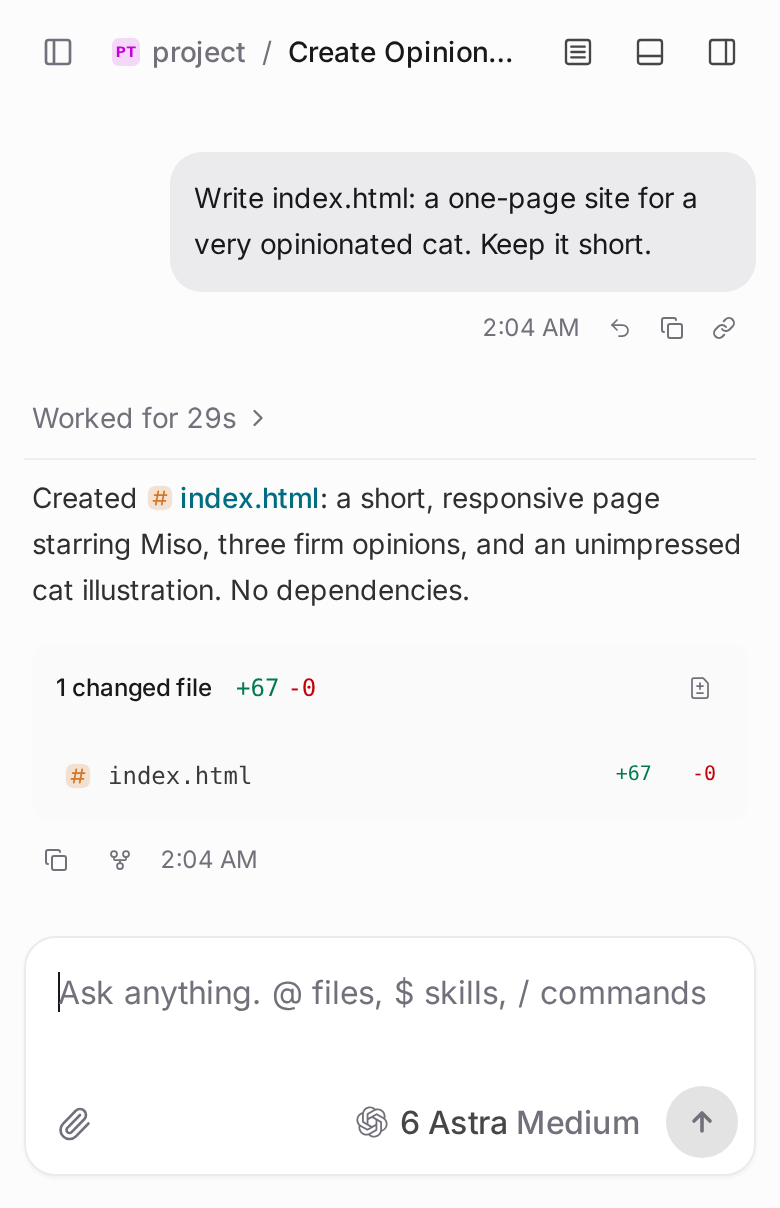
> Write index.html: a one-page site for a very opinionated cat. Keep it short.
The agent works in `~/project` on the VM, and the thread shows the files it
changed.
## Add your phone
On your phone, open `https://my-t3code.exe.xyz:3773/` and log in to exe.dev
with the same account. T3 Code asks for a pairing token.
On your laptop, in T3 Code, open **Settings → Sharing & access**, choose
**Create link**, then **Create link** again, and **Share** next to the new
link. Scan the QR code with your phone's camera, or type the code that
**Copy code only** copies into the phone's **Pairing token** box. Add the
page to your home screen to open it like an app.
A finished thread on a phone. The agent ran on the VM; the phone only steered it.
Start a thread, lock your phone, and check back later: the work carries on
without you. A few things worth knowing:
- **Pick the agent and model** in the box where you type. Codex and Claude
both run through exe.dev; their usage and prices are on the
[LLM integration page](/docs/integrations-llm).
- **Permissions**: new threads run with **Full access**, so agents act
without asking. Change it under the message box, or read T3's
[permission modes](https://github.com/pingdotgg/t3code/blob/main/docs/user/permission-modes.md).
- **Preview what it builds**: ask the agent to serve the app on
`0.0.0.0:8000`, then open `https://my-t3code.exe.xyz/`. It's private
until you [share it](/docs/sharing).
- **Bring your code**: [connect a GitHub repo](/docs/integrations-github),
clone it on the VM, and add it with `t3 project add `.
- **Revoke a device** in **Settings → Sharing & access**, or on the VM
with `t3 auth session list` and `t3 auth session revoke `.
> [!WARNING]
> A paired device can run any command on the VM. Keep port 3773 private and
> treat pairing links like passwords.
## Prefer Paseo?
[Paseo](https://paseo.sh) (Apache-2.0) does the same job with a different
design: one app for Claude Code, Codex, OpenCode, Pi and more, with voice
control, plugins, and native phone apps that reach the VM through an
end-to-end encrypted relay, no account needed. It can run beside T3 Code on
the same VM.
On the VM, install Node.js 24 and the Paseo CLI, have the daemon listen
on port 6767 with its web app on, and protect it with a password:
```bash
curl -fsSL https://deb.nodesource.com/setup_24.x | sudo -E bash -
sudo apt-get install -y nodejs
sudo npm install -g @getpaseo/cli
paseo daemon config set daemon.listen 0.0.0.0:6767
paseo daemon config set daemon.hostnames '[".exe.xyz"]'
paseo daemon config set features.webUi.enabled true
install -m 600 /dev/null ~/.paseo/paseo.env
echo "PASEO_PASSWORD=$(openssl rand -hex 16)" > ~/.paseo/paseo.env
```
Still on the VM, run it as a service that starts on boot:
```bash
sudo tee /etc/systemd/system/paseo.service >/dev/null <<'EOF'
[Unit]
Description=Paseo daemon
After=network-online.target
Wants=network-online.target
[Service]
User=exedev
WorkingDirectory=/home/exedev
EnvironmentFile=/home/exedev/.paseo/paseo.env
Environment=PATH=/home/exedev/.local/bin:/usr/local/bin:/usr/bin:/bin
ExecStart=/usr/bin/paseo daemon run
Restart=always
RestartSec=5
[Install]
WantedBy=multi-user.target
EOF
sudo systemctl daemon-reload
sudo systemctl enable --now paseo
curl -s localhost:6767/api/health
cat ~/.paseo/paseo.env
```
The health check prints `"status":"ok"`, and the last line is your
password. On first start Paseo downloads local speech models (about 600 MB)
for dictation.
- **In a browser**, on your phone or laptop: open
`https://my-t3code.exe.xyz:6767/`, log in to exe.dev, choose **Direct
connection**, and enter host `my-t3code.exe.xyz`, port `6767`, **Use
SSL** on, and the password.
- **In the Paseo phone app**: on the VM, run `paseo daemon pair --relay`
and scan the QR code it prints (or open the pairing link) with the app,
then enter the password when it asks. This path skips exe.dev's login,
so the password and pairing key are what keep others out.
Agents in Paseo ask before writing files unless you change their mode;
approve from the app, or with `paseo permit allow --all` on the VM.
Paseo keeps its data, keys and config in `~/.paseo`, so include that
folder in your backups. See [Paseo's docs](https://paseo.sh/docs) for the
rest.
## Back up and restore
Commit and push your code; that's the copy that matters most. For a copy
of the whole VM, run this on your computer (choose a free backup name):
```bash
ssh exe.dev cp my-t3code my-t3code-backup
```
To keep T3 Code's threads and settings on their own, archive them on the
VM. The archive includes the server's signing keys, so keep it private:
```bash
mkdir -p ~/backups
systemctl --user stop t3code
tar -C ~/.t3 -czf ~/backups/t3-userdata-$(date +%F).tar.gz userdata service.env
chmod 600 ~/backups/t3-userdata-*.tar.gz
systemctl --user start t3code
```
To restore one, on the VM (with T3 Code installed as above), replace
`2026-10-30` with the archive's date:
```bash
systemctl --user stop t3code
rm -rf ~/.t3/userdata
tar -C ~/.t3 -xzf ~/backups/t3-userdata-2026-10-30.tar.gz
systemctl --user start t3code
cd ~/project && t3 thread list
```
Your threads are listed again, and paired devices stay paired.
## Update
On the VM, `t3 update --yes` installs the newest stable release and
restarts the service; running agent turns are interrupted, so pick a quiet
moment. Update the agents with `sudo exeuntu update claude` and
`sudo exeuntu update codex`, then `t3 service restart`. If an agent's
version doesn't work with T3 Code, a warning banner says so in the chat.
## Troubleshooting
- **The page doesn't load.** On the VM, run `t3 service status`, then
`ss -ltn | grep 3773`: it should listen on `0.0.0.0:3773`. If not, check
`~/.t3/service.env` and run `t3 service restart`. The log is in
`~/.t3/userdata/logs/boot-service.log`, and
`journalctl --user -u t3code` shows the service starting and stopping.
- **The pairing link doesn't work.** Links expire after five minutes and
work once. Make a new one. If the page asks for a token, paste the part
after `token=`.
- **An agent isn't ready.** Open **Settings → Providers**. On the VM,
`claude -p "Reply with exactly: OK"` and `codex exec "Reply with exactly:
OK"` show whether the agents work on their own; rerun
`exeuntu configure claude` or `exeuntu configure codex` if not.
- **`t3: command not found`.** Open a new shell, or use `~/.local/bin/t3`.
- **`Provider instance "claude" is disabled`** from `t3 thread start`:
T3 Code calls Claude `claudeAgent` and Codex `codex`.
For everything else, see T3 Code's
[docs](https://github.com/pingdotgg/t3code/tree/main/docs/user).
## Frequently asked questions
### Does the T3 Code phone app work with this?
Not through the private address above: the iOS and Android apps can't sign in to exe.dev, so use your phone's browser, which gets the same app. For the native app, run `t3 connect` on the VM and sign in to T3 Connect, T3's own tunnel service (free for up to 3 machines). See T3's [remote access docs](https://github.com/pingdotgg/t3code/blob/main/docs/user/remote-access.md#t3-connect).
### Can I use my own Claude or ChatGPT subscription?
Yes. On the VM, run `claude auth login` or `codex login`, after removing what `exeuntu configure` added: `apiKeyHelper` and `env.ANTHROPIC_BASE_URL` in `~/.claude/settings.json`, and the `exe-llm` provider in `~/.codex/config.toml`. Then run `t3 service restart`. T3 Code can also sign in to ChatGPT itself, from **Settings → Providers**.
### How much does it cost?
T3 Code is free and MIT-licensed. You pay for the VM as part of your exe.dev plan, and model usage through the [LLM integration](/docs/integrations-llm) is billed to your exe.dev account. exe.dev keeps a [list of models and prices](/llm-gateway-models).
### Do the agents keep working when I close the tab?
Yes. Threads run on the VM, not in your browser, so you can lock your phone mid-task and open the page later to read the result, answer a question, or send the next message.
### T3 Code or Paseo?
Both put coding agents on a server and give you desktop, web and phone apps for them. T3 Code installs as one binary with a ready-made service; Paseo needs Node.js and adds voice control, plugins, and an end-to-end encrypted relay for its phone app that needs no account. They can run side by side on one VM; see [Prefer Paseo?](#prefer-paseo).
### Something's not working. Where do I look?
On the VM, `t3 service status` says whether the service is running and where its log is (`~/.t3/userdata/logs/boot-service.log`). [Troubleshooting](#troubleshooting) covers the usual problems.
## Related
- [Run Claude Code on a remote server](https://exe.dev/deploy/claude-code.md): A computer for Claude. A breather for your laptop.
- [Run Codex on a remote server](https://exe.dev/deploy/codex.md): A computer for Codex. An early night for your laptop.
- [Run OpenCode on a remote server](https://exe.dev/deploy/opencode.md): Every model, one VM, and an agent that works while your laptop sleeps.
- [Give any agent a sandbox over MCP](https://exe.dev/deploy/exe-mcp.md): One URL gives your agent real VMs to run code on, host apps from, and hand work to.
- [Host OpenClaw](https://exe.dev/deploy/openclaw.md): An AI sidekick with its own computer. Your laptop can take a nap.
- [Run the Pi coding agent on a remote server](https://exe.dev/deploy/pi.md): An agent that doesn't ask first, on a computer that can take it.