---
title: "Self-host Syncthing"
description: "Run Syncthing on an exe.dev VM as an always-on node: a hub between your devices and an off-site copy, encrypted if you like, with versioning."
url: https://exe.dev/deploy/syncthing
category: "Productivity"
published: 2026-11-21
updated: 2026-11-20
---
# Self-host Syncthing
> **For agents:** with your user's OK, this sets up Syncthing on a new exe.dev VM in their account: `curl -fsSL https://exe.dev/deploy/syncthing/prompt.txt | ssh exe.dev new --prompt=/dev/stdin` (or open https://exe.dev/deploy/syncthing/new). Already on the VM? Skip this.
An always-on Syncthing node: a hub and off-site copy for your devices.
- **Software:** Syncthing (https://syncthing.net)
- **Source:** https://github.com/syncthing/syncthing
- **License:** MPL-2.0
- **Time:** 10 minutes
- **Example VM name:** `my-syncthing` (yours will differ; on the VM, `hostname` prints it)
- **Machine-readable:** https://exe.dev/deploy/syncthing/manifest.json
## What you get
- Syncthing 2.x installed from its official apt repository, started at boot by systemd.
- The web GUI on a private port behind exe.dev login, with a GUI password saved in ~/syncthing/gui-password.
- New folders land in ~/Sync with staggered versioning (90 days) switched on.
- The VM's device ID, ready to add on your other devices.
- A copy of the device's identity and settings in ~/syncthing, for rebuilding the VM as the same device.
Running on the VM:
- **Syncthing 2.1**: From Syncthing's apt repository (stable-v2), run by systemd as syncthing@exedev, port 8384, data in `~/Sync`
- **Syncthing's identity and settings**: The device key, certificate, config and database, data in `~/.local/state/syncthing`
How it is reached:
- https://my-syncthing.exe.xyz:8384/ (private): The Syncthing web GUI and REST API, behind exe.dev login and its own password
## Deploy with Shelley
Open https://exe.dev/deploy/syncthing/new to create a VM whose agent, Shelley, follows this recipe. From a terminal:
```sh
curl -fsSL https://exe.dev/deploy/syncthing/prompt.txt | ssh exe.dev new --prompt=/dev/stdin
```
Or follow the steps below by hand.
Syncthing keeps folders in sync between your computers and phones,
directly, with no cloud account in the middle. Its catch is that two
devices have to be online at the same time to sync. A laptop that's asleep
when your phone takes photos gets them only when both are awake together.
An exe.dev VM fixes that. It's a Syncthing device that is always on, with a
real disk: every change reaches it as soon as one device is online, and
reaches the others from it whenever they come back. It's also an off-site
copy with old versions kept, and it can hold that copy **encrypted**, so the
VM never sees your files. Its web GUI sits on a private port behind your
exe.dev login.
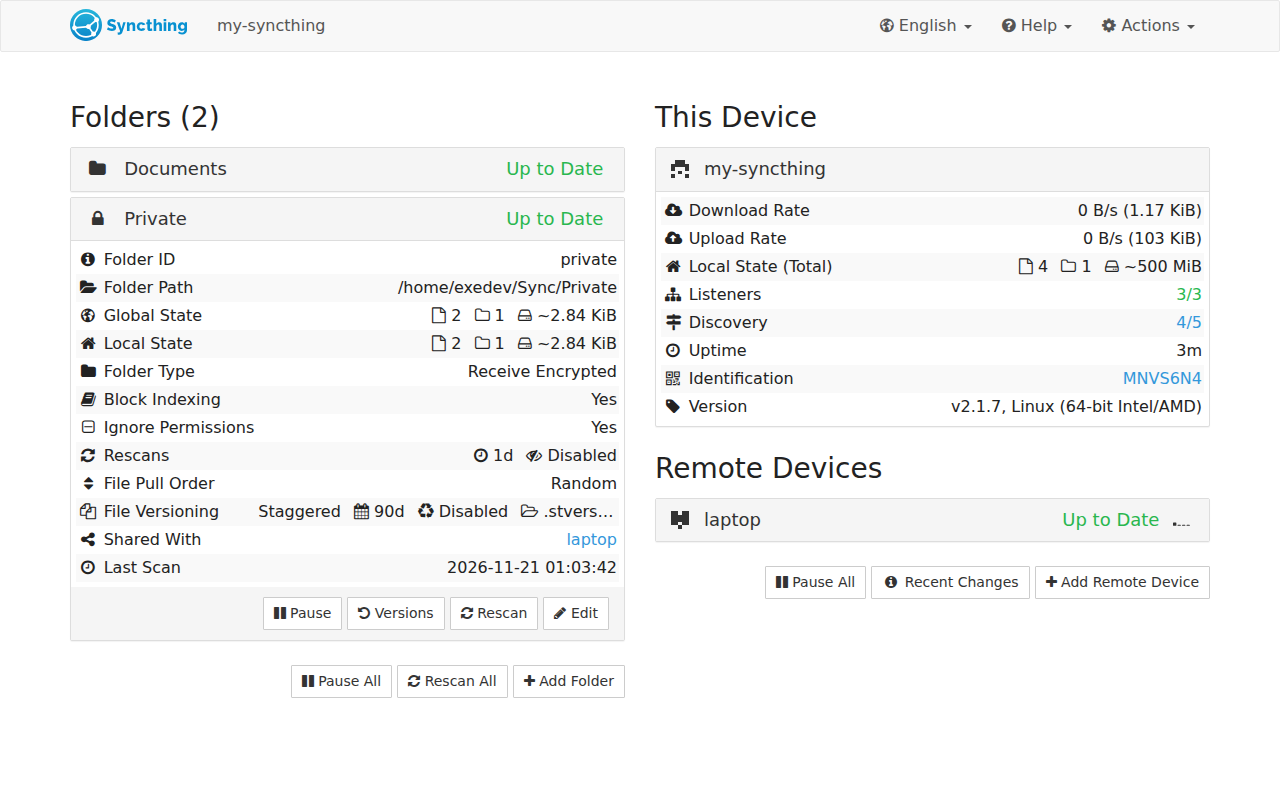
The VM's Syncthing on a test VM: a plain folder, and one it holds only encrypted.
## Open the Syncthing GUI
Open `https://my-syncthing.exe.xyz:8384/` and sign in to exe.dev if asked.
Syncthing then asks for its own login: the user is `exedev`, and the
password is on the VM. On your computer:
```bash
ssh my-syncthing.exe.xyz cat syncthing/gui-password
```
The first time, Syncthing asks whether to send anonymous usage reports;
either answer is fine. Port 8384 is reachable only by you and people you
[share the VM](/docs/sharing) with, so the password is a second lock, not
the only one.
## Connect your first device
Install Syncthing on your computer from
[syncthing.net/downloads](https://syncthing.net/downloads/) if you haven't.
Then pair it with the VM. On your computer, get the VM's device ID:
```bash
ssh my-syncthing.exe.xyz syncthing device-id
```
1. In your computer's Syncthing, click **Add Remote Device**, paste the ID,
and name it `my-syncthing`. Save.
2. Within a minute, the VM's GUI shows that your computer wants to connect.
Click **Add Device**. On the **Sharing** tab, tick **Auto Accept**:
any folder this device shares will be created on the VM, in `~/Sync`,
without another click. Save.
3. Back on your computer, edit a folder, open its **Sharing** tab, tick
`my-syncthing`, and save.
The folder appears on the VM in `~/Sync/` and fills up.
Add your other devices the same way: pair each with the VM, and share the
same folders with it. They don't need to know about each other; the VM
passes changes along. Check from your computer:
```bash
ssh my-syncthing.exe.xyz ls ~/Sync
```
> [!TIP]
> Pairing two devices that already sync with each other? Keep sharing
> between them too. Syncthing uses whichever devices are online, and the
> VM is just the one that always is.
## Keep your files unreadable on the VM
Syncthing can treat a device as **untrusted**: you give a folder a password
when you share it with that device, and it receives only encrypted data.
File names, contents and sizes (roughly) are hidden; the VM can still keep,
version and pass on the encrypted copy. Your devices keep the plaintext.
On each of your devices, when sharing a folder with the VM, type a password
in the field next to `my-syncthing` on the folder's **Sharing** tab
(**If untrusted, enter encryption password**). Use the same password for
that folder on every device. With **Auto Accept** on, the VM creates the
folder as **Receive Encrypted** by itself. On the VM it looks like this:
```bash
ls ~/Sync/Private
```
```
E.syncthing-enc I.syncthing-enc M.syncthing-enc
```
To make it hard to share plaintext by mistake, also edit the VM's device
entry on your computers: **Advanced → Untrusted**. Syncthing then refuses
to share any folder with it without a password. Ticking it **stops sharing
every folder that has no password** with the VM; we saw a plain folder
quietly drop off the VM that way, so set the passwords first.
To get your files back from the encrypted copy, say after losing a
laptop, copy the folder off the VM and decrypt it on any machine with
Syncthing. On your computer:
```bash
rsync -a my-syncthing.exe.xyz:Sync/Private/ ./private-encrypted/
FOLDER_PASSWORD='your folder password' syncthing decrypt ./private-encrypted --to ./private
```
A wrong password fails with `authentication failed`. Keep the password
somewhere other than the devices that use it (a password manager): without
it, the VM's copy is unreadable to you too.
> [!NOTE]
> Encrypted folders can't be opened or shared on the VM, so it can't
> serve them to a web app or back them up by file name. That's the point;
> use plain folders for anything the VM itself should work with.
## How your devices reach the VM
exe.dev's proxy carries only HTTP(S), so nothing on the internet can open
a connection to the VM's sync port, 22000. Syncthing copes; it doesn't
need both sides to accept connections. We paired the VM with devices on
other networks and watched the connections:
- **Through a relay.** Within seconds, both ends met at one of Syncthing's
public [relays](https://docs.syncthing.net/users/relaying.html). This
always worked. Relays forward data they can't read (the TLS session is
between your devices), but they're run by volunteers and some limit
speed. Our 500 MB test file crossed in about 38 seconds (about
13 MB/s) between two exe.dev VMs.
- **Directly over QUIC.** The VM sits behind a NAT that keeps its port
(Syncthing reports `Port restricted NAT`), so it can punch through to a
device behind an ordinary home router. Against a machine on another
network, Syncthing switched from the relay to a direct QUIC connection
about ten seconds after connecting. It won't work with strict
(symmetric) NATs, common on phone networks.
- **The VM dials you.** If a device accepts connections on 22000 (a port
forward, or UPnP on your router), the VM connects to it over TCP
directly.
See the connection type for each device on its row in the GUI, or on the
VM:
```bash
syncthing cli show connections | jq '.connections[] | {type, address}'
```
`relay-client`/`relay-server` is a relay, `quic-client`/`quic-server` a
direct connection. Relays are fine for documents and everyday photos. For
a first upload of hundreds of gigabytes, or if you'd rather your traffic
and IP addresses never touch Syncthing's discovery servers and relays, use
Tailscale.
## Faster and private: Tailscale
On a [Tailscale](https://tailscale.com/) network, the VM and your devices
reach each other directly over WireGuard, and Syncthing uses plain TCP on
port 22000 between tailnet addresses: no relays, no Syncthing discovery,
and no port forwarding. Your devices need Tailscale running to sync.
Join the VM to your tailnet with exe.dev's
[Tailscale integration](/docs/integrations-tailscale-wif), which uses
workload identity, so no Tailscale auth key ever sits on the VM: set it up
once in the exe.dev and Tailscale consoles, attach it to `my-syncthing`,
and run the "Join your Tailscale network" commands from that page on the
VM, first enabling the daemon (Tailscale is preinstalled):
```bash
sudo systemctl enable --now tailscaled
```
Without the integration, `sudo tailscale up --hostname=$(hostname)` and
the login link it prints work too. Then point each side at the other's
tailnet name. On each of your devices, edit the `my-syncthing` device,
and on the **Advanced** tab set **Addresses** to:
```
tcp://my-syncthing:22000, dynamic
```
On the VM, do the same for each device, with its tailnet name (shown by
`tailscale status`). `dynamic` keeps relays as a fallback; leave it out,
and turn off global discovery and relays on the VM, to sync only over
Tailscale:
```bash
syncthing cli config options global-ann-enabled set false
syncthing cli config options relays-enabled set false
```
> [!NOTE]
> We tested the relay and QUIC paths above, but not this one end to end:
> it needs your own tailnet. The Syncthing settings are the same ones
> any device uses for a fixed address.
## Keep old versions
The install switches on **staggered file versioning** for every new folder
on the VM: when a file is changed or deleted on another device, the VM
moves its old copy into the folder's `.stversions` directory and keeps
versions for 90 days, thinning them out as they age (one every 30 seconds
for the first hour, one per hour for the first day, one per day for the
first month, one per week after that). We
deleted a 200 MB file on one device; it disappeared from the VM's folder
and reappeared, date-stamped, in `.stversions`.
To restore a file, click the folder in the VM's GUI, then **Versions**, or
copy it out of `.stversions` by hand. Old versions count against your disk,
so for folders that churn (build output, VM images), pick a shorter
**Maximum Age** under **Edit → File Versioning**, or exclude them with
**Ignore Patterns**.
## Disk space and cost
The VM holds a full copy of every folder you share with it, plus old
versions. A new VM's disk is 25 GB, and the system takes about 5 GB of it.
Check what's left on the VM with `df -h /`. To grow it, on your computer:
```bash
ssh exe.dev resize my-syncthing --disk=200GB
```
then on the VM run `sudo resize2fs "$(findmnt -no SOURCE /)"`. Disks only
grow; you can't shrink one.
Your [plan](https://exe.dev/pricing) includes disk for all your VMs
together (100 GB per 2 vCPU on Personal) and 200 GB of outbound bandwidth
a month. Disk beyond that, and bandwidth beyond that, are billed as
[usage](/docs/billing/usage). Uploads to the VM are free; the VM sending a
folder to a new laptop, or a change to each of three devices, is outbound.
Syncthing needs little CPU or memory, so it can share a small VM with other
light services.
Syncthing stops downloading into a folder when free space drops below
that folder's **Edit → Advanced → Minimum Free Disk Space** (1% of the
disk by default), and shows an out-of-space error instead of filling the
disk. Raise it if other things on the VM need room.
## Back it up
The VM is an off-site copy of your folders, but the VM itself can be lost
too. Two things matter:
- **Its identity and settings.** The device key and certificate are its
device ID: restore them and your devices reconnect to the rebuilt VM as
if nothing happened. The install saved a copy in `~/syncthing`; make a
fresh one after adding devices or folders, and copy it off. On your
computer:
```bash
ssh my-syncthing.exe.xyz 'tar -C ~/.local/state -czf - syncthing/config.xml syncthing/key.pem syncthing/cert.pem' > syncthing-identity.tar.gz
```
Keep it private: the key lets anyone pose as this device.
- **The files.** Your devices have them, so a rebuilt VM fills up again
from them, at the cost of re-sending everything. To keep a copy that
doesn't depend on your devices, use exe.dev's
[VM backups](/docs/vm-backups) (a preview), which copy the whole disk,
incrementally, to your own S3 bucket.
To rebuild from the identity backup, see [Restore](#back-up-and-restore).
## Script it with the REST API
The GUI is a client of Syncthing's [REST API](https://docs.syncthing.net/dev/rest.html),
which is useful for monitoring ("has the VM seen my laptop today?"). Port
8384 is private, so a script outside the VM needs two things: an exe.dev
[VM token](/docs/https-tokens-for-vms) to get through the proxy, and
Syncthing's API key. On your computer, make the token (it prints one
starting with `exe1.`; add `--exp=90d` to have it expire):
```bash
ssh exe.dev ssh-key generate-api-key --vm=my-syncthing --label=syncthing-api
```
Get Syncthing's API key with `ssh my-syncthing.exe.xyz syncthing cli
config gui apikey get`. Then, from the script's machine, with the token in
`VM_TOKEN` and the key in `ST_KEY`:
```bash
curl -s -H "X-Exedev-Authorization: Bearer $VM_TOKEN" -H "X-API-Key: $ST_KEY" \
https://my-syncthing.exe.xyz:8384/rest/system/connections | jq '.connections'
```
Without the token, the proxy answers `401`; without the API key, Syncthing
answers `403`. Store both like passwords.
## The nuts and bolts
Happy clicking Deploy? You can stop here. These are the same setup steps
Shelley follows, plus the maintenance commands for later. Tested with
Syncthing 2.1.7 from the stable-v2 channel on Ubuntu 24.04, November 2026.
Install by hand
### Create a VM
On your computer (pick another name if `my-syncthing` is taken; add
`--disk=100GB` or more if you'll sync more than about 15 GB):
```bash
ssh exe.dev new --name=my-syncthing
ssh my-syncthing.exe.xyz
```
All remaining installation commands run **on the VM**, as `exedev`.
### Install Syncthing
From Syncthing's own apt repository, on the `stable-v2` channel, which
follows Syncthing 2.x releases (usually the first Tuesday of each month).
The pin makes apt prefer it over Ubuntu's older package.
```bash
sudo mkdir -p /etc/apt/keyrings
sudo curl -fsSL -o /etc/apt/keyrings/syncthing-archive-keyring.gpg https://syncthing.net/release-key.gpg
echo "deb [signed-by=/etc/apt/keyrings/syncthing-archive-keyring.gpg] https://apt.syncthing.net/ syncthing stable-v2" | sudo tee /etc/apt/sources.list.d/syncthing.list
printf "Package: *\nPin: origin apt.syncthing.net\nPin-Priority: 990\n" | sudo tee /etc/apt/preferences.d/syncthing.pref
sudo apt-get update
sudo apt-get install -y syncthing
syncthing --version
```
Expect `syncthing v2.1.7` or a later 2.x.
### Make its identity and GUI password
This creates the device key and settings in `~/.local/state/syncthing`,
with a random GUI password saved to `~/syncthing/gui-password`, and makes
the GUI listen on all interfaces so exe.dev's proxy can reach it. It won't
touch an existing setup.
```bash
mkdir -p ~/syncthing ~/Sync
if [ ! -f ~/.local/state/syncthing/config.xml ]; then
(umask 077; openssl rand -base64 18 > ~/syncthing/gui-password)
syncthing generate --gui-user=exedev --gui-password=- < ~/syncthing/gui-password
sed -i 's|127.0.0.1:8384|0.0.0.0:8384|' ~/.local/state/syncthing/config.xml
fi
grep -o '[^<]*:8384' ~/.local/state/syncthing/config.xml
syncthing device-id
```
Expect `0.0.0.0:8384` and the device ID. Syncthing skips its
Host-header check when the GUI isn't on localhost, so it works behind the
proxy as is; the password keeps it locked.
### Give QUIC bigger buffers
Syncthing's QUIC connections want larger UDP buffers than Ubuntu allows
([why](https://github.com/quic-go/quic-go/wiki/UDP-Buffer-Sizes)). The
package ships a setting for that, applied at every boot, but not at
install; without it, Syncthing logs `failed to sufficiently increase
receive buffer size`. Load it now:
```bash
sudo sysctl -p /usr/lib/sysctl.d/30-syncthing.conf
```
Expect `net.core.rmem_max = 7340032` and the same for `wmem_max`.
### Start it at boot
The package ships `syncthing@.service`, a sandboxed system unit that runs
Syncthing as the user you name, from boot, with no login needed.
```bash
sudo systemctl enable --now syncthing@exedev.service
until curl -fs localhost:8384/rest/noauth/health; do sleep 1; done; echo
systemctl is-enabled syncthing@exedev.service
```
Expect `"status": "OK"` and `enabled`.
### Set the folder defaults
New folders, including those auto-accepted from your devices, go in
`~/Sync` and keep old versions for 90 days (7776000 seconds):
```bash
syncthing cli config defaults folder path set ~/Sync
syncthing cli config defaults folder versioning type set staggered
syncthing cli config defaults folder versioning params set maxAge 7776000
syncthing cli config defaults folder dump-json | jq '{path, versioning}'
```
Expect `/home/exedev/Sync` and `staggered` with `maxAge` `7776000`.
### Save the identity
A first copy of the device key and settings, readable only by you:
```bash
(umask 077; tar -C ~/.local/state -czf ~/syncthing/identity-$(date -u +%Y%m%d).tar.gz syncthing/config.xml syncthing/key.pem syncthing/cert.pem)
ls -l ~/syncthing
```
Installation done. Open the GUI and continue with
[Connect your first device](#connect-your-first-device).
Back up and restore
Make an identity backup on your computer as in [Back it up](#back-it-up).
### Restore onto a new VM
This brings the VM back as the same device, so your devices reconnect to it
without re-pairing; the folders then download again from them. Create the
new VM and do [Install Syncthing](#install-syncthing), then copy the backup
over. On your computer:
```bash
scp syncthing-identity.tar.gz my-syncthing.exe.xyz:
```
On the VM, unpack it before Syncthing first starts (or stop it first with
`sudo systemctl stop syncthing@exedev`), then continue with
[Give QUIC bigger buffers](#give-quic-bigger-buffers) and
[Start it at boot](#start-it-at-boot):
```bash
mkdir -p ~/.local/state ~/syncthing ~/Sync
(umask 077; tar -C ~/.local/state -xzf ~/syncthing-identity.tar.gz)
syncthing device-id
```
The device ID matches the old one. The GUI password is the old one too;
if you no longer have it, set a new one with
`syncthing cli config gui password set 'new password'` once it's running.
If the VM's name changed, update the address on your devices only if you
set one for Tailscale; Syncthing finds devices by ID.
Folders that were encrypted come back as **Receive Encrypted** and refill
with encrypted data; the VM never needs their passwords.
Update Syncthing
The apt package can't update itself (it runs with `[noupgrade]`), so update
it with apt. Read the [release notes](https://github.com/syncthing/syncthing/releases)
first, then on the VM:
```bash
sudo apt-get update
sudo apt-get install --only-upgrade -y syncthing
sudo systemctl restart syncthing@exedev
syncthing --version
```
The `stable-v2` channel stays on 2.x. A future 3.x will get a new channel
name; switch to it only after reading its upgrade notes.
Something not working?
On the VM:
```bash
systemctl status syncthing@exedev --no-pager
journalctl -u syncthing@exedev -n 100 --no-pager
```
- **The GUI says `Authentication Required` and the password fails:** use
user `exedev` and the contents of `~/syncthing/gui-password`. Reset it
with `syncthing cli config gui password set 'new password'`.
- **`https://my-syncthing.exe.xyz:8384/` doesn't load:** check
`grep '' ~/.local/state/syncthing/config.xml` says
`0.0.0.0:8384`. Change it in **Actions → Settings → GUI** if needed.
- **A device stays `Disconnected`:** check both sides added each other's
device ID, and that the log shows `Established secure connection` or
`Connection to ... closed`. Both need to reach Syncthing's discovery
servers, or have each other's address set by hand.
- **A folder you shared doesn't appear on the VM:** without **Auto
Accept**, the VM's GUI shows a prompt to add it. If the VM's device is
marked **Untrusted** on your computer, folders without a password
aren't shared at all.
- **Sync is slow:** check the connection type (above). A relay is the
usual cause; try [Tailscale](#faster-and-private-tailscale).
- **`Folder path missing` or out-of-space errors:** check `df -h /` and
grow the disk as in [Disk space and cost](#disk-space-and-cost).
- **`failed to sufficiently increase receive buffer size`:** redo
[Give QUIC bigger buffers](#give-quic-bigger-buffers) and restart.
## Frequently asked questions
### Can a Syncthing node on exe.dev accept incoming connections?
Not on port 22000 from the internet: exe.dev's proxy carries only HTTP(S). It doesn't need to. The VM dials out to your devices, punches through NAT over QUIC when it can, and otherwise meets them at a Syncthing relay. In our tests every device connected; see [How your devices reach the VM](#how-your-devices-reach-the-vm). For a direct, private path, put the VM on [Tailscale](#faster-and-private-tailscale).
### Can the VM read my files?
Only if you let it. Share a folder with an encryption password and the VM stores it as **Receive Encrypted**: file names and contents are encrypted with a key only your devices have. We checked: a search of the VM's copy found no plaintext, and `syncthing decrypt` restored it with the password. See [Keep your files unreadable on the VM](#keep-your-files-unreadable-on-the-vm).
### Is Syncthing a backup?
Not by itself: it syncs deletions and mistakes too. The VM gets closer to one because new folders there keep old and deleted versions for 90 days, and because it's off-site. For a backup of the VM itself, use exe.dev's [VM backups](/docs/vm-backups).
### How much disk can I use, and what does it cost?
Your plan includes disk shared by all your VMs (100 GB per 2 vCPU on Personal) and 200 GB of outbound bandwidth a month; beyond that, disk and bandwidth are billed as [usage](/docs/billing/usage). Upload to the VM is free; every byte the VM sends to a device counts as outbound. Syncthing itself is free (MPL-2.0).
### Do I need the web GUI?
No. Everything it does is in `syncthing cli` and the REST API. The GUI is handy for accepting devices and folders, and it's behind exe.dev login, so it costs nothing to keep.
### Can I use Syncthing on my phone with this?
Yes. The phone is one more device: pair it with the VM and share folders as above. Syncthing's own Android app was discontinued in 2024; use the community Syncthing-Fork on Android, and Synctrain or Möbius Sync on iPhone (see Syncthing's [community apps](https://docs.syncthing.net/users/contrib.html)). Phones are often behind strict NATs, so expect relays unless the phone runs Tailscale.
## Related
- [A Linux desktop in your browser](https://exe.dev/deploy/linux-desktop.md): Xfce, Chrome, and coding agents on a VM you open in a browser tab.
- [Self-host Vaultwarden](https://exe.dev/deploy/vaultwarden.md): A Bitwarden-compatible password manager for you and your team.
- [Self-hosted S3 storage](https://exe.dev/deploy/s3-storage.md): Your own S3 bucket on a real disk. RustFS, Garage or SeaweedFS, tested.
- [Self-host Garage S3 storage](https://exe.dev/deploy/garage.md): Small, S3-compatible object storage on a disk you own, private by default.
- [Self-host Chatwoot](https://exe.dev/deploy/chatwoot.md): Website chat, email and API conversations in one inbox you own.
- [Cal.diy](https://exe.dev/deploy/cal-diy.md): Open-source scheduling app on exe.dev