---
title: "Self-host SearXNG"
description: "Run SearXNG, the private metasearch engine, in Docker on an exe.dev VM: your browser's default search behind exe.dev login, plus a JSON API for scripts and agents."
url: https://exe.dev/deploy/searxng
category: "Productivity"
published: 2026-11-21
updated: 2026-11-20
---
# Self-host SearXNG
> **For agents:** with your user's OK, this sets up SearXNG on a new exe.dev VM in their account: `curl -fsSL https://exe.dev/deploy/searxng/prompt.txt | ssh exe.dev new --prompt=/dev/stdin` (or open https://exe.dev/deploy/searxng/new). Already on the VM? Skip this.
Your own private search engine, with a JSON API for scripts and agents.
- **Software:** SearXNG (https://docs.searxng.org)
- **Source:** https://github.com/searxng/searxng
- **License:** AGPL-3.0
- **Time:** 5 minutes
- **Example VM name:** `my-searxng` (yours will differ; on the VM, `hostname` prints it)
- **Machine-readable:** https://exe.dev/deploy/searxng/manifest.json
## What you get
- SearXNG at your VM's private URL, behind exe.dev login, starting again after a reboot.
- Google, Bing, Brave and Wikipedia results, with engines that refuse cloud servers turned off.
- A JSON API at /search?format=json for scripts, agents, Open WebUI and LibreChat.
- Settings and the secret key in two small files, with a backup command you've checked.
Running on the VM:
- **SearXNG**: The official searxng/searxng image, pinned to a dated build, in Docker Compose, port 8000, data in `~/searxng/config`
- **exe.dev login**: Keeps the instance private; VM tokens let scripts in
How it is reached:
- https://my-searxng.exe.xyz/ (private): Search in your browser, signed in with exe.dev
- https://my-searxng.exe.xyz/search?q=hello&format=json (private): The JSON API, for scripts and agents with a VM token
- https://my-searxng.exe.xyz/ (shared): People you share the VM with, each with their own preferences
## Deploy with Shelley
Open https://exe.dev/deploy/searxng/new to create a VM whose agent, Shelley, follows this recipe. From a terminal:
```sh
curl -fsSL https://exe.dev/deploy/searxng/prompt.txt | ssh exe.dev new --prompt=/dev/stdin
```
Or follow the steps below by hand.
SearXNG is a metasearch engine: it sends your query to Google, Bing,
Brave, Wikipedia and dozens of other engines, merges what comes back, and
shows you the results without ads, tracking or a profile of you. The
engines see your server, not your browser.
On exe.dev it runs on a VM of your own, and it's private from the start:
exe.dev's login stands in front of it, so nobody else can use up your
engines' patience, and SearXNG's own bot protection can stay off. Make it
your browser's default search engine, share it with your team, call its
JSON API from scripts and agents with a VM token, and give Open WebUI or
LibreChat web search without a paid search API.
## Search
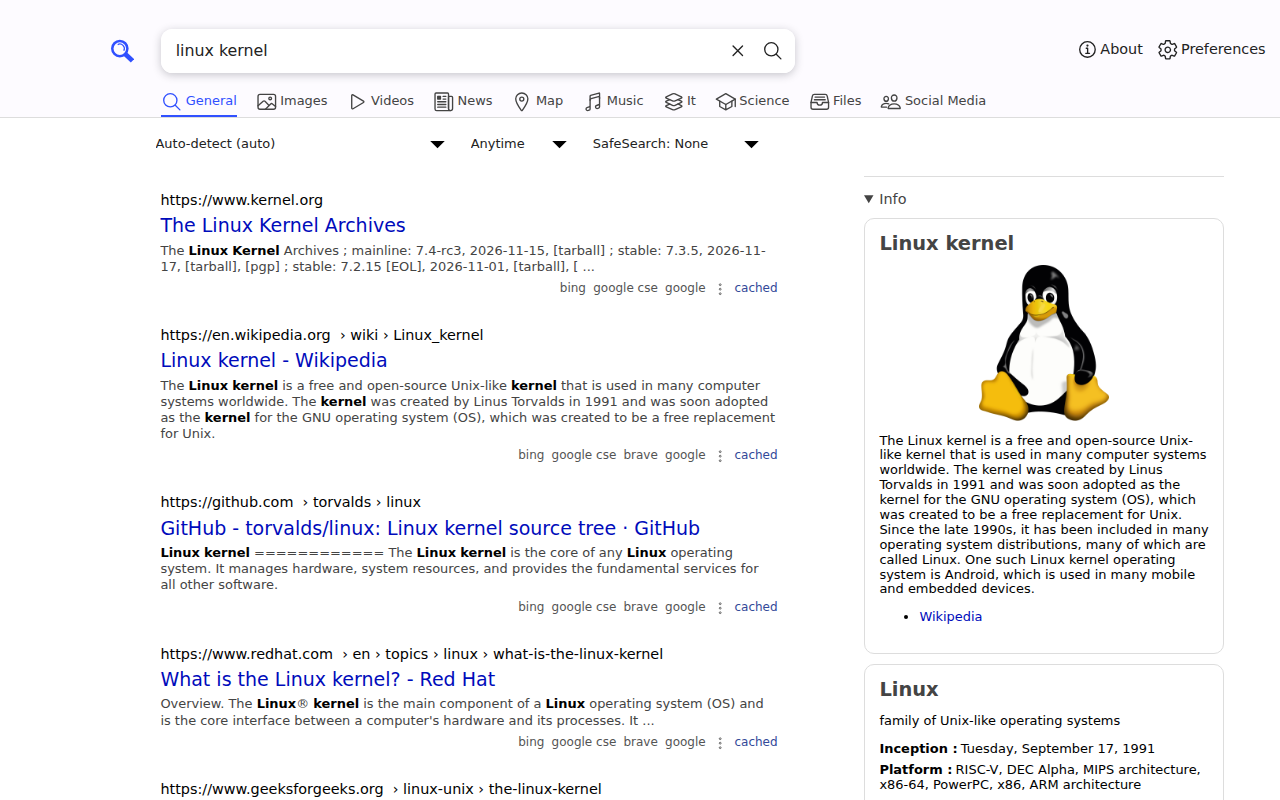
Open your VM's URL, like `https://my-searxng.exe.xyz/`, and sign in to
exe.dev if you're asked. Type a query. Results come from several engines
at once, and each result says which engines found it.
Each result lists the engines that found it; Wikipedia and Wikidata fill the box on the right.
A few things worth knowing:
- **Bangs** pick engines for one search: `!go` Google, `!br` Brave,
`!bi` Bing, `!wp` Wikipedia, `!gh` GitHub, `!st` Stack Overflow.
`!images`, `!news` and `!it` switch category.
- **Preferences** (top right) set your language, safe search, theme and
engines. They live in a cookie in your browser, so everyone who uses the
instance keeps their own.
- **`/stats`** shows each engine's response times and errors on your VM.
## Make it your browser's search engine
Use this address, with `%s` where the query goes:
```text
https://my-searxng.exe.xyz/search?q=%s
```
- **Chrome, Edge, Brave:** **Settings → Search engine → Manage search
engines and site search → Site search → Add**. Give it a name and a
shortcut (`sx`), paste the address, then choose **Make default** from its
⋮ menu.
- **Firefox (140 and later):** **Settings → Search → Search Shortcuts →
Add**, paste the address, then pick SearXNG as **Default Search Engine**
at the top of the same page.
Your browser is signed in to exe.dev, so it sends the login cookie with
each search and results appear at once. When the exe.dev session runs out,
the search goes through the login page and then on to your results. The
address bar's suggestions come from `/autocompleter` on the same VM and
need the same cookie; if your browser doesn't send it for suggestions,
you'll just get no suggestions, and searching still works.
## Use the JSON API
The setup turns on SearXNG's JSON output, so any program can search:
`/search?q=&format=json` returns the results, answers, suggestions
and any engines that failed.
The VM is private, so a program needs a token. On your computer, make a
[VM token](/docs/https-tokens-for-vms) that opens only this VM:
```bash
ssh exe.dev ssh-key generate-api-key --vm=my-searxng --label=searxng-api
```
It prints the token. Keep it where your scripts can read it, such as a
file with mode 600, and send it in the `X-Exedev-Authorization` header:
```bash
TOKEN=$(cat ~/.config/searxng-token)
curl -s -G https://my-searxng.exe.xyz/search \
-H "X-Exedev-Authorization: Bearer $TOKEN" \
--data-urlencode 'q=postgres vacuum full' -d format=json \
| jq -r '.results[:5][] | "\(.title)\n \(.url)"'
```
exe.dev checks the token and strips it before the request reaches
SearXNG. Without a token, or with a wrong one, the answer is `401`. Tools
that only do Basic auth can send the token as the password, with any user
name. To revoke it, run `ssh exe.dev ssh-key remove searxng-api`.
Useful parameters: `categories=news` (or `images`, `it`, `science`),
`engines=google,brave`, `language=en`, `time_range=day|month|year`,
`pageno=2` and `safesearch=0|1|2`. See SearXNG's
[Search API](https://docs.searxng.org/dev/search_api.html).
On the VM itself, programs need no token: Shelley, Claude Code, or a
cron job can call `http://localhost:8000/search?q=...&format=json`.
> [!TIP]
> For an agent or app on **another of your VMs**, make a
> [VM-to-VM integration](/docs/integrations-vm-to-vm) instead of copying a
> token. On your computer:
> `ssh exe.dev integrations add http-proxy --name searxng --target https://my-searxng.exe.xyz/ --peer --attach vm:my-agent-vm`.
> The other VM then searches at `https://searxng.int.exe.xyz/search?q=...&format=json`,
> and exe.dev adds the credentials on the way out, so there's no token on
> that VM to leak.
## Web search for Open WebUI and LibreChat
Both chat apps can use SearXNG as their search engine. Run them on their
own VMs, give them a VM-to-VM integration to this one as in the tip above,
and point them at the integration's address:
- **[Open WebUI](/deploy/open-webui):** in **Settings → Admin → Web
Search**, choose `searxng` as the engine and set the query URL to
`https://searxng.int.exe.xyz/search`. Or set `WEB_SEARCH_ENGINE: searxng`
and `SEARXNG_QUERY_URL: https://searxng.int.exe.xyz/search` in its
Compose file. Open WebUI adds `format=json` and the query itself.
- **[LibreChat](/deploy/librechat):** in `librechat.yaml`, under
`webSearch`, set `searchProvider: searxng` and
`searxngInstanceUrl: https://searxng.int.exe.xyz`. Integration addresses
resolve to a link-local address, which LibreChat's SSRF guard blocks
until you add `allowedAddresses: ["searxng.int.exe.xyz:443"]` to
`webSearch`. LibreChat also needs a
page scraper, such as a self-hosted [Firecrawl](/deploy/firecrawl), and a
reranker (`rerankerType: none` skips it). Its
[web search guide](https://www.librechat.ai/docs/configuration/librechat_yaml/object_structure/web_search)
covers the rest.
A self-hosted [Firecrawl](/deploy/firecrawl) can search through it as well: set
`SEARXNG_ENDPOINT=https://searxng.int.exe.xyz` in Firecrawl's `.env`, and
its `/search` endpoint returns this instance's results.
## Choose engines
The setup's `~/searxng/config/settings.yml` keeps SearXNG's defaults and
changes only a few lines. Its engine choices come from testing on an
exe.dev VM in November 2026:
| Engine | From an exe.dev VM | In this setup |
|---|---|---|
| Google CSE, Bing, Brave | Answered | On |
| Google | Answered, with an occasional `403` | On; SearXNG pauses it for 3 minutes after a refusal |
| Wikipedia, Wikidata | Answered | On (they need the contact address in `.env`) |
| Yahoo, Mwmbl, Yandex | Answered | Off; turn on in Preferences or `settings.yml` |
| DuckDuckGo | CAPTCHA | Off |
| Qwant | Access denied | Off (SearXNG's default) |
Engines change their minds about cloud servers, so check `/stats` now and
then. To change an engine for everyone, add or edit its entry under
`engines:` in `settings.yml`, using the name shown in Preferences, then
restart. On the VM:
```bash
cd ~/searxng
sudo nano config/settings.yml # e.g. add "- name: yahoo" with "disabled: false"
docker compose restart
```
Engines that need an API key (Kagi, Exa, Jina and others) are listed in
SearXNG's [engine docs](https://docs.searxng.org/dev/engines/index.html).
## Share it
On your computer:
```bash
ssh exe.dev share add my-searxng teammate@example.com
```
They sign in to exe.dev and search at the same address, with their own
preferences. `ssh exe.dev share add my-searxng team` shares it with your
whole exe.dev team. Everyone's searches go out from the same VM, so a
large team can trip engines' rate limits sooner.
## Use it responsibly
SearXNG is polite by design: it sends one request per engine per search,
suspends an engine for a while when it answers with an error or CAPTCHA,
and tells Wikipedia and OpenStreetMap who to contact, as their policies
ask. Keep scripted searches modest: a few per minute is fine; thousands an
hour will get the VM blocked. For bulk crawling, use the engines' paid
APIs. Search results belong to the engines that produced them, so check
their terms before you publish or resell them.
## Keep your settings
Everything worth keeping is two small files: `~/searxng/.env` (the secret
key and addresses) and `~/searxng/config/settings.yml`. Back them up after
you change something; on the VM:
```bash
cd ~/searxng && tar -czf ~/searxng-backup-$(date +%Y%m%d).tar.gz .env compose.yaml config/settings.yml
```
On your computer, copy the archive off the VM:
`scp 'my-searxng.exe.xyz:searxng-backup-*.tar.gz' .`. For the whole disk,
see [VM backups](/docs/vm-backups).
## The nuts and bolts
Happy clicking Deploy? You can stop here. These are the same setup steps
Shelley follows, plus the maintenance commands for later.
Install by hand
### Create a VM
On your computer (pick another name if `my-searxng` is taken):
```bash
ssh exe.dev new --name=my-searxng
ssh my-searxng.exe.xyz
```
All remaining installation commands run **on the VM**, as `exedev`.
They use `hostname`, so your VM can have any name.
### Get Docker ready
SearXNG's recommended install is its container image. Enable Docker at
boot, or exe.dev's on-demand Docker won't restart SearXNG after a reboot:
```bash
sudo systemctl enable --now docker.service
systemctl is-enabled docker.service
```
It should print `enabled`.
### Write the settings
`.env` holds what's specific to this VM, written **once**: a secret key
for SearXNG's signed cookies and image proxy, the public address SearXNG
puts in its links, and a contact address that Wikipedia, Wikidata and
OpenStreetMap require of SearXNG instances (they refuse to load without
one). The contact is your exe.dev email; SearXNG sends it to those
services in its User-Agent, nowhere else. Use any other address or URL you
prefer.
```bash
mkdir -p ~/searxng/config && cd ~/searxng
if [ ! -e .env ]; then
contact=$(curl -fsS https://reflection.int.exe.xyz/email | jq -r '.email // empty')
touch .env && chmod 600 .env
cat >> .env </dev/null <<'EOF'
# Only what differs from SearXNG's defaults:
# https://docs.searxng.org/admin/settings/
# The secret key and addresses are in ../.env.
use_default_settings: true
server:
# exe.dev login guards the whole site, so SearXNG's bot protection stays
# off; it would also refuse curl and other scripts. Turn it on before
# making the VM public.
limiter: false
public_instance: false
# Load result images through the VM, not straight from your browser.
image_proxy: true
search:
# json and csv let scripts, agents, Open WebUI and LibreChat search.
formats: [html, json, csv, rss]
engines:
# These answer from exe.dev VMs.
- name: google
disabled: false
- name: bing
disabled: false
- name: brave
disabled: false
# DuckDuckGo answers cloud servers with a CAPTCHA.
- name: duckduckgo
disabled: true
EOF
```
### Start SearXNG
This is SearXNG's official Compose template, trimmed to one service on
port 8000, the port exe.dev's [HTTPS proxy](/docs/proxy) serves at your
VM's address. SearXNG has no numbered releases; it publishes a dated
image for every change, so pin one and move it forward when you
[update](#update). The template's Valkey service is only for the limiter,
which a private instance doesn't use.
```bash
cat > ~/searxng/compose.yaml <<'EOF'
name: searxng
services:
searxng:
# A dated build; see https://hub.docker.com/r/searxng/searxng/tags
image: docker.io/searxng/searxng:2026.11.20-cd6d28091
restart: unless-stopped
ports:
- "8000:8080"
env_file: .env
volumes:
- ./config:/etc/searxng
- ./cache:/var/cache/searxng
EOF
cd ~/searxng
docker compose up -d --quiet-pull
until curl -fs http://localhost:8000/healthz; do sleep 2; done; echo
docker compose ps
```
Expect `OK` and the container `Up`. The image is about 140 MB.
### Check a search
Ask SearXNG for JSON, the way a script or Open WebUI will:
```bash
curl -fsS 'http://localhost:8000/search?q=linux+kernel&format=json' \
| jq -c '{results: (.results | length), engines: ([.results[].engines[]] | unique),
infoboxes: [.infoboxes[].engine], failed: .unresponsive_engines}'
```
Expect a few dozen results from engines such as `bing`, `brave` and
`google cse`, infoboxes from `wikipedia` and `wikidata`, and a short or
empty `failed` list. An engine in `failed` with `CAPTCHA` or
`access denied` is refusing the VM; SearXNG pauses it and the others carry
on. If one keeps failing, turn it off as in [Choose engines](#choose-engines).
From outside, the VM is private. On your computer, this should print `401`:
```bash
curl -s -o /dev/null -w '%{http_code}\n' 'https://my-searxng.exe.xyz/search?q=test&format=json'
```
### Check the backup
Make a backup and read it back:
```bash
cd ~/searxng && tar -czf ~/searxng-backup-$(date +%Y%m%d).tar.gz .env compose.yaml config/settings.yml
tar -tzf ~/searxng-backup-$(date +%Y%m%d).tar.gz
```
It should list the three files. Open `https://.exe.xyz/` in
your browser and search.
Open it to the public
A public SearXNG gets found by bots within days, and once engines see a
flood of searches from your VM they block it for everyone. If you open it
anyway, turn on SearXNG's limiter first. It needs Valkey, and it has to
know which address in `X-Forwarded-For` is the visitor's: exe.dev's proxy
adds the visitor's address last, and Docker hands the request to SearXNG
from its network gateway, which `limiter.toml` marks as trusted.
The limiter refuses requests that don't look like a browser, so turn off
the JSON API at the same time: public JSON endpoints are what bots look
for. On the VM:
```bash
cd ~/searxng
sudo tee config/limiter.toml >/dev/null <<'EOF'
[botdetection]
# Docker's networks, where requests from exe.dev's proxy arrive from.
trusted_proxies = ['127.0.0.0/8', '::1', '172.16.0.0/12']
[botdetection.ip_limit]
link_token = true
EOF
sudo sed -i 's/^ limiter: false/ limiter: true/; s/^ public_instance: false/ public_instance: true/; s/^ formats: .*/ formats: [html]/' config/settings.yml
grep -q '^SEARXNG_VALKEY_URL=' .env || echo 'SEARXNG_VALKEY_URL=valkey://valkey:6379/0' >> .env
cat >> compose.yaml <<'EOF'
valkey:
image: docker.io/valkey/valkey:9-alpine
command: valkey-server --save 300 1 --save 60 1000 --loglevel warning
restart: unless-stopped
volumes:
- ./valkey:/data
EOF
docker compose up -d --quiet-pull
docker compose logs --tail=20 searxng | grep -i -E 'limiter|valkey' || true
```
Then, on your computer:
```bash
ssh exe.dev share set-public my-searxng
```
`ssh exe.dev share set-private my-searxng` closes it again. Remember to
add `json` back to `formats` if you go back to private and want the API.
Back up and restore
The backup in [Keep your settings](#keep-your-settings) holds everything:
`.env`, `compose.yaml` and `settings.yml`. `cache/` holds only website
icons, which SearXNG fetches again.
To restore on a new VM, run **Get Docker ready** above, copy the archive
to the VM, and on the VM:
```bash
mkdir -p ~/searxng && cd ~/searxng
tar -xzf ~/searxng-backup-YYYYMMDD.tar.gz
chmod 600 .env
sed -i "s|^SEARXNG_BASE_URL=.*|SEARXNG_BASE_URL=https://$(hostname).exe.xyz/|" .env
docker compose up -d --quiet-pull
until curl -fs http://localhost:8000/healthz; do sleep 2; done; echo
```
The `sed` line points SearXNG's links at the new VM's address. Users'
preferences live in their browsers, so they carry over on their own.
Update
SearXNG changes often, mostly to keep up with engines that change their
pages, so update every few weeks. Pick the newest tag from
[Docker Hub](https://hub.docker.com/r/searxng/searxng/tags) (the form is
`YYYY.M.D-commit`) and set it in `compose.yaml`. On the VM:
```bash
cd ~/searxng
tag=$(curl -fsS 'https://hub.docker.com/v2/repositories/searxng/searxng/tags?page_size=10' \
| jq -r '[.results[].name | select(test("^[0-9]{4}\\."))][0]')
echo "$tag"
sed -i "s|searxng/searxng:.*|searxng/searxng:$tag|" compose.yaml
docker compose up -d --quiet-pull
until curl -fs http://localhost:8000/healthz; do sleep 2; done; echo
docker compose logs --tail=30 searxng
```
Then run a search. The logs list any engine that failed to load. If a new
build misbehaves, put the old tag back and run `docker compose up -d`.
SearXNG's [changelog](https://github.com/searxng/searxng/commits/master)
is its commit log.
Troubleshooting
Start with the logs. On the VM:
```bash
cd ~/searxng
docker compose ps
docker compose logs --tail=50 searxng
```
- **Few or no results:** open `/stats`, or look at
`unresponsive_engines` in a JSON search. `CAPTCHA`, `access denied` or
`too many requests` means that engine is refusing the VM; SearXNG pauses
it for a while and the others carry on. Turn it off and another on.
- **`403 Forbidden` from `format=json`:** `json` is missing from
`formats` in `settings.yml`. Add it and `docker compose restart`.
- **`wikipedia engine requires general.contact_url` in the logs:**
`SEARXNG_CONTACT_URL` in `.env` is empty. Set it and run
`docker compose up -d`.
- **`429 Too Many Requests` for your own scripts:** the limiter is on.
A private instance doesn't need it; set `limiter: false`.
- **Links or the search bar point at the wrong address:** fix
`SEARXNG_BASE_URL` in `.env` and run `docker compose up -d`.
- **`Permission denied` editing `config/`:** the container owns it; use
`sudo nano` or `sudo tee`.
- **`ahmia` and `torch` can't register** in the logs: those engines search
Tor and need a Tor proxy. Ignore them.
- **Down after a reboot:** run `sudo systemctl enable --now docker.service`.
## Frequently asked questions
### Is SearXNG free?
Yes. SearXNG is free software under the AGPL-3.0 and needs no API keys for its default engines. You pay only for your [VM plan](https://exe.dev/pricing); it fits easily next to other apps on the default VM.
### Does SearXNG keep my searches private?
It doesn't log queries or build a profile, and the engines see your VM's address instead of yours, with no cookies from you. They still see the words you search for. Your VM's outgoing address is shared with other exe.dev VMs, which helps hide you and also means engines treat it as a cloud server.
### Can I make it my browser's default search engine while it's private?
Yes. A browser signed in to exe.dev sends its login cookie with every search, so results appear straight away. When that session ends, the search lands on exe.dev's login page first and continues to your results after you sign in. See [Make it your browser's search engine](#make-it-your-browsers-search-engine).
### Why do some engines return nothing?
Search engines guard against automated traffic from cloud servers. From exe.dev VMs, DuckDuckGo answers with a CAPTCHA and Qwant refuses, so this recipe turns them off and turns on Google, Bing and Brave, which answered. **Preferences → Engines** and the `/stats` page show what's working on your VM.
### Can scripts and AI agents use it?
Yes, that's what the JSON API is for. Off the VM, send a [VM token](/docs/https-tokens-for-vms) in the `X-Exedev-Authorization` header. On the VM, call `http://localhost:8000`. Another of your VMs can use a [VM-to-VM integration](/docs/integrations-vm-to-vm), with no token at all.
### Should I run a public SearXNG instance?
Probably not. Public instances attract bots, and engines then block the VM for everyone using it. Share the VM with the people who need it instead. If you do open it, turn on SearXNG's limiter first; see [Open it to the public](#public).
## Related
- [Self-host Open WebUI](https://exe.dev/deploy/open-webui.md): A private ChatGPT for you and your team. No API keys.
- [Self-host LibreChat](https://exe.dev/deploy/librechat.md): GPT, Claude, Grok, and open models in one private team chat. No API keys.
- [Self-host Firecrawl for your agents](https://exe.dev/deploy/firecrawl.md): Your own Firecrawl API, private by default, with keyless LLM extraction and MCP.
- [Host a remote MCP server](https://exe.dev/deploy/mcp-server.md): Tools for all your agents, on a computer of their own. Private until you say.
- [Self-host Chatwoot](https://exe.dev/deploy/chatwoot.md): Website chat, email and API conversations in one inbox you own.
- [Cal.diy](https://exe.dev/deploy/cal-diy.md): Open-source scheduling app on exe.dev