---
title: "Self-host Penpot"
description: "Run Penpot, the open-source design tool, on an exe.dev VM: sign in with exe.dev, live multiplayer editing, view links, MCP, and nightly backups."
url: https://exe.dev/deploy/penpot
category: "Productivity"
published: 2026-11-21
updated: 2026-11-21
---
# Self-host Penpot
> **For agents:** with your user's OK, this sets up Penpot on a new exe.dev VM in their account: `curl -fsSL https://exe.dev/deploy/penpot/prompt.txt | ssh exe.dev new --prompt=/dev/stdin` (or open https://exe.dev/deploy/penpot/new). Already on the VM? Skip this.
An open-source Figma alternative your whole team designs in, on your own VM.
- **Software:** Penpot (https://penpot.app)
- **Source:** https://github.com/penpot/penpot
- **License:** MPL-2.0
- **Time:** 20 minutes
- **Example VM name:** `my-penpot` (yours will differ; on the VM, `hostname` prints it)
- **Machine-readable:** https://exe.dev/deploy/penpot/manifest.json
## What you get
- Penpot 2.19 running from its official Docker Compose images, pinned, at the VM's private URL.
- Sign-in with exe.dev through Dex, with no Penpot passwords; teammates get an account on their first visit.
- Live multiplayer editing through exe.dev's proxy, for exactly the people you share the VM with.
- Penpot's MCP server and personal access tokens switched on, for AI agents and scripts.
- Nightly backups of the database, uploaded assets and settings, with one checked in a scratch database.
- Everything starts again after a reboot.
Running on the VM:
- **Penpot 2.19**: The official frontend, backend, exporter, admin console and MCP images from Penpot's Docker Compose file, pinned, port 8000, data in `~/penpot/assets (uploaded images and fonts)`
- **PostgreSQL 15**: postgres:15 in the same Compose project; every file, team and comment, data in `~/penpot/postgres`
- **Valkey 8.1**: Penpot's message bus for live editing and the export queue
- **Dex**: ghcr.io/dexidp/dex v2.46.1: an OpenID Connect provider that signs people in to Penpot from exe.dev's login headers, port 5556
- **Nightly backup**: A systemd timer; a database dump, the assets and the settings, kept a week, data in `~/penpot/backups`
How it is reached:
- https://my-penpot.exe.xyz/ (private): Penpot, behind your exe.dev login
- https://my-penpot.exe.xyz/ (shared): Teammates you share the VM with, signed in with their exe.dev login
- https://my-penpot.exe.xyz:5556/dex (private): Dex, the sign-in step; stays behind exe.dev login even if Penpot goes public
## Deploy with Shelley
Open https://exe.dev/deploy/penpot/new to create a VM whose agent, Shelley, follows this recipe. From a terminal:
```sh
curl -fsSL https://exe.dev/deploy/penpot/prompt.txt | ssh exe.dev new --prompt=/dev/stdin
```
Or follow the steps below by hand.
Penpot is an open-source design and prototyping tool, built for the same
job as Figma: screens and components, design systems with tokens,
clickable prototypes, comments, and an Inspect tab with CSS and SVG for
developers. It runs in the browser, and everyone on a file sees each
other's cursors and edits live.
On an exe.dev VM it gets HTTPS and a persistent disk with no setup, and
your exe.dev login is the only login: share the VM with your team, and
everyone signs in to Penpot with one click, no Penpot passwords. Shelley
installs Penpot's official Docker Compose stack, pinned to one version,
with a small OpenID Connect bridge for the sign-in and nightly backups,
and can handle updates later.
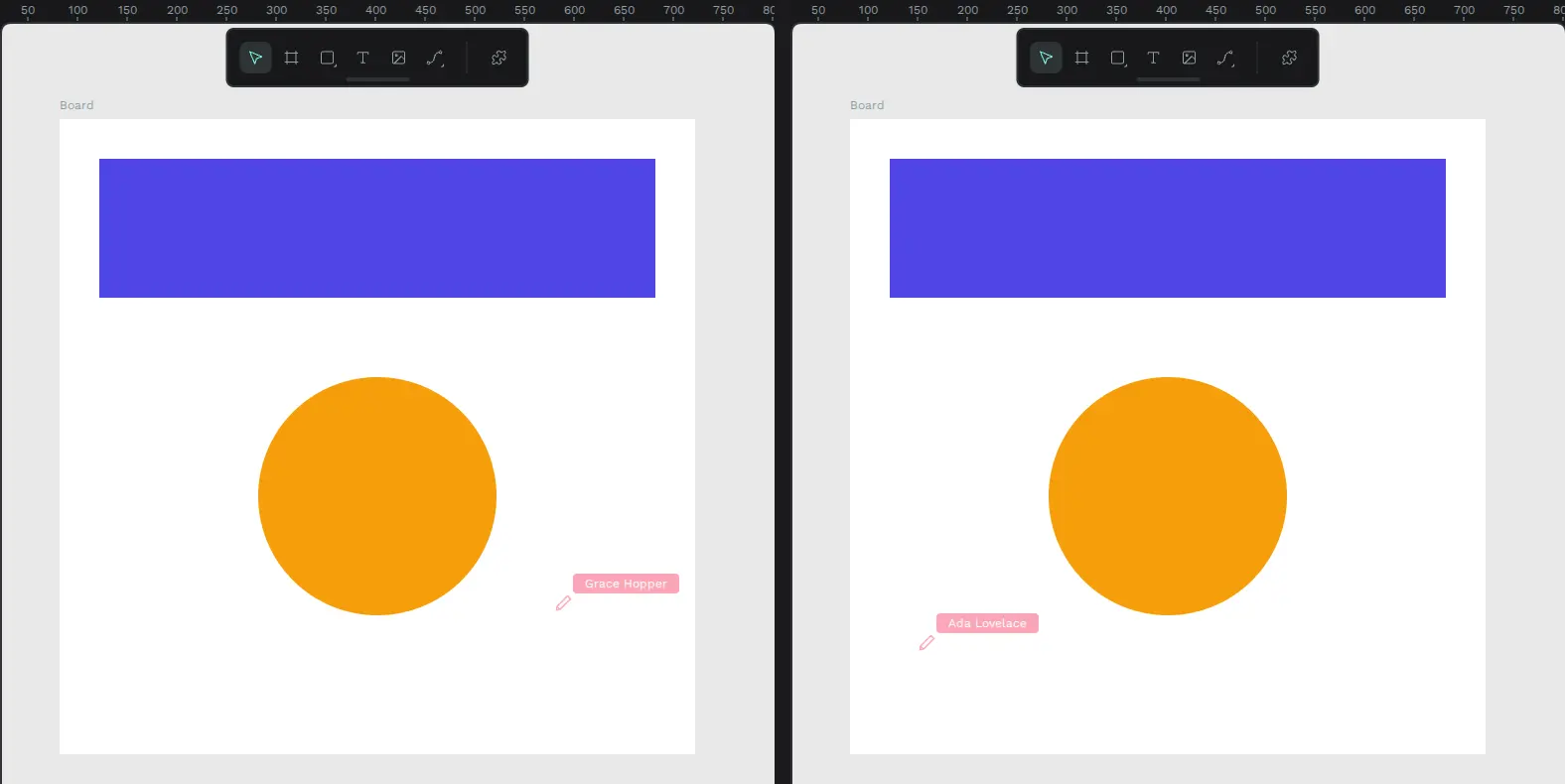
Two teammates editing one file on a test VM: each sees the other's shapes and named cursor as they work.
## Make your account
Open the URL Shelley gives you, like `https://my-penpot.exe.xyz/`, and
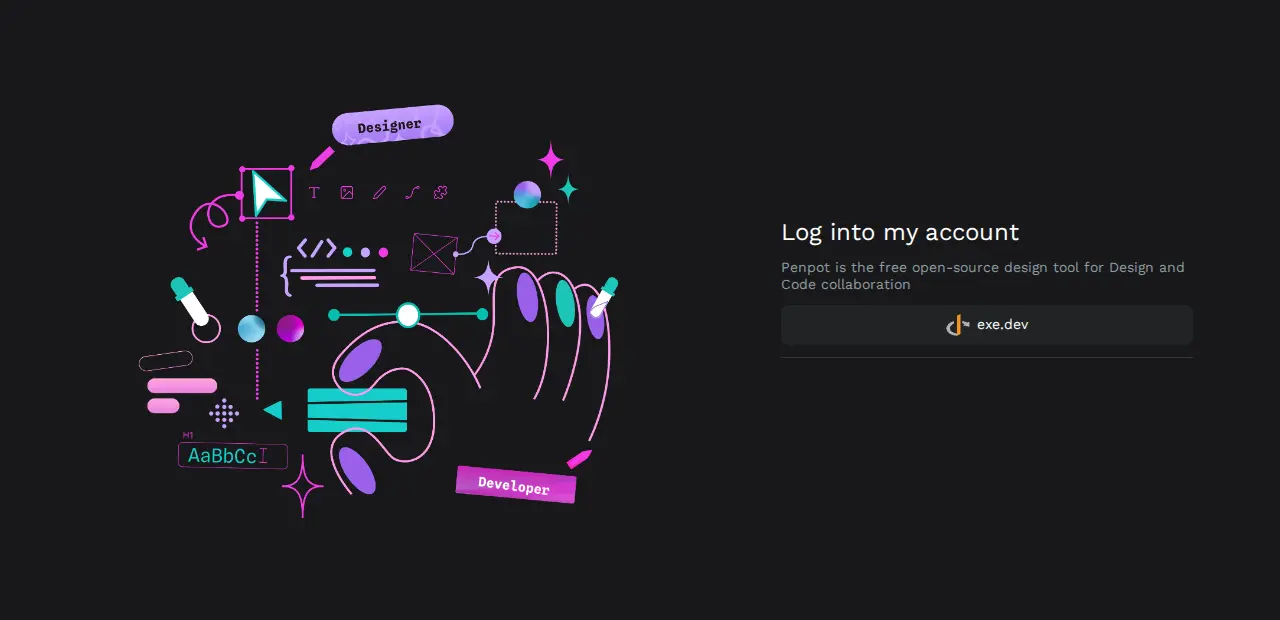
sign in to exe.dev if you're asked. Penpot's login page has one button,
**exe.dev**: click it. The first time, Penpot asks what to call you (it
suggests your email), then click **Create an account**. Your Penpot
account is your exe.dev email; there's no password to set.
Penpot's login page on the VM: one button, your exe.dev login.
Penpot puts your files in **Drafts** in your personal space; make a team
for anything you'll share.
## Bring your team
On your computer, share the VM with each teammate, or with your whole
exe.dev team:
```bash
ssh exe.dev share add my-penpot alice@example.com
ssh exe.dev share add my-penpot team
```
Ask them to open the same URL and click **exe.dev** once, which makes
their Penpot account. Then bring them into a team:
1. In the dashboard, open the team menu at the top left and choose
**Create new team**.
2. In the team's **Members**, click **Invite people**, enter their
emails, pick a role (**Viewer**, **Editor** or **Admin**), and send.
3. People who have signed in once are added at once. For anyone who
hasn't, the VM sends no email: open **Invitations**, choose **Copy
link** on their row, and send it to them yourself.
Only people you share the VM with can sign in, so there's no sign-up to
close. To take someone out, run `ssh exe.dev share remove my-penpot
alice@example.com` and remove them from your teams.
## Design together
Open a file from the team's project and draw: `B` for a board, `R` for a
rectangle, `E` for an ellipse, `T` for text. When a teammate opens the
same file, their avatar appears at the top right and their cursor, with
their name, moves across your canvas; every change shows up on both
screens within a second. That runs over a WebSocket through exe.dev's
proxy, with nothing to configure.
To hand a board over to a developer, select it and open **Inspect** on
the right for its CSS, SVG and measurements, or add an export at the
bottom of **Design** and click **Export**. PNG, SVG and PDF exports are
rendered on the VM by Penpot's exporter, in a few seconds each.
## Show your work
In a file, click the share icon at the top right (**Share prototypes**),
pick the pages, and click **Get link**. Anyone who opens the link sees the
prototype in Penpot's viewer, without a Penpot account. Under **Manage
permissions**, choose whether all Penpot users or only team members may
comment and inspect.
The link is on your VM, so the visitor still meets exe.dev's login
first. You have two choices:
- **Share the VM with them** (the default). `ssh exe.dev share add
my-penpot client@example.com` lets that person through; they sign in to
exe.dev with that email and the link opens. They could also sign in to
Penpot, but would see none of your teams' files unless you invite
them. Remove them with `share remove` afterwards. Best for a handful
of reviewers.
- **Make Penpot public.** Anyone with a link can open it, with no exe.dev
account, while signing in still takes your exe.dev login. See
[Open it to the internet](#open-it-to-the-internet).
## Let agents and scripts in
Penpot's MCP server lets an AI agent such as Claude Code read and change
the file you have open. In Penpot, open **Your account → Integrations →
MCP Server**, turn it on, and create a key. Copy the **server URL**; it
looks like `https://my-penpot.exe.xyz/mcp/stream?userToken=...`.
The agent also has to get past exe.dev's login. On your computer, make a
[VM token](/docs/https-tokens-for-vms) for it and send it in exe.dev's own
header, which the proxy removes before Penpot sees the request. For
Claude Code:
```bash
ssh exe.dev ssh-key generate-api-key --vm=my-penpot --label=penpot-mcp
claude mcp add --transport http penpot \
"https://my-penpot.exe.xyz/mcp/stream?userToken=YOUR-MCP-KEY" \
--header "X-Exedev-Authorization: Bearer YOUR-VM-TOKEN"
```
Then, in Penpot, open the design and choose **File → MCP Server →
Connect**, and keep that tab open while the agent works: its tools
(`execute_code`, `export_shape` and others) run in your browser, on the
file you have open.
Scripts can use Penpot's API with a **personal access token** from
**Your account → Integrations**. Send it as Penpot's `Authorization`
header and the VM token as exe.dev's:
```bash
curl -H "X-Exedev-Authorization: Bearer YOUR-VM-TOKEN" \
-H "Authorization: Token YOUR-PENPOT-TOKEN" \
-H "Accept: application/json" \
https://my-penpot.exe.xyz/api/rpc/command/get-profile
```
Without the VM token, exe.dev answers `401` and Penpot never sees the
request. Penpot documents its API at `https://my-penpot.exe.xyz/api/main/doc`.
## Keep your designs safe
Everything lives in `~/penpot`: the PostgreSQL database in `postgres`,
uploaded images and fonts in `assets`, and the settings in `.env`. Every
night a timer dumps the database and saves it with the assets and
settings to `~/penpot/backups`, keeping a week.
A backup on the same disk doesn't survive losing the VM. Copy them off
regularly; on your computer:
```bash
rsync -a my-penpot.exe.xyz:penpot/backups/ ./penpot-backups/
```
The backups hold Penpot's secret key and passwords: keep them
private. For whole-disk copies in your own S3 bucket, see exe.dev's
[VM backups](/docs/vm-backups). To keep a single file outside Penpot,
use **Download Penpot file (.penpot)** from its menu in the dashboard.
To restore, or to check that a backup restores, see
[Back up and restore](#back-up-and-restore), or ask Shelley.
## Open it to the internet
Do this if outsiders must open view links without being added to the
VM. On your computer:
```bash
ssh exe.dev share set-public my-penpot
```
That opens port 8000, Penpot itself: view links work for anyone, with
no exe.dev account. Signing in doesn't change. Penpot has no passwords
or sign-up form here, and its only way in is Dex on port 5556, which
exe.dev keeps behind your login and lets through only the people you
share the VM with.
What you give up: Penpot's own pages and API now face the internet, so
a flaw in Penpot is reachable by anyone, and [updating](#update)
promptly matters more. Someone you `share remove` keeps a Penpot
session that's already open, so remove them from your teams too. `ssh
exe.dev share set-private my-penpot` closes it again.
## Email (optional)
Without email, invitations go nowhere, and you pass invitation links on
by hand (people who have signed in once don't need one). exe.dev's [email gateway](/docs/send-email)
only mails you and your team over HTTP, so use a transactional email
service's SMTP settings. Add them to `~/penpot/.env`:
```bash
PENPOT_SMTP_HOST=smtp.example.com
PENPOT_SMTP_PORT=587
PENPOT_SMTP_TLS=true
PENPOT_SMTP_USERNAME=your-smtp-user
PENPOT_SMTP_PASSWORD=your-smtp-password
PENPOT_SMTP_DEFAULT_FROM=penpot@example.com
PENPOT_SMTP_DEFAULT_REPLY_TO=penpot@example.com
```
Add `enable-smtp` to `PENPOT_FLAGS` in the same file, and pass the
settings to the backend: in `~/penpot/compose.yaml`, under
`penpot-backend:` and its `environment:`, add a line
`PENPOT_SMTP_HOST: ${PENPOT_SMTP_HOST}` for each of the seven, then run
`docker compose up -d` in `~/penpot`.
## Store assets in S3 (optional)
Uploaded images and fonts go to `~/penpot/assets` on the VM's disk, which
is right for most teams. To keep them in an S3-compatible bucket
instead, set `PENPOT_OBJECTS_STORAGE_BACKEND: s3` and the
`PENPOT_OBJECTS_STORAGE_S3_*` and `AWS_*` settings for the backend, as in
Penpot's [storage docs](https://help.penpot.app/technical-guide/configuration/#storage).
For a bucket of your own, see [S3 storage](/deploy/s3-storage). Assets
already on disk don't move by themselves, so decide before your team
uploads much.
## The nuts and bolts
Happy clicking Deploy? You can stop here. These are the same setup steps
Shelley follows, plus the maintenance commands for later. Tested with
Penpot 2.19.3, PostgreSQL 15, Valkey 8.1 and Dex 2.46.1 on a default
exe.dev VM.
Install by hand
### Create a VM
On your computer (pick another name if `my-penpot` is taken):
```bash
ssh exe.dev new --name=my-penpot
ssh my-penpot.exe.xyz
```
All remaining installation commands run **on the VM**, as `exedev`. They
use `hostname`, so your VM can have any name.
### Get Docker ready
Enable Docker at boot, or exe.dev's on-demand Docker won't restart Penpot
after a reboot:
```bash
sudo systemctl enable --now docker.service
systemctl is-enabled docker.service
```
Expect `enabled`.
### Write the settings
This makes `~/penpot/.env`, readable only by you, with the version, the
address Penpot is served at, its feature flags, and random secrets: the
key Penpot signs sessions with, the database password, and the password
Penpot uses with Dex. It won't overwrite an existing one. The `assets`
directory belongs to uid 1001, the user Penpot's containers run as.
```bash
mkdir -p ~/penpot/backups ~/penpot/assets && cd ~/penpot
sudo chown 1001:1001 assets
if [ ! -f .env ]; then
(
umask 077
cat > .env <.exe.xyz:5556/dex`, a port exe.dev's proxy only serves
behind your login, even when Penpot itself is public; Penpot's backend
reaches it inside Docker at `http://penpot-dex:5556`. With one connector
and no approval screen, Dex sends people straight back to Penpot.
```bash
cd ~/penpot
cat > dex.yaml < ~/penpot/compose.yaml <<'EOF'
# Penpot's official docker-compose.yaml (2.19), adapted for an exe.dev VM:
# settings come from .env, data lives in ~/penpot, the app answers on port 8000.
name: penpot
x-public-uri: &public-uri
PENPOT_PUBLIC_URI: ${PENPOT_PUBLIC_URI}
x-flags: &flags
PENPOT_FLAGS: ${PENPOT_FLAGS}
x-secret-key: &secret-key
PENPOT_SECRET_KEY: ${PENPOT_SECRET_KEY}
x-body-size: &body-size
PENPOT_HTTP_SERVER_MAX_BODY_SIZE: 367001600
x-database: &database
PENPOT_DATABASE_URI: postgresql://penpot-postgres/penpot
PENPOT_DATABASE_USERNAME: penpot
PENPOT_DATABASE_PASSWORD: ${PENPOT_DB_PASSWORD}
services:
penpot-frontend:
image: penpotapp/frontend:${PENPOT_VERSION}
restart: unless-stopped
ports:
- "8000:8080"
volumes:
- ./assets:/opt/data/assets
depends_on:
- penpot-backend
- penpot-admin-console
- penpot-mcp
- penpot-exporter
environment:
<<: [*flags, *body-size, *public-uri]
PENPOT_ADMIN_CONSOLE_URI: http://penpot-admin-console:3000
PENPOT_OIDC_NAME: exe.dev
penpot-backend:
image: penpotapp/backend:${PENPOT_VERSION}
restart: unless-stopped
volumes:
- ./assets:/opt/data/assets
depends_on:
penpot-postgres:
condition: service_healthy
penpot-valkey:
condition: service_healthy
environment:
<<: [*flags, *public-uri, *body-size, *secret-key, *database]
PENPOT_ADMIN_CONSOLE_URI: http://penpot-admin-console:3000
PENPOT_REDIS_URI: redis://penpot-valkey/0
PENPOT_OBJECTS_STORAGE_BACKEND: fs
PENPOT_OBJECTS_STORAGE_FS_DIRECTORY: /opt/data/assets
PENPOT_TELEMETRY_ENABLED: "false"
# Sign-in through Dex: the browser goes to the public address,
# the backend talks to Dex inside Docker.
PENPOT_OIDC_CLIENT_ID: penpot
PENPOT_OIDC_CLIENT_SECRET: ${PENPOT_OIDC_CLIENT_SECRET}
PENPOT_OIDC_BASE_URI: ${PENPOT_PUBLIC_URI}:5556/dex
PENPOT_OIDC_AUTH_URI: ${PENPOT_PUBLIC_URI}:5556/dex/auth
PENPOT_OIDC_TOKEN_URI: http://penpot-dex:5556/dex/token
PENPOT_OIDC_USER_URI: http://penpot-dex:5556/dex/userinfo
PENPOT_OIDC_JWKS_URI: http://penpot-dex:5556/dex/keys
PENPOT_SSRF_ALLOWED_HOSTS: penpot-dex
penpot-admin-console:
image: penpotapp/admin-console:${PENPOT_VERSION}
restart: unless-stopped
depends_on:
penpot-postgres:
condition: service_healthy
environment:
<<: [*public-uri, *secret-key, *database]
PENPOT_INTERNAL_URI: http://penpot-frontend:8080
penpot-mcp:
image: penpotapp/mcp:${PENPOT_VERSION}
restart: unless-stopped
penpot-exporter:
image: penpotapp/exporter:${PENPOT_VERSION}
restart: unless-stopped
depends_on:
penpot-valkey:
condition: service_healthy
environment:
<<: [*flags, *secret-key, *public-uri]
PENPOT_INTERNAL_URI: http://penpot-frontend:8080
PENPOT_REDIS_URI: redis://penpot-valkey/0
penpot-dex:
image: ghcr.io/dexidp/dex:v2.46.1
restart: unless-stopped
command: ["dex", "serve", "/etc/dex/dex.yaml"]
ports:
- "127.0.0.1:5556:5556"
volumes:
- ./dex.yaml:/etc/dex/dex.yaml:ro
environment:
DEX_CLIENT_SECRET: ${PENPOT_OIDC_CLIENT_SECRET}
penpot-postgres:
image: postgres:15
restart: unless-stopped
stop_signal: SIGINT
healthcheck:
test: ["CMD-SHELL", "pg_isready -U penpot"]
interval: 2s
timeout: 10s
retries: 5
start_period: 2s
volumes:
- ./postgres:/var/lib/postgresql/data
environment:
POSTGRES_INITDB_ARGS: --data-checksums
POSTGRES_DB: penpot
POSTGRES_USER: penpot
POSTGRES_PASSWORD: ${PENPOT_DB_PASSWORD}
penpot-valkey:
image: valkey/valkey:8.1
restart: unless-stopped
healthcheck:
test: ["CMD-SHELL", "valkey-cli ping | grep PONG"]
interval: 1s
timeout: 3s
retries: 5
start_period: 3s
environment:
VALKEY_EXTRA_FLAGS: --maxmemory 128mb --maxmemory-policy volatile-lfu
EOF
cd ~/penpot && docker compose config --quiet && echo compose ok
```
Expect `compose ok`.
### Start Penpot
The first start pulls about 6.5 GB of images (a minute or two), then
the backend creates its database:
```bash
cd ~/penpot
docker compose up -d
until curl -fs -o /dev/null localhost:8000/readyz; do sleep 3; done
curl -s localhost:8000/readyz; echo
curl -s localhost:8000/js/config.js | grep -o 'penpotPublicURI[^;]*'
curl -s localhost:5556/dex/.well-known/openid-configuration | grep '"issuer"'
docker compose logs penpot-backend | grep -c 'provider initialized'
docker compose ps --format '{{.Service}}: {{.Status}}'
```
Expect `OK`, your VM's address, Dex's issuer (your address with
`:5556/dex`), `1`, and eight services `Up` (Postgres and Valkey
`healthy`).
### Set up nightly backups
The backup dumps the database with `pg_dump` while Penpot runs, and packs
it with the assets and settings. It runs as root because the assets
belong to the containers' user.
```bash
cat > ~/penpot/backup.sh <<'EOF'
#!/bin/bash
# Back up Penpot: a dump of the PostgreSQL database, the uploaded assets,
# and the settings (.env holds the secret key and passwords).
# Run with sudo.
set -euo pipefail
cd /home/exedev/penpot
stamp=$(date -u +%Y%m%d-%H%M%S)
work=$(mktemp -d)
trap 'rm -rf "$work"' EXIT
docker compose exec -T penpot-postgres pg_dump -U penpot -Fc penpot > "$work/penpot.dump"
cp -a assets compose.yaml .env dex.yaml "$work/"
umask 077
tar -C "$work" -czf "backups/penpot-$stamp.tar.gz" penpot.dump assets compose.yaml .env dex.yaml
chown exedev: "backups/penpot-$stamp.tar.gz"
find backups -name 'penpot-*.tar.gz' -mtime +6 -delete
echo "backups/penpot-$stamp.tar.gz"
EOF
chmod 755 ~/penpot/backup.sh
```
Schedule it for 03:30 UTC (or so), then take a first backup:
```bash
sudo tee /etc/systemd/system/penpot-backup.service >/dev/null <<'EOF'
[Unit]
Description=Back up Penpot
[Service]
Type=oneshot
ExecStart=/home/exedev/penpot/backup.sh
EOF
sudo tee /etc/systemd/system/penpot-backup.timer >/dev/null <<'EOF'
[Unit]
Description=Back up Penpot every night
[Timer]
OnCalendar=*-*-* 03:30:00
RandomizedDelaySec=30m
Persistent=true
[Install]
WantedBy=timers.target
EOF
sudo systemctl daemon-reload
sudo systemctl enable --now penpot-backup.timer
sudo systemctl start penpot-backup.service
systemctl list-timers penpot-backup.timer
ls -l ~/penpot/backups
```
Check that the timer has a next run and there's a `penpot-*.tar.gz`
readable only by you. For failures: `journalctl -u penpot-backup`.
### Test a backup
Unpack the newest backup into a scratch directory, restore its dump into
a throwaway PostgreSQL, and count what's in it, without touching the
running Penpot:
```bash
latest=$(ls -1t ~/penpot/backups/penpot-*.tar.gz | head -n 1)
mkdir /tmp/penpot-restore-test
tar -C /tmp/penpot-restore-test -xzf "$latest"
docker run -d --rm --name penpot-restore-test -e POSTGRES_PASSWORD=test \
-v /tmp/penpot-restore-test/penpot.dump:/penpot.dump:ro postgres:15
until docker exec penpot-restore-test psql -U postgres -h 127.0.0.1 -c 'SELECT 1' >/dev/null 2>&1; do sleep 2; done
docker exec penpot-restore-test pg_restore -U postgres -d postgres --create --no-owner /penpot.dump
docker exec penpot-restore-test psql -U postgres -d penpot -tAc \
"SELECT (SELECT count(*) FROM profile) || ' profiles, ' || (SELECT count(*) FROM file WHERE deleted_at IS NULL) || ' files'"
sudo find /tmp/penpot-restore-test/assets -type f | wc -l
docker stop penpot-restore-test
sudo rm -rf /tmp/penpot-restore-test
```
Expect a container ID, then counts (`0 profiles, 0 files` and `0` on a
new install), then `penpot-restore-test`.
Installation done. Leave sharing to the owner; continue with
[Make your account](#make-your-account).
Back up and restore
On the VM, `sudo ~/penpot/backup.sh` makes an extra backup and prints its
path. Copy backups off the VM as in
[Keep your designs safe](#keep-your-designs-safe).
### Restore
This replaces everything in Penpot with the backup: work saved since is
lost, and everyone is signed out. Use your backup's actual filename
below.
On the same VM, take a fresh backup, stop Penpot, keep the current data
aside, and load the backup into a new, empty database:
```bash
cd ~/penpot
sudo ./backup.sh
docker compose down
stamp=$(date -u +%Y%m%d-%H%M%S)
sudo mv postgres "postgres.before-restore-$stamp"
sudo mv assets "assets.before-restore-$stamp"
mkdir /tmp/penpot-restore
sudo tar -C /tmp/penpot-restore -xzf backups/penpot-20261121-033012.tar.gz
sudo mv /tmp/penpot-restore/assets assets
docker compose up -d penpot-postgres
until docker compose exec -T penpot-postgres pg_isready -h 127.0.0.1 -U penpot; do sleep 2; done
docker compose exec -T penpot-postgres pg_restore -U penpot -d penpot --no-owner < /tmp/penpot-restore/penpot.dump
sudo rm -rf /tmp/penpot-restore
docker compose up -d
until curl -fs -o /dev/null localhost:8000/readyz; do sleep 3; done; curl -s localhost:8000/readyz; echo
```
Expect `no response` a time or two while the new database initializes,
then `accepting connections` and `OK`. Sign in and check your files. Keep
the `*.before-restore-*` directories until you're sure.
On a **new** VM, follow [Get Docker ready](#get-docker-ready), then copy
the backup over; on your computer:
```bash
scp penpot-20261121-033012.tar.gz my-penpot.exe.xyz:
```
On the VM, unpack all of it, settings included. If the VM's name changed,
the `sed` lines point `PENPOT_PUBLIC_URI` and Dex at the new `exe.xyz`
name:
```bash
mkdir -p ~/penpot/backups && cd ~/penpot
sudo tar -C ~/penpot -xzf ~/penpot-20261121-033012.tar.gz
sudo chown exedev: compose.yaml .env dex.yaml
sed -i "s|^PENPOT_PUBLIC_URI=https://[a-z0-9-]*\.exe\.xyz$|PENPOT_PUBLIC_URI=https://$(hostname).exe.xyz|" .env
sed -i "s|https://[a-z0-9-]*\.exe\.xyz|https://$(hostname).exe.xyz|" dex.yaml
docker compose up -d penpot-postgres
until docker compose exec -T penpot-postgres pg_isready -h 127.0.0.1 -U penpot; do sleep 2; done
docker compose exec -T penpot-postgres pg_restore -U penpot -d penpot --no-owner < penpot.dump
sudo rm penpot.dump
docker compose up -d
until curl -fs -o /dev/null localhost:8000/readyz; do sleep 3; done; curl -s localhost:8000/readyz; echo
```
Then do [Set up nightly backups](#set-up-nightly-backups) and share the
VM with your team again. Accounts, teams, files and uploads come back,
and everyone signs in with exe.dev as before. MCP keys and access tokens
keep working too, since the secret key came along.
Update Penpot
Read the [release notes](https://github.com/penpot/penpot/releases) for
every version between yours and the new one. Penpot advises updating one
minor version at a time (2.19 to 2.20, then 2.21), since each can migrate
the database. Check the notes, too, for changes to the official
[Compose file](https://github.com/penpot/penpot/blob/develop/docker/images/docker-compose.yaml)
that yours needs, such as new services.
On the VM, back up, move the version, and restart. Replace `2.20.0` with
the version you want:
```bash
cd ~/penpot
sudo ./backup.sh
sed -i 's/^PENPOT_VERSION=.*/PENPOT_VERSION=2.20.0/' .env
docker compose pull
docker compose up -d
until curl -fs -o /dev/null localhost:8000/readyz; do sleep 3; done; curl -s localhost:8000/readyz; echo
docker compose logs penpot-backend | grep -m1 -o 'version=[^ ]*'
docker image prune -f
```
Ask everyone to reload Penpot in their browser. Dex stays on the version
in `compose.yaml`; to move it, change its tag there, check Dex's
[release notes](https://github.com/dexidp/dex/releases), and run
`docker compose up -d penpot-dex`. To roll back,
[restore the backup](#restore) with the old version in `.env`: changing
the version alone won't undo database migrations.
Something not working?
On the VM:
```bash
cd ~/penpot
docker compose ps
docker compose logs --tail=100 penpot-backend
```
- **A script or agent gets `401`:** that's exe.dev's login, not Penpot.
Send a [VM token](/docs/https-tokens-for-vms) in
`X-Exedev-Authorization`, as in
[Let agents and scripts in](#let-agents-and-scripts-in).
- **The API answers as `Anonymous User`:** the VM token got you past
exe.dev, but Penpot needs its own token too: `Authorization: Token ...`.
- **Clicking exe.dev ends in an error page from Dex, or back on the
login page:** the address in `.env` (`PENPOT_PUBLIC_URI`) and both
addresses in `dex.yaml` must be your VM's, exactly. Fix them, then
`docker compose up -d --force-recreate penpot-dex penpot-backend`.
`docker compose logs --tail=50 penpot-dex penpot-backend` shows which
step failed.
- **Dex says `required HTTP header X-ExeDev-Email is not set`:** a
request reached Dex without going through exe.dev's proxy. Use
`https://.exe.xyz:5556`, never a direct address.
- **A teammate can't sign in at all:** they need the VM shared with them
(`ssh exe.dev share add my-penpot them@example.com`), and to sign in to
exe.dev with that same email.
- **An invitation email never arrives:** there's no mail server. Use
**Copy link** in the team's **Invitations**, or set up
[email](#email-optional).
- **Penpot loads forever:** `PENPOT_PUBLIC_URI` in `.env` must match the
address in your browser. Fix it (and `dex.yaml`), then
`docker compose up -d --force-recreate`.
- **Exports fail or hang:** check `docker compose logs --tail=100
penpot-exporter`. It runs a headless browser that needs about 1 GB of
memory while exporting.
- **No live cursors or edits from others:** reload the file. If it
persists, look for failed `/ws/notifications` requests in the browser's
developer tools and errors in the backend log.
- **Down after a reboot:** run `sudo systemctl enable --now docker.service`.
## Frequently asked questions
### Is Penpot a good Figma alternative?
For a lot of teams, yes. Penpot has boards, components and variants, flex and grid layout, design tokens, prototypes, comments, live multiplayer editing, and an Inspect tab that hands developers CSS, SVG and HTML. It works in the browser and stores designs as open SVG-based data you own. Figma files don't open in it directly, so moving an existing design system takes work.
### How does the exe.dev sign-in work?
Penpot signs people in with any OpenID Connect provider, and exe.dev isn't one, so [Dex](https://dexidp.io) stands in. Its `authproxy` connector believes the `X-ExeDev-Email` and `X-ExeDev-UserID` headers, which exe.dev's proxy sets on every request to a private port and overwrites if a browser sends its own. Dex listens on port 5556 on 127.0.0.1, which exe.dev's proxy only serves behind your login, so from outside, those headers always come from exe.dev. Penpot's passwords and sign-up form are switched off. A program on the VM itself could still reach Dex directly and sign in as anyone, as with any app that trusts its proxy; it could read the database anyway.
### Can a client look at a design without an account?
Yes, with a view link from **Share prototypes**: it opens the prototype without a Penpot account. They still have to get past exe.dev's login, so either share the VM with their email or make Penpot public; signing in stays limited to people you share the VM with either way. See [Show your work](#show-your-work).
### How much memory does Penpot need?
On our test VM it used about 2.7 GB idle, most of it the backend's Java process (1.4 GB) and the exporter's headless browser (0.7 GB, 0.9 GB while exporting). exe.dev's default 8 GB VM is plenty for a team; the images take about 6.5 GB of disk.
### Can Claude or another AI agent work in my Penpot files?
Penpot ships an MCP server that lets an agent read and change the file you have open, and it's switched on here. Your agent needs a Penpot MCP key and, since the VM is private, an exe.dev VM token. We checked that an agent can connect and list its tools; see [Let agents and scripts in](#let-agents-and-scripts-in).
### How much does it cost?
Penpot is free and open source (MPL-2.0), with no seat limits. You pay for your [exe.dev plan](https://exe.dev/pricing). Give it its own VM: it needs a few gigabytes of memory.
## Related
- [Self-host Excalidraw](https://exe.dev/deploy/excalidraw.md): A private team whiteboard, with live collaboration that never leaves your VM.
- [Self-host Plane](https://exe.dev/deploy/plane.md): Linear-style issue tracking for your team and your agents, on your own VM.
- [Self-host PostgreSQL](https://exe.dev/deploy/postgres.md): Your own Postgres on a real disk, with backups you've actually restored.
- [Self-hosted S3 storage](https://exe.dev/deploy/s3-storage.md): Your own S3 bucket on a real disk. RustFS, Garage or SeaweedFS, tested.
- [Deploy a Docker Compose app from GitHub](https://exe.dev/deploy/docker-compose.md): Your compose.yaml on a VM of its own. git push to deploy.
- [Self-host Chatwoot](https://exe.dev/deploy/chatwoot.md): Website chat, email and API conversations in one inbox you own.