---
title: "Self-host Coolify"
description: "Self-host Coolify on an exe.dev VM: deploy apps from Git, Docker images, and Compose behind a private dashboard, with HTTPS and custom domains."
url: https://exe.dev/deploy/coolify
category: "Developer tools"
published: 2026-11-25
updated: 2026-11-22
---
# Self-host Coolify
> **For agents:** with your user's OK, this sets up Coolify on a new exe.dev VM in their account: `curl -fsSL https://exe.dev/deploy/coolify/prompt.txt | ssh exe.dev new --prompt=/dev/stdin` (or open https://exe.dev/deploy/coolify/new). Already on the VM? Skip this.
Your own Heroku-style PaaS on one VM, with the dashboard kept private.
- **Software:** Coolify (https://coolify.io)
- **Source:** https://github.com/coollabsio/coolify
- **License:** Apache-2.0
- **Time:** 15 minutes
- **Example VM name:** `my-coolify` (yours will differ; on the VM, `hostname` prints it)
- **Machine-readable:** https://exe.dev/deploy/coolify/manifest.json
## What you get
- Coolify 4.7 running on Docker, with its dashboard at https://my-coolify.exe.xyz:8000/ behind your exe.dev login.
- Traefik on port 80, which `https://my-coolify.exe.xyz/` reaches after `share port`, so apps get HTTPS from exe.dev.
- Docker and SSH starting at boot, so Coolify and its apps come back after a reboot.
- SSH limited to keys, for the root login Coolify uses to manage this VM.
Running on the VM:
- **Coolify 4.7**: the dashboard, API, and MCP server, in Docker, installed by Coolify's script, port 8000, data in `/data/coolify`
- **Realtime and terminal**: Coolify's websocket servers for live logs and the browser terminal, port 6001
- **PostgreSQL 15 and Redis 7**: Coolify's own database and queue (coolify-db, coolify-redis), data in `/data/coolify`
- **Traefik 3**: coolify-proxy, routes each app by host name and path, port 80
- **Your apps**: containers that Coolify builds from Git or pulls from a registry
- **OpenSSH**: Coolify manages this VM over SSH to root@localhost with its own key; logins with passwords stay off
How it is reached:
- https://my-coolify.exe.xyz:8000/ (private): The Coolify dashboard, API, and MCP endpoint
- https://my-coolify.exe.xyz/ (private): Your apps through Traefik, after `share port my-coolify 80`; public with `share set-public`
- https://my-coolify.exe.xyz:3005/ (private): Any app port you map from 3000 to 9999 (3005 in the examples)
## Deploy with Shelley
Open https://exe.dev/deploy/coolify/new to create a VM whose agent, Shelley, follows this recipe. From a terminal:
```sh
curl -fsSL https://exe.dev/deploy/coolify/prompt.txt | ssh exe.dev new --prompt=/dev/stdin
```
Then, on your own computer:
```sh
ssh exe.dev share port my-coolify 80
```
Or follow the steps below by hand.
[Coolify](https://coolify.io) is a self-hosted PaaS: a dashboard that
builds your apps from Git (with or without a Dockerfile), runs Docker
images and Compose files, starts databases with one click, puts them
behind a reverse proxy, and backs them up. It's what people install on a
VPS when they leave Heroku, Vercel, or Railway.
An exe.dev VM is a good VPS for it, with two things done for you. HTTPS is
exe.dev's job, so there are no certificates or open ports to manage. And
the dashboard on port 8000 is reachable only by you, through your exe.dev
login, so nobody on the internet can reach Coolify's login page, API, or
terminal. That matters for software that runs commands as root on its
host: Coolify has shipped serious security fixes in 2026, and its
advisories recommend keeping the dashboard off the public internet.
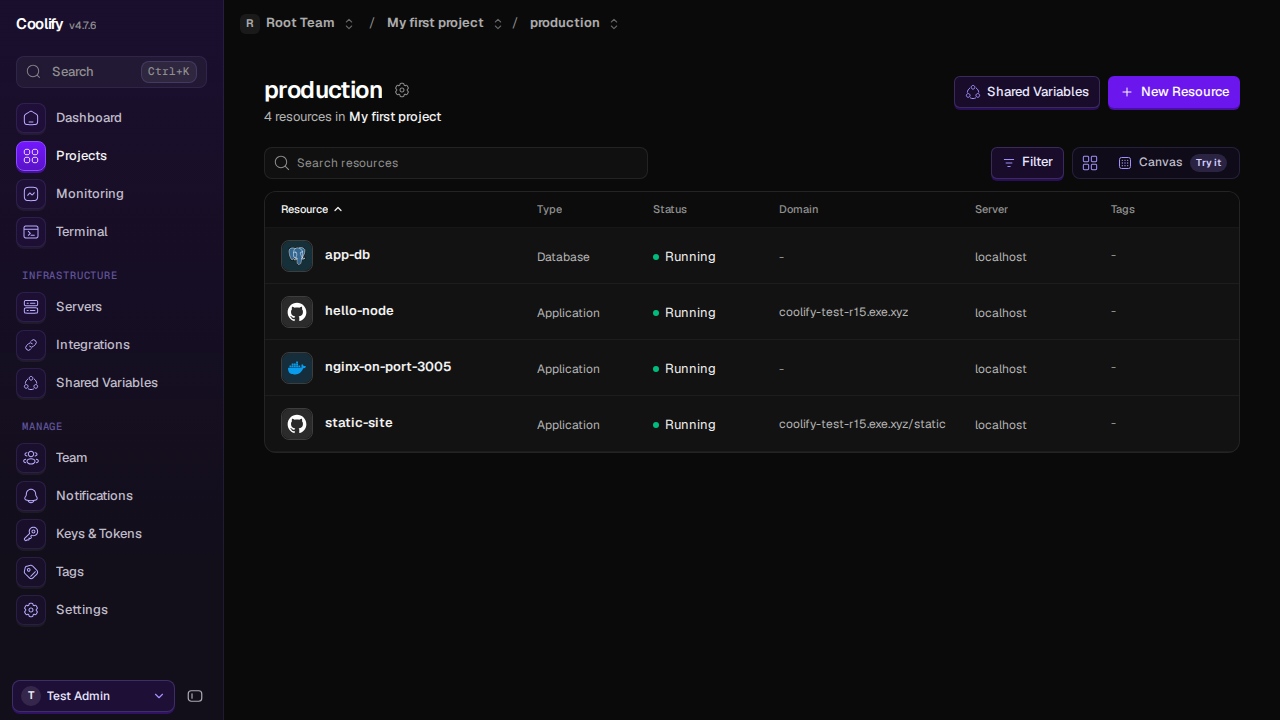
Four resources on one VM: an app built from Git, a static site, an image on its own port, and PostgreSQL.
## Sign in and finish onboarding
Open `https://my-coolify.exe.xyz:8000/` within 10 minutes of the install
(Coolify closes registration after that; `sudo docker restart coolify`
on the VM gives you another 10). Sign in to exe.dev if asked. Then:
1. **Register** the root user: name, email, and a password with upper-
and lowercase letters, a number, and a symbol. Registration closes
once this account exists.
2. On **Welcome**, select **Continue**.
3. Choose **This machine**. Coolify connects to the VM over SSH and
validates it.
4. Create your first project.
You now have the dashboard with the server `localhost` and a project with
a `production` environment.
## Send web traffic to Coolify
Coolify's Traefik listens on port 80; exe.dev's proxy sends
`https://my-coolify.exe.xyz/` to port 8000 unless you tell it otherwise.
On your computer:
```bash
ssh exe.dev share port my-coolify 80
```
`https://my-coolify.exe.xyz/` now shows Traefik's "no available server"
page until you deploy an app there, still private to you. The dashboard
stays at `:8000`. See [the HTTPS proxy](/docs/proxy).
## Deploy your first app
In your project, select **New Resource**, then **Public Git Repository**, and
paste a repository URL. To try one, use Coolify's Node.js example:
```text
https://github.com/coollabsio/coolify-examples/tree/main/javascript/runtimes/nodejs
```
Select **Check Repository**, keep the **Railpack** build pack and
**Port** `3000`, and select **Continue**.
One thing to change before the first deploy. Coolify gives the app a
generated `http://..sslip.io` domain, which can't reach an
exe.dev VM. On the app's **Domains** page, replace it with:
```text
http://my-coolify.exe.xyz
```
Select **Save**, then **Deploy**. The build log streams live; ours
finished in under a minute. Open `https://my-coolify.exe.xyz/`:
```json
{"hello":"from nodejs #2"}
```
> [!WARNING]
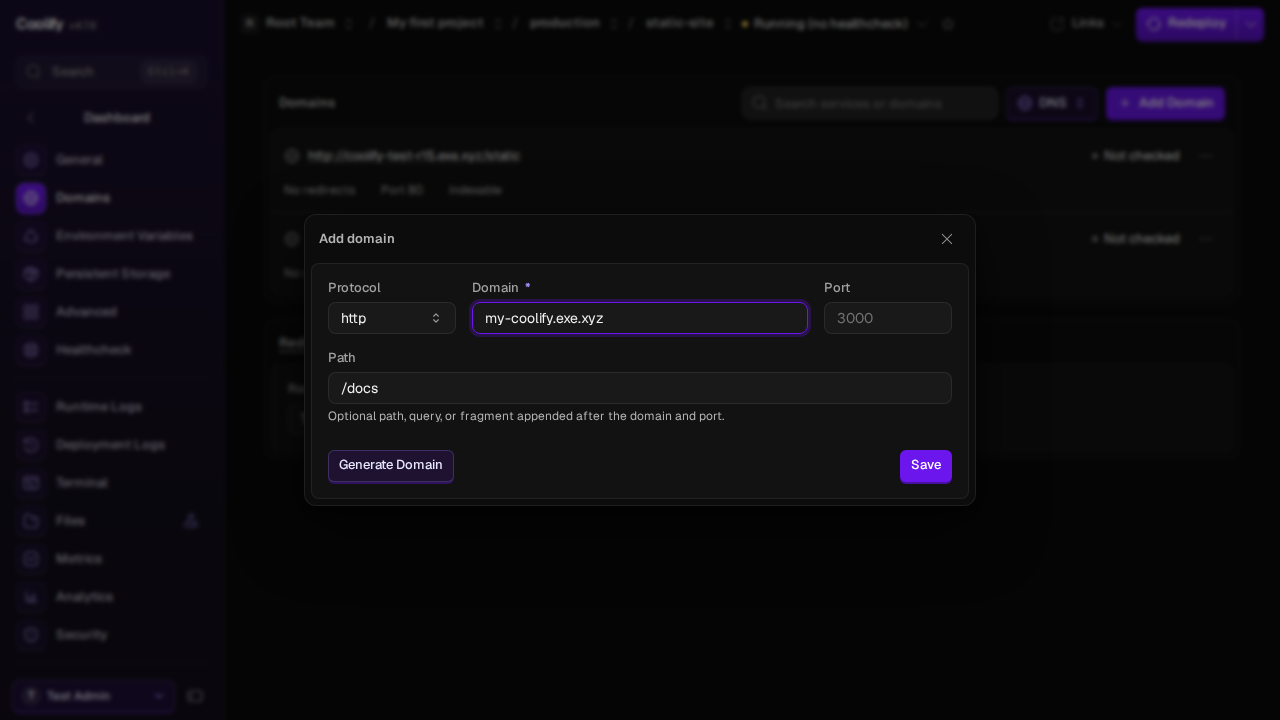
> Always write `http://` in Coolify's domain fields; the **Add domain**
> dialog starts at `https`. exe.dev already serves the address over
> HTTPS and passes plain HTTP to Traefik. An `https://` domain makes
> Traefik redirect to HTTPS, which arrives as HTTP again: a redirect
> loop.
Protocol http, the VM's host name, and an optional path.
The other sources work the same way: **Dockerfile**, **Docker Image**,
**Docker Compose**, **Private Git Repository (with Deploy Key)**, and the
one-click **Services** catalog. Databases (PostgreSQL, MySQL, MariaDB,
Redis, MongoDB, ClickHouse, and more) start from **New Resource** too; other
apps reach them on Coolify's Docker network by the internal URL the
database page shows.
## Give each app an address
One VM, many apps. Traefik tells them apart by host name and path, so pick
what suits each app:
- **A path on the VM's name**: `http://my-coolify.exe.xyz/docs`. Coolify
strips the path prefix before it reaches the app, unless you change
**Advanced > Proxy > Path prefixes**. Apps that build their own absolute
links usually want their own host name instead.
- **Your own domain**: point a CNAME at `my-coolify.exe.xyz`, register
it with exe.dev (on your computer, `ssh exe.dev domain add my-coolify
app.example.com`), and add `http://app.example.com` to the app in
Coolify. exe.dev gets the certificate. See [custom domains](/docs/cnames).
- **A port of its own**, for internal tools: under **General > Edit
Networking**, set **Port mappings** to `3005:80` (VM port 3005, container port 80) and
leave the domain empty. `https://my-coolify.exe.xyz:3005/` reaches it,
and like every port from 3000 to 9999 it stays private to you.
## Open apps to the world
Everything above is private: exe.dev asks visitors to sign in first. To
let anyone open the apps on `https://my-coolify.exe.xyz/`, on your
computer:
```bash
ssh exe.dev share set-public my-coolify
```
This opens only the shared port (80, Traefik). The dashboard on 8000 and
app ports such as 3005 stay private. To let teammates into the dashboard
instead, share the VM with them ([sharing](/docs/sharing)); each still
needs a Coolify account, which you invite under **Team > Members**.
## Deploy on every push
Coolify's GitHub App and webhooks need GitHub to reach the dashboard,
which is private here. A GitHub Actions step can still deploy: it calls
Coolify's API through exe.dev with two tokens.
1. In Coolify, open **Settings > Advanced** and set **API access** to
**Enabled** (it's off by default).
2. Under **Keys & Tokens > API Tokens**, create a token with the
**deploy** permission.
3. On your computer, create an exe.dev token for this VM:
```bash
ssh exe.dev ssh-key generate-api-key --vm=my-coolify --label=coolify-deploy
```
4. Save both as repository secrets, `EXE_TOKEN` and `COOLIFY_TOKEN`, and
copy the app's UUID from its URL in the dashboard
(`.../application/`).
Then add a step to a workflow that runs on push:
```yaml
- name: Deploy with Coolify
run: |
curl -fsS -X POST "https://my-coolify.exe.xyz:8000/api/v1/deploy?uuid=APP_UUID" \
-H "X-Exedev-Authorization: Bearer ${{ secrets.EXE_TOKEN }}" \
-H "Authorization: Bearer ${{ secrets.COOLIFY_TOKEN }}"
```
exe.dev checks the first header, Coolify the second. The answer lists
the queued deployment. See [HTTPS tokens for VMs](/docs/https-tokens-for-vms).
## Let an agent drive Coolify
Coolify has an MCP server, off by default. As the root user, open
**Settings > Advanced** and set **MCP server** to **Enabled**, then create
an API token with the permissions the agent should have (**read** to look,
**deploy** to redeploy). On the VM, Claude Code reaches it on localhost
and uses the [LLM integration](/docs/integrations-llm), so no API key:
```bash
claude mcp add --transport http coolify http://localhost:8000/mcp \
--header "Authorization: Bearer "
ANTHROPIC_API_KEY=implicit ANTHROPIC_BASE_URL=https://llm.int.exe.xyz \
claude -p 'List my Coolify applications with status and domains.' \
--allowedTools 'mcp__coolify__*'
```
It answers with a table of your apps. From your computer, use
`https://my-coolify.exe.xyz:8000/mcp` and add the exe.dev token as a
second header, `X-Exedev-Authorization: Bearer `.
## Back up and restore
Coolify backs up two different things, and you want both:
- **Your databases.** On each database's **Backups** tab, add a scheduled
backup (for example `0 3 * * *`). Kept on the VM by default; to keep a
copy elsewhere, add an S3 bucket under **S3 Storages** and tick **Save
to S3**. Any S3 service with a public endpoint works. Coolify refuses
private addresses (a Tailscale peer, another VM on your network) until
you list them under **Settings > Advanced > Allowed internal targets**.
- **Coolify itself**, its projects, settings, and secrets. Under
**Settings > Backup**, select **Configure backup**; that schedules a
daily backup of Coolify's database, which can go to S3 too.
Coolify encrypts the secrets in that database with `APP_KEY`, which no
backup includes. Save it in your password manager now. On the VM:
```bash
sudo grep '^APP_KEY=' /data/coolify/source/.env
```
For a copy on your computer without S3, dump the database on the VM and
fetch it:
```bash
sudo docker exec coolify-db pg_dump --format=custom --no-acl --no-owner \
--username=coolify coolify > ~/coolify-db.dmp
```
```bash
scp my-coolify.exe.xyz:coolify-db.dmp .
```
Restoring onto a fresh install (same Coolify version, then the saved
`APP_KEY` and the dump) follows Coolify's [restore
guide](https://coolify.io/docs/core/backup-and-recovery/instance-restore). App
files in Docker volumes are not in either backup; for a copy of the whole
VM, see [VM backups](/docs/vm-backups).
Install Coolify
### Create a VM
Pick any free VM name; the commands use `my-coolify`. On your computer:
```bash
ssh exe.dev new --name=my-coolify
ssh my-coolify.exe.xyz
```
The default VM (2 CPUs, 25 GB disk) runs Coolify and a few small apps.
Builds and images add up; check `df -h /` now and then, and grow the
disk as in the [FAQ](#faq) when it fills.
### Set up the VM by hand
Coolify manages its own server over SSH as root, so the VM needs an SSH
server, which `exeuntu` ships turned off (you reach the VM through
exe.dev's SSH, not this one). On the VM, turn it on for keys only, and
start Docker at boot:
```bash
sudo systemctl enable --now docker.service
sudo tee /etc/ssh/sshd_config.d/10-coolify.conf >/dev/null <<'EOF'
PermitRootLogin prohibit-password
PasswordAuthentication no
KbdInteractiveAuthentication no
EOF
sudo ssh-keygen -A
sudo systemctl unmask ssh.service ssh.socket
sudo systemctl enable --now ssh.socket ssh.service
systemctl is-active ssh docker
```
Both lines say `active`. Nothing outside the VM reaches this SSH server:
exe.dev forwards only HTTP ports.
Now run Coolify's installer, pinned to the version this page was tested
with (see [releases](https://github.com/coollabsio/coolify/releases) for
newer ones):
```bash
curl -fsSL https://cdn.coollabs.io/coolify/install.sh | sudo bash -s 4.7.6
```
It takes about three minutes, two of them at "Checking OpenSSH server
configuration", where it waits for `snap`, which `exeuntu` doesn't run.
On the default 25 GB disk it warns that it wants 30 GB; that's fine to
start with. It writes `/etc/docker/daemon.json` (log
rotation and address pools) and restarts Docker, creates the SSH key
Coolify uses for `root@localhost`, and starts the containers. Check:
```bash
sudo docker ps --format '{{.Names}} {{.Status}}'
curl -sI http://localhost:8000/ | head -3
```
You should see `coolify`, `coolify-db`, and `coolify-redis` up (Coolify
starts `coolify-proxy` and `coolify-sentinel` within a minute), and a
`302` to `/register`. Everything Coolify
keeps is under `/data/coolify`; its settings and `APP_KEY` are in
`/data/coolify/source/.env`.
Then [register](#sign-in-and-finish-onboarding) within 10 minutes.
Update Coolify
Coolify updates itself: **Settings > Updates** has **Automatic updates**
on, checking daily, and backs up its database first once you've configured
**Settings > Backup**. Leave it on; Coolify's security fixes come out
often. To update by hand, use **Upgrade now** on the same page, or on the
VM (with the version you want):
```bash
curl -fsSL https://cdn.coollabs.io/coolify/upgrade.sh | sudo bash -s 4.7.6
```
Don't run `install.sh` again on an existing install; it resets
permissions under `/data/coolify`.
## Dokploy instead
[Dokploy](https://dokploy.com) does the same job with a smaller
dashboard, on Docker Swarm (Apache-2.0, apart from a few features in its
`proprietary` directory). It needs ports 80, 443, and 3000 to itself, so
give it its own VM rather than sharing one with Coolify. On a fresh VM:
```bash
sudo systemctl enable --now docker.service
curl -sSL https://dokploy.com/install.sh | sudo sh
```
It took about a minute on our test VM. Open
`https://my-dokploy.exe.xyz:3000/` (private, like Coolify's dashboard),
create the admin account, and run `ssh exe.dev share port my-dokploy 80`
on your computer. The same rule applies: when you add a domain, turn
**HTTPS** off and pick no certificate, since exe.dev handles that.
## Troubleshooting
**The app's address loops with "too many redirects".** Its domain in
Coolify starts with `https://`. Change it to `http://`, then **Save** and
**Redeploy**.
**"no available server" or Coolify's 503 page.** Traefik has no route
for that host name: the app's domain doesn't match the address exactly
(including `www.` and the path), the app isn't running, or its **Ports
exposes** (under **General > Edit Networking**) is wrong. Check its **Deployment Logs** and **Runtime Logs**.
**The app has an `sslip.io` address.** That's Coolify's guess from the
VM's public IP, which doesn't route to an exe.dev VM. Replace it with
`http://my-coolify.exe.xyz` or your own domain.
**The server shows as unreachable.** Coolify lost SSH to the VM. On the
VM, `systemctl status ssh.socket` should be active, and
`sudo journalctl -u ssh --since -1h` shows why logins failed. Then select
**Revalidate Connection** on the server's page.
**The registration page is gone before you registered.** The 10 minutes
ran out. On the VM, `sudo docker restart coolify`, then open the
dashboard again.
**Something else.** Coolify's own log: `sudo docker logs --tail 100
coolify`. The proxy's: `sudo docker logs --tail 100 coolify-proxy`.
## Frequently asked questions
### Is Coolify free?
Self-hosted Coolify is free and open source (Apache-2.0), with every feature included. You pay for the VM on your [exe.dev plan](https://exe.dev/pricing). Coolify Cloud is the makers' paid hosted dashboard; you don't need it here.
### How much memory and disk does Coolify need?
Coolify asks for 2 CPUs, 2 GB of memory, and 10 GB of disk. On our test VM its own containers used about 1 GB of memory at rest, and the first app builds took a few GB of disk. Builds run on the same VM, so give it room: `ssh exe.dev resize my-coolify --disk=50GB`, then `sudo resize2fs "$(findmnt -no SOURCE /)"` on the VM.
### Can I use Coolify's Let's Encrypt certificates?
You don't need them. exe.dev terminates HTTPS for `my-coolify.exe.xyz` and your custom domains and hands Traefik plain HTTP on port 80. Give every domain in Coolify an `http://` address; an `https://` one makes Traefik redirect forever.
### Can Coolify deploy to other servers too?
Coolify can manage more servers over SSH as root, which is how it manages this VM. This recipe was tested with one VM; adding other exe.dev VMs as Coolify servers was not tested.
### Do pushes to GitHub deploy automatically?
Coolify's GitHub App and push webhooks need GitHub to reach the dashboard, which stays private here. Instead, call Coolify's deploy API from a GitHub Actions step with two tokens, as shown in [Deploy on every push](#deploy-on-every-push).
### Should I use Coolify or Dokploy?
Both run on an exe.dev VM. Coolify has more one-click services and build options; Dokploy is lighter and uses Docker Swarm. Try the one whose dashboard you like; see [Dokploy instead](#dokploy-instead).
### When is Coolify overkill?
For one or two apps you already have a `compose.yaml` for, run Docker Compose directly ([guide](/deploy/docker-compose)). Coolify earns its 1 GB when you deploy many apps, want builds from Git without writing Dockerfiles, or want one-click databases with scheduled backups.
## Related
- [Deploy a Docker Compose app from GitHub](https://exe.dev/deploy/docker-compose.md): Your compose.yaml on a VM of its own. git push to deploy.
- [Use exe.dev as a remote Docker host](https://exe.dev/deploy/docker-host.md): Keep the docker CLI. Send the builds, the containers, and the fan noise to a VM.
- [Migrate a Heroku app to exe.dev](https://exe.dev/deploy/migrate-heroku.md): Your Procfile, config vars, and Postgres on a VM of your own.
- [Self-hosted S3 storage](https://exe.dev/deploy/s3-storage.md): Your own S3 bucket on a real disk. RustFS, Garage or SeaweedFS, tested.
- [Run GitHub Actions jobs on exe.dev, a fresh VM per job](https://exe.dev/deploy/github-actions.md): Every job on a fresh copy of a warm VM, billed by the second.
- [VS Code in your browser, with code-server](https://exe.dev/deploy/code-server.md): Your editor in a tab. Your projects right where you left them.