---
title: "Self-host Cap"
description: "Run Cap with Docker Compose on an exe.dev VM: screen recordings with share links anyone can open, Cap Desktop on your own server, MinIO storage and backups."
url: https://exe.dev/deploy/cap
category: "Productivity"
published: 2026-11-22
updated: 2026-11-22
---
# Self-host Cap
> **For agents:** with your user's OK, this sets up Cap on a new exe.dev VM in their account: `curl -fsSL https://exe.dev/deploy/cap/prompt.txt | ssh exe.dev new --prompt=/dev/stdin` (or open https://exe.dev/deploy/cap/new). Already on the VM? Skip this.
Record your screen and share a link, Loom style, from your own server.
- **Software:** Cap (https://cap.so)
- **Source:** https://github.com/CapSoftware/Cap
- **License:** AGPL-3.0
- **Time:** 15 minutes
- **Example VM name:** `my-cap` (yours will differ; on the VM, `hostname` prints it)
- **Machine-readable:** https://exe.dev/deploy/cap/manifest.json
- **File:** https://exe.dev/deploy/cap/backup.sh
- **File:** https://exe.dev/deploy/cap/compose.yml
- **File:** https://exe.dev/deploy/cap/exe-login.html
- **File:** https://exe.dev/deploy/cap/nginx.conf
## What you get
- Cap Web, its media server, MySQL and MinIO on Docker Compose, with images pinned by digest.
- Cap at https://my-cap.exe.xyz/, still private, ready for the owner to make their account.
- Sign-in with the owner's exe.dev login at https://my-cap.exe.xyz/exe-login, once the account exists.
- Email sign-in turned off for everyone but the owner, so nobody else can make an account.
- Videos and the database on the VM's disk, and a backup script for both.
- Everything starts again after a reboot.
Running on the VM:
- **Cap Web**: ghcr.io/capsoftware/cap-web, the dashboard, share pages and API, behind nginx on port 8000, port 8000
- **Media server**: ghcr.io/capsoftware/cap-media-server; ffmpeg for uploads, thumbnails and previews
- **MySQL 8.0**: Accounts, videos, comments and sharing settings, data in `~/cap/mysql`
- **MinIO**: S3 storage for the videos, served at /cap/ through signed links, data in `~/cap/minio`
How it is reached:
- https://my-cap.exe.xyz/ (public): Share links, the Cap dashboard and its API for Cap Desktop, behind Cap's own sign-in
- https://my-cap.exe.xyz/exe-login (private): Signs the owner in to Cap with their exe.dev login
- https://my-cap.exe.xyz:9001/ (private): MinIO's console, for looking at the storage
## Deploy with Shelley
Open https://exe.dev/deploy/cap/new to create a VM whose agent, Shelley, follows this recipe. From a terminal:
```sh
curl -fsSL https://exe.dev/deploy/cap/prompt.txt | ssh exe.dev new --prompt=/dev/stdin
```
Then, on your own computer:
```sh
ssh exe.dev share set-public my-cap
```
Or follow the steps below by hand.
[Cap](https://cap.so) is an open-source alternative to Loom: record your
screen (and camera) with the Cap Desktop app or in the browser, and you get
a link to send. The person who opens it watches in the browser, without an
account. Cap's company runs a hosted service,
but the whole thing is AGPL-3.0, with about 25,000 stars on GitHub, and it
self-hosts as four containers: the web app, a media server, MySQL and
S3-compatible storage.
An exe.dev VM gives it a fixed HTTPS address, `https://my-cap.exe.xyz/`,
and a disk for the videos. This recipe runs Cap's Docker images with MinIO
for storage, so videos never leave the VM, and adds two things for exe.dev:
share links and uploads go through the same address, and you sign in to
Cap with your exe.dev login instead of an emailed code. Shelley installs
it; you make your account and decide when to open it to the world.
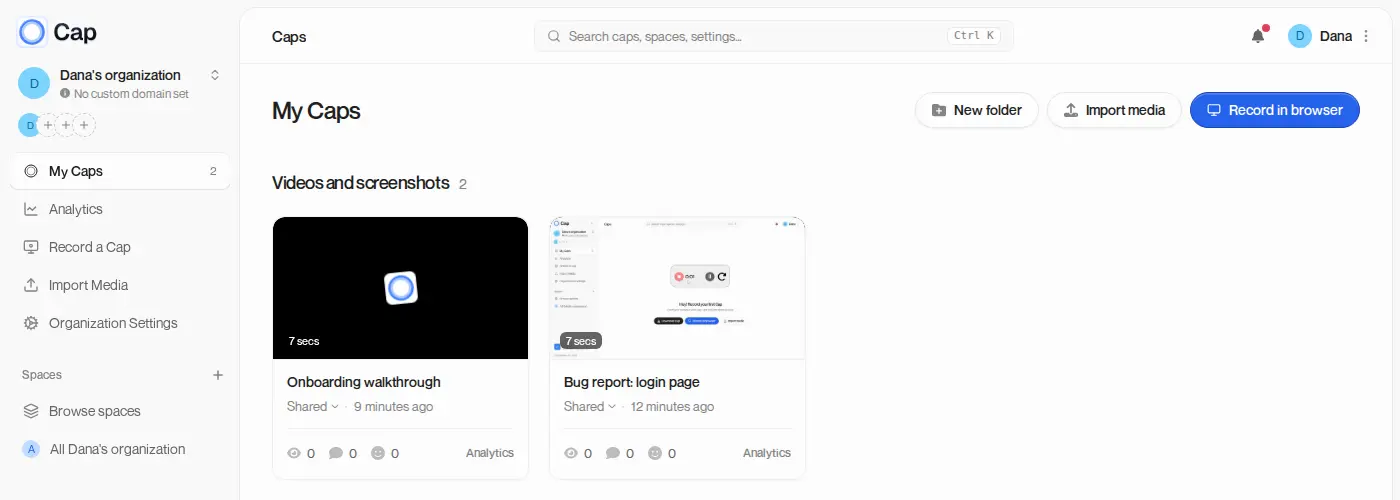
Cap Web (build of November 16, 2026) on a test VM: two recordings in My Caps.
## Make your account
Open `https://my-cap.exe.xyz/login` (the VM is still private, so sign in
to exe.dev if asked) and enter the email address you use for exe.dev.
Use that one: it's the address the exe.dev login below is tied to.
Cap normally emails a six-digit code. This one doesn't send email, so it
writes the code to its log instead. Ask Shelley for it, or on your
computer:
```bash
ssh my-cap.exe.xyz 'cd cap && docker compose logs --since 10m cap-web | grep -E "Email:|Code:"'
```
The code is good for 10 minutes. Cap then asks for your name and an
organization name, offers a custom domain and invites (skip both), and
suggests downloading the desktop app; fill in the name and organization
rather than skipping to the dashboard, or you're "Your name" in "My
Organization" until you change them in settings. You land on an empty
**My Caps**.
That's the only time you need email sign-in. nginx turns it away for
anyone but you, signed in to exe.dev, so nobody else can make an account
or guess a code, even once the VM is public; they get "Email sign-in is
off". Cap's sign-up page leads to the same place.
## Sign in with your exe.dev login
From now on, open **`https://my-cap.exe.xyz/exe-login`** to sign in. If
you're signed in to exe.dev as the VM's owner, it takes you straight to
your dashboard, with no code. Anyone else gets exe.dev's login page, or
"Only the VM's owner can sign in here". A Cap session lasts 30 days.
This uses Cap's
[trusted-proxy sign-in](https://github.com/CapSoftware/Cap/blob/main/docs/trusted-proxy-auth.md):
nginx on the VM asks Cap to sign in your account only when exe.dev's proxy
says the request is from you, and adds a secret Cap checks. Sending those
headers yourself gets you nowhere; we tried. It works for the owner's
account only.
## Open it to the world
Share links are the point of Cap, and on a private VM they only open for
people who can sign in to exe.dev as you or someone you've shared the VM
with. Cap Desktop can't get through exe.dev's login at all. So once your
account exists, on your computer:
```bash
ssh exe.dev share set-public my-cap
```
What that opens: Cap's share pages, its login page and API, and signed
links to the videos. Cap's sign-in stays the lock on everything else:
email sign-in answers only you, `/exe-login` only lets you in, and the
video storage refuses anything without a signed link. MinIO's console on
port 9001 stays private whatever you do, since exe.dev never makes
numbered ports public. To close it again: `ssh exe.dev share set-private my-cap`.
## Record and share
In the dashboard, **Record in browser** records a screen, window or tab
with your microphone and camera, and **Import media** uploads a video you
already have (or imports from Loom, which we didn't try). Each video gets
a page, `https://my-cap.exe.xyz/s/`; open it from **My Caps** and copy
the link at the top.
The media server makes the thumbnail and preview in the background; our
short test upload took a few seconds on the default 2 vCPU VM. It handles
one video at a time on 2 vCPUs (Cap allows one job per two CPUs, up to
four), so a queue of long uploads goes faster on a bigger VM.
### Cap Desktop
[Cap Desktop](https://cap.so/download) (macOS, Windows and Linux) records
in **Instant** mode, uploading as you record, or **Studio** mode, for
editing first. Point it at your server: **Settings → General → Self-host**,
set **Cap Server URL** to `https://my-cap.exe.xyz`, click **Update**, and
confirm. Before you click **Sign in**, sign in to Cap in your browser at
`/exe-login`: the app opens your browser on your server, which hands it a
key for your account.
The VM must be public for this (see above). We tested the calls Cap
Desktop 0.6.3 makes, sign-in, creating a video and both upload paths,
against a test VM, and the uploaded videos played from logged-out share
links; we didn't run the app's window itself.
## Who can watch
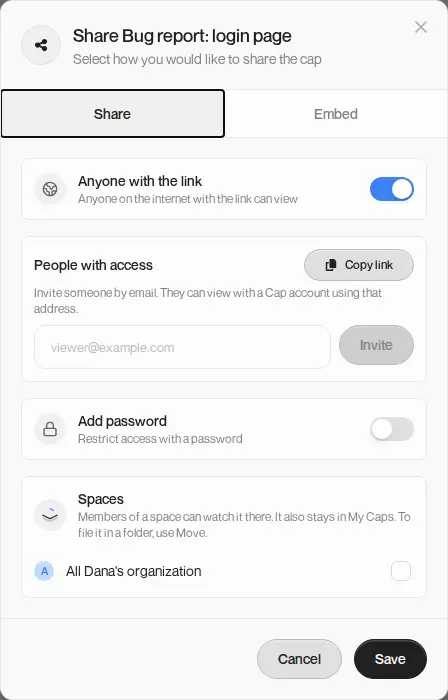
On a video's page, the visibility button (**Anyone with the link** by
default) opens the sharing settings:
Per-video sharing in Cap.
- **Anyone with the link:** on, the link plays for anyone, logged out.
Off, the page says the video is restricted and the video itself won't
load, for links already sent too.
- **Add password:** the page asks for the password before it shows
anything.
- **People with access:** invite by email; they need a Cap account on
your server, which this setup only gives you (see the FAQ on teams).
We checked all three logged out on a test VM. New videos start as
**Anyone with the link**; to make them start private, add
`CAP_VIDEOS_DEFAULT_PUBLIC=false` to `~/cap/.env` and run
`docker compose up -d` in `~/cap`.
Viewers' streams are outbound traffic, which counts against your plan's
200 GB a month. A link that goes around widely is what uses it up.
## Keep your videos safe
The videos are in MinIO (`~/cap/minio`), and everything about them,
accounts, titles, comments, who can watch, is in MySQL (`~/cap/mysql`).
You need both, plus `~/cap/.env`: it holds `DATABASE_ENCRYPTION_KEY`,
without which Cap can't read the secrets it stored in the database.
[backup.sh](https://exe.dev/deploy/cap/backup.sh) puts all three in
`~/cap/backups`: a database dump, the bucket's files as plain files, and a
copy of `.env`. On the VM, `~/cap/backup.sh`. Then on your computer, copy
it off the VM:
```bash
ssh my-cap.exe.xyz cap/backup.sh
rsync -a my-cap.exe.xyz:cap/backups/ ./cap-backup/
```
Only new videos travel after the first time. The copy holds your secrets,
so keep it private. To run the backup every night on the VM, add it to
cron (`crontab -e`):
```
30 3 * * * /home/exedev/cap/backup.sh >/dev/null
```
For whole-disk snapshots, there are exe.dev's
[VM backups](/docs/vm-backups) (preview), to an S3 bucket of yours. To
restore, see [Back up and restore](#back-up-and-restore).
## The nuts and bolts
Happy clicking Deploy? You can stop here. These are the same setup steps
Shelley follows, plus the maintenance commands for later. Tested with the
Cap Web and media server images of November 16, 2026 (Next.js 16.4),
MySQL 8.0 and MinIO RELEASE.2026-08-04 on a 2 vCPU, 8 GB exe.dev VM, with
Docker 29.1 and Compose 2.40.
Cap publishes its images only as `latest`, with no version tags, so
[compose.yml](https://exe.dev/deploy/cap/compose.yml) pins each one by
digest; [Update Cap](#update) moves them forward. It is Cap's own
[docker-compose.yml](https://github.com/CapSoftware/Cap/blob/main/docker-compose.yml)
with these changes: the media server comes as Cap's published image
instead of being built from source; secrets come from `.env`; the data is
in folders under `~/cap`; ports listen on the VM only, behind nginx; and
the bucket is made by a one-off `mc` job.
Install by hand
### Create the VM
On your computer (pick another name if `my-cap` is taken):
```bash
ssh exe.dev new --name=my-cap
ssh my-cap.exe.xyz
```
All remaining installation commands run **on the VM**, as `exedev`.
### Start Docker at boot
On exe.dev, Docker starts on demand, which isn't soon enough to bring Cap
back after a reboot:
```bash
sudo systemctl enable --now docker.service
systemctl is-enabled docker.service
```
Expect `enabled`.
### Write the settings
This writes `~/cap/.env` once, readable only by you, with random
passwords and keys and your exe.dev email (from the VM's
[metadata](/docs/integrations-reflection)), and downloads the four files
below:
```bash
mkdir -p ~/cap && cd ~/cap
test -e .env || (umask 077; cat > .env <Back up and restore
`~/cap/backup.sh` writes `~/cap/backups/`: `cap-db.sql.gz` (a
`mysqldump` of the `cap` database), `videos/` (every object in the bucket,
mirrored with `mc`, so deleted videos drop out of it too) and `env`. It
takes seconds for a small library, with Cap running. Copy the folder off
the VM as in [Keep your videos safe](#keep-your-videos-safe).
### Restore
This brings back a copy made with `backup.sh`, onto a new VM or over a
broken install. It replaces the database and adds the videos.
On a new VM, follow [Install by hand](#create-the-vm) through **Write
the settings**, then replace the new `.env` with the backup's before you
start anything: the database is no use without its keys. Copy the backup
from your computer and put the `.env` in place:
```bash
rsync -a ./cap-backup/ my-cap.exe.xyz:cap/backups/
ssh my-cap.exe.xyz 'cd cap && install -m 600 backups/env .env'
```
If the new VM has a different name, fix `CAP_URL` in `~/cap/.env`; if
someone else owns it, fix `TRUSTED_PROXY_AUTH_EMAIL` too. Then, on the VM
(on a fresh MySQL, the first start takes half a minute before the
database answers):
```bash
cd ~/cap
docker compose up -d --wait mysql minio
gunzip -c backups/cap-db.sql.gz \
| docker compose exec -T mysql sh -c 'exec mysql -uroot -p"$MYSQL_ROOT_PASSWORD" 2>/dev/null'
docker compose run --rm -T mc mb --ignore-existing local/cap
docker compose run --rm -T --user "$(id -u):$(id -g)" -v "$PWD/backups/videos:/backup:ro" mc \
mirror --quiet --overwrite /backup local/cap >/dev/null
docker compose up -d --wait
```
Then do **Put nginx in front** if it's a new VM. Your account, videos and
share links come back; links that pointed at the old VM's name now live
at the new one. We restored a test VM this way, after moving its data
folders aside, and the old share links played again.
Update Cap
Cap rebuilds `latest` from its main branch by hand, now and then (twice
in November 2026, before that in September), without version numbers or
release notes for the server; the
[changelog](https://cap.so/changelog) and the
[commits](https://github.com/CapSoftware/Cap/commits/main/apps/web) say
what changed. Back up first. Then, on the VM, this pulls the newest
images and pins `compose.yml` to them:
```bash
cd ~/cap
./backup.sh
for i in cap-web cap-media-server; do
docker pull -q ghcr.io/capsoftware/$i:latest >/dev/null
new=$(docker image inspect --format '{{index .RepoDigests 0}}' ghcr.io/capsoftware/$i:latest)
sed -i "s|image: ghcr.io/capsoftware/$i:latest@sha256:.*|image: ghcr.io/capsoftware/$i:latest@${new#*@}|" compose.yml
done
grep 'image: ghcr' compose.yml
docker compose up -d --wait
docker image prune -f
```
Cap Web runs its database migrations as it starts. To go back, put the
old digests back in `compose.yml` and restore the backup's database, as
in [Restore](#restore); migrations don't run backwards.
Cap Desktop updates itself. Keep it and the server roughly in step: a
much newer app may use API calls an old server doesn't have yet.
Something not working?
On the VM:
```bash
cd ~/cap
docker compose ps
docker compose logs --tail=100 cap-web
docker compose logs --tail=100 media-server
sudo tail -n 50 /var/log/nginx/error.log
```
- **Cap Desktop or a script gets `401` with `invalid or missing
authentication`:** that's exe.dev's proxy: the VM is private. Make it
public, as in [Open it to the world](#open-it-to-the-world).
- **`/exe-login` says the sign-in failed (`CredentialsSignin`):** there's
no Cap account for `TRUSTED_PROXY_AUTH_EMAIL` yet (make it as in
[Make your account](#make-your-account)), or `owner.conf` and `.env`
disagree: rerun the `owner.conf` commands in **Put nginx in front** and
`sudo systemctl reload nginx`.
- **Cap's login page says sign-in is taking longer than expected, and
no code reaches the log:** nginx turned the request away, because it
didn't come from your exe.dev login. That happens if the VM went public
before you made your account: open
`https://my-cap.exe.xyz/__exe.dev/login?redirect=/login` to sign in to
exe.dev first, then ask for the code again.
- **Uploads stall or videos don't play, and the browser console shows
requests to `/cap/` failing:** nginx isn't passing the bucket to MinIO.
Check `curl -s -o /dev/null -w '%{http_code}\n' localhost:8000/cap/`
gives `403`, and that `CAP_URL` in `.env` is the VM's address.
- **Videos stay "processing":** look at the media-server log. It works
on one video at a time on 2 vCPUs and needs about 768 MB per job.
- **Containers gone after a reboot:** run
`sudo systemctl enable --now docker.service`.
- **Harmless log lines:** `Rate limit check failed ... rl_auth_otp_send`
(Cap's hosted firewall isn't there; Cap falls back to its own limits)
and `Tinybird is disabled` (Cap's hosted analytics).
## Frequently asked questions
### Does Cap Desktop work with a self-hosted Cap on exe.dev?
Yes, once the VM is public: in Cap Desktop, **Settings → General → Self-host**, set **Cap Server URL** to `https://my-cap.exe.xyz` and sign in again. The app can't send exe.dev's token header, so on a private VM its uploads get a 401 from exe.dev's proxy. We tested the sign-in and upload calls the app makes against a test VM; we didn't run the app itself.
### Do people need an account to watch a video?
No. A video set to **Anyone with the link** plays for anyone who has the link, logged out. You can add a password per video, or turn the link off, and the video stops playing at once.
### Can I keep Cap private instead?
Yes, if everyone who records and watches can sign in to exe.dev: leave the VM private and share it with them (`ssh exe.dev share add my-cap someone@example.com`), and record with **Record in browser** in the dashboard, which goes through their browser's exe.dev login. Share links then only open for people the VM is shared with, and Cap Desktop can't upload. We tested Cap on a public VM.
### Do transcripts and AI summaries work?
Only with an [AssemblyAI](https://www.assemblyai.com) API key, which Cap uses for every transcript. Titles, summaries and chapters are made from the transcript, so without one Cap has no AI features. exe.dev's [LLM gateway](/docs/shelley/llm-gateway) can't stand in for the transcription.
### How much disk do I need, and what does it cost?
Cap's images take about 4 GB, so a new 25 GB VM has about 15 GB left for videos. Our 7-second 720p test recording was 1 MB, about 8 MB a minute; higher resolutions take more. exe.dev bills disk by what's used, not its size, and the Personal plan includes 100 GB shared by your VMs. Grow the disk with `ssh exe.dev resize`.
### Can my team use it?
Not as set up here: it's for one person, the VM's owner, and email sign-in is turned off for everyone else. Your viewers need no account. For a team, Cap would need email through Resend (or an OIDC login) and nginx's email block removed; see Cap's [self-hosting docs](https://cap.so/docs/self-hosting). We didn't test that.
### Is Cap free?
Yes. Cap is AGPL-3.0 open source, and a self-hosted Cap shows every account as Cap Pro, with unlimited share links. You pay for your [exe.dev plan](https://exe.dev/pricing), and for an AssemblyAI account if you add one.
## Related
- [MinIO is archived. Here's what to do](https://exe.dev/deploy/minio.md): The open-source server is archived. Copy your buckets and keys somewhere maintained.
- [Self-host MySQL](https://exe.dev/deploy/mysql.md): Your own MySQL on a real disk, private by default, with backups you've restored.
- [Self-hosted S3 storage](https://exe.dev/deploy/s3-storage.md): Your own S3 bucket on a real disk. RustFS, Garage or SeaweedFS, tested.
- [Self-host Immich](https://exe.dev/deploy/immich.md): Your photo and video library, Google Photos style, on your own disk.
- [Self-host Chatwoot](https://exe.dev/deploy/chatwoot.md): Website chat, email and API conversations in one inbox you own.
- [Self-host DocuSeal](https://exe.dev/deploy/docuseal.md): Send PDFs for e-signature from your own VM. An open-source DocuSign alternative.