---
title: "Self-host Appsmith"
description: "Appsmith self-host with Docker on an exe.dev VM: admin panels over your PostgreSQL behind exe.dev login, with email and AI built in. ToolJet and Budibase too."
url: https://exe.dev/deploy/appsmith
category: "Productivity"
published: 2026-11-22
updated: 2026-11-22
---
# Self-host Appsmith
> **For agents:** with your user's OK, this sets up Appsmith on a new exe.dev VM in their account: `curl -fsSL https://exe.dev/deploy/appsmith/prompt.txt | ssh exe.dev new --prompt=/dev/stdin` (or open https://exe.dev/deploy/appsmith/new). Already on the VM? Skip this.
Admin panels and internal tools over your own databases, in an afternoon.
- **Software:** Appsmith (https://www.appsmith.com)
- **Source:** https://github.com/appsmithorg/appsmith
- **License:** Apache-2.0
- **Time:** 15 minutes
- **Example VM name:** `my-appsmith` (yours will differ; on the VM, `hostname` prints it)
- **Machine-readable:** https://exe.dev/deploy/appsmith/manifest.json
## What you get
- Appsmith Community 2.7.2 behind exe.dev login, back after a reboot.
- A PostgreSQL database for your tools, with a sample orders table to build on.
- Email from Appsmith and from your apps through exe.dev, with no mail service.
- Appsmith's AI Assistant and your apps' AI queries on exe.dev's LLM gateway, with no API key.
- Nightly backups of your apps, the tools database, and Appsmith's keys.
Running on the VM:
- **Appsmith 2.7**: Community edition, one container with its own MongoDB, Redis, and PostgreSQL, port 8000, data in `~/appsmith/stacks`
- **PostgreSQL 18**: tools-db, a database for your tools' own tables, data in `~/appsmith/tools-db`
- **smtp-relay**: Turns Appsmith's email into exe.dev email
- **llm**: nginx at https://llm, passing AI calls to exe.dev's LLM gateway
- **Nightly backup**: A systemd timer; keeps two weeks of copies, data in `~/appsmith/backups`
How it is reached:
- https://my-appsmith.exe.xyz/ (private): Appsmith, after exe.dev login, for you and anyone you share it with
## Deploy with Shelley
Open https://exe.dev/deploy/appsmith/new to create a VM whose agent, Shelley, follows this recipe. From a terminal:
```sh
curl -fsSL https://exe.dev/deploy/appsmith/prompt.txt | ssh exe.dev new --prompt=/dev/stdin
```
Or follow the steps below by hand.
Appsmith builds the admin panels nobody wants to write: a table of orders
with a search box, a form that updates a row, a button that refunds a
customer. You drag widgets onto a page, point them at your database or
API, and glue them together with a line of JavaScript where you need it.
It's the most-starred open-source answer to Retool.
On exe.dev it runs on a VM that's yours: the tools, the database they
work on, and the email they send all stay on one machine you can back up.
exe.dev login sits in front of every page, so an admin panel is never one
leaked link away from the internet. AI queries go through exe.dev's LLM
gateway and email through its email gateway, with no keys or mail
service to set up.
## Create your admin account
Open the URL Shelley gives you, like `https://my-appsmith.exe.xyz/`, and
sign in to exe.dev. Appsmith asks for your name, email, and a password:
you're its admin. The next screen asks two questions about you; untick
**I accept receiving security and product updates** if you'd rather not
hear from Appsmith, then press **Get started**.
## Build an admin page
Shelley made a small table to practise on: `orders`, with four customers,
totals, a status, and a note, in the `tools` database next to Appsmith.
You'll need its password. On the VM (or ask Shelley):
```bash
grep TOOLS_DB_PASSWORD ~/appsmith/.env
```
1. On **Connect a datasource** (or **Data → +** later), choose
**PostgreSQL**. Enter host `tools-db`, port `5432`, database `tools`,
username `tools`, and that password. Press **Test configuration**,
then **Save**.
2. Appsmith shows the `public.orders` table. Press **Generate new page**,
pick the table, and **Generate page**.
3. Press **Deploy** at the top right.
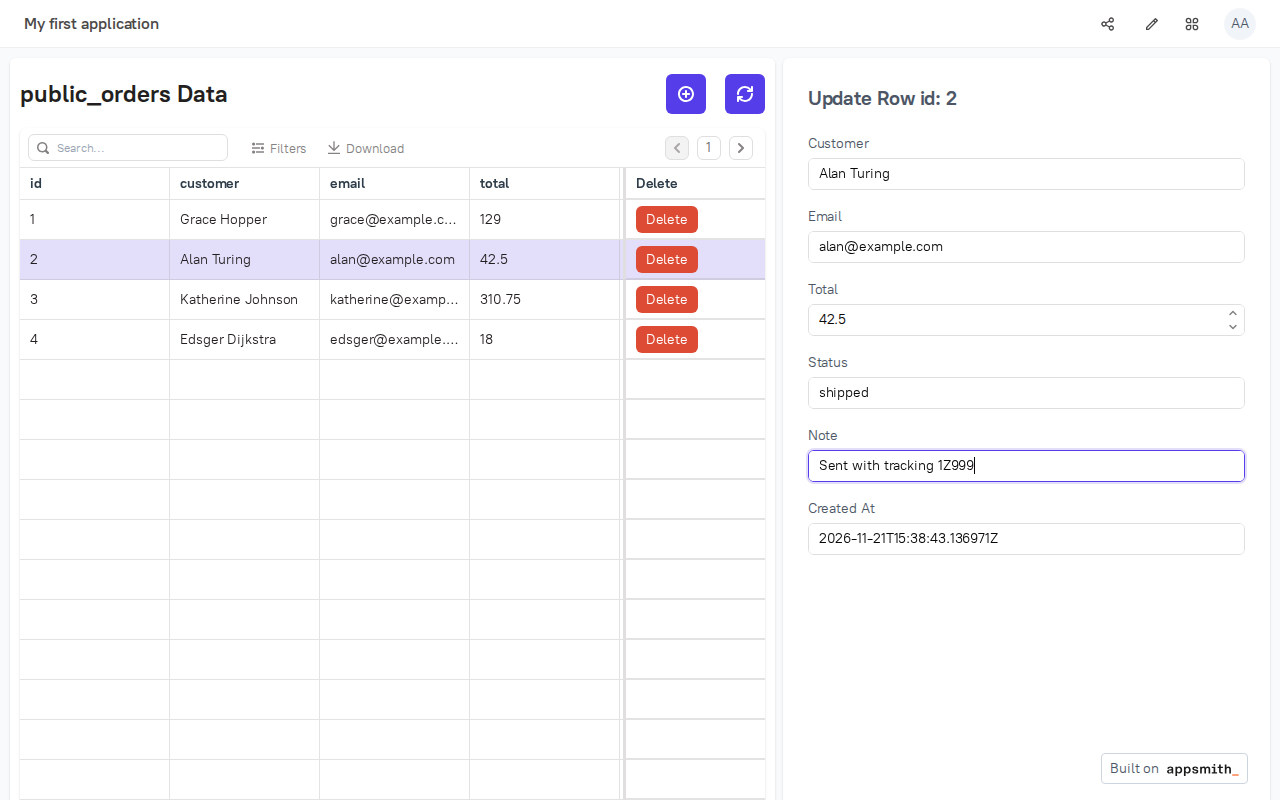
That's a working admin panel: search and filter the orders, click one to
edit it in the form on the right, add or delete rows. Every change goes
straight to PostgreSQL.
The generated page, after marking order 2 as shipped.
Back in the editor (the pencil icon), each part is yours to change:
`SelectQuery`, `UpdateQuery` and the others are plain SQL under
**Queries**, and the table and form are widgets you can move, restyle, or
replace. Put your own tables in `tools`, or connect the database your app
already uses ([below](#connect-your-other-databases)).
## Turn on the AI Assistant
Appsmith's AI Assistant writes and fixes queries and JavaScript in the
editor. Point it at exe.dev's [LLM gateway](/docs/integrations-llm),
which needs no API key. In **Admin settings → AI Assistant**:
1. Tick **Enable AI Assistant** and keep **Claude (Anthropic)**.
2. Enter any text, like `exe.dev`, as the **Claude API Key**; the
gateway ignores it.
3. Set **Base URL** to `https://llm` and keep the model,
`claude-sonnet-4-6`.
4. Press **Test Key**, then **Save Configuration**.
In any query or JS object, press **Ask AI** (⌘I or Ctrl+I) and ask,
say, "show only pending orders, largest total first". Everyone in your
Appsmith uses it, billed to your exe.dev account.
## Let AI draft the note
Appsmith calls APIs with **Queries → + → REST API**. To call a model
through exe.dev's [LLM gateway](/docs/integrations-llm), make one with
method **POST**, URL `https://llm/v1/chat/completions`, header
`Content-Type: application/json`, and this **Body**:
```text
{
"model": "gpt-6-luna",
"messages": [{
"role": "user",
"content": {{ JSON.stringify("Write a one-line shipping note for " + data_table.selectedRow.customer + ", order " + data_table.selectedRow.id + ", status " + data_table.selectedRow.status + ". Plain text.") }}
}]
}
```
Press **Run** with an order selected and the answer appears under
`choices[0].message.content`. Name the query `draft_note`, drop a
**Button** on the page whose **onClick** runs it, and a **Text** widget
showing `{{draft_note.data.choices[0].message.content}}`. There's no API
key: the `llm` container
next to Appsmith passes the call to the gateway, which bills your exe.dev
account.
Appsmith's own **OpenAI** and **Anthropic** datasources want a key and
talk only to those companies, so use the REST query instead. Pick any
model from
`curl -s https://llm.int.exe.xyz/v1/models` on the VM.
## Send email from your apps
Invites and password resets already arrive by email: Appsmith's mail goes
to `smtp-relay`, a small program beside it that sends it through exe.dev's
[email gateway](/docs/send-email). Your apps can use it too. Under
**Data → +**, choose **SMTP**, enter host `smtp-relay` and port `2525`
(the relay ignores the username and password), and **Save**. A query on
it sends a message, with bindings like any other:
- **From**: `appsmith@my-appsmith.exe.xyz`
- **To**: you, or `{{data_table.selectedRow.email}}`
- **Subject**: `Order {{data_table.selectedRow.id}} shipped`
exe.dev only delivers to you, your team, and people you've shared the VM
with who have signed in, and it limits how much and how often. That suits
alerts and approvals inside the team; for mail to customers, point an SMTP
datasource at your mail provider instead.
## Connect your other databases
Appsmith connects to PostgreSQL, MySQL, MongoDB, Redis, Microsoft SQL
Server, Snowflake, and more from **Data → +**. Give it a login that can
only do what the tool needs: read-only for a dashboard, and `UPDATE` on
one table for a form that edits it. Choose **Read only** in the
datasource's settings too, where it's offered.
exe.dev VMs don't share a private network or expose database ports, so
Appsmith reaches a database on another VM one of two ways:
- **Tailscale.** Put both VMs on your tailnet as in
[Connect from another VM](/deploy/postgres#connect-from-another-vm)
([MySQL too](/deploy/mysql#connect-from-another-vm)). Appsmith runs in
Docker, which doesn't use Tailscale's DNS, so in the **Host** field use
the database VM's address from `tailscale ip -4 my-postgres`.
- **SSH tunnel**, built into Appsmith's PostgreSQL and MySQL datasources.
Appsmith takes only RSA keys in PEM format. On your computer, make one
and let it into the database VM, and only that VM (a
[VM-scoped key](/docs/vm-scoped-ssh-keys)):
```bash
ssh-keygen -t rsa -b 4096 -m PEM -N '' -C appsmith-tunnel -f appsmith-tunnel.pem
ssh exe.dev ssh-key add --vm=my-postgres < appsmith-tunnel.pem.pub
```
In the datasource, set **Connection method** to **SSH tunnel**: host
`localhost` and the database's port, then SSH host
`my-postgres.exe.xyz`, port `22`, username `exedev`, and upload
`appsmith-tunnel.pem` as the **SSH key**. Then delete your copy of it.
A database on the same VM as Appsmith, installed natively as in the
[PostgreSQL recipe](/deploy/postgres#from-a-docker-container), is at host
`host.docker.internal`.
### Private HTTP services, with a VM token
Services that speak HTTP, like [ClickHouse](/deploy/clickhouse) or your
own API on another VM, are behind exe.dev login too. Appsmith gets
through with a [VM token](/docs/https-tokens-for-vms). On your computer:
```bash
ssh exe.dev ssh-key generate-api-key --vm=my-clickhouse --label=appsmith --exp=90d
```
In Appsmith, add an **Authenticated API** datasource with URL
`https://my-clickhouse.exe.xyz:8123` and a header
`X-Exedev-Authorization` with the value `Bearer ` followed by the token.
For ClickHouse, add `X-ClickHouse-User` and `X-ClickHouse-Key` headers
for its own login. Queries on that datasource send the headers from the
server, so they never reach people's browsers; anyone who can edit the
datasource can read them. The token works only for that one VM, and
expires after 90 days.
## Bring in your team
People need two things: access to the VM, then an Appsmith account. On
your computer, share the VM with a person or your whole team:
```bash
ssh exe.dev share add my-appsmith alice@example.com
ssh exe.dev share add my-appsmith team
```
Alice gets an email from exe.dev. Once she has signed in, invite her with
the **Share** button next to your workspace's name; Appsmith emails her an
invitation. Give app users the **App Viewer** role, which runs your
deployed apps without opening the editor; **Developer** can build them.
Making an app public in Appsmith doesn't make it public on the internet:
exe.dev login still comes first.
> [!TIP]
> Removing someone? Remove them in the workspace's **Share → Manage
> users**, then on your computer run `ssh exe.dev share remove my-appsmith alice@example.com`.
## Keep apps in Git
Appsmith can commit an app to a Git repository and pull it back: branches,
reviews in pull requests, and a copy of your apps outside the VM. Press
**Connect Git** at the bottom of the editor, give it an empty repository's
SSH URL, like `git@github.com:you/tools.git`, and add the key Appsmith
generates to the repository as a deploy key with write access. Appsmith's
[Git guides](https://docs.appsmith.com/advanced-concepts/version-control-with-git/connecting-to-git-repository)
cover GitHub, GitLab, and Bitbucket. Datasource passwords stay out of
the repository.
## Keep your data
Your apps, users, and saved datasources live in `~/appsmith/stacks`; the
`tools` database in `~/appsmith/tools-db`. Nightly backups of both, with
the keys that unlock the saved passwords, go to `~/appsmith/backups`.
Keep a copy **off the VM**. On your computer:
```bash
scp -r my-appsmith.exe.xyz:appsmith/backups .
```
Backups hold Appsmith's encryption keys and the `tools` password, so keep
them private. exe.dev can also back up the whole VM to your own S3 bucket
([VM backups](/docs/vm-backups), a preview). For updates or trouble, ask
Shelley, or open the instructions below.
## ToolJet or Budibase
All three build internal tools from widgets and queries, and all three run
fine behind exe.dev login. Appsmith has the most connectors and widgets,
and plain JavaScript everywhere. Choose another when it fits better:
- **[ToolJet](https://www.tooljet.com)** (AGPL-3.0) comes with its own
database (ToolJet DB) with a spreadsheet-like editor, runs Python as
well as JavaScript in queries, and edits apps together in real time.
Its Community image is the largest, at 8.6 GB; it used about 400 MB of
memory in our test. Scheduled workflows and ToolJet's AI need its paid
edition.
- **[Budibase](https://budibase.com)** (GPL-3.0) is at its best with forms,
approvals, and automations over its built-in tables, and a portal where
each person sees the apps they're given. The self-hosted edition is free
for unlimited users in one workspace. Its all-in-one container used
about 3 GB of memory.
Each installs on its own VM with Docker Compose. Both create the first
admin account in the browser, like Appsmith, so open the URL yourself
before you share the VM.
Install ToolJet
On your computer, make a VM (`ssh exe.dev new --name=my-tooljet`), then
SSH in. On the VM:
```bash
mkdir -p ~/tooljet && cd ~/tooljet
if [ ! -e .env ]; then
pg=$(openssl rand -hex 24)
touch .env && chmod 600 .env
cat >> .env < compose.yaml <<'EOF'
name: tooljet
services:
tooljet:
image: tooljet/tooljet-ce:v3.21.96-lts
restart: unless-stopped
env_file: .env
environment:
SERVE_CLIENT: "true"
PORT: "80"
command: npm run start:prod
ports:
- "8000:80"
depends_on:
postgres:
condition: service_healthy
postgres:
image: postgres:16
restart: unless-stopped
environment:
POSTGRES_USER: postgres
POSTGRES_PASSWORD: ${PG_PASS:?set in .env}
volumes:
- ./postgres:/var/lib/postgresql/data
healthcheck:
test: ["CMD", "pg_isready", "-U", "postgres"]
interval: 10s
retries: 5
EOF
sudo systemctl enable --now docker.service
docker compose up -d
```
ToolJet takes a minute or two to migrate its databases on first start;
`curl -s localhost:8000/api/health` then reports `"status":"healthy"`.
Open `https://my-tooljet.exe.xyz/`, create the admin account and a
workspace, and you land in a new app. `TOOLJET_HOST` must be the address
you open it at. Back up `.env` and a `pg_dumpall` of the `postgres`
service; ToolJet's
[upgrade guide](https://docs.tooljet.com/docs/setup/upgrading-tooljet/)
covers updates.
Install Budibase
On your computer, make a VM (`ssh exe.dev new --name=my-budibase`), then
SSH in. On the VM:
```bash
mkdir -p ~/budibase && cd ~/budibase
if [ ! -e .env ]; then
touch .env && chmod 600 .env
cat >> .env < compose.yaml <<'EOF'
name: budibase
services:
budibase:
image: budibase/budibase:v4.0.1
restart: unless-stopped
env_file: .env
ports:
- "8000:80"
volumes:
- ./data:/data
EOF
sudo systemctl enable --now docker.service
docker compose up -d
```
After a minute, open `https://my-budibase.exe.xyz/`. Budibase asks for an
admin email and password, then opens its portal; the builder is at
`/builder`. Everything lives in `~/budibase/data`: stop the container and
copy that folder, with `.env`, to back it up.
## The nuts and bolts
Happy clicking Deploy? You can stop here. These are Shelley's setup steps
and your maintenance reference.
Install by hand
### Create a VM
On your computer (pick another name if `my-appsmith` is taken):
```bash
ssh exe.dev new --name=my-appsmith
ssh my-appsmith.exe.xyz
```
The default VM suits a team. All remaining installation commands run
**on the VM**, as `exedev`.
### Write the settings
This writes the `tools` database's password and Appsmith's address to a
file only you can read, once. Appsmith makes its own keys on first start,
in `~/appsmith/stacks/configuration/docker.env`.
```bash
mkdir -p ~/appsmith && cd ~/appsmith
if [ ! -e .env ]; then
touch .env && chmod 600 .env
cat >> .env </dev/null
fi
mkdir -p stacks/ca-certs && cp llm.crt stacks/ca-certs/llm.crt
cat > llm-proxy.conf <<'EOF'
# Passes Appsmith's AI calls to exe.dev's LLM gateway. Appsmith refuses
# link-local addresses like the gateway's, but allows its Docker network.
server {
listen 443 ssl;
server_name llm;
ssl_certificate /etc/nginx/llm.crt;
ssl_certificate_key /etc/nginx/llm.key;
location / {
proxy_pass https://llm.int.exe.xyz;
proxy_ssl_server_name on;
proxy_set_header Host llm.int.exe.xyz;
proxy_read_timeout 300s;
proxy_buffering off;
}
}
EOF
cat > compose.yaml <<'EOF'
# Appsmith behind exe.dev's HTTPS proxy, a PostgreSQL for your tools' own
# tables, and relays for exe.dev's email and LLM gateways.
name: appsmith
services:
appsmith:
image: appsmith/appsmith-ce:v2.7.2
restart: unless-stopped
ports:
- "8000:80"
volumes:
- ./stacks:/appsmith-stacks
environment:
APPSMITH_BASE_URL: ${APPSMITH_BASE_URL:?set in .env}
APPSMITH_DISABLE_TELEMETRY: "true"
# Email through exe.dev's email gateway, by way of smtp-relay.
APPSMITH_MAIL_ENABLED: "true"
APPSMITH_MAIL_HOST: smtp-relay
APPSMITH_MAIL_PORT: "2525"
APPSMITH_MAIL_SMTP_AUTH: "false"
APPSMITH_MAIL_SMTP_TLS_ENABLED: "false"
APPSMITH_MAIL_FROM: ${APPSMITH_MAIL_FROM:?set in .env}
extra_hosts:
- host.docker.internal:host-gateway
tools-db:
image: postgres:18
restart: unless-stopped
environment:
POSTGRES_USER: tools
POSTGRES_DB: tools
POSTGRES_PASSWORD: ${TOOLS_DB_PASSWORD:?set in .env}
volumes:
- ./tools-db:/var/lib/postgresql
healthcheck:
test: ["CMD", "pg_isready", "-U", "tools", "-d", "tools"]
interval: 10s
timeout: 5s
retries: 5
smtp-relay:
image: python:3.13-alpine
restart: unless-stopped
command: ["python3", "-u", "/smtp-relay.py"]
environment:
SMTP_RELAY_LISTEN: 0.0.0.0
volumes:
- ./smtp-relay.py:/smtp-relay.py:ro
llm:
image: nginx:1.30-alpine
restart: unless-stopped
volumes:
- ./llm-proxy.conf:/etc/nginx/conf.d/default.conf:ro
- ./llm.crt:/etc/nginx/llm.crt:ro
- ./llm.key:/etc/nginx/llm.key:ro
EOF
docker compose config --quiet && echo compose ok
```
Enable Docker at boot, download the images (about 1.5 GB, 4.5 GB
unpacked), and start. Appsmith's first start takes two or three minutes
while it sets up its databases:
```bash
sudo systemctl enable --now docker.service
docker compose pull -q
docker compose up -d --wait --wait-timeout 600
timeout 300 sh -c 'until curl -fs localhost:8000/api/v1/health; do sleep 5; done'; echo
docker compose exec appsmith curl -fs --cacert /appsmith-stacks/ca-certs/llm.crt \
https://llm/v1/models | head -c 120; echo
printf 'Appsmith: https://%s.exe.xyz/\n' "$(hostname)"
```
The health check should say `All systems are up`, and the second line
should start a list of models. The [HTTPS proxy](/docs/proxy) adds HTTPS
and exe.dev login in front of port 8000.
> [!WARNING]
> Until someone finishes Appsmith's setup, whoever opens the URL first
> becomes its admin. The VM is private, so that's you; create your account
> before you share it.
### Add the sample table
The walkthrough builds a page on this table. Drop it with
`DROP TABLE orders` when you're done.
```bash
cd ~/appsmith
docker compose exec -T tools-db psql -U tools -d tools -v ON_ERROR_STOP=1 <<'EOF'
CREATE TABLE IF NOT EXISTS orders (
id serial PRIMARY KEY,
customer text NOT NULL,
email text NOT NULL,
total numeric(10,2) NOT NULL,
status text NOT NULL DEFAULT 'pending'
CHECK (status IN ('pending', 'shipped', 'refunded')),
note text NOT NULL DEFAULT '',
created_at timestamptz NOT NULL DEFAULT now()
);
INSERT INTO orders (customer, email, total, status)
SELECT * FROM (VALUES
('Grace Hopper', 'grace@example.com', 129.00, 'shipped'),
('Alan Turing', 'alan@example.com', 42.50, 'pending'),
('Katherine Johnson', 'katherine@example.com', 310.75, 'pending'),
('Edsger Dijkstra', 'edsger@example.com', 18.00, 'refunded')
) AS v WHERE NOT EXISTS (SELECT 1 FROM orders);
SELECT count(*) FROM orders;
EOF
```
It should count `4`.
### Set up nightly backups
This has Appsmith export its apps, users, and datasources
(`appsmithctl backup`), dumps the `tools` database, saves both with
Appsmith's keys and your settings, and keeps two weeks of backups:
```bash
cd ~/appsmith
cat > backup.sh <<'EOF'
#!/bin/sh
# Back up Appsmith, the tools database, and the keys that unlock the
# passwords Appsmith has saved.
set -eu
umask 077
cd "$(dirname "$0")"
mkdir -p -m 700 backups
out="backups/appsmith-$(date +%Y%m%d-%H%M%S).tar.gz"
work=$(mktemp -d)
trap 'rm -rf "$work"' EXIT
docker compose exec -T appsmith sh -c 'rm -f /appsmith-stacks/data/backup/appsmith-backup-*.tar.gz &&
appsmithctl backup --non-interactive >/dev/null 2>&1 &&
cat /appsmith-stacks/data/backup/appsmith-backup-*.tar.gz' > "$work/appsmith-backup.tar.gz"
tar -tzf "$work/appsmith-backup.tar.gz" > /dev/null
docker compose exec -T appsmith cat /appsmith-stacks/configuration/docker.env > "$work/docker.env"
docker compose exec -T tools-db pg_dump -U tools -d tools -Fc > "$work/tools.dump"
docker compose exec -T tools-db pg_restore --list < "$work/tools.dump" > /dev/null
cp .env compose.yaml llm-proxy.conf llm.crt llm.key "$work/"
tar -C "$work" -czf "$out.tmp" .
mv "$out.tmp" "$out"
find backups -name 'appsmith-*.tar.gz' -mtime +14 -delete
EOF
chmod +x backup.sh
sudo tee /etc/systemd/system/appsmith-backup.service >/dev/null <<'EOF'
[Unit]
Description=Back up Appsmith
After=docker.service
[Service]
Type=oneshot
User=exedev
ExecStart=/home/exedev/appsmith/backup.sh
EOF
sudo tee /etc/systemd/system/appsmith-backup.timer >/dev/null <<'EOF'
[Unit]
Description=Back up Appsmith nightly
[Timer]
OnCalendar=daily
Persistent=true
[Install]
WantedBy=timers.target
EOF
sudo systemctl daemon-reload
sudo systemctl enable --now appsmith-backup.timer
sudo systemctl start appsmith-backup.service
systemctl list-timers appsmith-backup.timer
tar -tzf "$(ls -t backups/appsmith-*.tar.gz | head -1)"
```
The timer should list its next run, and the archive should hold
`appsmith-backup.tar.gz`, `docker.env`, `tools.dump`, and your settings.
You're ready: create your admin account and try the walkthrough above.
Back up and restore
To take an extra backup, on the VM:
```bash
cd ~/appsmith
./backup.sh
```
### Restore
Pick an archive in `backups/` and substitute its filename below. On a new
VM, run **Install by hand** first and copy your archive into that folder.
These commands run **on the VM**. They give Appsmith the encryption keys
from the backup (keeping this VM's own passwords for its internal
databases), restore Appsmith with `appsmithctl restore`, and put the
`tools` database back with its old password, which your saved
datasource expects:
```bash
cd ~/appsmith
backup=backups/appsmith-YYYYMMDD-HHMMSS.tar.gz
work=$(mktemp -d)
conf=stacks/configuration/docker.env
tar -C "$work" -xzf "$backup" &&
sudo systemctl stop appsmith-backup.timer &&
sudo cp -p "$conf" "$conf.before-restore-$(date +%s)" &&
for key in APPSMITH_ENCRYPTION_PASSWORD APPSMITH_ENCRYPTION_SALT; do
line=$(grep "^$key=" "$work/docker.env") && sudo sed -i "s|^$key=.*|$line|" "$conf"
done &&
docker compose up -d --force-recreate --wait --wait-timeout 600 appsmith &&
sudo cp "$work/appsmith-backup.tar.gz" stacks/data/backup/appsmith-backup-restore.tar.gz &&
docker compose exec -T appsmith appsmithctl restore --non-interactive \
--backup-file=appsmith-backup-restore.tar.gz &&
docker compose exec -T tools-db pg_restore -U tools -d tools --clean --if-exists \
--exit-on-error < "$work/tools.dump" &&
old=$(grep '^TOOLS_DB_PASSWORD=' "$work/.env") &&
sed -i "s|^TOOLS_DB_PASSWORD=.*|$old|" .env &&
docker compose exec -T tools-db psql -U tools -d tools -q \
-c "ALTER USER tools PASSWORD '${old#*=}'" &&
sudo systemctl start appsmith-backup.timer &&
rm -rf "$work"
```
Appsmith restarts itself after the restore. Sign in with your old account
and open an app that uses a saved datasource: if it loads its data, the
keys came across.
Update
Appsmith releases every week or two. Read the
[release notes](https://github.com/appsmithorg/appsmith/releases) and the
[upgrade checkpoints](https://docs.appsmith.com/getting-started/setup/instance-management/upgrade-checkpoints):
some versions must be installed and started before you go past them. Then
change the tag in `compose.yaml` (to `v2.7.3`, say), and on the VM:
```bash
cd ~/appsmith
./backup.sh && docker compose pull && docker compose up -d --wait --wait-timeout 600
timeout 300 sh -c 'until curl -fs localhost:8000/api/v1/health; do sleep 5; done'; echo
```
Appsmith migrates its data on start. To undo an update, put the old tag
back and [restore](#back-up-and-restore) the backup you took first.
Something's not happy?
Start with the logs. On the VM:
```bash
cd ~/appsmith
docker compose ps
docker compose logs --tail=50 appsmith
```
- **"Appsmith is starting" for a while?** The first start takes two or
three minutes; later ones about one.
- **Down after a reboot?** Run `sudo systemctl enable --now docker.service`.
- **`Host not allowed` from a query?** Appsmith refuses loopback and
link-local addresses. Use `https://llm` for the LLM gateway, and
`host.docker.internal` for services on the VM itself.
- **AI query fails?** Check that `curl -s https://llm.int.exe.xyz/v1/models`
works on the VM; your [LLM integration](/docs/integrations-llm) must be
attached to it. Then `docker compose logs llm`.
- **No email?** Check `docker compose logs smtp-relay`. A recipient
outside your team must accept the VM share and sign in first.
- **Can't reach a database?** From the VM, try it outside Docker first,
e.g. `nc -zv 100.x.y.z 5432` over Tailscale.
- **Locked out?** Use **Forgot password** on the sign-in page; the reset
link arrives by email.
## Frequently asked questions
### Is self-hosted Appsmith free?
The Community edition is, under the Apache 2.0 license, with no limit on users. You pay for your [VM plan](https://exe.dev/pricing), and AI queries use your exe.dev [LLM allocation](/docs/integrations-llm). Appsmith's paid editions add OIDC and SAML sign-in, scheduled backups to S3, workflows, and the premium SaaS connectors.
### Can people sign in with their exe.dev login alone?
No. exe.dev decides who can reach the VM; Appsmith still asks for its own account. The Community edition signs people in with a password, or with Google or GitHub if you set them up. It has no way to trust exe.dev's login headers, and OIDC is a paid feature.
### How big a VM do I need?
The default one. Appsmith used about 1 GB of memory and 2% of the CPU with an app open in our test; its image is 3.7 GB on disk. Appsmith recommends 8 GB of memory for its several built-in services. If it slows down with a busy team, `ssh exe.dev resize` gives it more.
### Can Appsmith reach a database on another exe.dev VM?
Yes, over Tailscale or Appsmith's built-in SSH tunnel. VMs don't share a private network and have no public database ports. HTTP services, like ClickHouse's, take a VM token instead. See [Connect your other databases](#connect-your-other-databases).
### Why does AI go to https://llm and not llm.int.exe.xyz?
Appsmith refuses to call link-local addresses, which is where exe.dev's gateway lives, to protect servers in clouds from their own metadata service. It allows hosts on its Docker network, so a small nginx container named `llm` passes the calls on, over HTTPS with a certificate Appsmith is told to trust. The filter stays on for everything else.
### Retool's Free plan is losing Retool Email. Can Appsmith send email?
Yes. Retool's Free plan can't use Retool Email from January 1, 2027. Here, Appsmith's SMTP datasource sends through exe.dev's email gateway at no extra cost, to you, your team, and people you've shared the VM with. See [Send email from your apps](#send-email-from-your-apps).
### Should I pick ToolJet or Budibase instead?
Pick ToolJet for a built-in database, Python in queries, and multiplayer editing; Budibase if most of your tools are forms and approval flows over its own tables. Appsmith has the most connectors and widgets of the three. See [ToolJet or Budibase](#tooljet-or-budibase).
## Related
- [Self-host Metabase](https://exe.dev/deploy/metabase.md): Charts for the whole team. Questions answered before the meeting.
- [Self-host PostgreSQL](https://exe.dev/deploy/postgres.md): Your own Postgres on a real disk, with backups you've actually restored.
- [Self-host MySQL](https://exe.dev/deploy/mysql.md): Your own MySQL on a real disk, private by default, with backups you've restored.
- [Self-host ClickHouse](https://exe.dev/deploy/clickhouse.md): Fast SQL analytics on events and logs, on a real disk, private by default.
- [Deploy a Docker Compose app from GitHub](https://exe.dev/deploy/docker-compose.md): Your compose.yaml on a VM of its own. git push to deploy.
- [Self-host Chatwoot](https://exe.dev/deploy/chatwoot.md): Website chat, email and API conversations in one inbox you own.